Bring the workbook you have.
Drop in the workbook you already keep, and refiroo reads every row of it, so it can become a workspace in one go. Rather say it in a few words? The assistant designs it with you, and you edit its proposal before any records go live.

Stop 1 of 5
Bring your workbook
Bring one XLSX or CSV file within your deployment's import size limit. refiroo finds the lists in your sheets, the fields in their columns and the connections between them, and sets title and note rows apart.
Importing into a list you already have? Import opens on your file, and if one saved import profile fits it, refiroo picks it for you. With the assistant enabled, Import offers the assistant first; Import without the assistant… is always one click away.
It leaves the decisions that need you in your hands: new keys, names that differ and records missing from the file.
- A key is chosen for each source so the next file can find the same records; several columns can form that key together.
- Title and note rows are set apart, and repeated headings stay distinct as Currency, Currency #2 and so on.
- When a saved profile fits the next file, no assistant session starts and there is no AI cost.
- Conflicting names and values stay as they are in your file; the assistant can ask you how to handle them.
- Formula cells use their stored results; refiroo does not calculate formulas.
In the API: POST /ai/tasks takes a workbook and a workspace. A profile-based import is POST /imports with a preview, then a confirm on the job.
Key ERP code · title row set apart
Stop 2 of 5
A workspace in one go
No assistant needed. Choose New workspace from a workbook on Home, drop your file and give the workspace a name; refiroo suggests one from the file's name.
What refiroo found shows each list with its rows, what will load and what will not, and why. Every row is checked, not just the first few.
Choose Create workspace and you land on your new workspace, where the load's progress and anything left out are waiting for you. Want to shape it a little first? Adjust opens the draft on the canvas, right beside your workbook.
- You find it on Home, in Settings › Workspaces and on a workspace's page.
- A refused row is reported and the rest load, so one odd cell does not hold back the whole file.
- Cancel removes the draft again, and More ways to start leads to the other ways of making a workspace.
- You need workspace administration, model installation and import access; without them, the action is simply not offered.
- No AI takes part, so your file stays on your server.
In the API: POST /workspaces/from-workbook installs the draft as a release, creates the workspace on it and queues the load as a job, answering with the workspace, the release and the job.
What refiroo found
Stop 3 of 5
Tell what you need
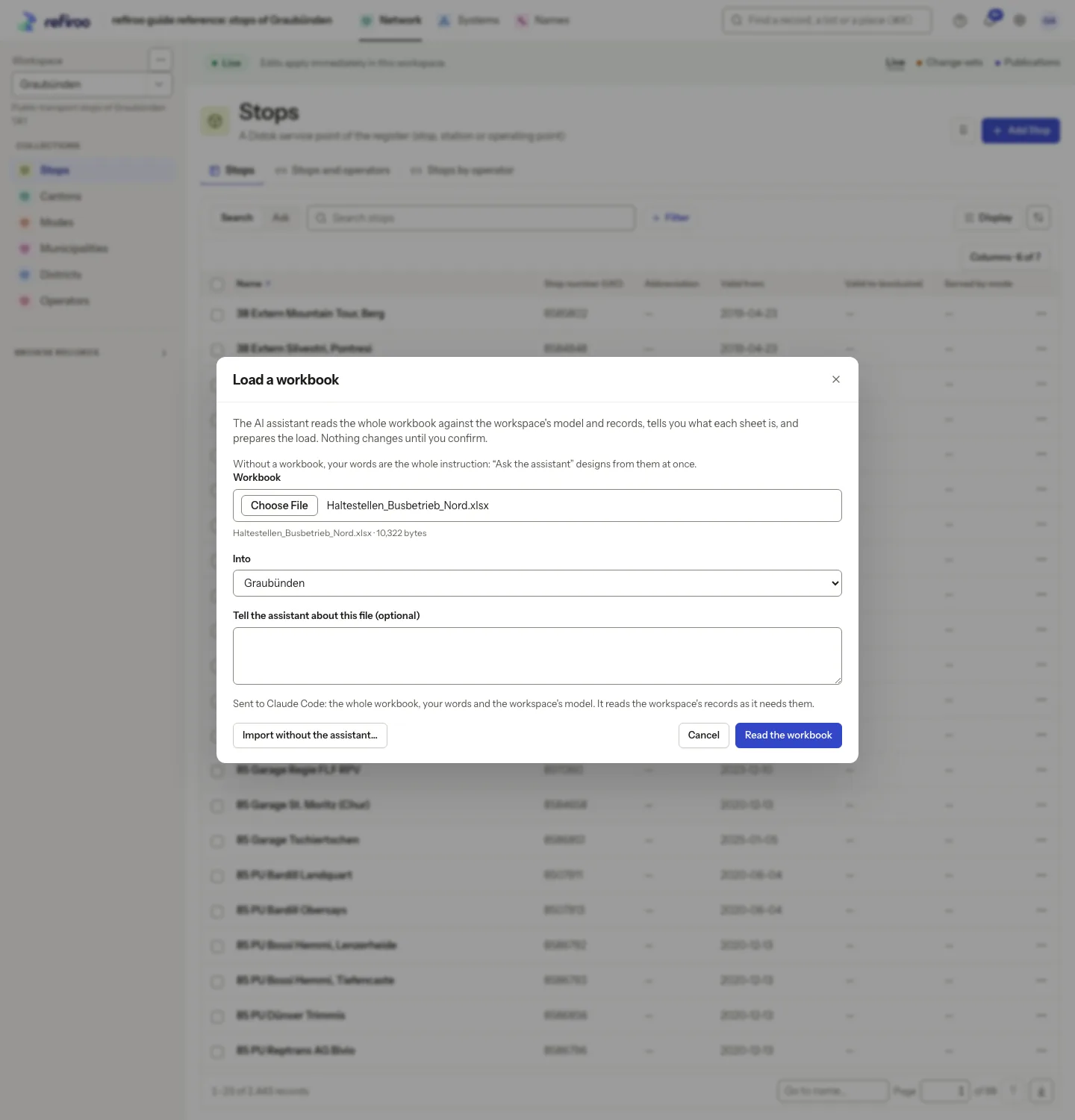
Would you rather say it in words? Describe what you keep in your own words and add your workbook. The assistant designs a model and prepares the rows to load. You can also use words alone to ask for changes to records you already hold.
Your assistant is available once the person running refiroo enables it and allows values to be sent. It receives your words, the workspace's model and the whole file, and its turns can incur charges.
You keep approval, publication and model activation in human hands; the assistant cannot take those steps.
- You have up to 4,000 characters for your instructions.
- You need permission to use AI proposals, import data and work in change sets, with background jobs enabled.
- The same words can lead to different proposed structures on separate runs, so give each proposal a fresh look.
- A turn stops after 30 minutes; you can continue it afterwards.
- Tasks and workbooks are normally kept for 90 days, and only you as the requester and the workspace's administrators can read your task.
In the API: assistant tasks (/ai/tasks) with answers, a correction in words, accept, retry, cancel and discard. The operator must have set AI_AGENT_COMMAND.
Stop 4 of 5
Look over the proposal
See what the assistant understood, with the types it plans to add, change or load, their fields and record counts. Choose Open in the model editor if you want to edit the draft yourself.
The check of every row separates new, changed, unchanged, refused and skipped rows, with relationships counted separately.
You can also start in Settings › Model with New from a workbook, where rules make the proposal instead of an assistant. Each recognised shape becomes an editor step marked Proposed, with Proposed because and Evidence to explain it.
- Checks draw your attention to types with existing records left out of the proposal, filled cells no source reads and new records proposed beside records you already hold.
- Questions shows the answers the assistant assumed; change one and choose Answer and design again.
- Tell the assistant what to change continues the same session with your correction.
- A check made before the draft's last change is marked as old, and Load waits for a current check.
- The rules-based route recognises keys, parents, code lists, lookups, flag sets, multi-valued cells, external IDs and placeholders.
In the API: GET /ai/tasks/{id}/changes lists the records the latest check would change in a sheet, with each field now and after.
Stop 5 of 5
Keep the load ready for review
Accepting the model installs any release it needs without activating it, then prepares the load in a new change set. Your records wait there for publication; nothing goes live on its own.
Choose Review the change set to check the actual rows and relationships. Validate them, then submit for approval or publish when your access and the workspace's policy allow.
If a task fails or stops, tell the assistant what to change. The same session can carry on.
- If the load needs a release your workspace does not yet run, someone with permission to release models activates it before publication.
- If a load is wrong, describe the correction and load again; Discard and load again removes the whole previous change set, including hand edits.
- Discard the change set to end the task and leave live records as they are.
- If a second person must approve the work, that rule still applies to the person who requested it.
- When the keys are usable, refiroo saves a profile for the next file with the same layout.
In the API: POST /ai/tasks/{id}/accept installs one release unactivated and loads a change set. The ways out are /model, /retry, /cancel and /discard.
In the app
Your own workbook gets its welcome here, with room for a few words.
At a glance
Import in four facts
What you do in the browser, what the API offers, who may do it and what it works with.
- Your workbook
- You can make a workspace from a workbook in one go from Home, start in Import with words and a workbook, review the proposal and row check, load into a change set, or choose Import without the assistant… for the manual route.
- Your API
- You can create a workspace from a workbook at /workspaces/from-workbook, use assistant tasks at /ai/tasks, preview and confirm profile imports at /imports and /jobs/{id}/confirm, export files and send JSON Lines bulk requests.
- Your people
- Anyone you trust with imports, change sets and AI proposals can use the assistant once it is enabled, with model authoring and release access also needed when the model changes.
- Works with
- Model receives the draft the assistant proposes and gets its release installed without activating it; Change sets hold the load for review until someone publishes it.