Shape it your way.
Choose the kinds of records you keep and how they connect. Your model has its own versions, and refiroo checks that a new one fits the data you already hold before you activate it.

Stop 1 of 5
Start with the things you keep
Describe your records, their fields, their connections and the views you need. refiroo supplies the screens and API, with validation, history and search ready to go.
Define a field once and share it with every record type that needs it. Each type can make it required or read-only. You can also show the same type in several applications: its rules stay together wherever it appears.
In the example model, a product has a name, a category and a code for each system: ERP, webshop and warehouse.
- Choose text, long text, whole numbers, decimal numbers, yes or no, dates, dates and times, or JSON for your values.
- A shared field carries its unique, searchable and filterable settings with it; each record type chooses whether it is required or read-only.
- Changing a shared field updates its definition for every type that uses it; Shared with shows you which ones.
- A list of choices is modelled as related records, not as another value type.
- Show a type in several applications without making copies of its records.
In the API: a model draft changes through typed operations (model-drafts, with a readable history, undo and redo); installed model releases are read with model-releases.
Stop 2 of 5
Give everything a place
Where a record belongs, what it means in another system and how its name is translated are different connections. Each gets its own meaning and rules.
Give each relationship a name in both directions, choose the types it can join and how many connections each end can hold. For a hierarchy, choose which types can stand at the top and which can sit beneath another.
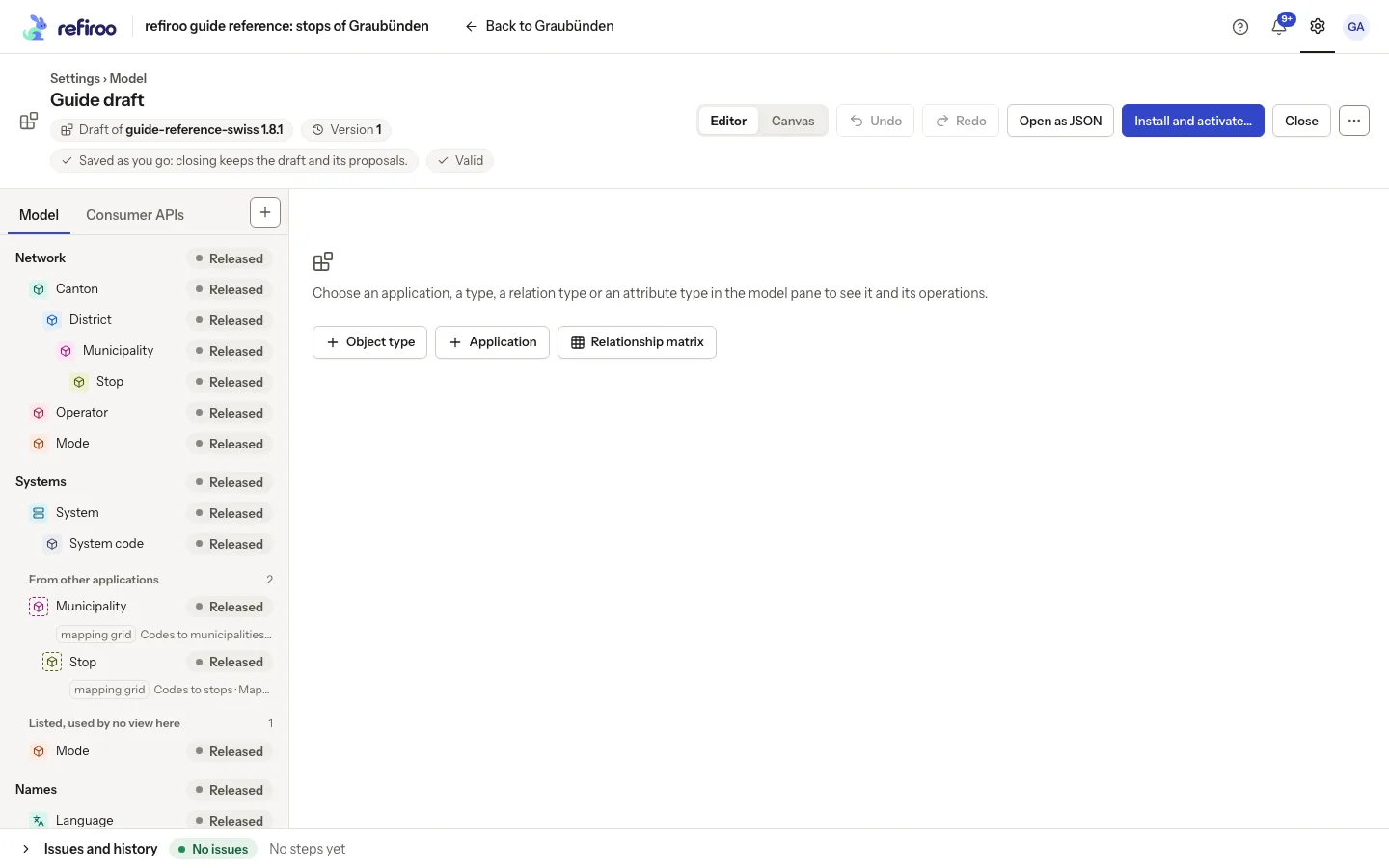
In the model editor, shape your applications, types in their containment tree, fields, relationship types, permitted pairs and navigation groups. Marks show you what is new, changed or already released.
- Four marks help you find your bearings: Released, New, Changed and Proposed; Proposed means the element still reflects refiroo's suggestion.
- Released keys stay fixed, so renaming a label keeps the element's identity.
- Each saved action becomes a step you can revisit with Undo and Redo.
- If stored data prevents removing, moving, splitting or merging a type, refiroo stops and shows you the impact.
- The editor's Relationship matrix shows permitted pairs of record types; the relation matrix you use for data has a different job.
In the API: a change that would need a migration of released structure is refused with its impact (OPERATION_REQUIRES_MIGRATION); a step later steps build on cannot be undone first (OPERATION_HAS_DEPENDANTS).
Stop 3 of 5
Check it, then make it yours
Install your draft to keep a fixed release. You activate it separately, after refiroo checks that it fits.
If existing data would not fit, or a consumer API needs a higher contract version, activation pauses there. You can choose an earlier installed release too, with the same checks to keep the switch safe.
Each workspace runs its own release. Activating one leaves the others alone, and open change sets keep the release they started with.
- Install and activate combines both steps in one confirmation; if activation fails, your release can remain Installed, not active.
- Before you confirm, see model differences, data and consumer API compatibility, the workspaces staying as they are and open change sets staying on their releases.
- Changes in this release lets you compare two releases and see added, changed and removed definitions.
- Retire a release when you no longer want it chosen for new work; workspaces and change sets already using it keep working.
- Export JSON gives you the release's fixed model document to take along.
In the API: model-releases (list, diff, retire, activations) and a workspace's model/activation, which refuses with MODEL_MIGRATION_REQUIRED when data needs a reviewed conversion.
Stop 4 of 5
Let your workspace grow
Open Edit model from a workspace to work on its draft. Apply to this workspace explains the changes and what happens to the records, then applies them there alone.
With the assistant enabled, choose Change this model… and describe what you need. It proposes a model and explains the effect on your records, keeping their IDs and history.
When a whole type becomes another, you confirm one migration. When only part moves, you use a change set: activate a release with both shapes, publish the changes, then activate the final release.
- Applies to names the workspace you are changing; other workspaces keep their own releases.
- Preview what happens to the records opens a separate review, so you can look without changing anything.
- Different workspaces can run different versions or entirely different models.
- To take this route, you need permission both to author models and release them in that workspace.
- Whichever route moves your records, their IDs, values, relationships and history come along.
In the API: POST /workspaces/{key}/model/draft opens the workspace's draft; applying it is the draft's installation, then the workspace's model/activation or model/migrations.
Stop 5 of 5
Shape it beside your workbook
Like to work with your hands? Switch the model editor to Canvas. Your workbook sits on one side, your lists on the board, and every change shows its effect on the rows straight away.
Drag a sheet onto the board and it becomes a list. Drop a column on a list to give it a field, or on its Filters to narrow it down. Connect finds the column that names another list, checks every row and draws the line between them.
Each drop is one step you can undo. There is no dialog to fill in and no AI involved, and every drag has a menu and a keyboard path too.
- Showing switches the board between Whole model, Changed in this draft and From the workbook.
- The workbook check counts every row: how many load and how many are refused, with the reasons and a way to correct the values.
- A few columns can be read as rows, a header can sit further down the sheet, and blanks can be filled from the cell above.
- The canvas does what the editor does, on the same draft: Inspector, Navigation, Views and Consumer APIs, with issues and history in a drawer at the foot.
- When it looks right, choose Create workspace…, or load it into a workspace you already have.
In the API: every drop is a draft operation on model-drafts, GET and PATCH /model-drafts/{id}/canvas keep where each card sits, and join-candidates compares a column with the columns of the other lists.
In the app
Here is where you give those record types a home of their own.
At a glance
Model in four facts
What you do in the browser, what the API offers, who may do it and what it works with.
- Your editor
- In Settings › Model you can edit a draft in the Editor or on the Canvas, install it as a release and activate it for a workspace, or start from that workspace's Edit model menu and, with the assistant, Change this model.
- Your API
- You can work with drafts through typed operations, undo, redo, compilation and installation, validate models, read installed releases and manage a workspace's model, activation and migrations.
- Your people
- Anyone you trust to author, install and release models can do this work, with authoring and release access in the workspace needed to start from Edit model.
- Works with
- Views show your record types as tables, trees, mapping grids and matrices; Import's assistant can propose a model from a few words and your workbook; Change sets carry the record changes when only part of a type moves to a new shape.