The model editor
Use the model editor to change a draft through named actions. Each saved action becomes a step in its history. You need Model authoring; applying the result also needs release access. See Models for the stages and permissions. The Editor | Canvas switch offers two views of this same saved draft: the panes described here, or a board of object types and relationships. A draft opens in the view last used for it in this browser, or Editor if none is remembered; workbook flows open Canvas.
Find your way around
Section titled “Find your way around”The header identifies the draft, its base release, draft version and validation state. Undo and Redo act on saved steps. Close keeps the draft and its proposals. The main confirmation is Install and activate…, or Apply to this workspace… when you came from a workspace.
The model pane lists applications and their types in a hierarchy, followed by Relation types, Attribute types and Relationship matrix. A type listed in several applications still has one definition. Select an element to see its details in the centre. Use the plus button to add an element, or the selected element’s menu for its operations.
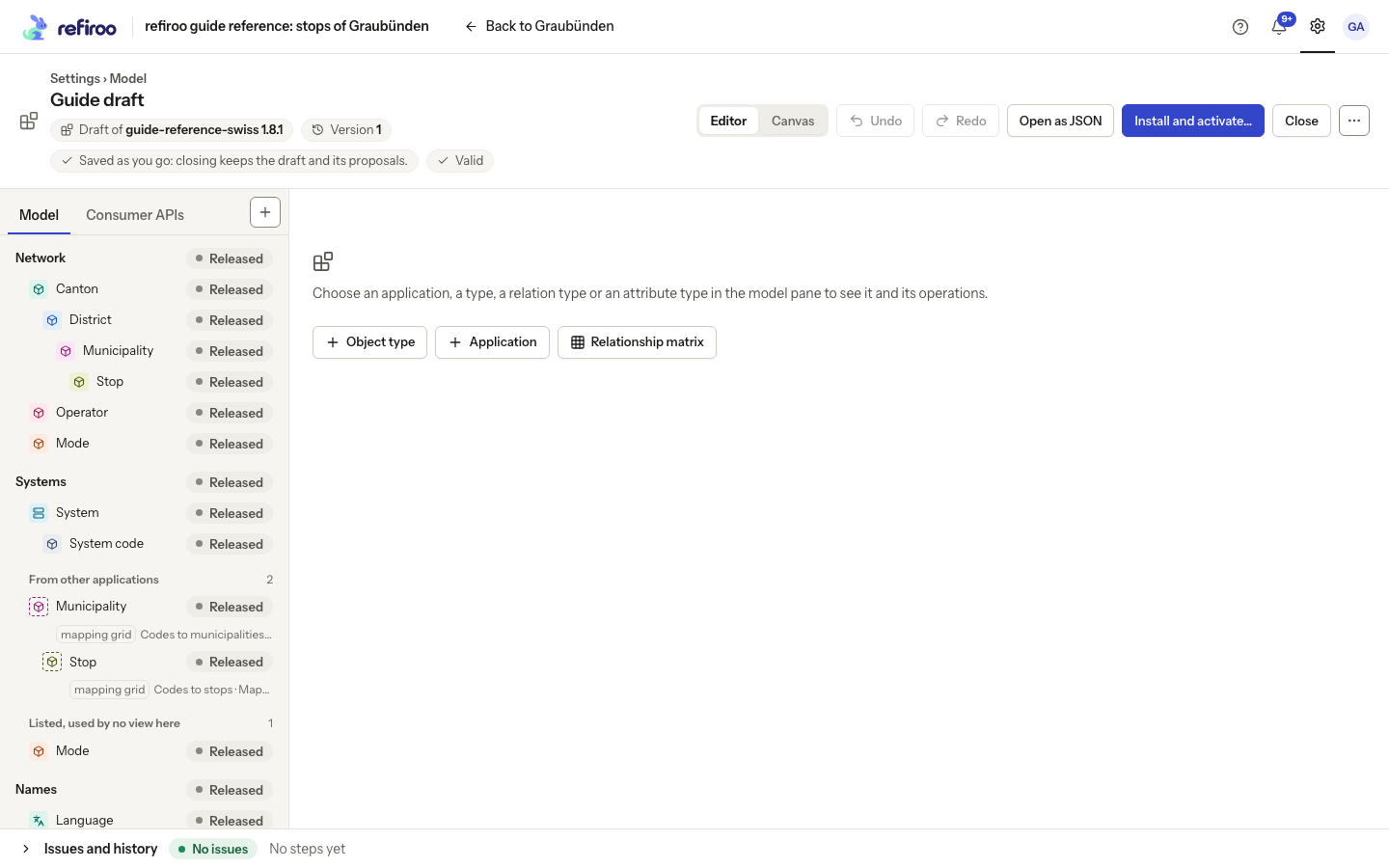
Above: Guide draft starts from the Graubünden release. The model pane lists Network, Systems and Names; no element is selected in the centre.
An application shows its types, where they stand, field and relationship counts, views and navigation groups. A type shows Attributes and Relations. Select an editable cell to change its value. A choice from a list saves as soon as it is selected; a text input saves when you leave it or press Enter. Escape puts the old value back. An unchanged input closes without saving. Names edited in their headings save the same way. A refused input stays open with the reason and Cancel and Save again beneath it; leaving it again retries only after its input changes. Menus offer operations such as Rename…, Move to…, adding fields and allowing relationships.
A short operation, such as renaming or choosing a value type, opens beneath its control in a small popover. Pick several items there with Apply; use Save for a popover’s settings. A value edited directly in its cell saves as described above. Longer forms and forms needing a preview open as dialogs in the middle of the window on a desktop. Adding uses Add followed by the thing’s name; moving uses Move. Confirmations remain small centred dialogs. The same validation and draft Undo apply whichever form is shown.
| Mark | Meaning |
|---|---|
| Released | The element is unchanged from the draft’s base release. |
| New | The draft adds the element. |
| Changed | The element, or something within it, differs from the base release. |
| Proposed | The element still reflects the engine’s suggestion from a source. Review it before relying on it. |
Renaming a label does not change its key. A released key can also change, but integrations that name it must change with it. The element panel says Released: a key change needs a migration.
Removing, moving, splitting or merging a released type, converting a field to a list type, or tightening a rule saves a draft step even when stored data uses the element. Menus warn Needs a migration when installed where an action can need one. Move to… explains what happens to the records or values when the migration runs. Changing the draft does not move live records; review the migration before activating the release.
Work with a navigation group
Section titled “Work with a navigation group”Select a group in the model pane, or choose its name in the application’s Navigation groups table. Its panel shows the application it belongs to, whether it starts open or folded, and how many entries it holds. Entries lists Entry, Kind, Opens on and State. Collections and relation matrices share this table and its order.
Add to group… opens a searchable list where you can tick several collections and matrices. Location notes show what is at the top of the sidebar, inside a row collection or in another group; choosing an entry in another group moves it. One addition, even with several entries, is one saved step and one Undo. Rename… and Start folded / Start unfolded adjust the group itself.
In an entry’s menu, Move up and Move down change its position. Move to another group… is offered when another group exists. Take out of the group returns a collection to the sidebar’s top level, or leaves a view available through its collection without a separate entry. These actions arrange navigation; they do not move records.
For a collection with several views, edit Opens on in place; selecting a view saves the choice immediately. It decides which view opens from that collection’s sidebar entry or the group page. Without a separate choice, the application default is used when it belongs to the collection, then its table, then its first view. Other view tabs stay available. A view entry’s Kind is the view’s kind, and its Opens on shows the kind and the view’s name, such as “table · Active items”: it always opens that view, with the kind’s symbol in its collection’s colour. The collection stays in navigation and still offers the view among its tabs.
The application panel’s Entries column lists the collections and views in each group. Its In no group: line offers Add to a group… with ungrouped collections ticked. Every view’s menu in Views offers Move to group… when a group exists. Follow Group collections in navigation for the steps. Navigation changes reach a workspace when the model release is activated.
When there is a workbook
Section titled “When there is a workbook”A workbook adds a Source pane with sheets, columns, mapping states and statistics. Select a column to see what it feeds; select a type to see the columns that feed it. Map to… in the column menu provides an alternative to dragging it onto the model. A proposal’s Proposed because explains the suggestion; Evidence opens the supporting observations. You can change or undo proposals. The original workbook is not rewritten.
While profiling is running, wait for the sheets and columns. If profiling fails, read the reason and upload the workbook again from the draft menu. Once columns are mapped, the Dry run tab checks their rows after edits. Narrow screens present the panes as tabs.
For source selection, mapping and loading, follow Load a workbook. The source pane is absent from a draft with no attached workbook.
Preview and layout
Section titled “Preview and layout”Preview on a type shows the draft’s layout over records read live from a workspace running its model. Its data controls are disabled: previewing writes nothing. Check the workspace and record selectors; an empty preview for a new model does not mean the draft failed.
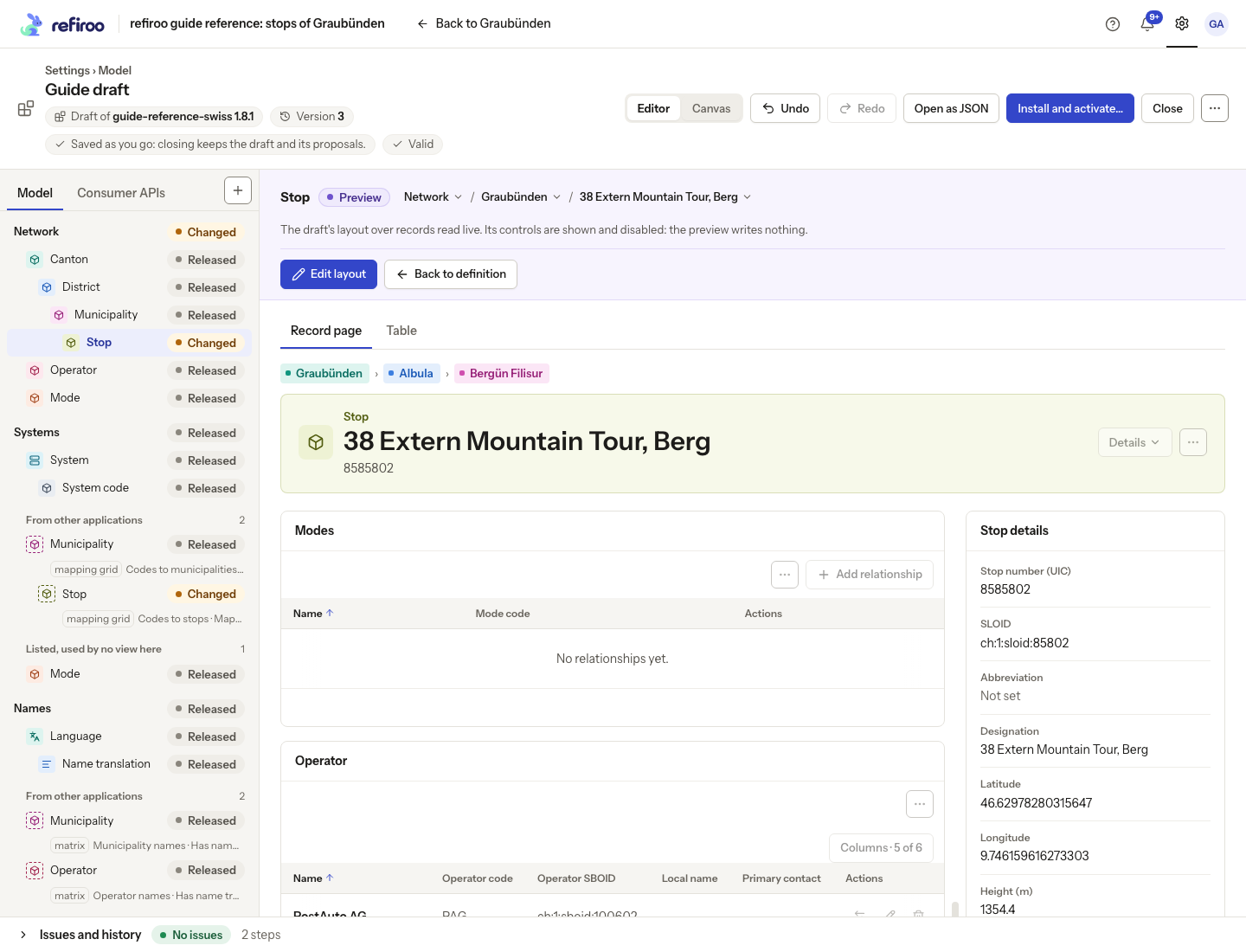
Above: Stop’s draft layout is shown over the live Graubünden record 38 Extern Mountain Tour, Berg. The preview’s record controls are disabled; it writes nothing.
Edit layout opens the layout editor. Record page arranges panels and fields in the main and side regions. Table chooses columns, filters and the default sort. Layout changes are saved draft steps too; they reach the workspace’s record screens after activation.
Follow Add a record type and fields, Add a relationship and Arrange applications and views for the actions.
History, undo and other editors
Section titled “History, undo and other editors”Expand Issues and history and choose History. Steps appear newest first, with the action, author, time and whether they are applied or undone. A single step may contain related actions, such as creating an attribute and attaching it to a type.
A step that changes a released element used by stored data is marked Needs a migration, with the counts of records, values and relationships using it. A released key change has the mark even when no stored data uses it. Other changes to unused released elements have no mark.
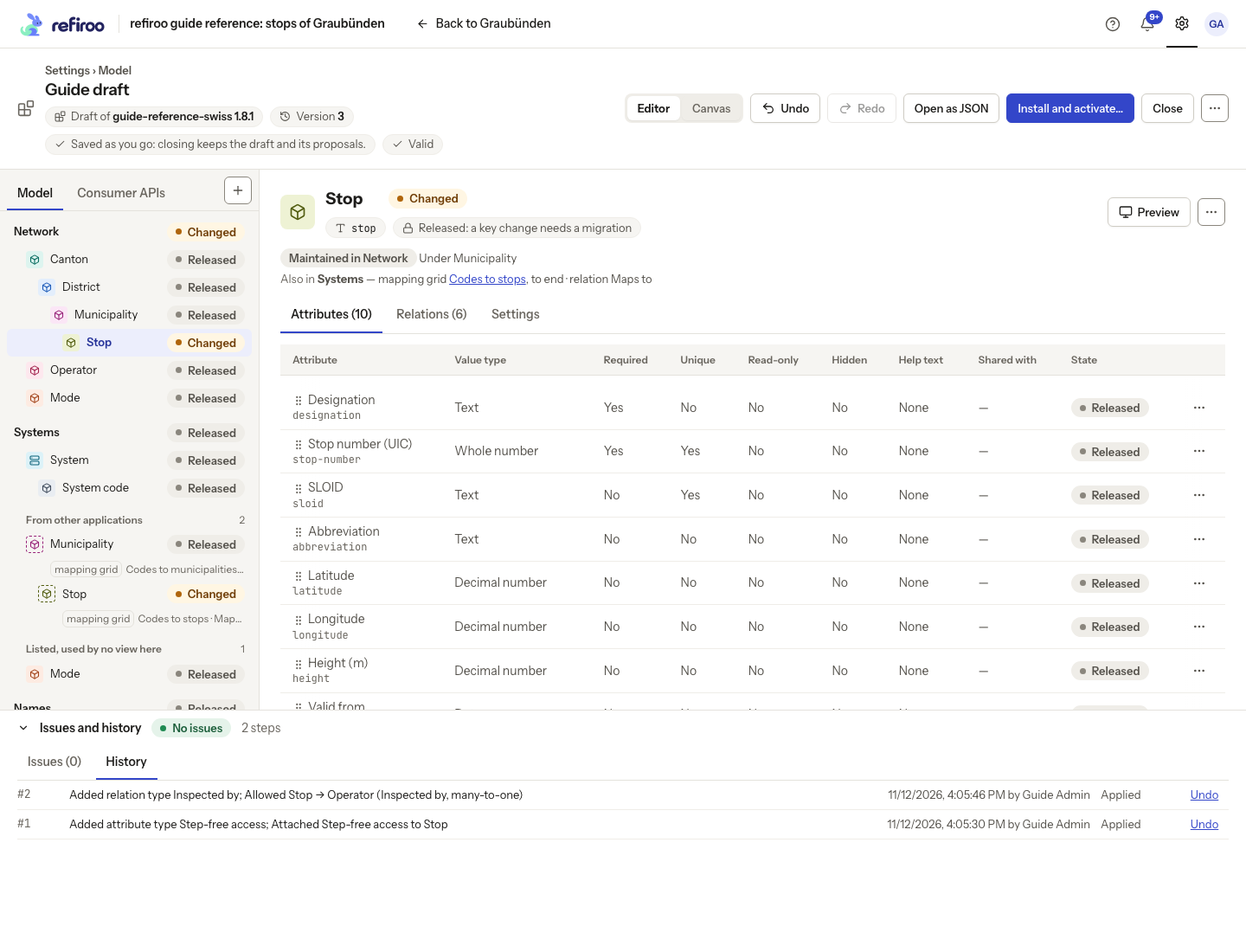
Above: Guide draft records adding Step-free access and allowing Inspected by as two saved steps.
Undo reverses a step in the draft; Redo restores an undone step. A new edit clears what can be redone. If later steps depend on the step you undo, refiroo names them and offers to undo them together. Read that list before confirming. Undoing a draft step never rewrites an installed release or reverses already published record changes. Undo also takes the step’s part out of the draft’s proposed migration; redo puts it back. The proposal follows the steps that are currently applied.
If another administrator edits the draft first, your older edit can be refused. The Another change came first notice lists the steps applied since you opened it, and the model below shows the newer version. Read those steps, then choose Apply mine again if your change still belongs, or Discard mine to leave it out. A further intervening edit can refuse the retry too.
Compare before releasing
Section titled “Compare before releasing”The install confirmation summarises changed applications, types, fields and relationships against the draft’s base release. A draft without a base is compared with the newest release of its own model, if one exists; a wholly new model has no earlier definitions to compare.
Read those differences together with validation, stored-data compatibility and Consumer APIs. A comparison of definitions does not prove that the workspace’s existing records fit. The separate checks are explained in Issues and dry runs.
When the selected workspace needs a migration, Install and activate… and Apply to this workspace… show Activation needs a migration. Read the steps and the proposed changes: which types records become, where they move, and whether they leave their parents. The figures show records moving, records and relationships created where applicable, and refused items. For each key change, the dialog warns that integrations naming the old key must change and lists the consumer APIs of the base release that name it.
Choose Install … and preview the migration…, or Preview what happens to the records… from Apply to this workspace…. This installs the release and opens the migration preview; it does not activate the release in the workspace yet.
On the migration page, What the draft proposes is already filled in. Each type’s row shows Records of, Become, In, Under and Records, with a Proposed mark for the draft’s choice. Change Become to preview another choice without editing the draft. Splits and list conversions can create records and relationships; inspect them under Created. Fix refused items before confirming, and review and explicitly accept any removals. The workspace keeps its current release until the migration is confirmed and succeeds. See Migrations for what each kind of change carries or removes, and follow Migrate a workspace to complete the review.
Header, keyboard and phone controls
Section titled “Header, keyboard and phone controls”Open About this draft for its base release (or A new model), edit version and validity. The version increases with each saved step. Change the editable draft title to rename the draft; this does not rename a release. Saved as you go means closing keeps the draft and proposals.
The + Add menu offers Application…, Object type…, Attribute type…, Relation type… and Navigation group…. In an empty draft, add an application first. An operation opens a dialog; Not applied means the attempted step did not save. Correct its reported cause, or cancel. Delete draft… in More actions asks for confirmation and removes only the editable draft, its steps and attached source, leaving installed releases unchanged.
In the model pane, Up/Down and Home/End move focus; Enter or Space selects. Right and Left unfold and fold sections. Shift+F10 or the context-menu key opens the selected row’s operations. On a phone, tabs replace the panes. Use the menus: model-editor drags are off on phones. Earlier steps in History reads more than the initial saved-step list.
Relationship matrix shows every type as a row and column, with rows as the from end. Cells list permitted relationships and their number limits; containment reads contains. Move with arrow keys and select a pair with Enter. The selected pair’s panel offers its existing relations’ menus and an action to allow another. It can be resized.
Consumer contracts and the structured-document view
Section titled “Consumer contracts and the structured-document view”The Consumer APIs tab holds the contracts other systems read. Add a consumer API with its name and the types to expose, then inspect Types and related, Fields, Operations, Filters, Schema and Message example. Fields and related lists shape the public data; operations choose what consumers can read. The compatibility status says whether a higher contract version is needed. Raising that version is separate from numbering the model release. Review breaking changes with the consuming teams before activation.
The header also offers Open as JSON for specialist model authors who maintain the complete structured model document. Normal screen-based editing does not need it. Both routes edit the same draft and record saved steps; document edits appear as JSON edit in History. Use Export JSON there, or on an installed release, to download its document. If that view reports a newer saved draft, preserve your local work with Copy local JSON before Reload saved version. Reloading does not merge the two versions.
Next tasks
Section titled “Next tasks”Use Find your way around for keyboard and phone navigation, Undo and review history for saved steps, and Work on a draft with others for version conflicts. Delete a draft removes only editable work.
Types, attributes and relations, Applications and views, Record pages and tables and Consumer APIs explain each part of the editor. The specialist JSON view exposes the complete model document.
Draft comparison uses the base release where there is one, otherwise the latest installed release of that model, otherwise an empty model. There is no automatic rebase or merge of a draft onto a newer release. To start from different definitions, create a new draft from the intended release and review the changes you carry across. A refused grouped operation applies none of that step. Intermediate invalid drafts may be saved; Issues identifies what still needs work.
A navigation group’s initial folded state is a model default; each browser can remember a different state. A group page gathers its collection and view entries with search over their names. During a drag in the model pane, moving near its upper or lower edge scrolls the pane. Keyboard and phone users use Move to… and the ordering menus instead.
Describe a change in words
Section titled “Describe a change in words”You can also ask the assistant to propose a model change and open its draft in this editor. Review the proposal before accepting; direct edits here are read again when the assistant continues.