Change relationship values in bulk
Use a relationships table when the value belongs to a connection rather than a record. You need Edit live in Live, or Work in change sets in a change set, with access to change the connections. A publication is read-only.
Prepare the grid selection
Section titled “Prepare the grid selection”- Open an application in the current workspace and choose its relationships table. Check that it uses grid layout. Read the direction below the heading: rows are from records and column groups are to records.
- Check Live or the selected change set. Open a change set first if these values need review before publication. The following steps then create proposed changes.
- Use the row search and Filter to narrow the source records. A relationship-value filter matches through a connection to one of the shown column records. Check the column selection before interpreting how many rows match.
- Open the menu named for the column record type. Search, filter or tick the records whose connections you intend to change. At most 50 column groups are shown. A count such as “Showing … of …” means other column records are omitted; narrow the filter if you need them.
- Tick the intended rows. The header checkbox selects loaded rows. When all loaded rows are selected and more match, choose Select all N matching to include the whole filtered list. Untick individual exceptions. Read the selection count above the grid, then choose Change relationship values. Changing the search or filters starts a new selection.
Choose and preview the value
Section titled “Choose and preview the value”- In Attribute of the relationship, choose the field. The choices come from this view’s relationship attributes; JSON fields are not offered for this bulk operation.
- In At …, choose All N shown … or one named column record. “All” means the shown column records, not every record of that type in the workspace.
- Choose Set to and enter a value using the field’s own control, or choose Clear to remove the held value. No is a Yes or no value; Clear removes the value instead.
- Wait for The preview. Would change counts linked pairs with a different value; Already … counts those holding the requested value; Not linked to the … counts selected row/column pairs without a connection. Nothing has been written yet.
- If missing pairs should also become connections, select Also link them, with …. Leave it unticked to change existing connections only. Review the refreshed preview: new links must meet the same candidate, number and ownership rules as any other new connection.
- Read the refusal notice, if shown. Each line names the row record and column record as From record → To record: reason. The same connection refused for the same reason appears once. The heading N would be refused, so nothing can be changed yet counts those lines, but only the first five are shown. If a record’s name is unavailable, a line shows only the reason; this can happen with matching rows the grid has not read. Narrow the selection to investigate. Check the number beside Applying changes … relationships. Apply stays unavailable while the value is missing or invalid, the preview is loading or failed, nothing would change, or any pair would be refused. Correct the value or selection; do not assume the remaining pairs will be applied around a refusal.
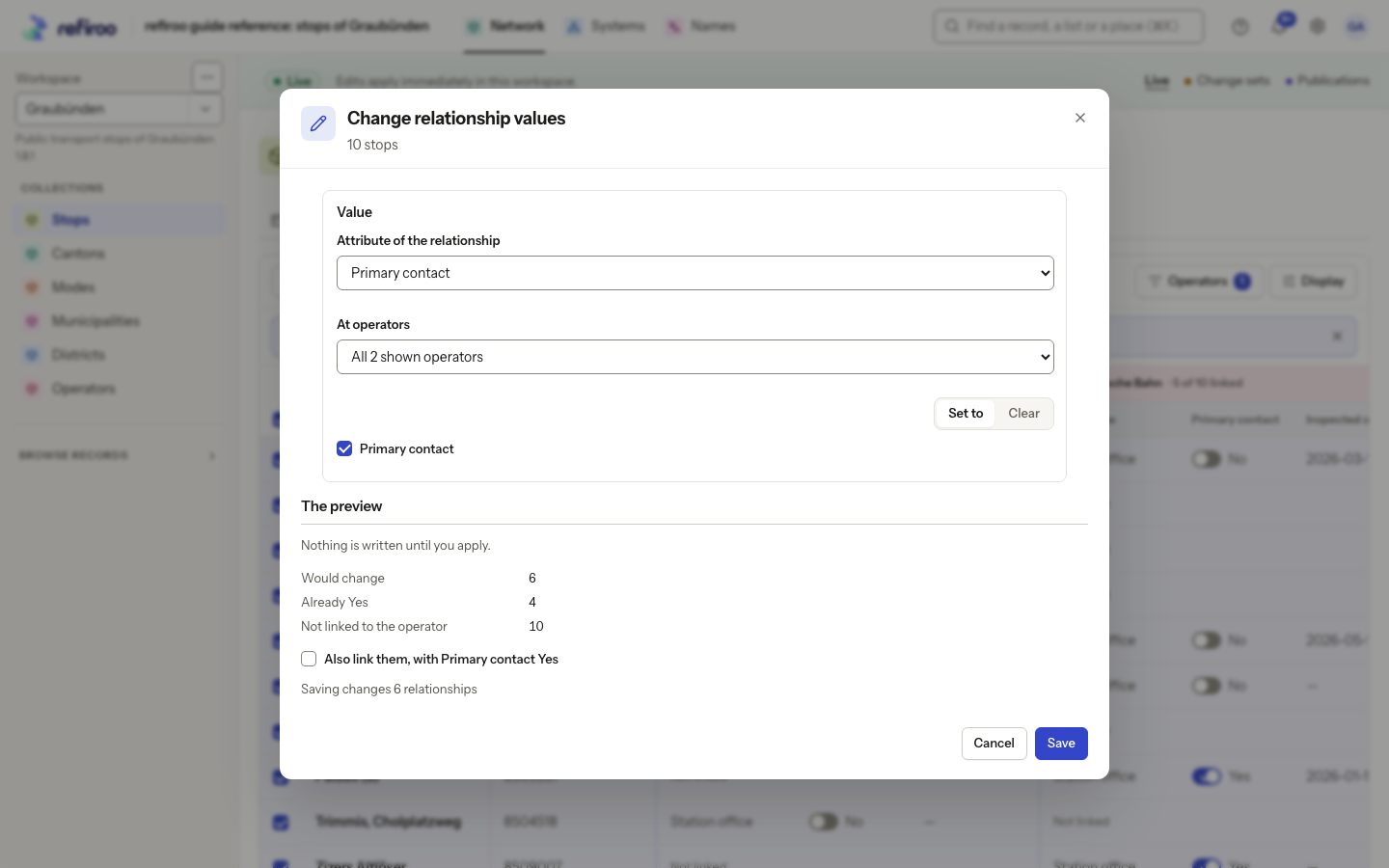
Above: 10 stops selected in Stops by operator in the Graubünden workspace. Primary contact is ticked under Set to, at All 2 shown operators. The preview reads Would change 6, Already Yes 4 and Not linked to the operator 10. Also link them is unticked, so Applying changes 6 relationships counts only existing connections. Apply has not been chosen.
Apply and check
Section titled “Apply and check”- Choose Apply. The operation checks the current data again and writes all changes together. Either every intended change succeeds, or none does. A preview does not reserve the data against another person’s edits.
- On success, the dialog closes and the grid refreshes. Check a changed cell and the counts. A filter on the old value may hide changed rows; clear that filter to inspect them.
- In a change set, look for Proposed in this change set, then review and publish when ready. Applying this dialog alone does not publish the change set.
Nothing was changed means Apply was refused. Its list uses the same record names and reasons as the preview, with up to five lines and only the reason when a name is unavailable. Check the named connections and current values, then retry with corrected choices. Narrow the selection if you need to investigate refusals beyond those shown. Cancel closes without applying the preview.
The deployment limits how many source records can be selected and how many relationships one atomic change can write. One source row can affect many column groups, so a selection can fit the row limit yet exceed the write limit. If the preview reports too many, narrow the row filter, choose fewer rows, or choose one column record. Apply smaller reviewed selections, or ask the operator about the configured limit. Do not keep retrying the same oversized selection.
Change ticked relationships in the rows layout
Section titled “Change ticked relationships in the rows layout”The rows layout changes connections that already exist. It does not offer the grid’s choice to add missing pairs or its preview dialog.
- Search or filter the relationship list and tick the particular relationships to change. A source appearing in several rows represents separate connections; tick each intended one.
- In the selection bar, choose Attribute to set and enter the value. A Yes or no field offers Yes and No. Leave a non-boolean value empty to clear it.
- Read the button, Set … to …, which names the field and value, then choose it. The bar’s Clear abandons the selection; it does not clear stored values.
- The ticked connections are saved together using their read versions. Success clears the selection and refreshes the list. A refusal displays Nothing was changed and the affected connections. Review current values before trying again. Split an oversized selection.
This layout also writes proposed changes when a change set is selected, and remains read-only in a publication.