Change a workspace’s model
Choose an installed release for one workspace with Model release there. The release must be usable on this instance. See Releases and Migrations.
-
Open Settings › Model, select the model and its Overview. Beside the workspace choose Change model…. Alternatively open a release and choose Activate in a workspace….
-
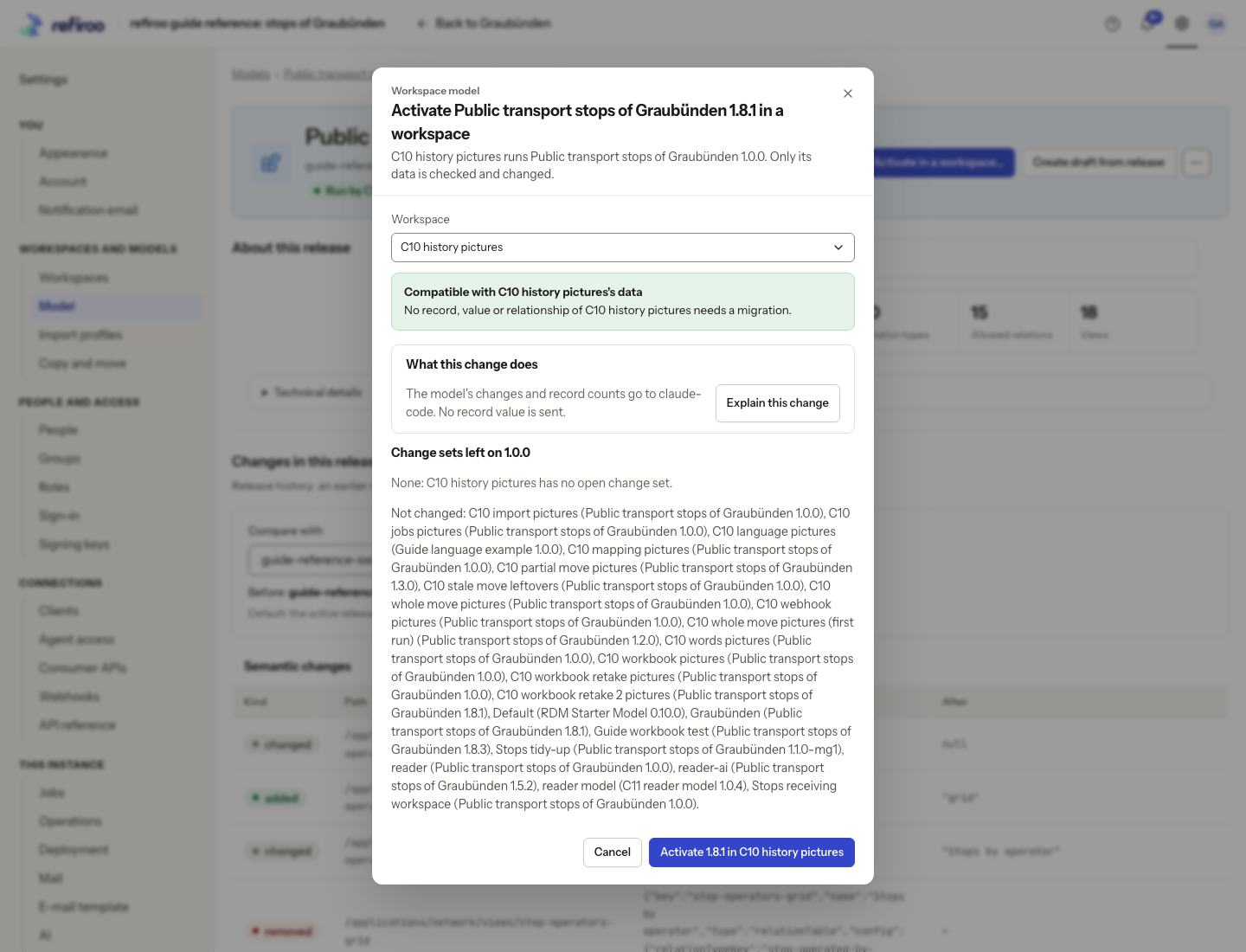
Check Workspace and its current model. Under Release, choose the target version. Expand another model only if you intend to replace the workspace’s definitions with it.
-
Wait for the check and read its result:
Result What to do Compatible with the workspace’s data No record, value or relationship needs migration. Review the destination before activating. A migration is needed The same model’s definitions require data changes. Use the offered migration preview. A different model The different model does not fit the data unchanged. Review its reasons and the migration preview where available. A consumer API needs a higher contract version Correct or version the named contract in a draft before activating. Could not be checked Correct the stated failure and check again. This is not a compatible result. -
Read the listed open change sets left on the old release and other workspaces left unchanged. If compatible, confirm activation. If conversion is needed, use Preview the migration… and follow Migrate a workspace.
-
After success, reopen the workspace and inspect its applications. Reload a page reporting a model change before editing. A bookmark to a missing application or type shows Not in this model; choose a collection declared by this workspace’s current model.
Not activated means the switch failed. Read why, refresh the workspace and check again. Choosing an older version runs the same checks; it does not restore older record values.
Check which consumer versions stay available
Section titled “Check which consumer versions stay available”Compare the target release with the workspace’s current contract, including any earlier versions it serves. A higher current number does not itself prove every existing consumer can continue: the target release must retain the earlier definitions. An older installed release or publication does not keep their live routes available.
A finding ending a kept version is served as it was: restore it, or stop serving it means an earlier contract would read differently. Prepare a corrected draft that restores that definition and its sources, or coordinate stopping it, then install a new release. Raising the current contract again does not repair the retained version.
The activation dialog shows blocking consumer differences, and a warning when an earlier
version stops serving, naming the version and that its consumers get
CONTRACT_VERSION_NOT_FOUND. Agree that removal with all consuming teams
before activating. That version’s reads and feed stop. Webhooks bound to
it can suspend; the integration administrator must check the receiver before resuming on
the current contract. If the version remains retained, its consumers and webhooks continue
in its own shape. A Sunset day announces an end but never stops service automatically.
To change which versions the target release retains, use Raise a contract version or Stop serving an earlier contract version in a draft. Releases themselves are immutable. Cancel leaves the workspace on its current release; a draft undo does not reverse an activation already completed.