Export records
Take a file of the data you need. Read Importing and exporting for file shapes and workbook rules.
- Open the intended view in the current workspace and Live, change set or publication. Set its search, filters, parent scope and chosen columns before opening Export.
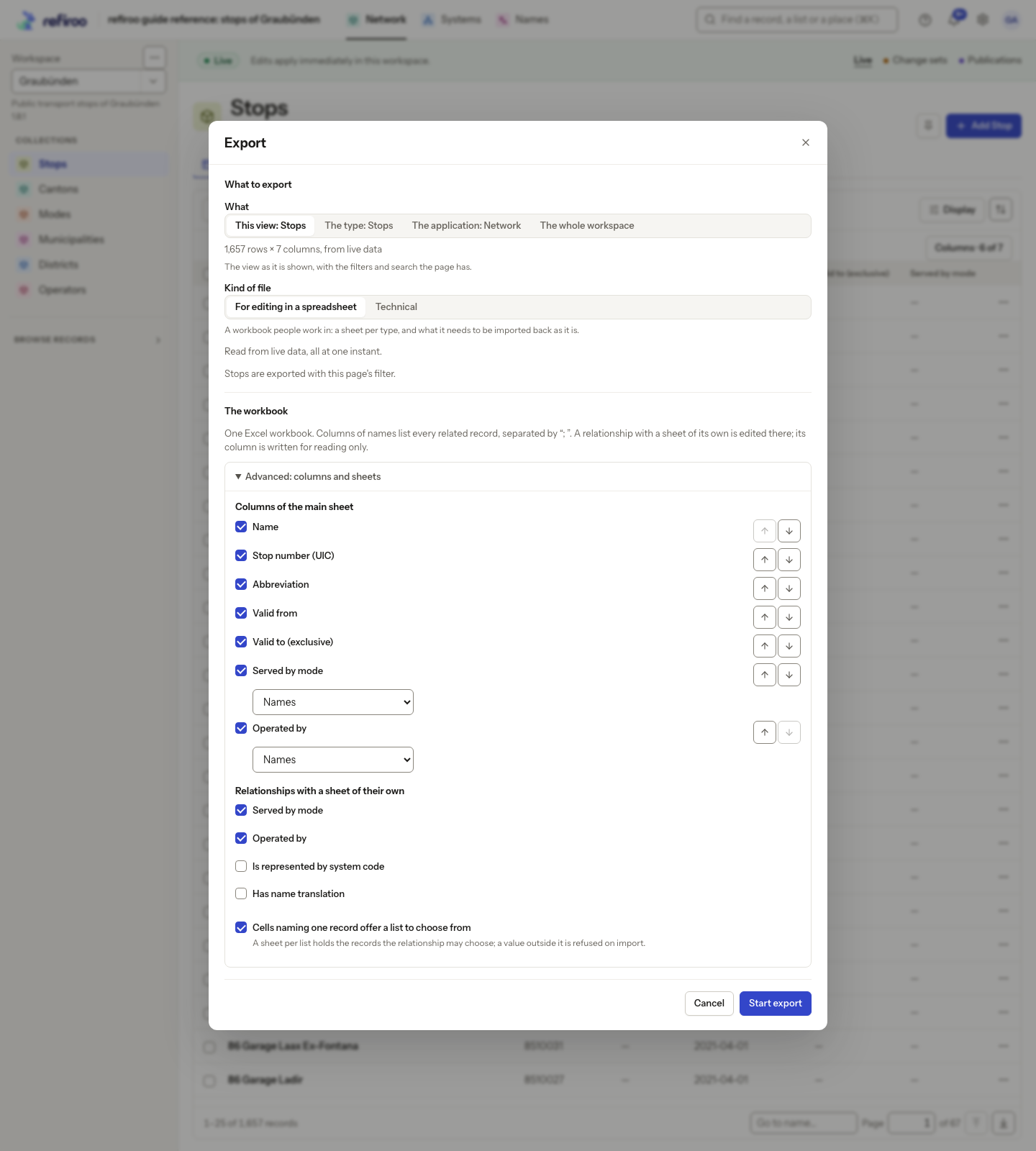
- Open Workspace actions › Export. Under What, the first choice is This view followed by its name. Keep it to export the view with its search and supported filters. Read the count line and context: a matrix reports rows × columns; a tree or mapping grid reports records. Counts are shown when the page knows them. This includes matching rows beyond those currently on screen.
- To take a wider selection, choose The type, The application or The whole workspace. These choices select whole types rather than the current view’s narrowed rows. Check Record types and Where where offered. You can also start an export from Settings › This instance › Jobs.
- Choose Kind of file. For editing in a spreadsheet makes an Excel (XLSX) workbook shaped for the chosen view or types. Technical is offered for a table view, a type, an application or the workspace; it offers Excel (XLSX), CSV or JSON Lines under Format. A matrix, tree, mapping grid or relationships table exports its view as a workbook for editing. In CSV, text that could start a spreadsheet formula receives one extra leading single quote, even when single quotes already precede the formula character. Keep it if you return the CSV; import reads back the original text. XLSX is unaffected. See CSV text rules.
- Read any notice about filters not carried into the file. A filter on a relationship’s own values is not carried. The file can therefore include connections that filter hid. For a table workbook, Advanced: columns and sheets adjusts its columns and related sheets.
- For a matrix listing linked records, check What each cell lists. Under Each linked record is listed by its, keep Name or choose a text field of those records. Choose a field whose values distinguish the records in each column. The file records this choice so import reads the cells the same way. If linked records have no value in that field, the export is refused; fill those values or choose another field. Each column also gets a value sheet with its records and fields. New records use the relationship’s rules and existing groups when imported; there is no group choice in Export.
- Where offered, choose Relationships: Between exported records, All their relationships, or None. Use Valid on only when you need a business-date extract. Check the selection and context, then choose Start export.
- Open View job from the notification to follow progress. When completed, choose Download before retention ends. Failed or cancelled exports have no file; correct the stated reason and start another export.
- In an XLSX file, read the second sheet, About this export. It explains the source, counts, relationships, what loads back and, for a creating matrix, where new records go. Check it before editing: a matrix workbook loads its cells, not changes to its row labels.
For a workbook to edit and return, follow Edit in Excel and import back.