Correct a record
Correct one value or several fields and check the saved result. See Records for field rules, versions and editing permissions.
To change connections, follow Relate records. For a move, follow Arrange records in a tree.
Change one value
Section titled “Change one value”- Open an application in the current workspace and find the record. Check its heading and hierarchy path before editing.
- Choose Live for a correction that should take effect immediately. Check the green Live banner. To prepare work for later publication, open a change set first, then check its name in the orange banner.
- Select the value you need to correct in the heading or a details panel. An editor opens for that field where the value stands. Enter the verified replacement using the text, number or date control. A Yes/No value is a switch that saves as soon as you change it. To make an optional field Not set, empty its input and leave it, or use its remove-value button. The removal notice says ‹Field› removed and offers Undo. A required field left empty stays open with ‹Field› needs a value. beneath it.
- Click elsewhere or press Tab to save. Enter also saves a single-line field; in text of several lines, Enter adds a new line and Ctrl+Enter (Cmd+Enter on a Mac) saves. Escape puts the old value back. There are no Save or Cancel buttons unless a save is refused. An unchanged input closes without saving or showing a notice. On success, the saved value appears and ‹Field› saved offers Undo, including for a field set for the first time: Undo makes it Not set again. If the record changed again in the meantime, Undo is refused with “Undo was not possible: the record changed again in the meantime.” Check the result before leaving. You can open another field while one is open; the first saves as you leave it.
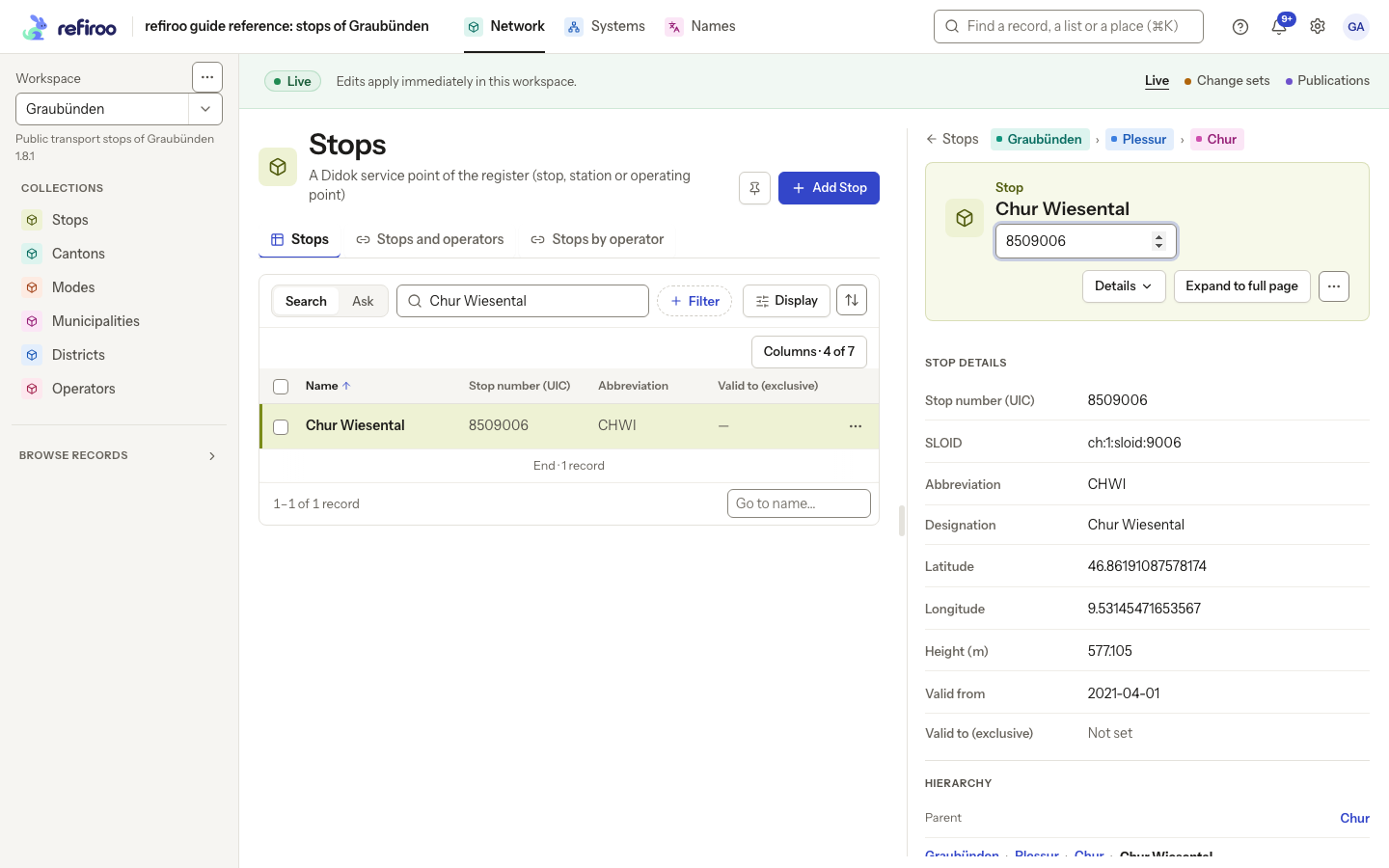
Above: Stop number (UIC) is open on Chur Wiesental in Network, in the Graubünden workspace. Its current value is 8509006; the screenshot shows the editor before a correction is saved.
If the value cannot be selected, check whether you are viewing a read-only publication. A field may also be read-only or your access may not allow editing it. Ask a workspace administrator if you need access. If a save is refused, read the message and correct the reported problem before trying again. A refused save has not applied your input. The field stays open with your input and the reason beneath it, followed by Cancel and Save again. Leaving it again retries only after its input has changed.
Change several fields together
Section titled “Change several fields together”- Open the … menu in the record’s header and choose Edit record. The record’s ID and version are under Details. The form is titled with the record’s name and opens in the middle of the window on a desktop, with the current values.
- Correct the fields you need. Name identifies the record; the other fields describe it. Check each field’s label rather than assuming similarly named fields change together.
- Keep In followed by the current parent’s name unless you intend to move the record. Choose Change to show Parent, then search for and select the intended parent, checking its path to distinguish matching names.
- Scroll through the form and choose Save. On success, the form closes and the record page shows the result. If a message identifies an invalid or missing value, correct it and save again. Choose Cancel to leave without saving the form.
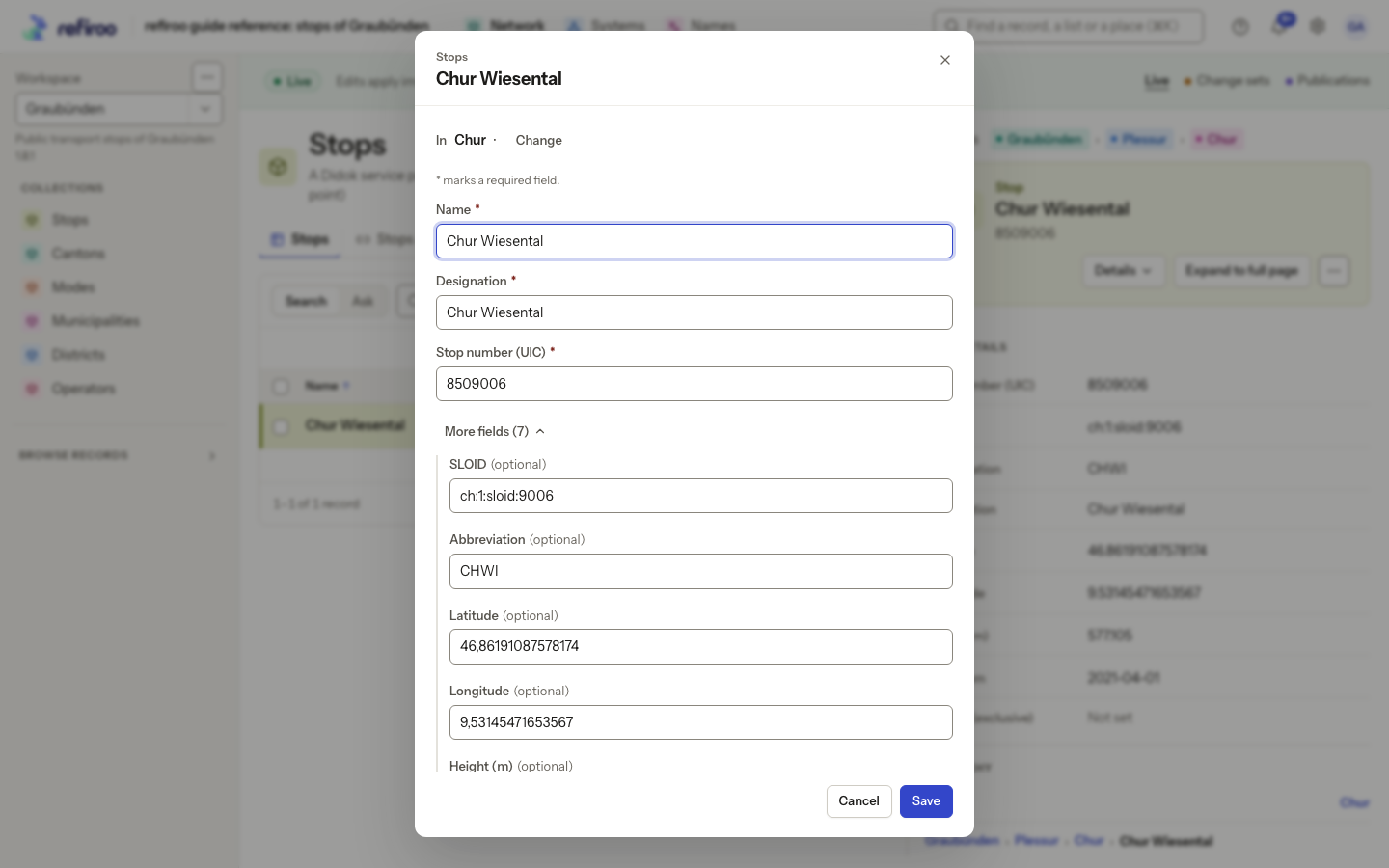
Above: Chur Wiesental’s edit form shows In Chur with Change, followed by required Name, Designation and Stop number (UIC). More fields is open, and Cancel and Save are visible at the foot.
If someone else changed it first
Section titled “If someone else changed it first”- If a single-field save reports The value was not saved and Object version has changed, leave the editor open. Your input is preserved. Read Current saved value, then review the refreshed record for the other person’s changes, including changes to other fields.
- Decide whether your correction still applies. Adjust the input if needed. Choose Save again only after reviewing the current values, or Cancel to abandon your correction.
- Check the result. Another intervening edit can cause another refusal; review again rather than repeatedly choosing Save again. If Reload current value appears, use it to load the current value before retrying.
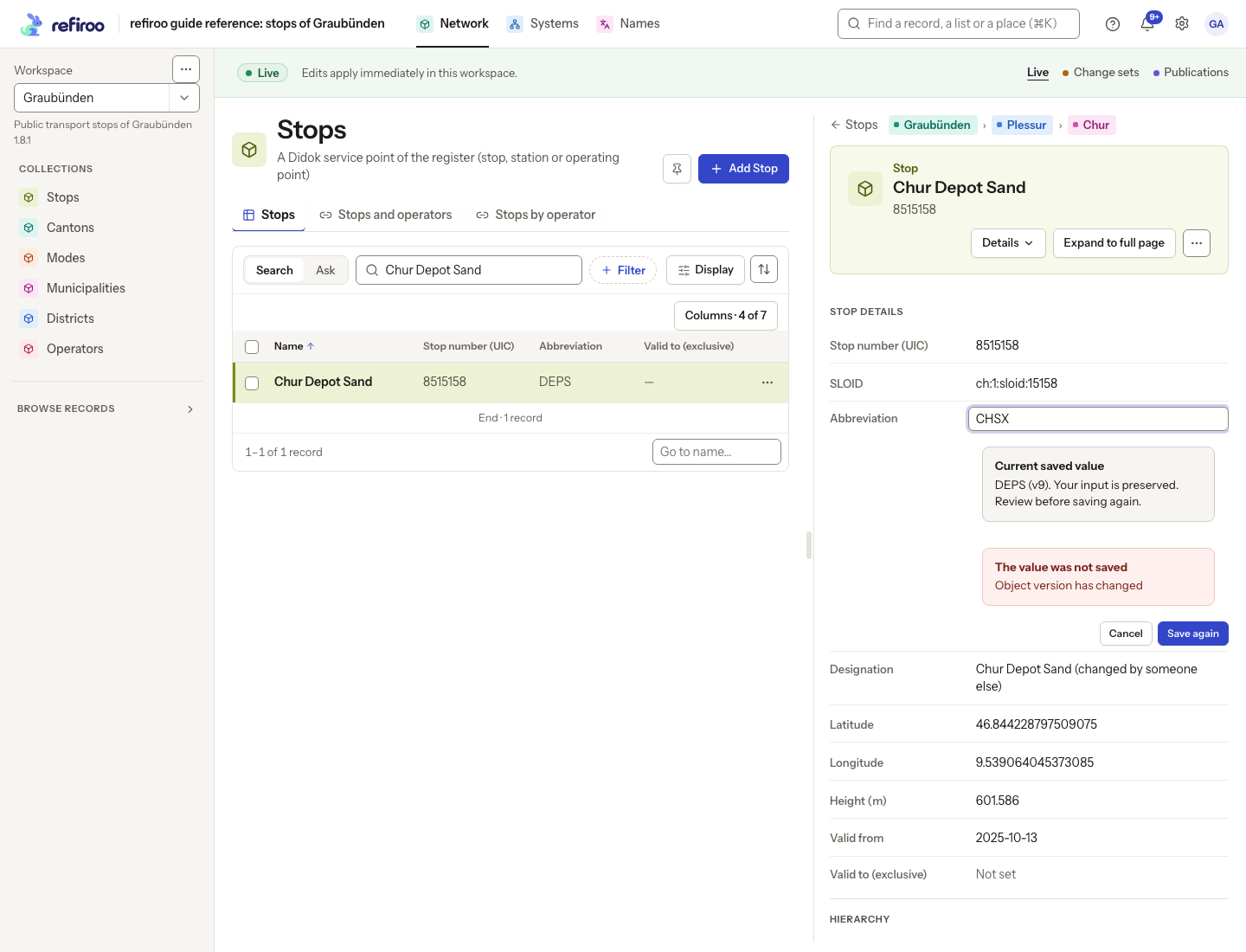
Above: on Chur Depot Sand, another session changed Designation before this session tried to save Abbreviation. The input CHSX is preserved, the current saved abbreviation DEPS is shown, and the save is refused even though the other session edited a different field.
For the reason a change to another field can refuse your save, see Versions and refused saves. If the whole-record form reports a conflict, review the latest record and reapply only the corrections still needed; do not assume the form’s older values are current.
Check the correction in its context
Section titled “Check the correction in its context”If you saved in a change set, choose Review changes in its orange banner. Under Records, find the record and open its row to check the before and after values. This shows the correction prepared for publication; it has not changed Live yet. Follow Review what a change set changes for the full review. Record History is absent inside change sets and publications.
For a correction saved directly in Live, or after the change set has been published, open the record in Live and check its History:
- Scroll to History on the record’s page. Each line identifies a change, the person who made it and the time. The newest changes appear first.
- Choose Values for field changes, Relationships for connections, Moves for changes of place, or All to see every kind together.
- Use By to narrow the history to one person. Choose Anyone to remove that restriction.
- Open a history line with its arrow to inspect the change and its previous value, where recorded. If your correction is not visible, restore All and Anyone before looking again. A cancelled or refused correction is not a successful value change.
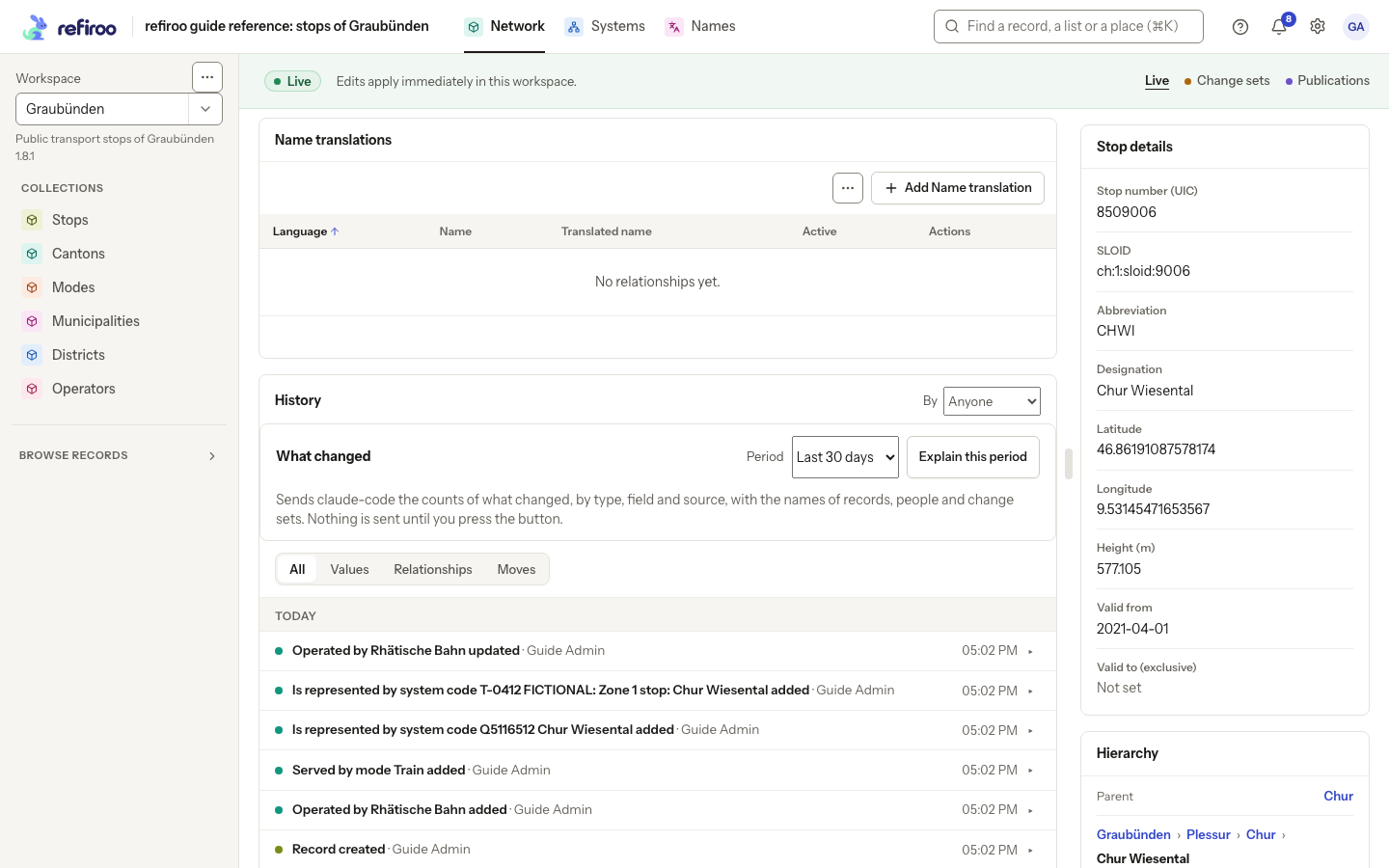
Above: Chur Wiesental’s History shows its creation and added relationships by Guide Admin. All, Values, Relationships, Moves and By control which events are shown; this capture does not show a newly saved field correction.