Home
Select the refiroo name in the top bar to return to Home. It brings together the workspaces you can read and the work waiting for you. Waiting for your approval, where you may approve, and Your change sets appear above the workspace cards.
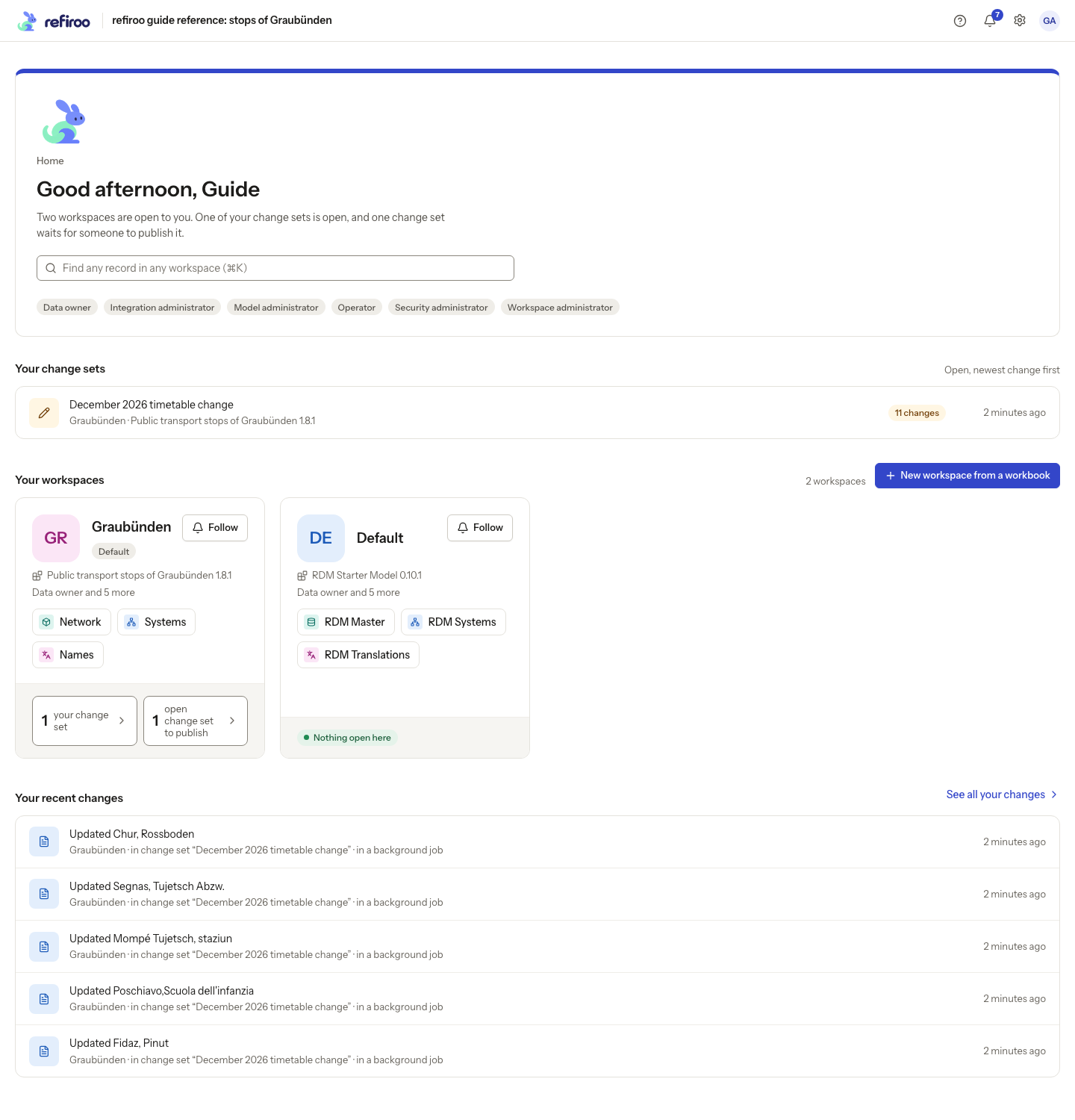
Above: Guide Admin’s Home shows two workspaces, Graubünden and Default, and one open change set. Your change sets lists work to continue; Your workspaces and Your recent changes follow.
Find a record
Section titled “Find a record”Use Find a record in any workspace, the box that reads Find any record in any workspace (⌘K), to search record names across every workspace you may browse. Results are grouped by workspace and show the record’s type and where it stands. Press ⌘K on a Mac or Ctrl+K elsewhere to focus the search, Up/Down to choose a result and Enter to open it. Escape closes the results. Check the workspace after opening a result.
Your workspaces
Section titled “Your workspaces”The default workspace comes first. Each card shows the workspace name, its model and release, your roles there and its applications. The Default badge identifies the default workspace. Choose an application button to open its starting view in that workspace. Follow Switch workspace and Open an application to check the destination.
The card’s counts lead to your change sets or the open change sets available to publish. A count of open work does not say that it is validated or ready for publication. Nothing open here means there are no open change sets counted on that card.
Choose Follow to receive a notice when someone else publishes a change set in that workspace. Your own publications do not send you a followed-workspace notice. The button changes to Following; choose it again to stop following. Following neither grants access nor changes the records. Notices appear in your inbox.
Continue where you left off
Section titled “Continue where you left off”After you have worked in an application, a Continue where you left off card can name the last place and workspace. Select it to return there. Check the banner on arrival before editing: access and available data may have changed since your last visit.
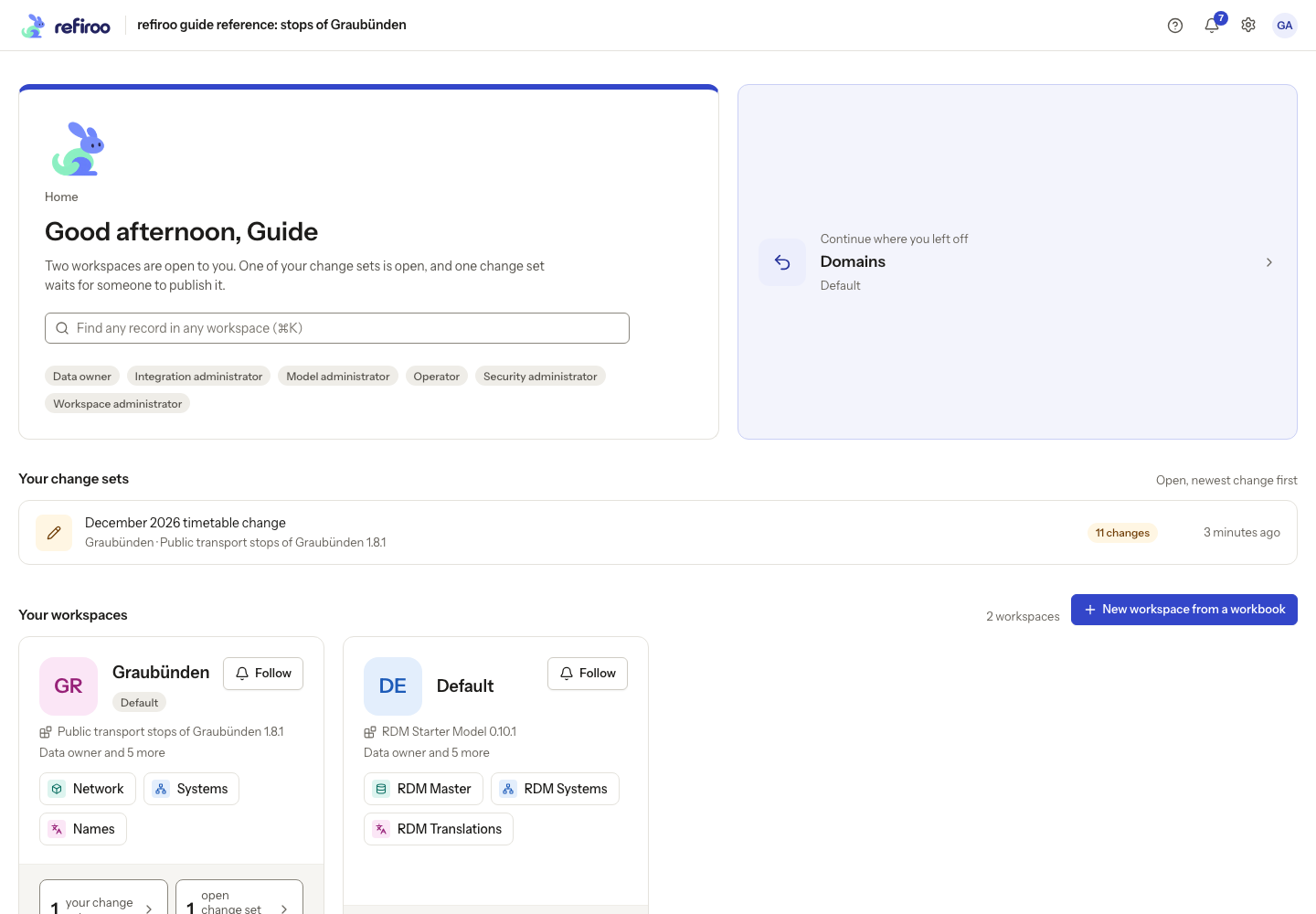
Above: the card returns Guide Admin to Domains in Default, the last place visited.
Work waiting for you
Section titled “Work waiting for you”Your change sets lists your open proposals, newest change first, with how much each changes. Open one to continue editing or reviewing it. Follow Prepare and publish a change set for validation, review and publication.
Where you may approve requests, Waiting for your approval lists submitted change sets, newest first. Each entry names the change set, workspace and submitter, and shows when it was submitted. Choose Review to open its changes and decision controls. An open-change-set count on a workspace card does not mean those change sets have been submitted for approval.
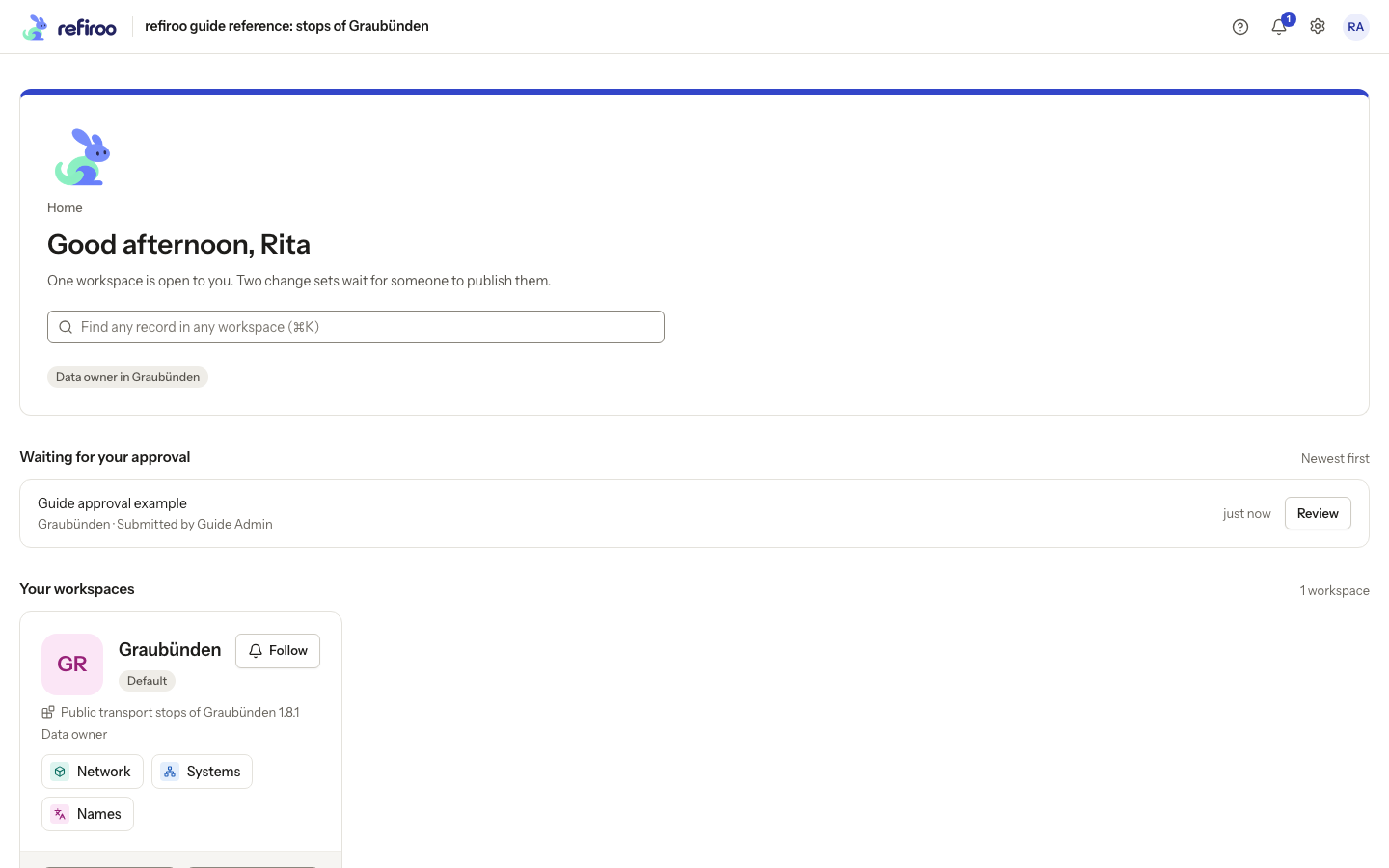
Above: fictional Rita Approver is a Data owner in Graubünden. Guide approval example was submitted by Guide Admin; Review opens the request.
Follow Approve a change set to review, send back or approve and publish. A person required to obtain a second person’s approval cannot decide their own request. The inbox also carries notices of waiting requests and of the decisions on your submissions.
Your recent changes shows your latest actions. Consecutive steps on one model draft fold into one expandable line with their count; expand it to read each step. See all your changes opens the longer list, with workspace, kind and period filters. See History for what those entries mean.
The greeting names you and shows your roles. For the workspace-by-workspace detail, open your Account. The avatar also opens theme choices and Sign out. The bell shows unread notices and opens your inbox.
If Home reports a loading failure, retry it. If no workspace is available, ask an administrator for Browse access to the workspace you need.
A saved address naming a workspace, application or record opens that place directly instead of Home. If you may browse no workspace, Home says there is none yet beneath the instance’s name; it does not mean your sign-in failed. Ask an administrator for Browse access.
To manage following later, open Settings › Notification email and use Stop following beside a workspace. Losing Browse access also stops its publication notices.
Following starts off. Losing Browse or deactivation pauses notices without deleting your choice, so they can resume if access returns. Stop following deliberately removes the choice. Follow Follow a workspace for the steps and Notification settings for email copies and digests.
A card can say This version cannot open the workspace’s model. instead of offering application buttons. Your data has not been deleted. Follow Open a retired or unavailable workspace to read the reason and find the responsible administrator.