Install and activate a release
Apply a checked model to one workspace. You need model authoring to prepare the draft and Model release in the target workspace; creating a new workspace also needs Workspace administration. Read Releases and fix draft issues before confirming.
Install from the editor
Section titled “Install from the editor”- Open the draft and choose Install and activate…. Read the confirmation; opening it alone installs nothing.
- Check Release key, Version and Name. Keep the key when releasing another version of the same model. The dialog proposes a version no release of this model holds. If you type one that is taken by different definitions, the refusal offers a Use button with the next free version. The draft’s edit number is not this version.
- Under Activate into, choose An existing workspace and select it, or A new workspace and complete its details. Read the workspace name carefully: another workspace may run another model. The choice affects this target alone.
- Review What changes against the base release, Valid, stored-data compatibility and Consumer APIs. Resolve blocking issues before continuing. A different-model workspace may be checked only when activation is attempted; its selection is not a promise its records fit.
- If Activation needs a migration appears, read the steps and what each part does. Review where records go, records move, records created, relationships created where shown, and refused. For a changed key, the warning names consumer APIs of the base release using it and says integrations naming the key must change. Coordinate those changes.
- When a migration is needed, choose Install … and preview the migration…. This installs the release and opens the migration page with the draft’s proposal filled in. The release is not active yet. Review What the draft proposes, its Proposed rows and all outcomes, including Created for a split or list conversion, then confirm the migration when acceptable.
- Otherwise confirm Install … and activate in …, or Install … and create … for a new workspace. Wait for the outcome. Cancel in the install dialog leaves the draft saved without installing or activating it.
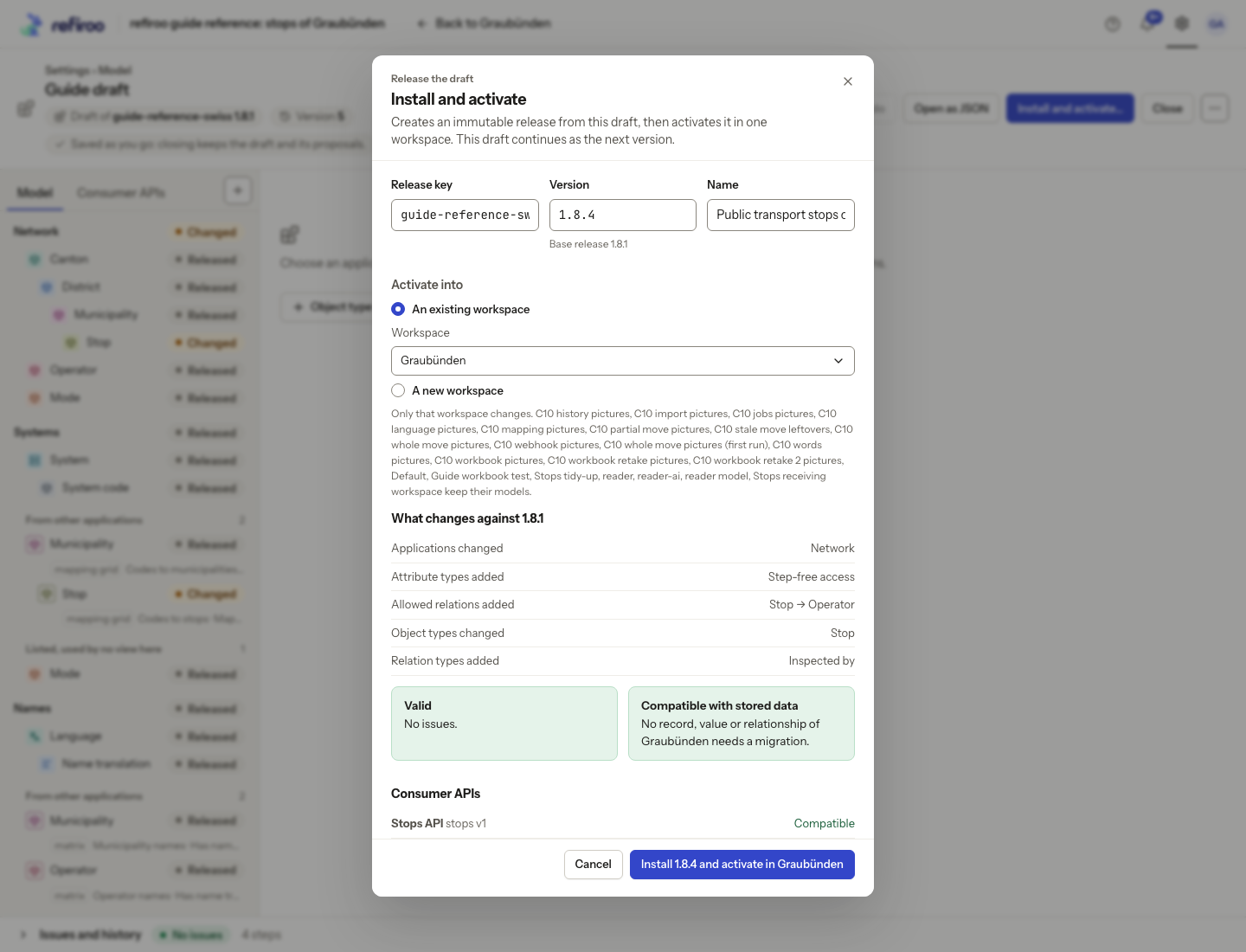
Above: Guide draft proposes release 1.8.4 for Graubünden, adding Step-free access and Inspected by. The dialog shows compatible stored data and Stops API; installation has not been confirmed.
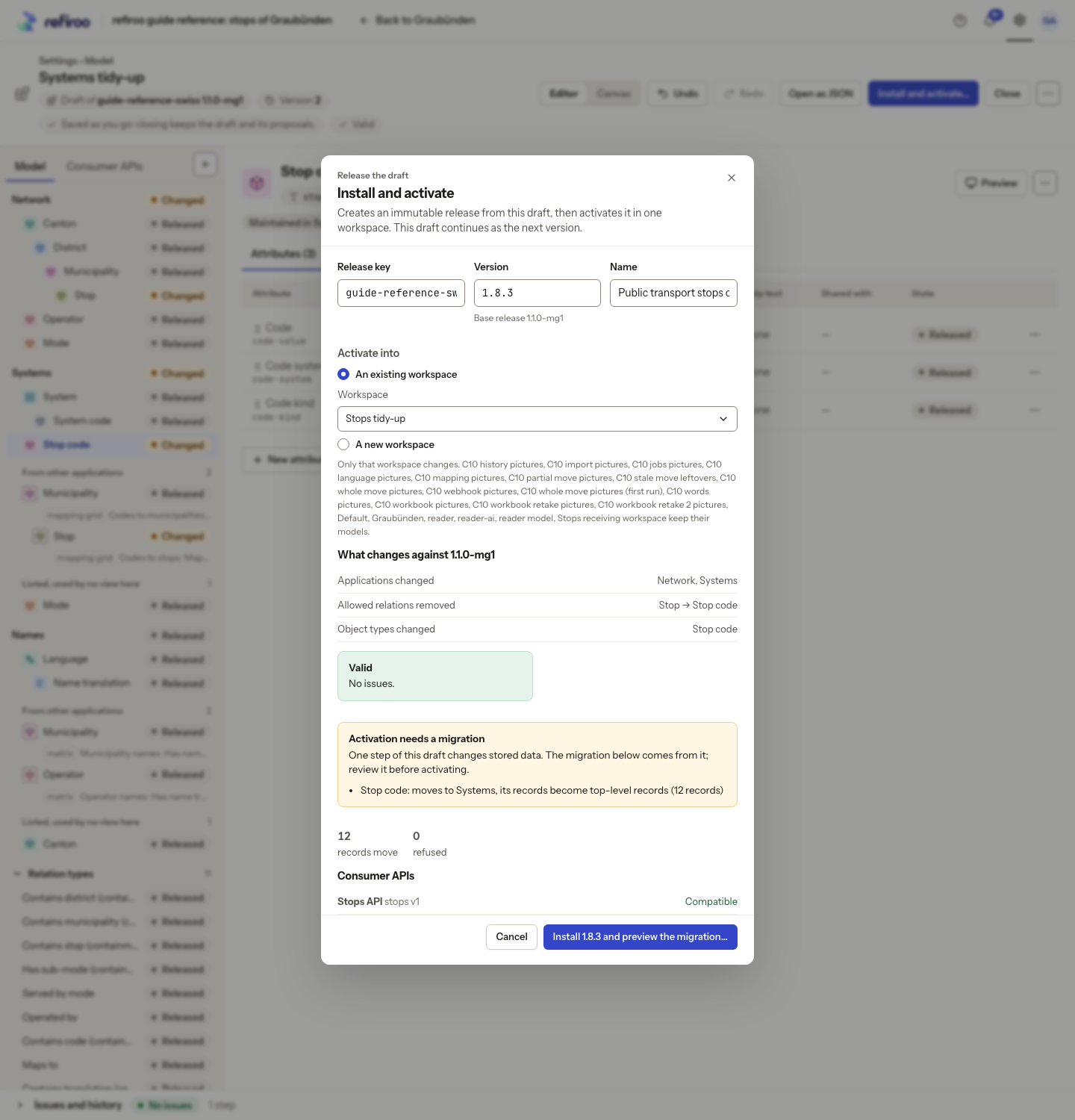
Above: the draft proposes moving 12 Stop code records to the top level of Systems in Stops tidy-up, with zero refused. Install … and preview the migration… opens the record review; this captured dialog was cancelled.
A successful installation fixes the release’s content; the draft continues as the next editable version. If the result says Installed, not active, keep the installed release and resolve the reported activation problem. Do not assume installation was undone.
Review earlier consumer contracts before activation
Section titled “Review earlier consumer contracts before activation”In Consumer APIs, check both the current version and every Earlier versions row in the draft. Raising a contract normally keeps the base release’s previous definition. That version continues reading current data in its original shape after activation. Installing an older release alone does not keep any contract served; the workspace’s active release must retain it.
A finding ending a kept version is served as it was: restore it, or stop serving it means the retained contract would change. Restore that definition and its model sources, or agree to stop serving it. Raising the current version again does not fix the finding. The install review shows this explanation instead of a raise action for that retained version.
In the install review, and in the activation dialog of each workspace, a warning that
an API stops serving version … means that earlier version disappears
on activation. The review names the version and says its consumers get
CONTRACT_VERSION_NOT_FOUND; it does not say Compatible for that API. Confirm the removal with consuming teams, including webhook owners. Its
reads stop and affected webhooks need review before resuming on the current contract. A
Sunset day alone never stops a version. See
Stop serving an earlier contract version.
Read the removal warning in the install review before opening the confirmation. The API’s Schema › Against what consumers read now lists the same finding.
Review the destination workspace’s contract check even when the draft’s base comparison passes: another workspace may serve a different release or retain different versions.
Apply from a workspace
Section titled “Apply from a workspace”- On Settings, Workspaces, open the intended workspace and choose Edit model. Confirm Applies to in the editor header, make the changes and choose Apply to this workspace….
- Read the workspace’s current model, What changes in the model, data compatibility and Consumer APIs. Expand Becomes release to review the release identity where shown.
- Read Change sets left on the old version. They stay pinned to that release and cannot be published until moved to the new one or discarded. Check Not changed for the other workspaces.
- If Your records stay as they are is shown, confirm Apply to the named workspace when ready. If Activation needs a migration appears, review the steps, destinations, counts and warnings about changed keys and the consumer APIs naming them. Some records must move first can appear when the compatibility check finds a migration without a draft proposal.
- Choose Preview what happens to the records… when a migration is needed. It installs the release and opens a migration preview with the draft’s choices where available. Inspect What the draft proposes, the Proposed rows and outcomes, including Created when records and relationships are created. The workspace keeps its current release until you confirm the migration.
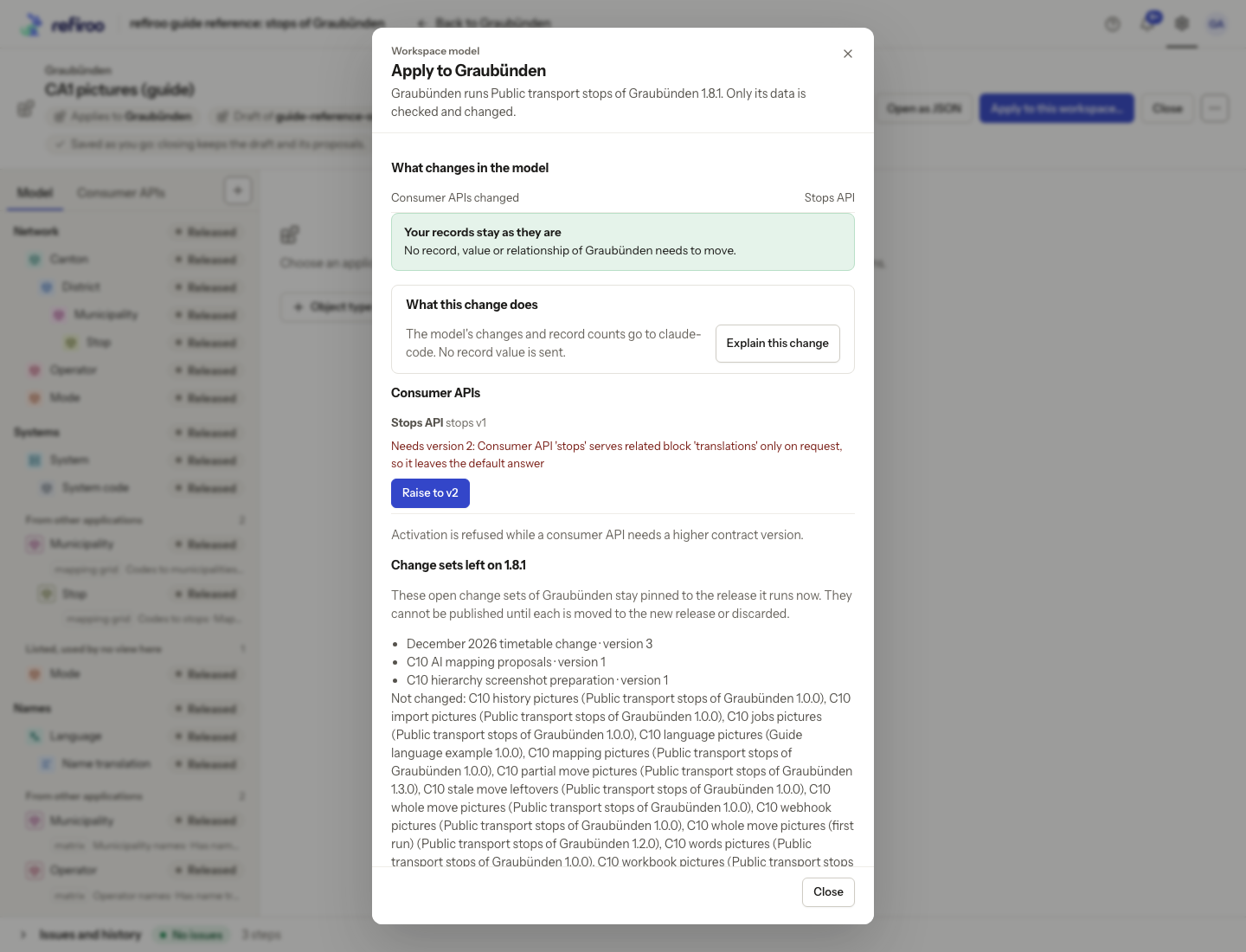
Above: The Apply to Graubünden review shows a consumer API change that needs version 2. Activation is refused until the contract version is raised; open change sets remain on release 1.8.1.
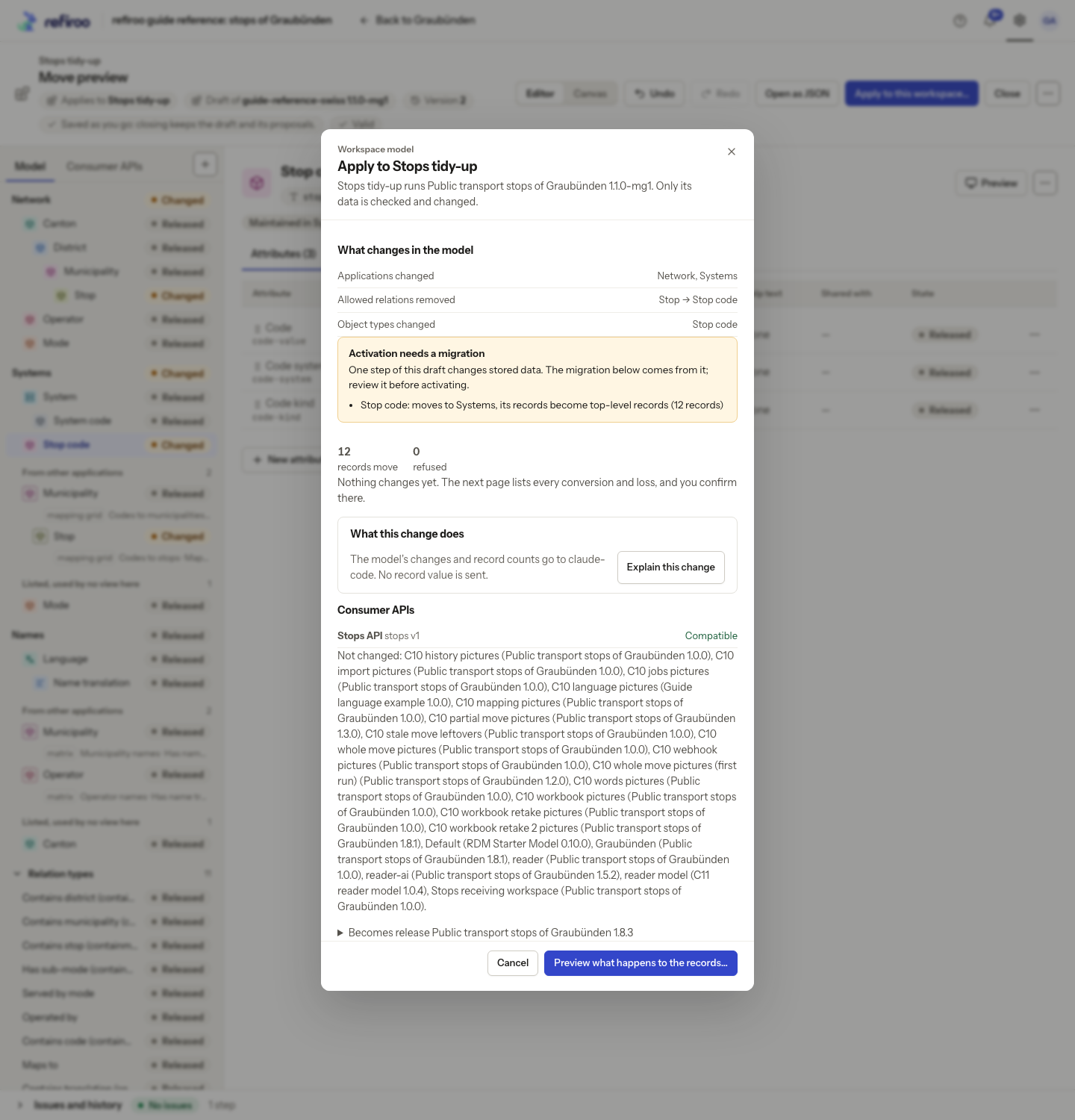
Above: Apply to Stops tidy-up shows the same move of 12 Stop code records, with zero refused. Preview what happens to the records… opens the migration review. The captured dialog was cancelled.
Activate an already installed release
Section titled “Activate an already installed release”- Open Settings, Model, choose the model, then Releases and the intended version.
- Check its identity, workspace use and installation details. Use Create draft from release if its definitions need changing; the release itself is immutable.
- Choose Activate in a workspace…, select the target and read its compatibility result and change sets left behind. A release can be activated only when that workspace’s existing data fits.
- Confirm Activate with the displayed version and workspace when ready. If activation is refused, correct the named issue and recheck. A stale-state refusal needs a refreshed workspace state and another review, not repeated confirmation of the old result.
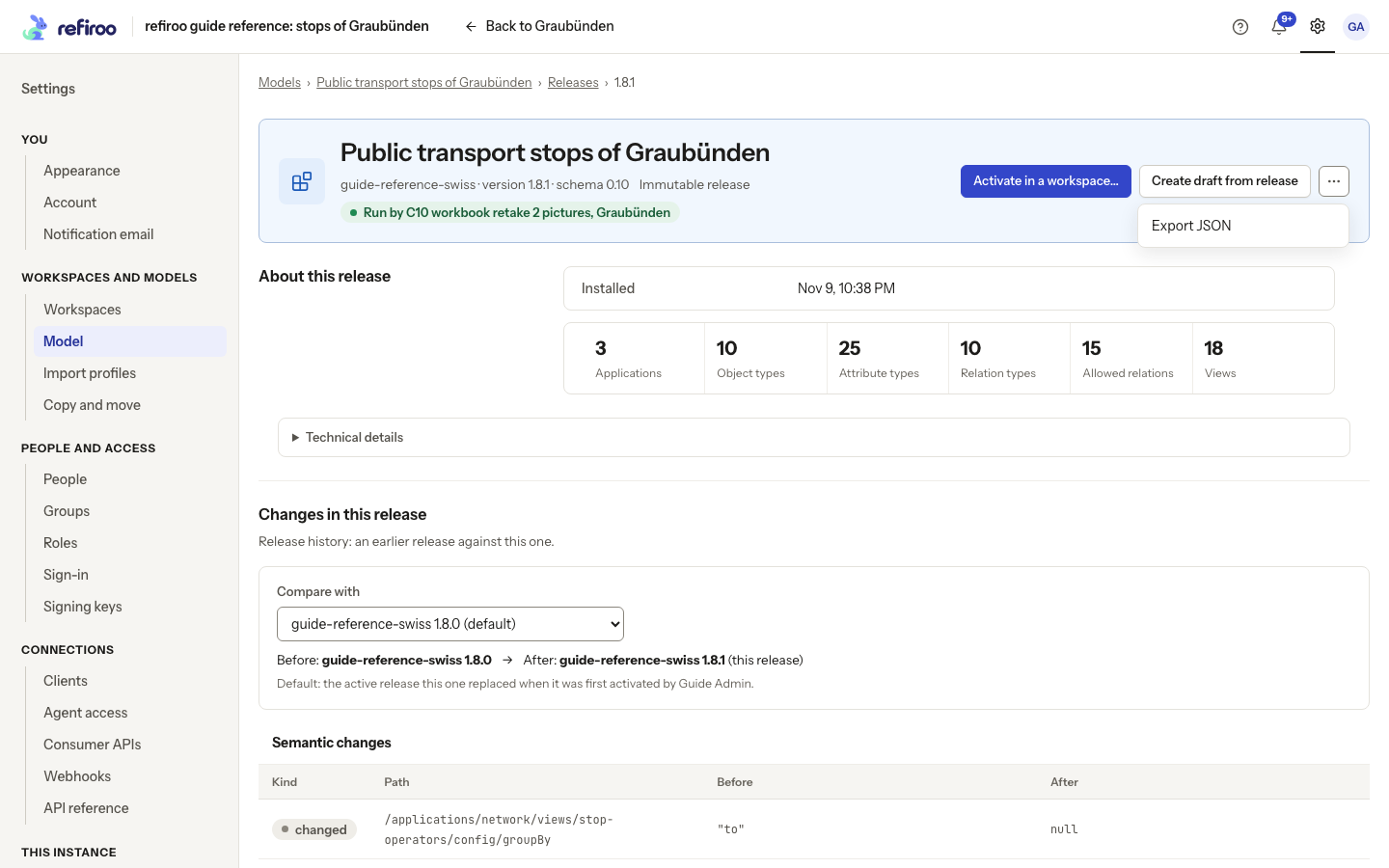
Above: Release 1.8.1 of the Graubünden model is immutable and run by Graubünden. Its open menu offers Export JSON.
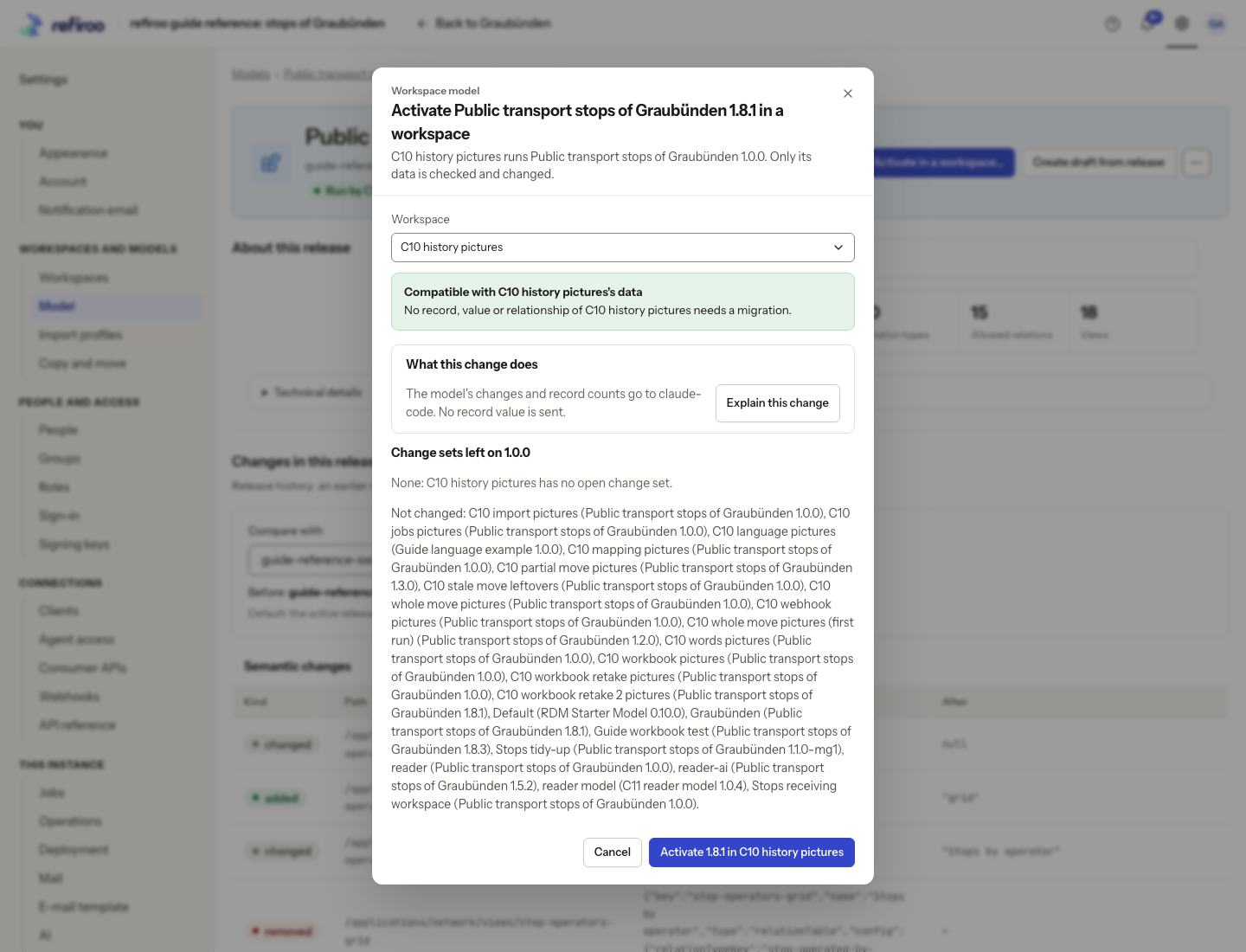
Above: an example workspace is selected for activation of release 1.8.1. Its data is compatible and it has no open change set; activation has not been confirmed.
After success, open the target workspace and check its applications and a changed type’s page. Other workspaces keep their models. If an already open page says its model changed, reload it before editing records. Review any left-behind change sets through the change-set process before their next publication.
Read the activation result
Section titled “Read the activation result”| Result | Next action |
|---|---|
| Compatible with the workspace’s data | Review the named workspace and confirm activation when ready. |
| A migration is needed | From installation, choose Install … and preview the migration…; from Apply, Preview what happens to the records…. Review proposed destinations, created items, conversions, removals and items to fix before confirming the migration. |
| A different model | Review this destination carefully; compatibility is checked when activation is attempted. |
| A consumer API needs a higher contract version | Coordinate the contract change and raise its version in a draft before rechecking. |
| Could not be checked | Read the failure, correct its cause and check again; it is not a successful compatibility result. |
The install dialog says Comparing with the base release where the draft has one. That comparison can differ from the target workspace’s current release; read the separate data and consumer checks too. Cancelling a migration preview leaves workspace data unchanged; a release installed to start that preview remains installed. After a stale preview, review a fresh one instead of confirming the old counts.