Start a draft from a workbook
Use this task when a workbook needs a new model, an additional application or new fields and types. See Workbook onboarding for what the draft, source and dry run keep. You need the permissions to administer the model, activate it in the target workspace and load records there.
Get the example workbook
Section titled “Get the example workbook”You can use your own file. To follow the illustrated example, download Haltestellen_Busbetrieb_Nord.xlsx. Save the file, then select it in Workbook in step 2 below. It has three sheets: Haltestellen (stops), Namen (names) and Lokale Codes (local codes).
This is a deliberately messy workbook from a fictional bus company. Stop names and numbers come from the guide’s example data; lines, local codes and fare zones are invented. Review its proposals rather than treating them as an approved model. Dry-run counts and refused rows depend on your mappings and comparison workspace; they may differ from the pictures.
For the next-upload exercise, a second file is available in Propose again with a newer workbook.
Start the draft
Section titled “Start the draft”- Open Settings, Model. Choose New from a workbook. New draft starts model authoring without this workbook proposal task.
- Enter Draft name and choose the Workbook, an Excel workbook or CSV file, or drop it onto the field.
- Under Propose, choose A new application, A new model, Additions to the model or Nothing: I will map it by hand. Read the explanations: a new application adds to the starting model, while a new model starts empty. Set Application name where offered.
- Choose Compare with the records of. The dry run uses that workspace; choose the intended data, not simply a similarly named workspace. Check Starting document and Base release where offered so the draft starts from the definitions you intend.
- Choose Create and propose, or Cancel to leave without creating the draft. Wait for the file to be read and the editor to open. If the upload fails, correct the reported file problem and try again before proceeding.
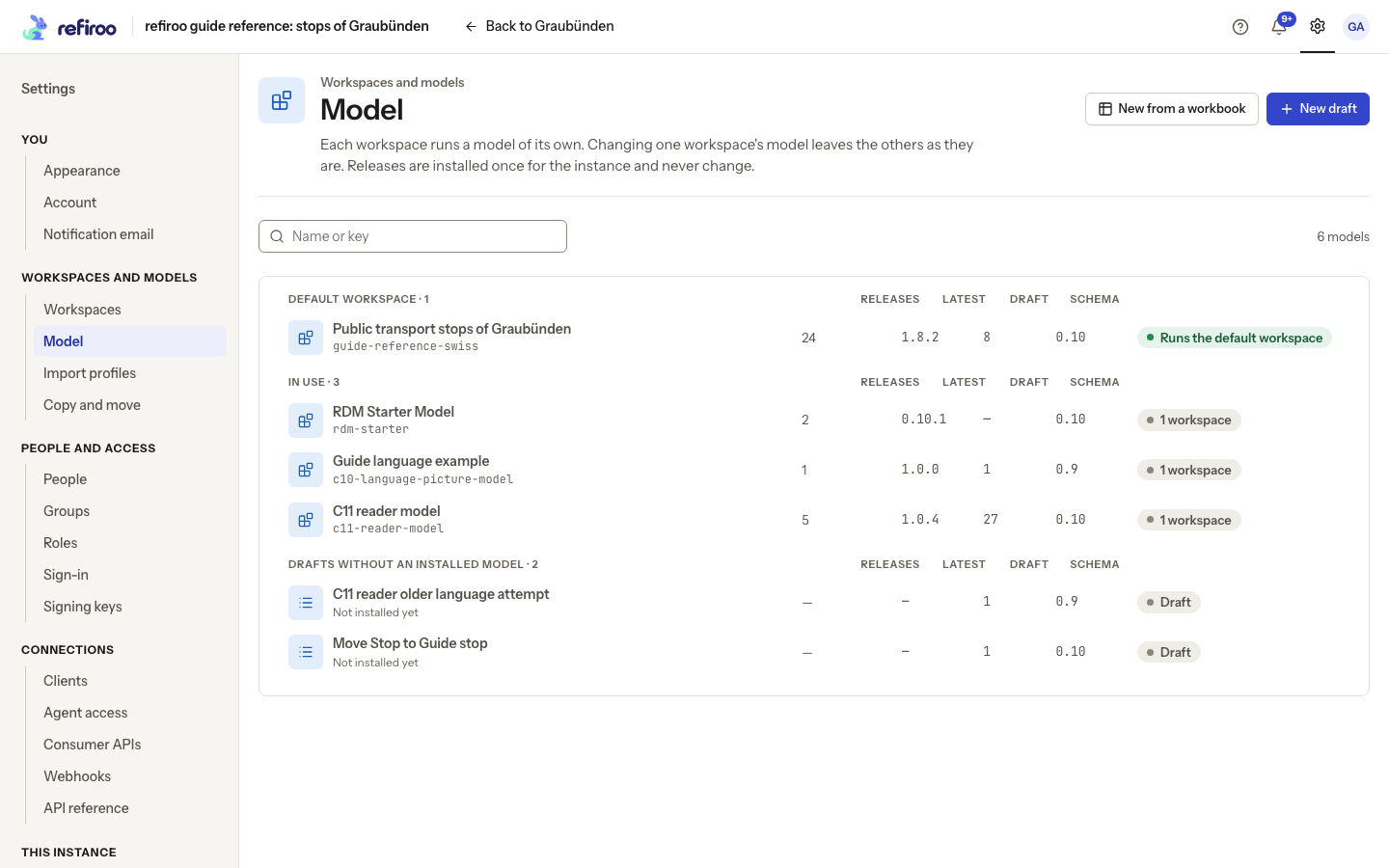
Above: Model lists the releases and drafts installed or saved on the reference instance.
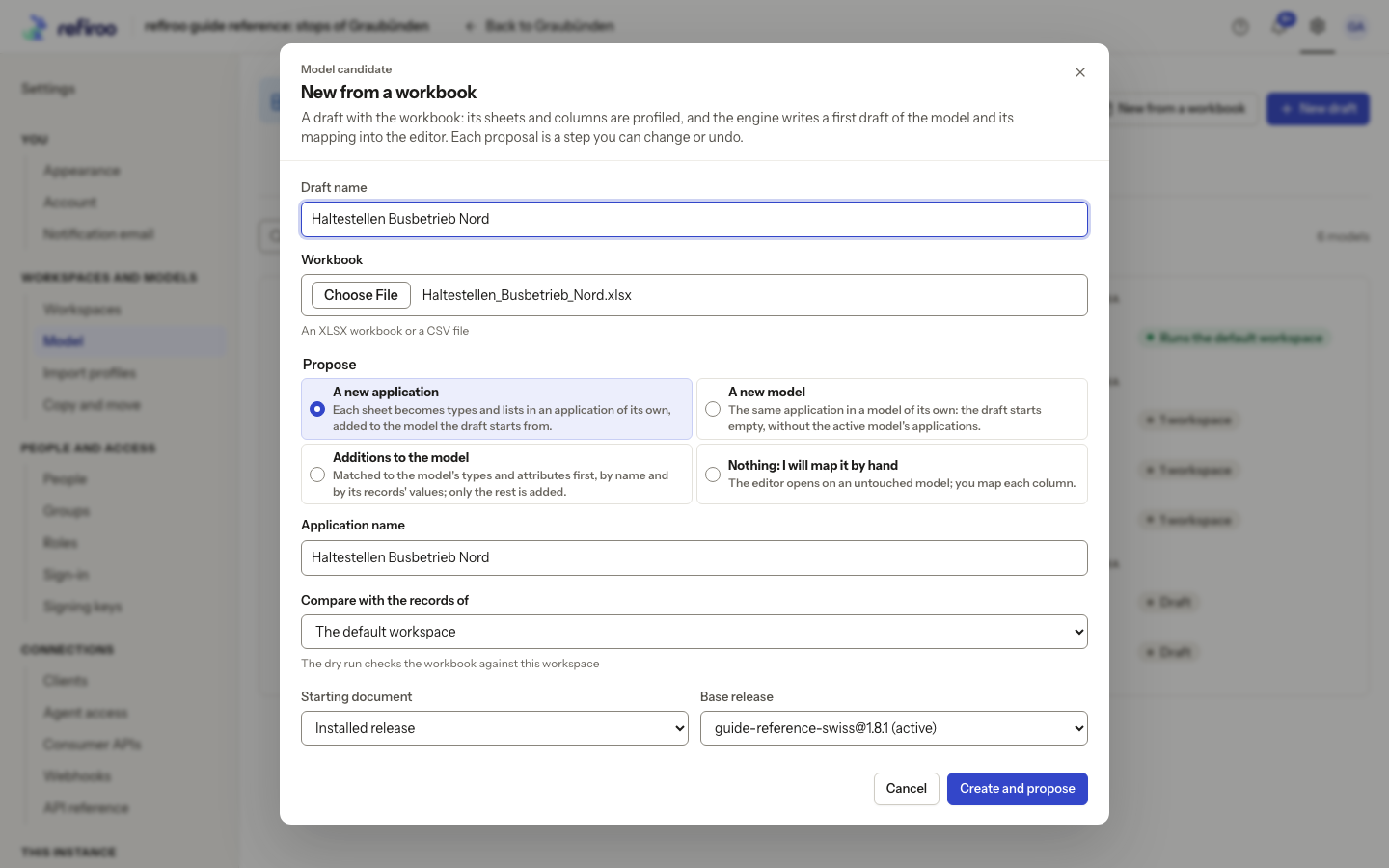
Above: Haltestellen_Busbetrieb_Nord.xlsx is a fictional operator file. The capture cancels this dialog.
Inspect the source and proposals
Section titled “Inspect the source and proposals”- In the source pane, open each sheet tab. Read the columns, their filled and distinct counts, and the source’s header row. Distinguish sheet rows from the data rows actually loaded.
- Select a proposed type in the model tree. Read Proposed because and choose Evidence to inspect the values that support it. Check that the proposed key identifies the intended record, and that names, fields, parents and related records have the intended meaning.
- Select a source column to inspect its mapping. Use its menu’s Map to… to change what it feeds, or drag it onto a type. Check any splitting of multi-value cells, replacements of placeholders and creation of missing related records. Ignore columns you do not intend to load.
- Open Issues, history and dry run, then History, to review the steps. Use Undo to reverse an unwanted step and Redo to restore it. Closing the editor keeps the saved draft.
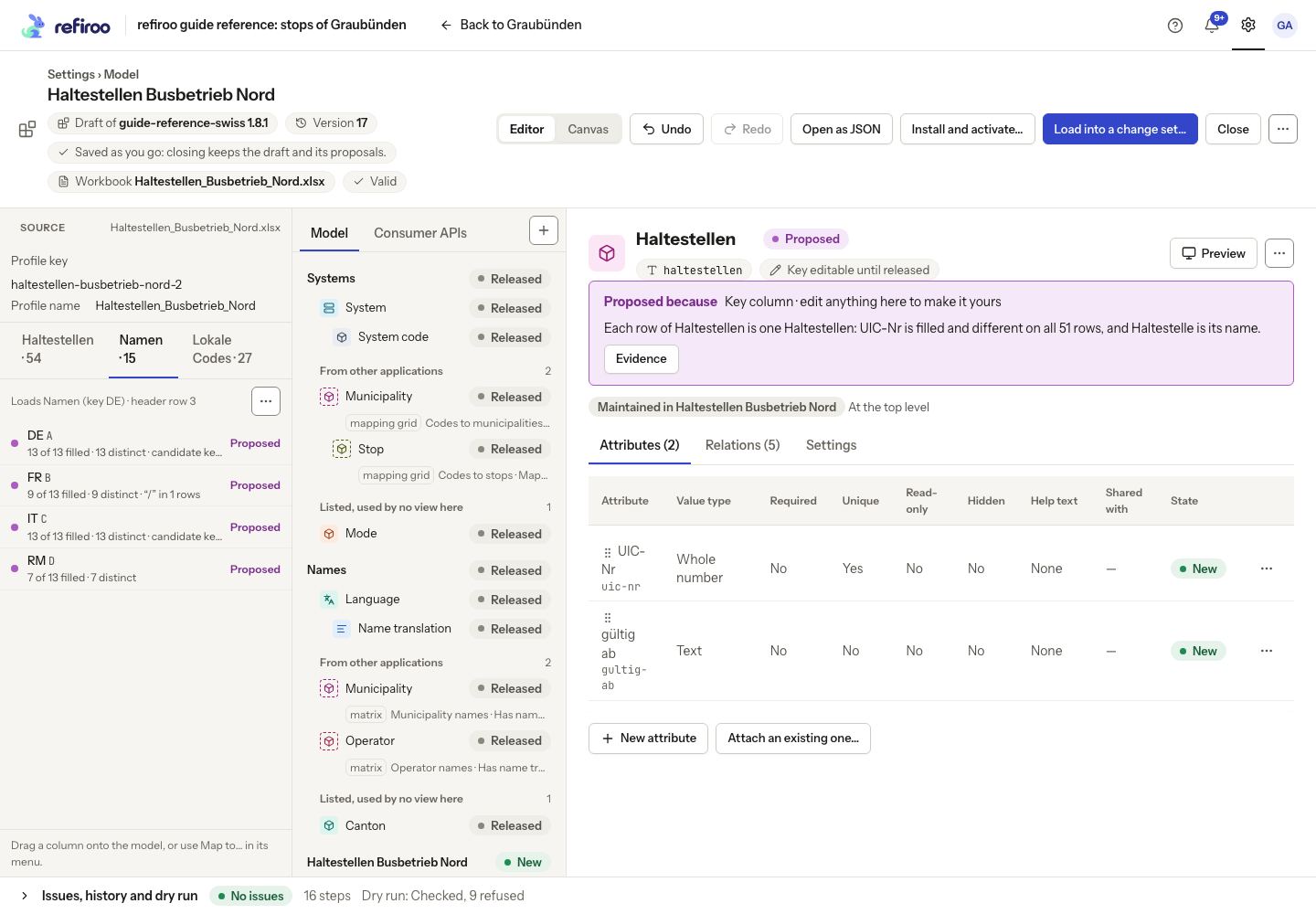
Above: Namen is the second sheet of the fictional workbook. Its columns need their own review; a reasonable mapping on the first sheet does not establish that this sheet is correct.
For an explanation of proposal marks and key evidence, see Proposed steps. How workbook proposals are made explains the patterns, recognition limits and alternatives behind the evidence.
Resolve issues and check every source
Section titled “Resolve issues and check every source”- In the bottom panel, choose Issues. Fix or undo the steps causing reported issues. No issues establishes that the draft is valid, not that every row loads.
- Choose Dry run. Check the draft version and comparison workspace. Wait for the current check to finish; a failed or outdated result is not a result for your latest mapping.
- Read every source’s counts. Select a figure to inspect the rows behind it. Open the red refused-row figure to read each reason.
- Correct a wrong mapping, unresolved reference or source value. After a source-file correction, use the editor menu’s Upload a newer workbook…. Propose again… can reconsider the file while retaining your edits. Review any new issues and the refreshed dry run.
- Continue only when you understand the predicted changes and any rows that remain refused. Nothing has been written to the workspace’s records by the dry run.
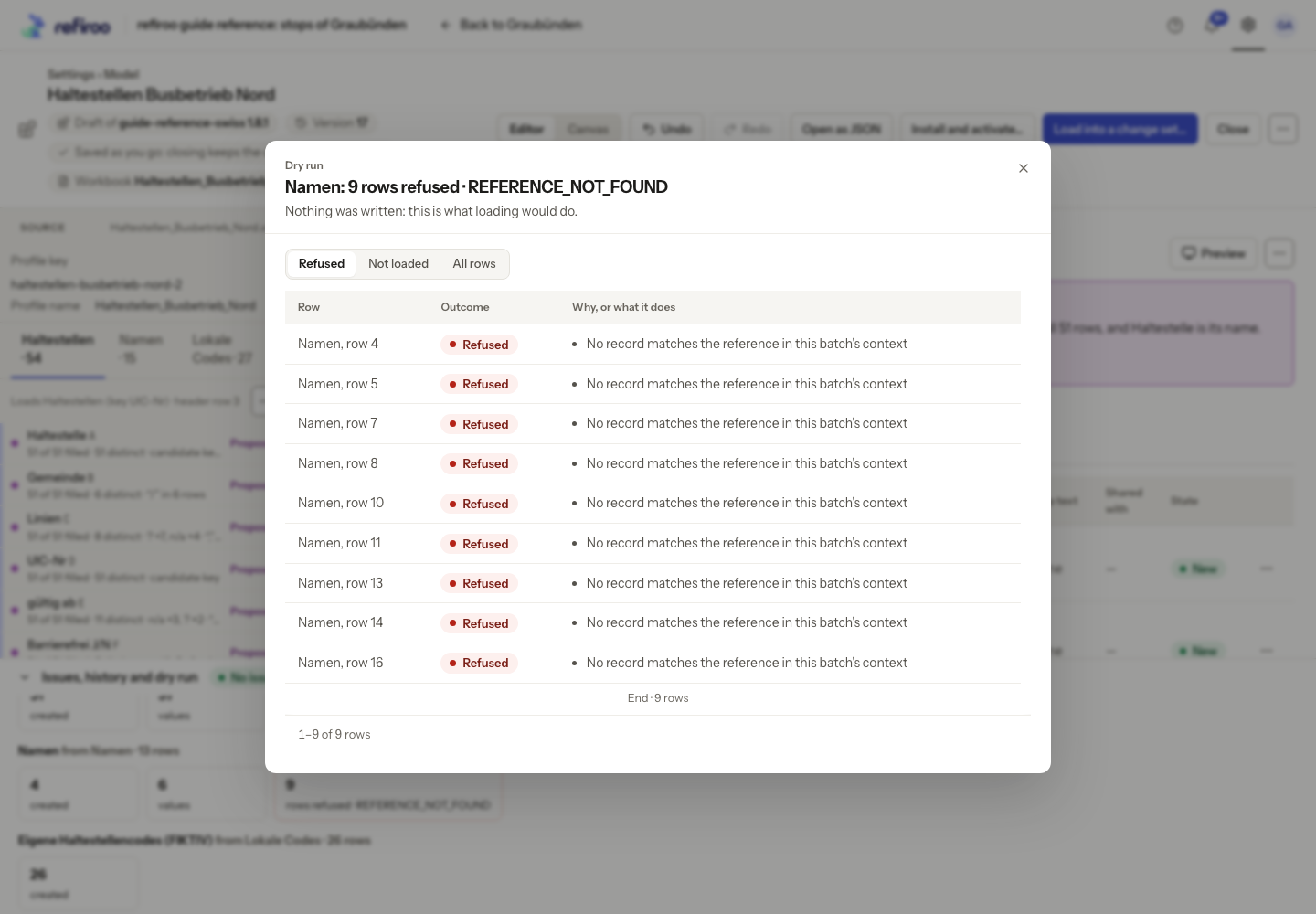
Above: nine Namen rows in the fictional workbook have no matching reference. They would be refused; a valid model does not resolve those references automatically.
When the mapping and dry run are ready, follow Load a workbook into a change set.
Correct list ranges and column instructions
Section titled “Correct list ranges and column instructions”- If a sheet contains several lists, choose Lists and open each detected list. Read its range and Loads. Choose Adjust list… to correct the header, last row, first column and last column, then check the range before applying.
- Use Don’t load this list for a range to exclude, Load as a list… to choose its interpretation, or choose the proposal alternative Read these N lists as one list under their headers for at least three lists of the same shape under one title (or no title). These are source instructions; they do not edit cells in the original workbook.
- Open a column and choose Map to…. Review whether it supplies a name, attribute, parent, related record or relationship flag. Check Matched by, any naming column and whether missing related records may be created. Select Ignore for columns to leave out.
- Set Split a cell on only for genuinely separate values. Open Add a value map… or Edit value map… to map Text in the file to Becomes. Check that placeholders are treated as intended, rather than becoming real values.
- Inspect Key and its uniqueness message before Use as the key of the rows. Reopen Dry run for every source tab. was compares a figure with the previous result; open refused rows and use their sheet, row number and reason to make a correction.
A workbook describing a model, lists laid out for reading and repeated-parent tables can lead to different proposals. Check the inferred structure rather than assuming one sheet means one type. Workbook onboarding explains those choices.
Use the assistant instead
Section titled “Use the assistant instead”If the built-in assistant is enabled, you can review its proposed workbook design before accepting a model and load. The rules-based draft route above does not call AI or offer AI naming suggestions.