Continue or correct an assistant task
Return to the task from Settings › Jobs, or use the task’s bar when it accompanies the model editor or change-set review. The same assistant session can continue while the task is retained. For a task given in words, its Jobs group and page heading use the short title the assistant writes with its first answer; any draft it makes is named Assistant: followed by that title. Your full instructions stay under You said: on the proposal. Until the title arrives, including after a stop or failure before an answer, the name uses your words, shortened at a word boundary with “…” if needed. A workbook task keeps its file name.
Further turns can incur costs and read the task’s workbook and permitted records again. See AI and your data for sending and retention, and task states for their rules.
Correct a proposal
Section titled “Correct a proposal”- Read the latest notes, any Checks, What the load does or record counts, and any engine refusal. If you stopped a turn after it changed the draft, open the draft to inspect it: Stop does not undo those edits.
- Under Tell the assistant what to change, describe the correction and choose Send to the assistant. The same session reads the current draft, if there is one, and proposes again.
- Review the new proposal. For a workbook, inspect What the load does, open the type rows for example records and source cells, and read any repeated-name finding or refused items. Choose Accept and load to change set when those checked records and relationships match your intent. A draft edited after the check is checked again first; any refusal prevents the load. For words alone, choose Accept when the page says No change to the model.; model-only and record-move proposals keep Accept the model. If the task changed while you worked, inspect its latest state and try again; your old view cannot overwrite the newer work.
Continue after a failure or Stop
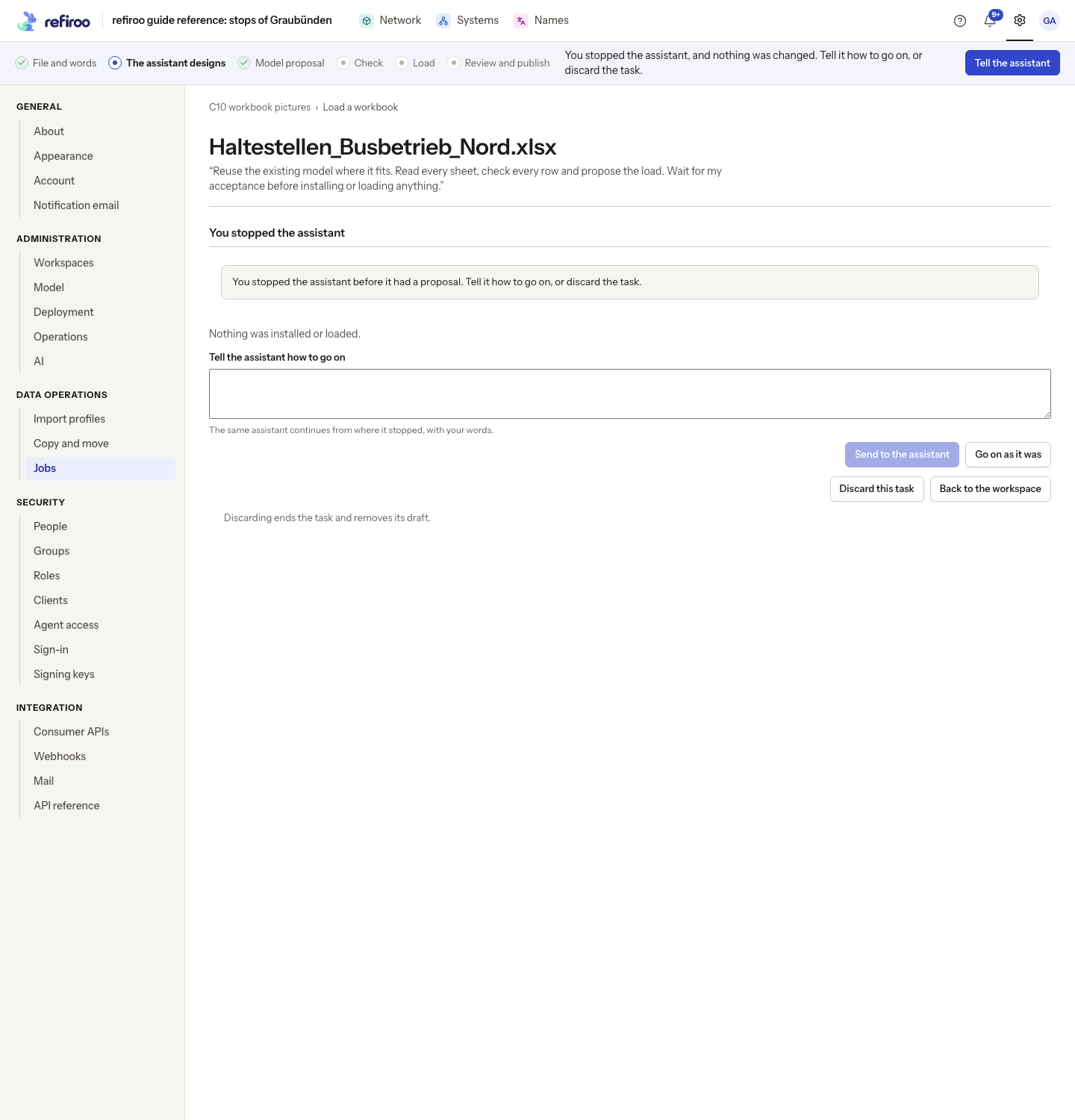
Section titled “Continue after a failure or Stop”- On The assistant stopped or You stopped the assistant, read the reason in the task’s notes. The newest three are shown; expand earlier notes if needed. If the message asks you to report a correlation ID, copy the ID shown with that warning for the operator.
- Use Tell the assistant how to go on and Send to the assistant to supply corrected instructions. If the cause was temporary and the instructions are still right, use Try again as it was after failure or Go on as it was after Stop.
- If needed, choose Open the draft in the editor. The draft and work so far are retained. If you stopped before the session had anything to resume, continuing starts it again on the same task with your words and any file.
- Review the returned proposal. To end the work instead, choose Discard this task, which removes its draft and ends its session.
Stop while Loading discards the change set the load was making and returns to the accepted proposal. Stop before any proposal leaves a stopped task that takes instructions. Stopping a correction can return an earlier proposal whose draft already has newer edits; read the warning before accepting anything.
Correct a load before publication
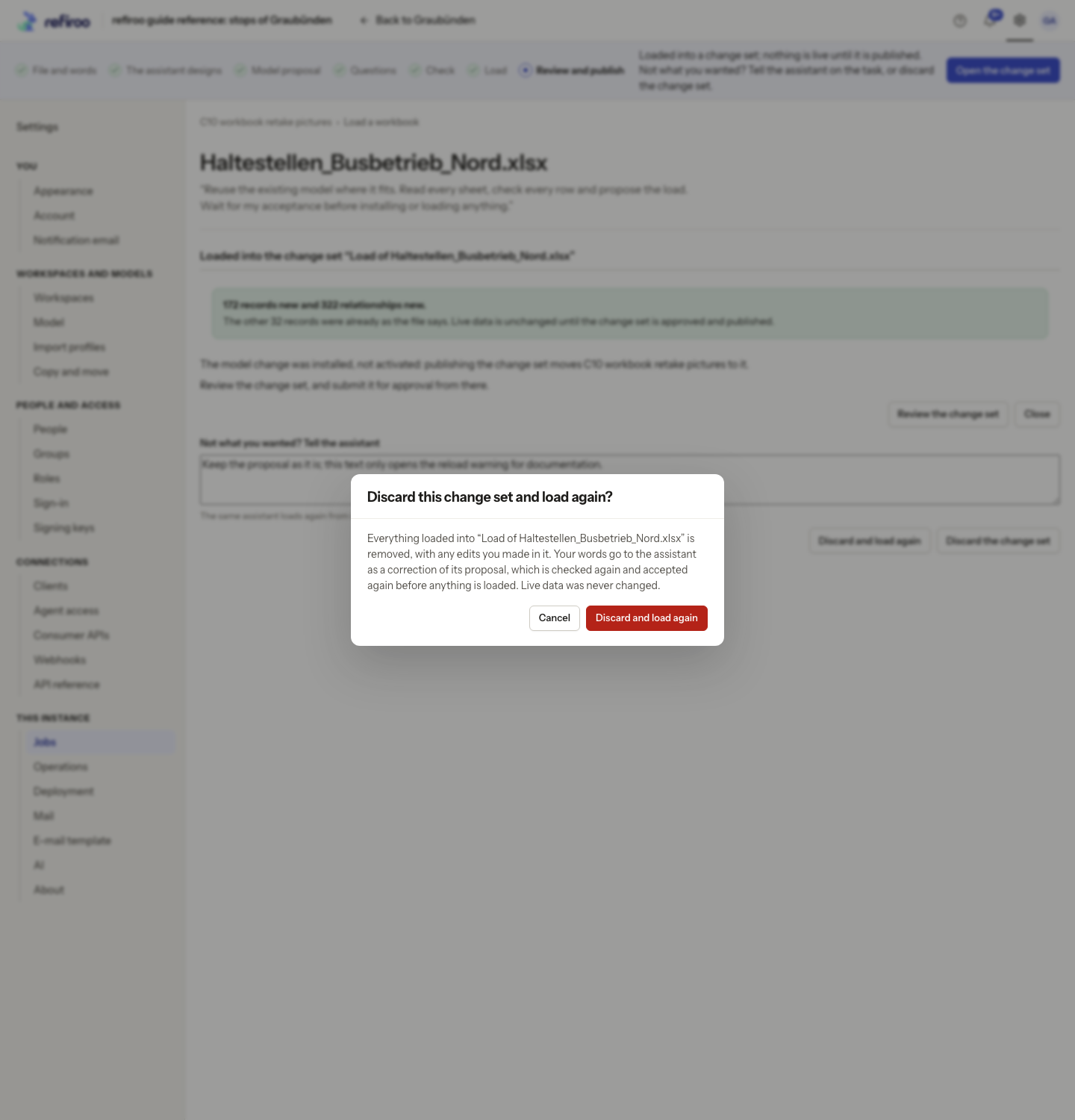
Section titled “Correct a load before publication”- On Loaded into the change set, choose Review the change set to understand what is wrong. If it can be corrected with small ordinary edits, you may make them there.
- To ask the assistant to prepare it again, return to Not what you wanted? Tell the assistant. Describe the correction and choose Discard and load again.
- Read Discard this change set and load again?. Confirming removes everything in that change set, including any edits you or others made there. Cancel to preserve it. Live data has not changed.
- If you confirm a correction to a workbook load, the same session revises the proposal and has the engine check the records and relationships again. Review What the load does and choose Accept and load to change set to prepare the replacement change set. Review that change set before approval and publication. To abandon the work completely, use Discard the change set and confirm instead.
After publication the task no longer takes corrections to that load. Published offers Change this model… or Ask about these records… according to your access; use these to prepare new work. A discarded task has ended: use Start again in its bar if available.
Continue a saved layout or a model move
Section titled “Continue a saved layout or a model move”At a saved-layout row check, use Back to the proposal or the words box to have the assistant read the file again. If The saved layout does not fit this file appears, choose Read it with the assistant. Review its new proposal before loading.
For The engine refused the migration or The engine would refuse the next step, read the reason on the task, then use Tell the assistant what to change. Review the revised model and preview again. Whole-type migration confirmation moves records live; read the model-move rules before confirming it. The assistant cannot bypass the refusal or activate a release itself.
If you lost permission for a step, the page says which permission is required. Copy the task link for a workspace administrator. If the task expired or does not exist, choose Go to the workspaces. A task whose session has ended says so: start a new task if more work is needed.
If a workbook batch is refused at acceptance, none of its records or relationships is loaded and its change set is discarded. Read the refused records and their source cells in the task’s notes, then tell the assistant what to correct. Review and accept the revised proposal. A model release installed before the failed load can remain installed.
For other task paths, if a failed task says it loaded changes before it stopped, choose Review the change set and inspect that retained proposal before retrying. This differs from Stop during loading, which discards the load’s change set. Do not publish a partial proposal merely because it exists.