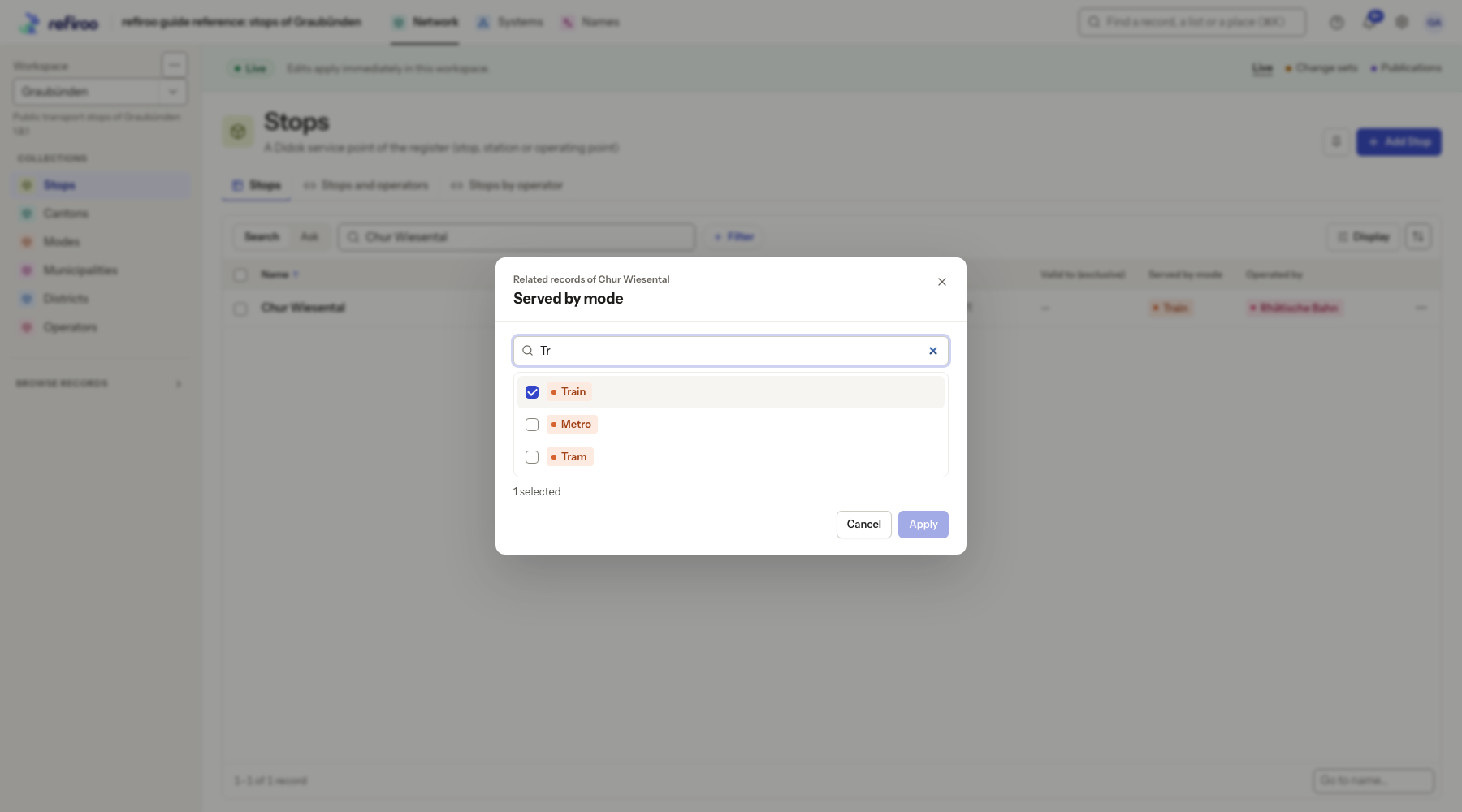
Replace a record’s related records
Choose exactly which records should stay connected. This applies where the table offers editing for a multi-record relationship. See Relationships.
- In an editable table, find the record’s relationship column and choose its pencil, or the corresponding row-menu action. The dialog identifies Related records of … and the relationship. Parent, ownership, computed and read-only columns have no such editor.
- Review the ticked records, pinned first and counted. They are the current set, not merely the first few chips shown in the table.
- Search for eligible records and tick additions. Untick records to remove their connections. Review the whole ticked set, including choices outside the current search. Unticking removes the connection, not the related record.
- Choose Save. Additions and removals save together as one operation; there is no partial replacement if a rule refuses it. Connections still selected keep their identity and fields.
- Check the refreshed column and save notice. If Nothing was changed appears, read the cause and reopen the current set before trying again. Another person’s intervening change must be reviewed rather than overwritten.
For a single-valued relationship, use Set relationship or Change to choose its one record instead. To replace sets on several records, use Change relationships of many records. The ordinary relationship panel otherwise maintains connections one at a time.