Fix issues before installing
Use this check before installing or applying a draft. Model authoring lets you correct it; release access is needed to activate it. Issues and dry runs explains why a valid model, compatible stored data and accepted source rows are separate results.
Follow and correct model issues
Section titled “Follow and correct model issues”- Open the draft and read the header’s status. Expand Issues and history, then choose Issues. Read each message and its severity.
- Use an issue’s Go to link to open the affected type, application or view. Check the named setting against what that element actually contains.
- Correct the cause using the element’s controls. For a view referring to an unavailable field, remove that field from its selected columns, or attach the intended existing attribute to its type if it belongs there. If the last edit was a mistake, use Undo instead.
- Save the correction and wait for validation. Reopen Issues and resolve the remaining errors. If Another change came first appears, read the newer steps, then choose Apply mine again or Discard mine after reviewing the current model.
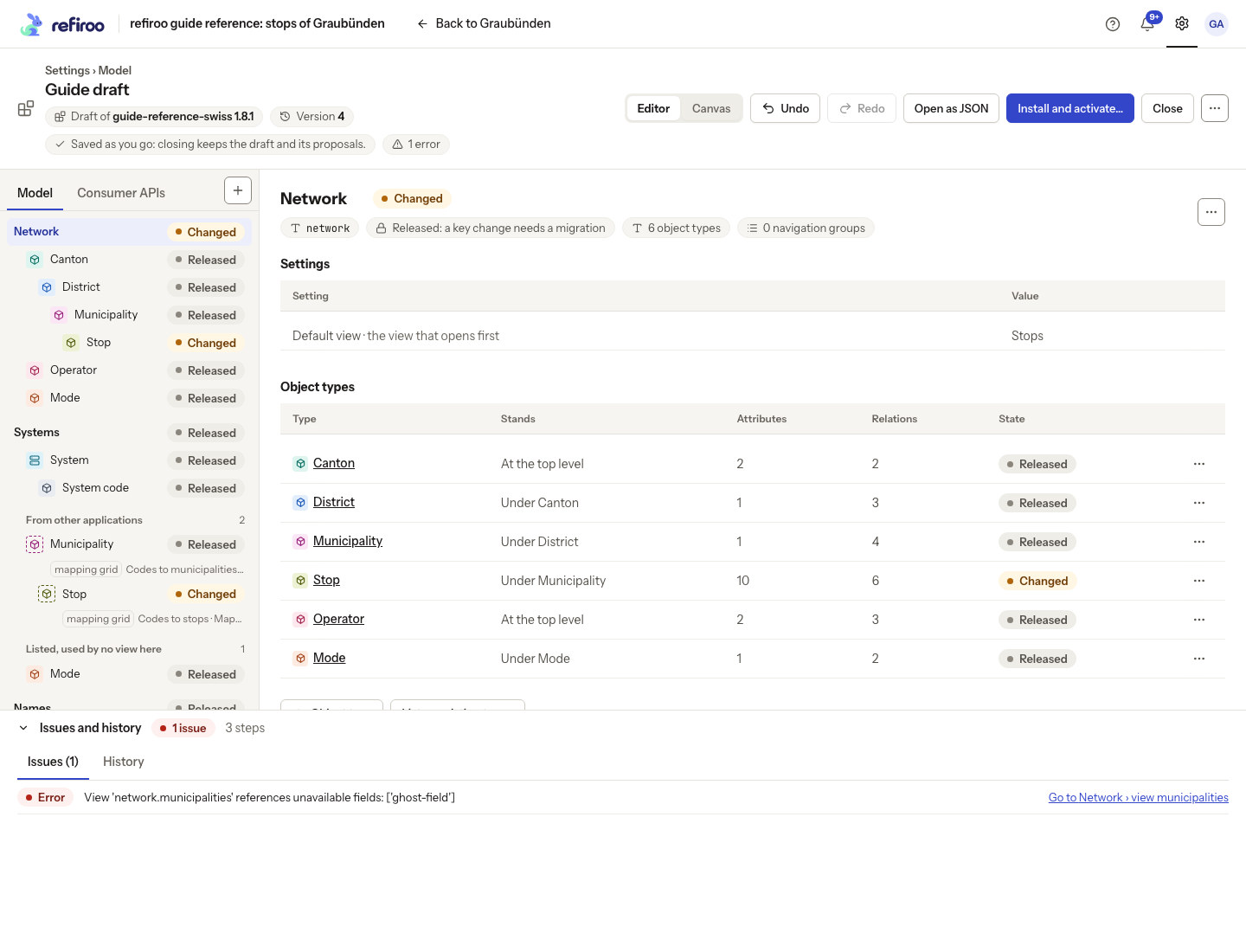
Above: Guide draft contains a deliberate unavailable-field reference in the Municipalities view. The issue points to Network’s view rather than requiring the reader to search every type.
Do not treat saving or closing as a successful check. An invalid draft can be saved, but its errors still prevent installation. Read warnings too, especially when a workbook mapping is attached.
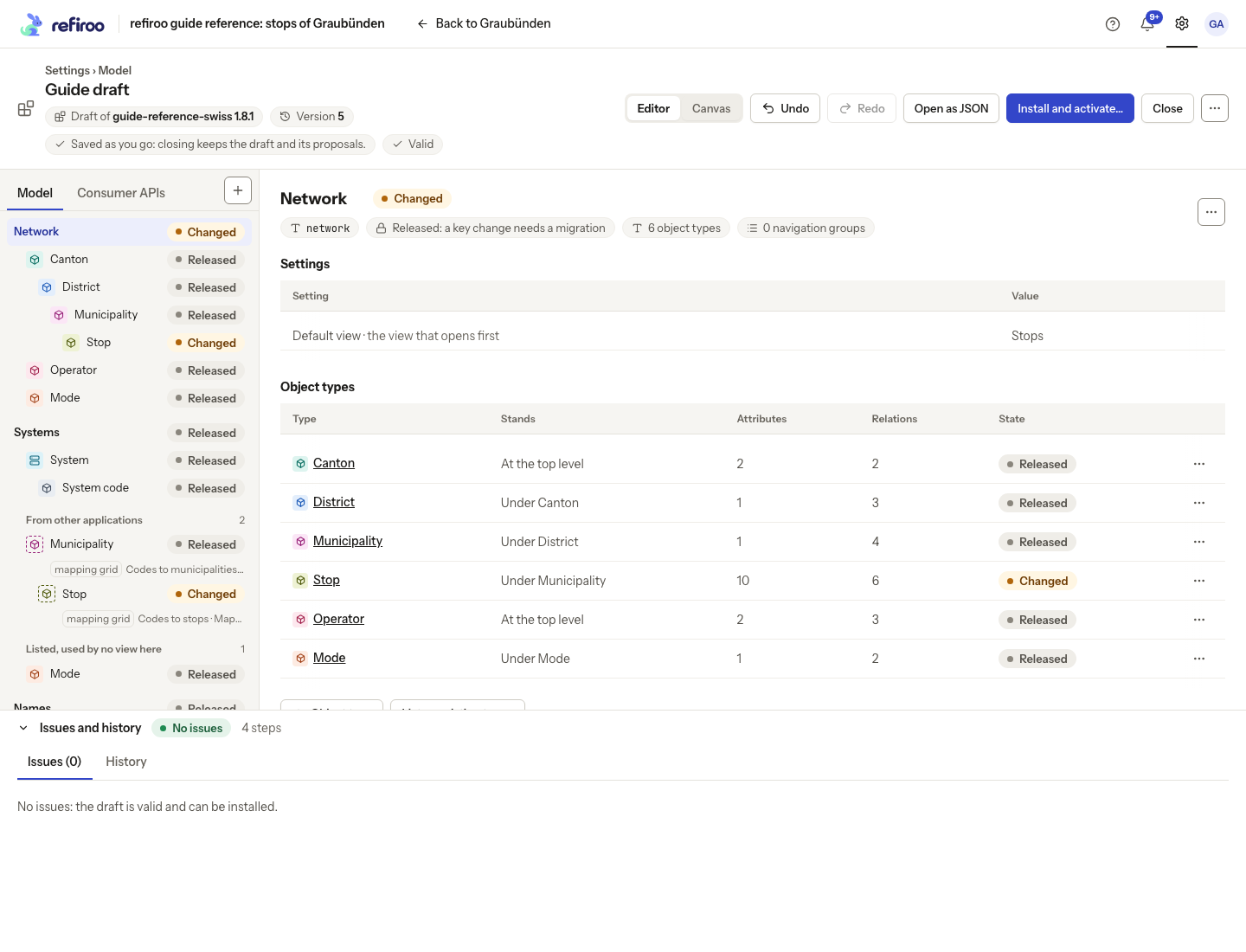
Above: Guide draft’s issue is fixed. The Issues tab now says the draft is valid and can be installed.
Check the selected workspace
Section titled “Check the selected workspace”- Choose Install and activate…, or Apply to this workspace… in a workspace draft. Opening the confirmation performs checks without applying the model.
- Check the named workspace and the differences from the base release. Read the stored-data result. If data does not fit, read the affected records and rules before deciding whether to correct data, revise the model or open the offered migration preview.
- Review Consumer APIs. If a contract needs a higher version, coordinate that change and use the offered version action before checking again. A model release version increase alone does not resolve a consumer contract incompatibility.
- Read the open change sets left on the current release. Plan how to move or discard them before their next publication. Use Cancel while further work is needed; the draft stays saved.
For an attached workbook, also wait for the latest Dry run, open refused-row figures and resolve or explicitly account for them. No issues does not mean every source row is accepted. Follow Load a workbook for that check.
Once the intended model is valid and the target is suitable, follow Install and activate a release.
Where an issue offers a fix, inspect its meaning before choosing it. Use as the profile’s key resolves a profile identity choice; it is not a change to a record’s identifier. An issue for a panel naming a removed field can offer to remove that panel. Recheck after either action. In a workbook dry run, select each source tab, open refused-row counts and compare the was figures with the previous check. A fix to one source does not establish that the other sources load.