Turn an attribute into a list
Use a list type when people should choose maintained records instead of entering a free value. For example, a stop’s operator may be a relationship to operator records. This is a modelling choice, not a special value type. See Types, attributes and relations.
- In a draft, select the type and open Attributes. Open the attribute’s menu and choose Turn into a list type…. You need Model authoring.
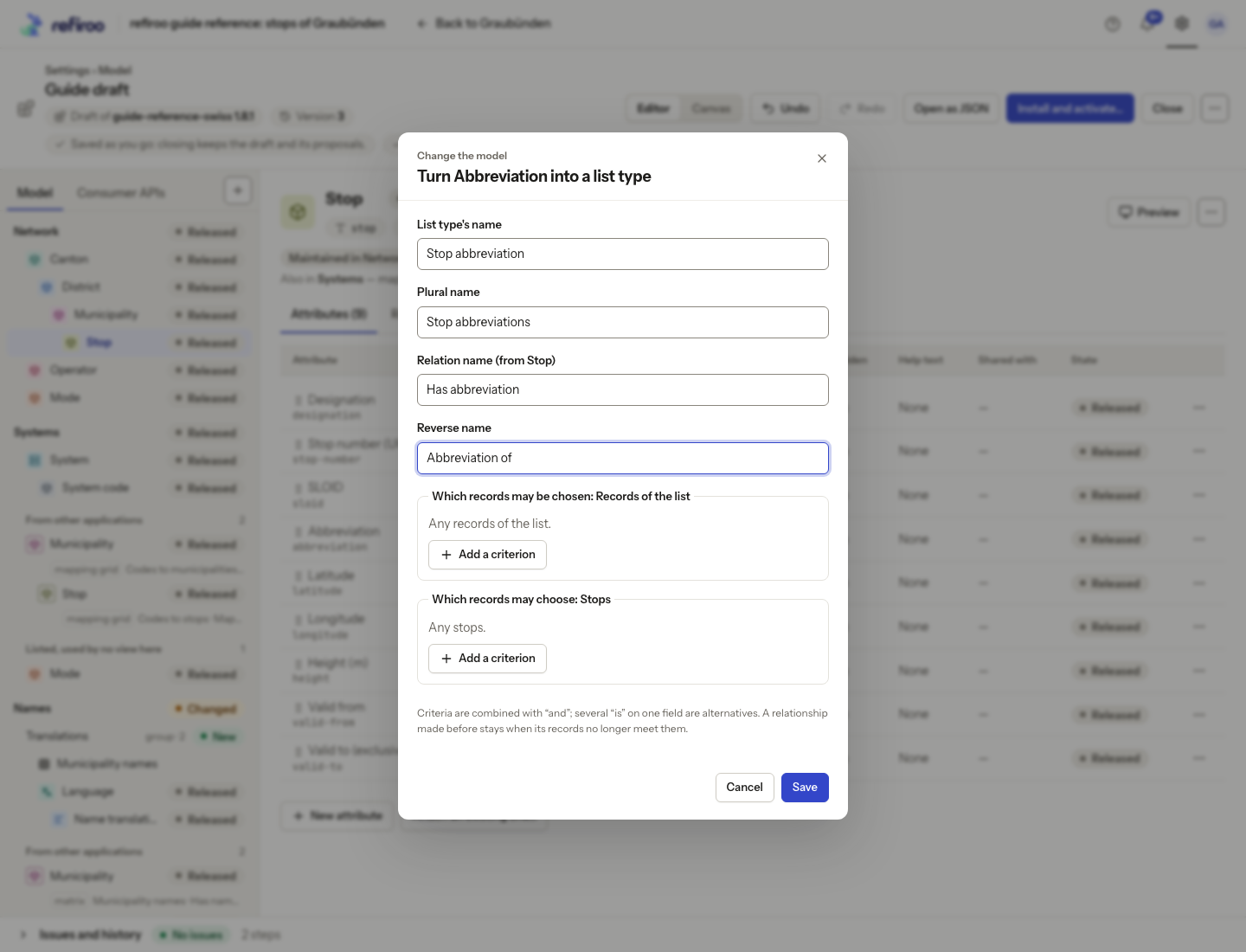
- Enter List type’s name and Plural name. Enter Relation name from the original type and Reverse name from the list records back to it.
- Review Which records may be chosen. Leave it unrestricted to offer any list record, or add the offered criteria. A new list type initially offers criteria on its name.
- Choose Save and inspect the new type and relationship. Check the original type’s fields and layouts and resolve Issues before previewing or installing.
- If the released attachment holds values, the step applies and History marks it Needs a migration. Saving the draft does not populate live list records. Use Undo to reverse an unwanted draft step.
- When installing, review Activation needs a migration and choose Install … and preview the migration…. The preview includes the proposed list conversion. Open Created to inspect the list records and relationships it creates: one record per distinct value, named by the value, connected to every source record holding it. The values leave the source records. Review any loss or items to fix, then confirm the migration when acceptable.
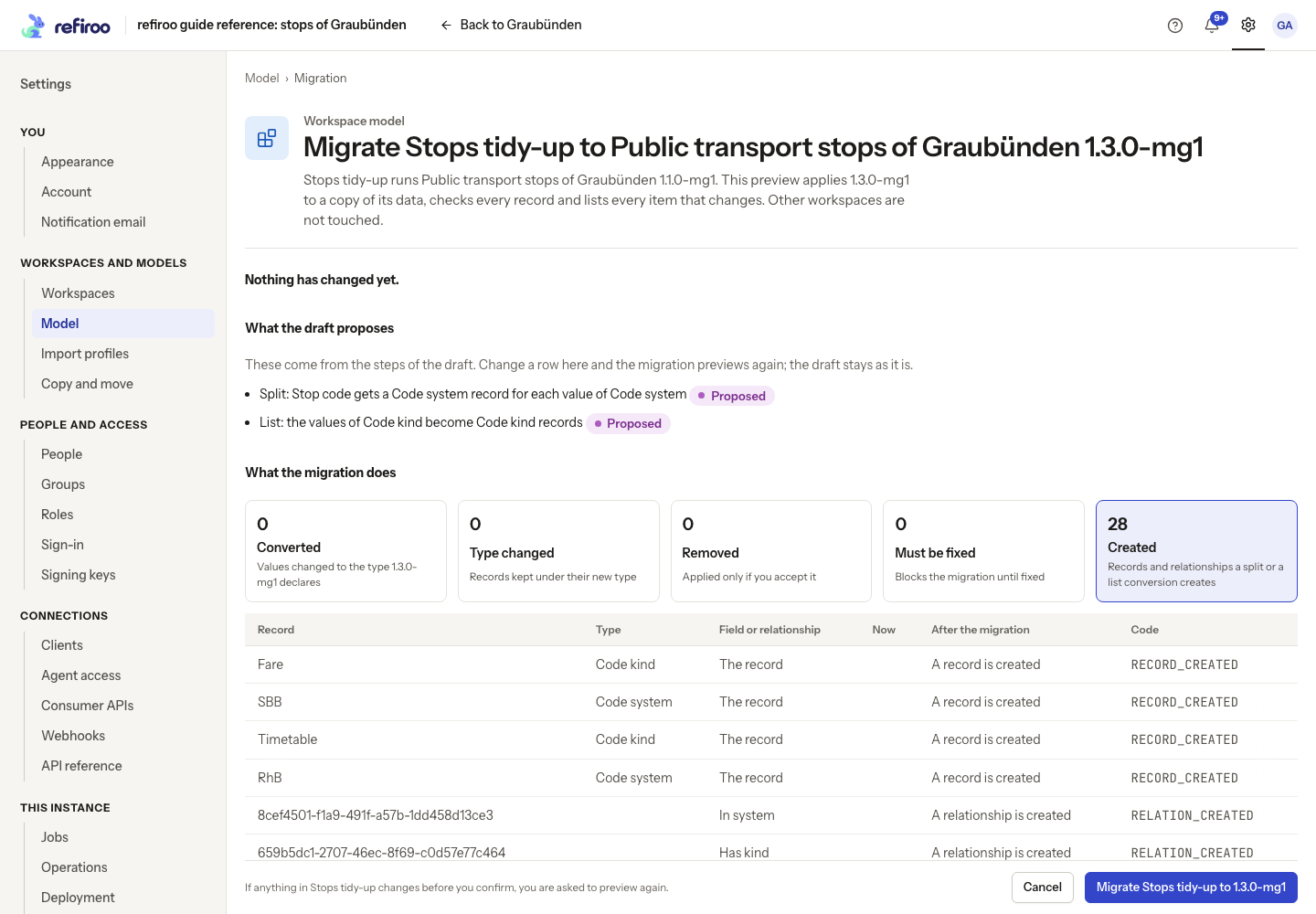
Above: the draft splits Code system from Stop code and turns Code kind values into list records. Created lists 28 new records and relationships across both changes; nothing has changed in the workspace yet.