Add a relationship
Allow a relationship in a draft before people can create it between records. You need Model authoring. A relation type gives the connection its meaning; an allowed pair determines which types it may join. See Types, attributes and relations.
Inspect existing connections
Section titled “Inspect existing connections”- Open the draft and select the type at the intended from end.
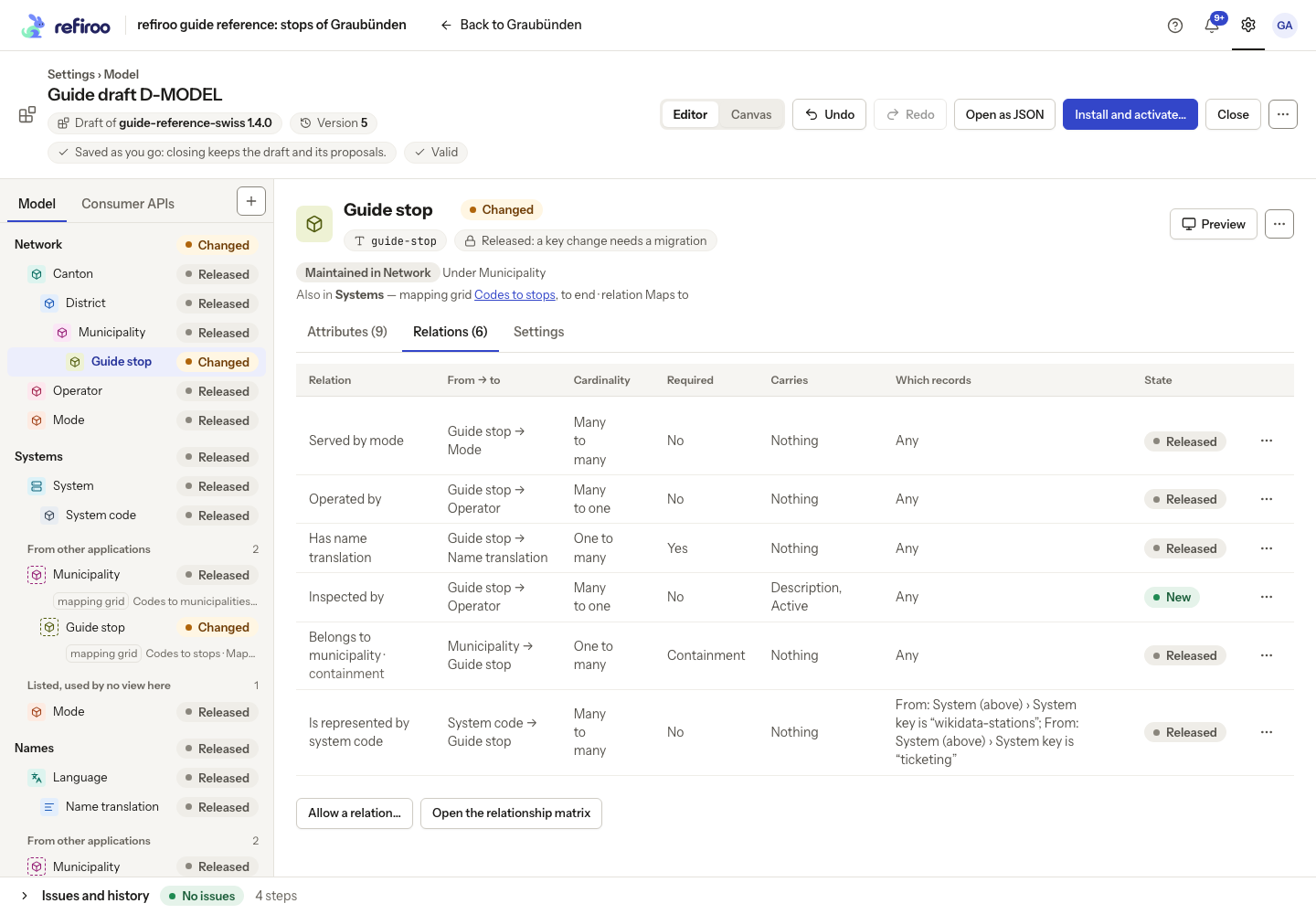
- Choose Relations. Read From → to, Cardinality, Required and Which records. The list includes incoming as well as outgoing relationships, so use the direction column rather than assuming every row starts from the selected type.
- If the connection already exists, inspect its row instead of creating a second relation type with the same meaning. Which records can limit the permitted endpoints beyond their types.
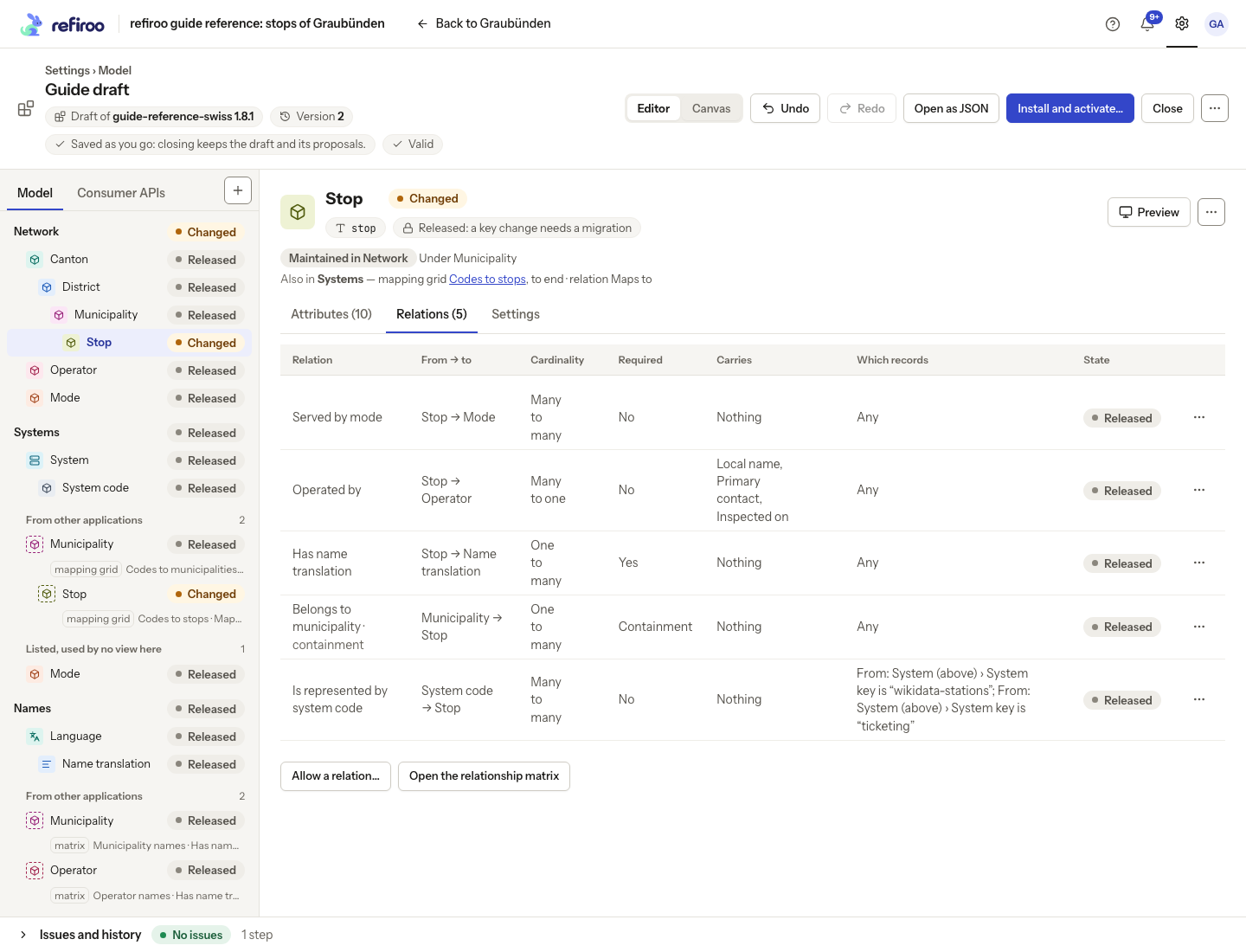
Above: Stop has outgoing relationships to Mode and Operator, incoming containment from Municipality and incoming system-code relationships restricted by their parent systems.
Allow the pair
Section titled “Allow the pair”- Choose Allow a relation…. Select To, the target record type.
- Under Relation type, reuse an existing meaning where appropriate, or choose A new relation type. For a new one, enter Name (from …) and Reverse name. Read them as sentences from both ends so people understand the same relationship whichever record they open.
- Set Cardinality using the from and to types shown below. Do not infer it from the plural wording of a label.
- Review Required. This is a dependent-ownership rule, not a general request that every source record have a target. For the supported required one-to-one or one-to-many connection, the target is created with its owner relationship. Many to one cannot be required. Leave it unticked for an optional association.
- Choose Add relation. Check the new row’s direction and limits, its New mark and the saved history step. If refused, correct the named combination or migration problem. Cancel leaves the draft unchanged.
| Cardinality | What it permits |
|---|---|
| Many to one | Each source has at most one target; a target may serve many sources. |
| One to many | A source may have many targets; each target has at most one source. |
| One to one | At most one at each end. |
| Many to many | Neither end is limited to one by this setting. |
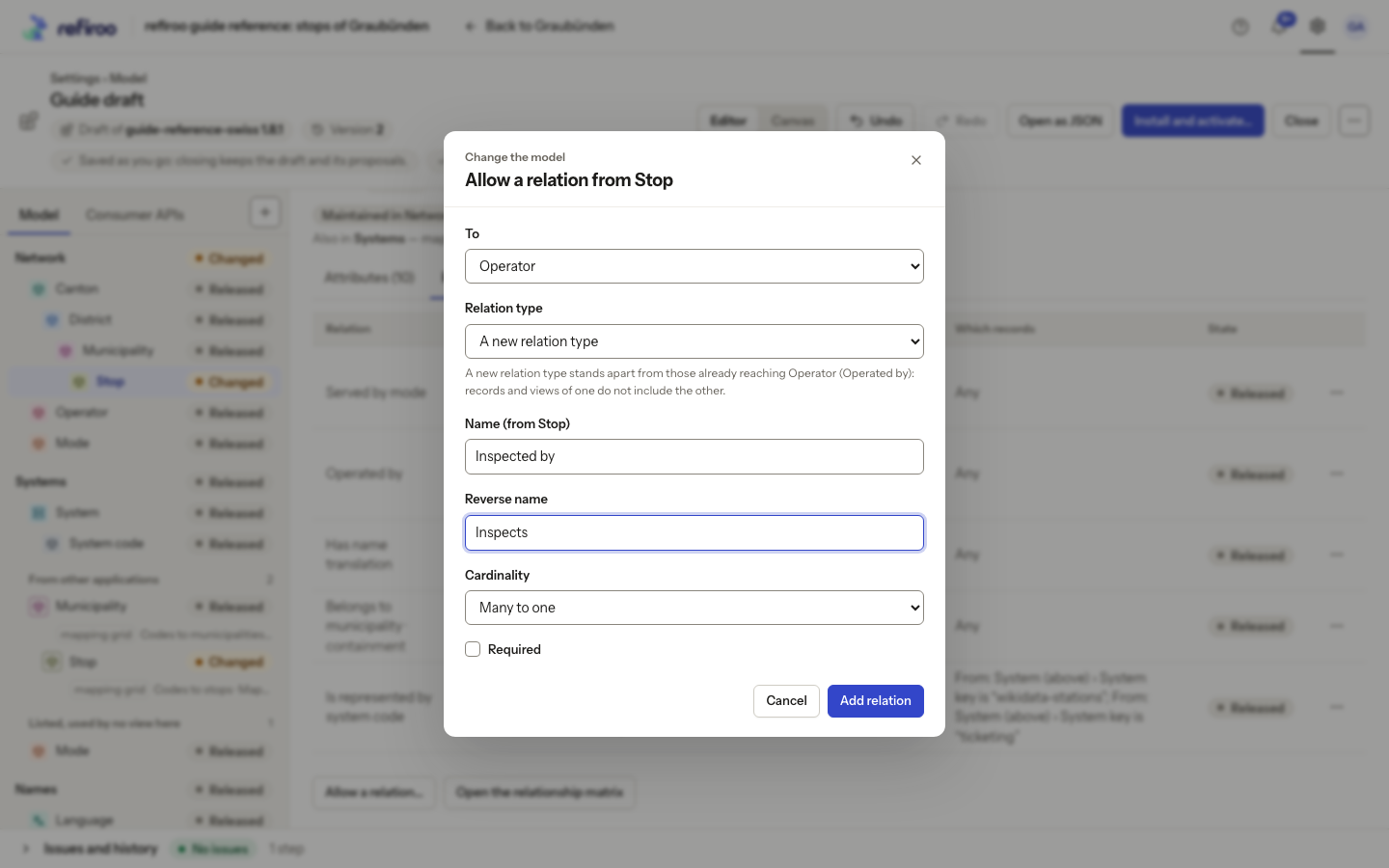
Above: Stop to Operator is given the new names Inspected by and Inspects, with Many to one and Required unticked. It is separate from the existing Operated by relationship.
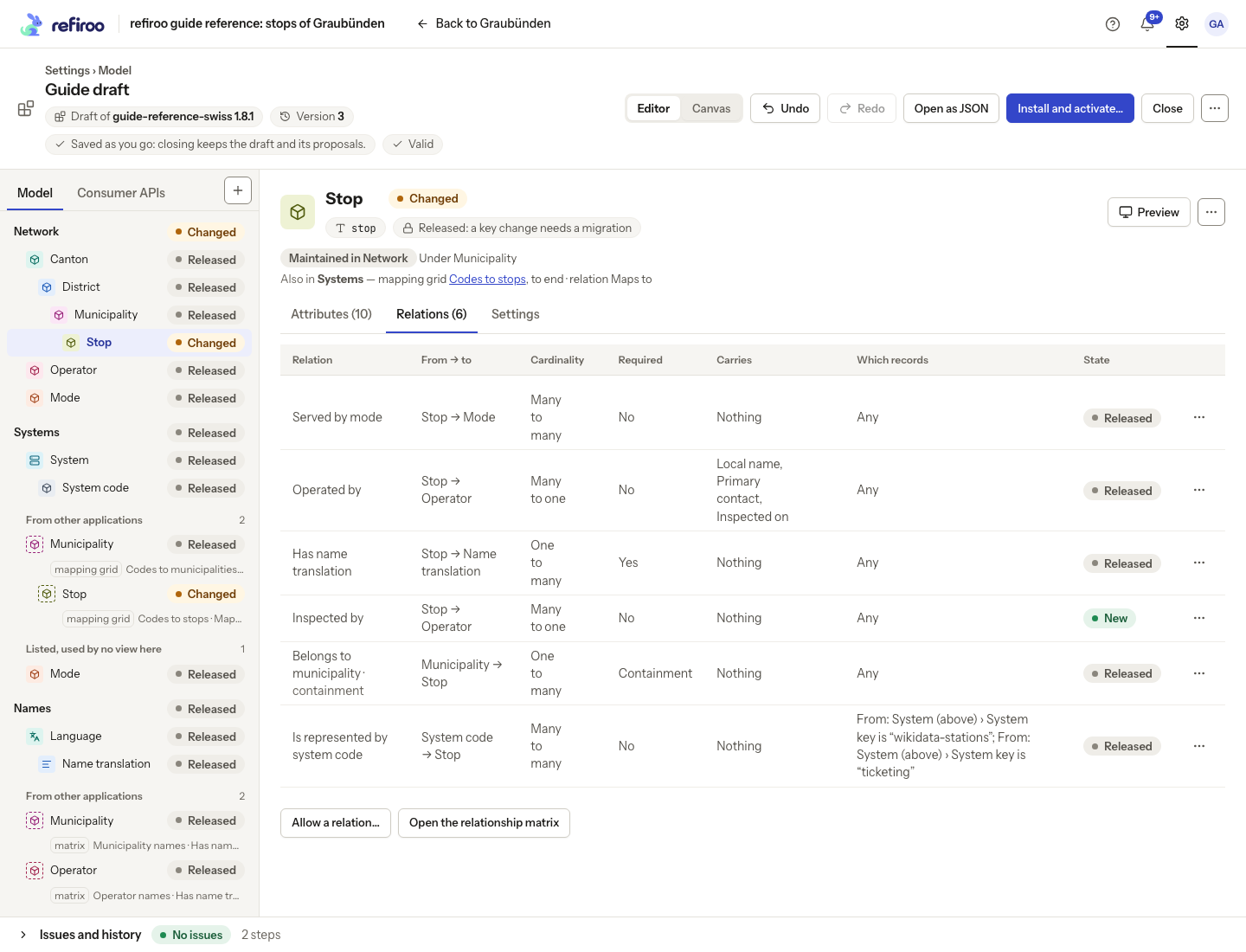
Above: Inspected by now appears beside Stop’s released relationships. No actual inspection relationship between records was created by this draft step.
Check the whole structure
Section titled “Check the whole structure”Choose Open the relationship matrix, or Relationship matrix in the model pane. Rows are from types and columns are to types. Select a cell for that ordered pair. Arrow keys move between cells and Enter selects a pair. Containment is labelled contains.
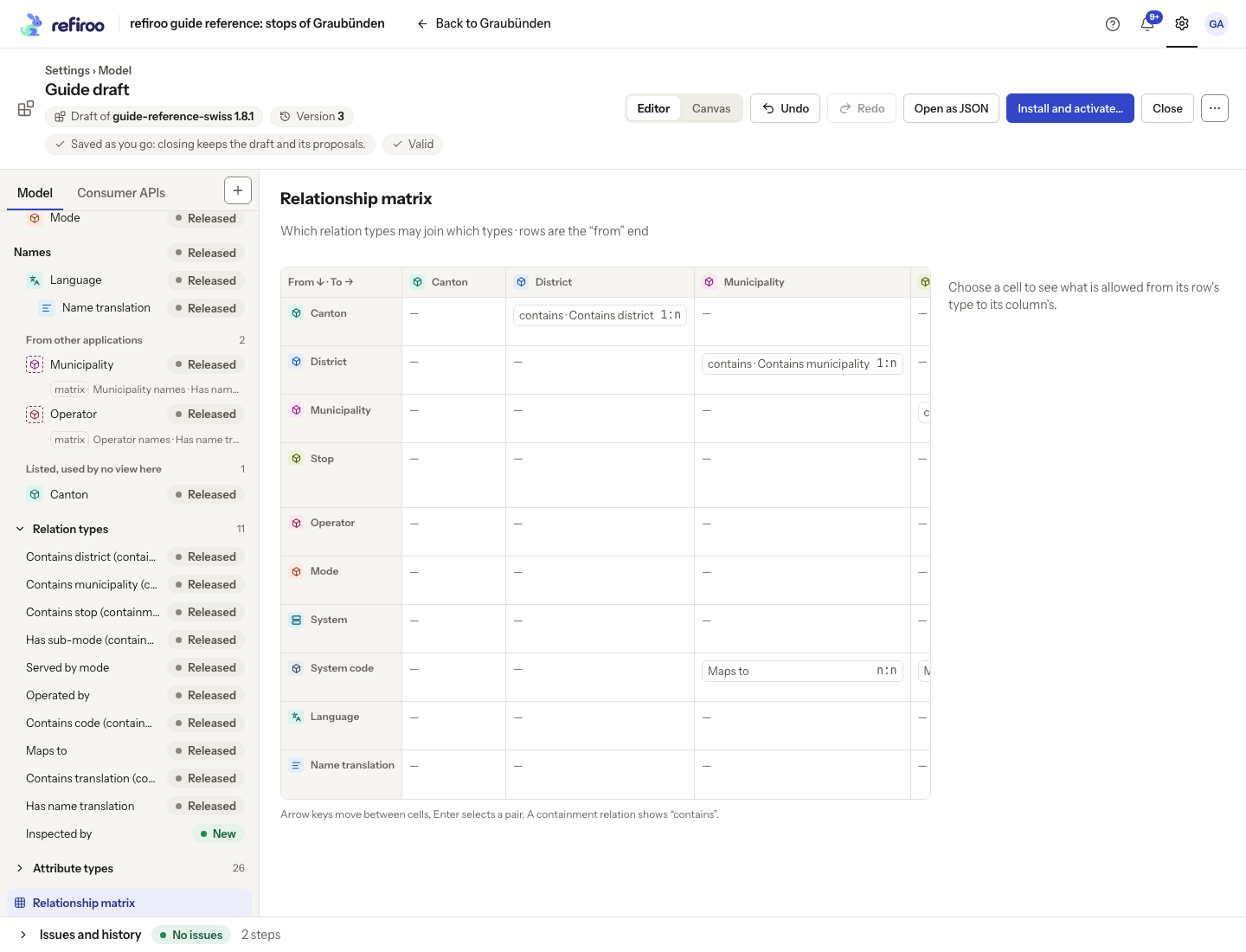
Above: Guide draft’s matrix shows the containment chain and permitted system-code mappings. The new Inspected by relation is also listed in the model pane.
For parent-child hierarchy, use the type’s Stands and containment controls described in Add a record type and fields. Then check issues and preview the type’s generated relationship panels before activation.
Limit which records can be chosen
Section titled “Limit which records can be chosen”- On Relations, open the Which records cell, or the row menu’s Which records may be chosen…. The criteria editor separates the two ends; check which type’s choices you are changing.
- Add criteria on the name, a field or a field of an ancestor. Choose the condition and value for the intended end. Several criteria are combined with “and”; several is choices on one field are alternatives.
- Choose Save and inspect the row’s summary. These conditions restrict new choices in every record picker, not just one panel. Existing relationships remain if a record later stops meeting the condition. Recheck Issues before activation.
A relation type’s names and reverse name describe the connection from both ends. Its key and reverse key are stable once released; changing its wording does not create a new identity. In Relationship matrix, selecting a pair opens its relations’ menus and the action to allow another; resize the selected-pair panel if the choices need more room.
Choose what each relationship carries
Section titled “Choose what each relationship carries”- On Relations, edit the pair’s Carries cell or choose Attributes of the relationship… from its menu. If there are no attribute types, create the shared definitions first.
- Select the Attributes whose values belong to the connection itself, then Apply. Carries now names them; an empty selection reads Nothing. Endpoints’ fields are unchanged. Select shared definitions of the right value type: a date stays a date, and a Yes or no value becomes a checkbox. Check the from and to types in the popover title: this choice applies to that directed pair, not every pair using the relation type.
- To revise limits together, choose Cardinality and required… and choose Save for the intended combination. Released pairs may withhold these structural actions. Use the refusal and compatibility check to decide whether a migration is necessary.
- Select the shared Relation type to review both names and its Settings. Change Oriented only after reviewing its effect on record deletion; see relationship settings.
After installation, check the relationship’s columns on a record or in a matrix cell. To give people a dedicated view for these values, add a relationships table. To expose them to another system, choose them in a consumer API’s related block. Each connection holds its own values; selecting Carries creates no values on existing connections.
Remove relation type also stops allowing that relation between its listed pairs. Read the confirmation’s pair list before accepting. Removing a definition from a draft does not delete live connections immediately; stored use can prevent the change or require a migration.