Use Settings › This instance › Mail to connect refiroo to your organisation’s mail server. You need Security administration for the whole instance. Mail carries password links and, when people choose them, inbox notices and digests. It never sends a password or an authenticator code.
On the Server tab, under Send mail through, choose SMTP server or Microsoft 365. One method is used at a time. Saving one replaces the other method’s saved fields and credentials. There is no automatic fallback to the other method.
Every message includes plain text and an HTML version. The default layout embeds the refiroo mascot and wordmark; an operator can replace the layout and logo under E-mail template. If the model gives the product its own name, that name appears in the message.
Without saved mail settings, nothing is sent. Administrators can still copy a new person’s password link and pass it on. Follow Set up mail to configure and test SMTP delivery.
E-mail template
Section titled “E-mail template”Settings › This instance › E-mail template changes the layout around every invitation, password reset, notice, digest and test message. One saved template applies to the whole instance. This page needs the instance-wide Operations permission, included in the Operator role; Security administration for the Mail page alone does not grant it. Until a template is saved, refiroo uses its own layout.
Write and preview the layout
Section titled “Write and preview the layout”-
Open E-mail template. In Markdown, write the surrounding message. The toolbar offers Bold, Italic, Link, Heading and List. Use Insert placeholder… to insert a value where the caret stands.
-
Keep the message placeholder exactly once. The available placeholders are:
Placeholder What appears in the mail {{content}}The message’s own heading, text and action; required exactly once. {{product_name}}The product’s name. {{instance_url}}The address of this instance. {{recipient_name}}The person’s name, or “there” when no name is available. {{logo}}The uploaded logo, or the default mark. -
Read Preview beside the editor. It updates with sample values after you stop typing. Choose Light paper, Dark paper and Plain text to inspect the alternatives. Preview saves and sends nothing. A refused draft shows The draft cannot be previewed and leaves the last good preview visible: correct the error before relying on that preview.
-
Choose Save. Unknown placeholders, a missing or repeated message placeholder, or more than 20,000 characters are refused. Raw HTML and Markdown images are not carried into mail. Links may use HTTP, HTTPS or mail addresses; unsafe links are omitted. Use the logo control for your image.
Add a logo and send a test
Section titled “Add a logo and send a test”- Under Logo, choose Upload a logo, or drop the image onto the field. Use PNG, JPEG or SVG without script, up to 512 KB. Uploading saves the logo immediately; Remove logo returns to the default mark. The logo is embedded in the mail. Many mail programs do not draw SVG, so use PNG or JPEG when recipients need wider support.
- Save your Markdown before choosing Send a test to me. The test uses the saved template, not unsaved text, and goes to your own account’s e-mail address. Mail delivery must be configured and your account must have an address. If The test could not be sent appears, read its reason and correct the address or delivery problem before retrying.
- Check the actual message, including its plain-text version, in the recipient’s mail program. The preview is not proof of how every mail program draws the message or that delivery reaches the inbox.
- To restore the original layout, choose Reset to default…, then Reset to default in the confirmation. This deletes both the saved Markdown and uploaded logo. Cancel keeps them.
If another operator saves first, your older save is refused. Reload, review their changes and reapply only what is still needed. Template changes are not included in the security audit.
Mail server
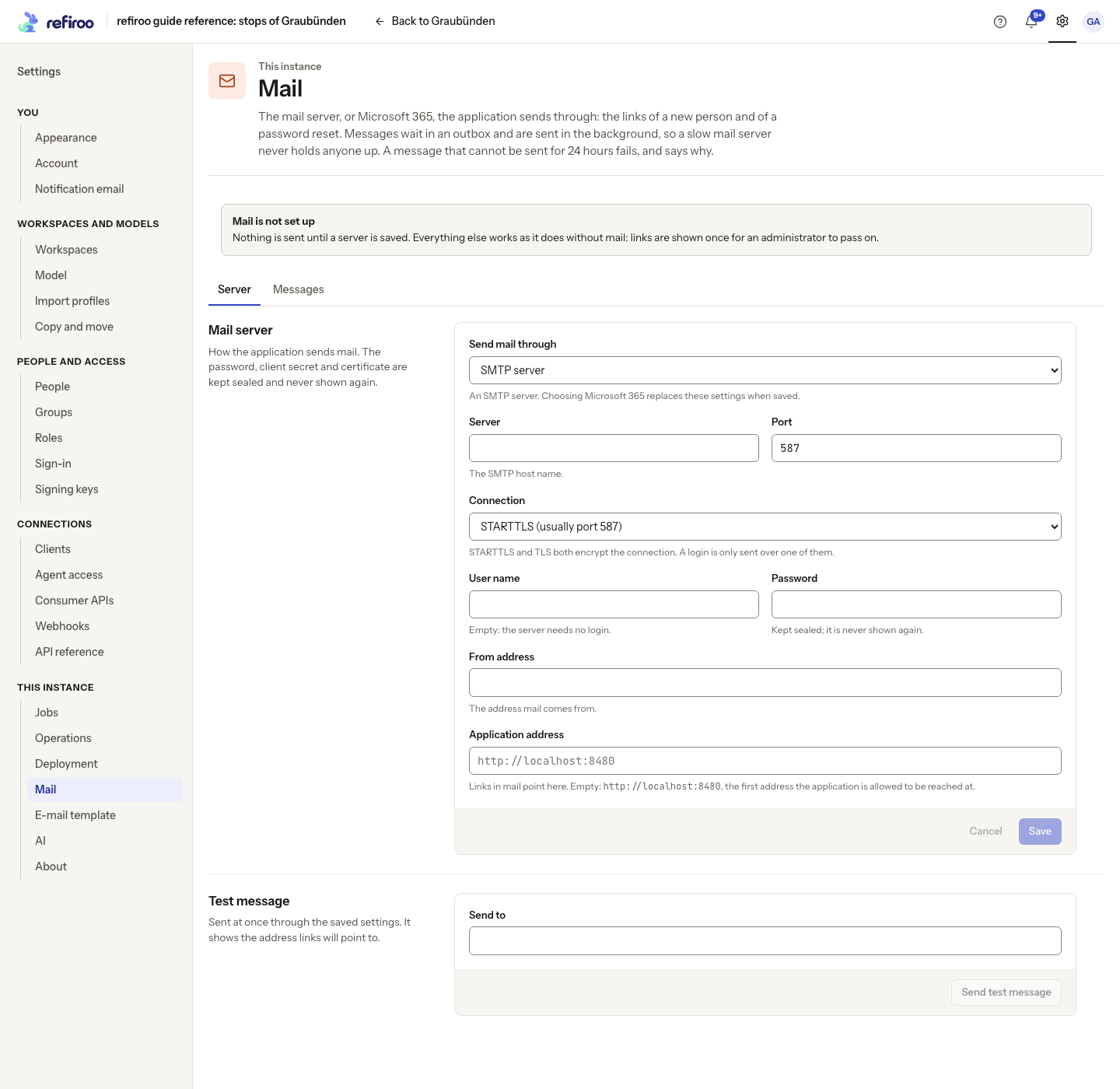
Section titled “Mail server”Server and Port identify the outgoing mail service. Connection offers:
| Choice | When to use it |
|---|---|
| STARTTLS (usually port 587) | The server upgrades the connection to encryption before login. |
| TLS (usually port 465) | The connection is encrypted from the start. |
| None: not encrypted (a relay on a trusted network) | Only for a relay that requires no login. |
Both encrypted choices verify the server’s certificate and name. refiroo refuses to send a login without encryption. If the certificate is not trusted, ask the operator to install the organisation’s trusted certificate authority; do not switch off encryption to bypass the failure.
Leave User name empty for a relay without login. Otherwise supply Password. The saved password is kept sealed and never displayed again. Leave it blank to keep it on an unchanged server; enter it again when changing the server or port. The operator handles changes to the server’s secret storage; see Configure refiroo.
From address is the sender. Application address is where links in messages lead. Empty uses the default address displayed below the field. Check that people receiving mail can reach it. Changes to mail settings are recorded as security events.
Send through Microsoft 365
Section titled “Send through Microsoft 365”Choose Microsoft 365 under Send mail through to send as one mailbox through Microsoft Graph. Next, choose Sign in with. A short line below the menu explains the selected choice; only that choice’s fields appear.
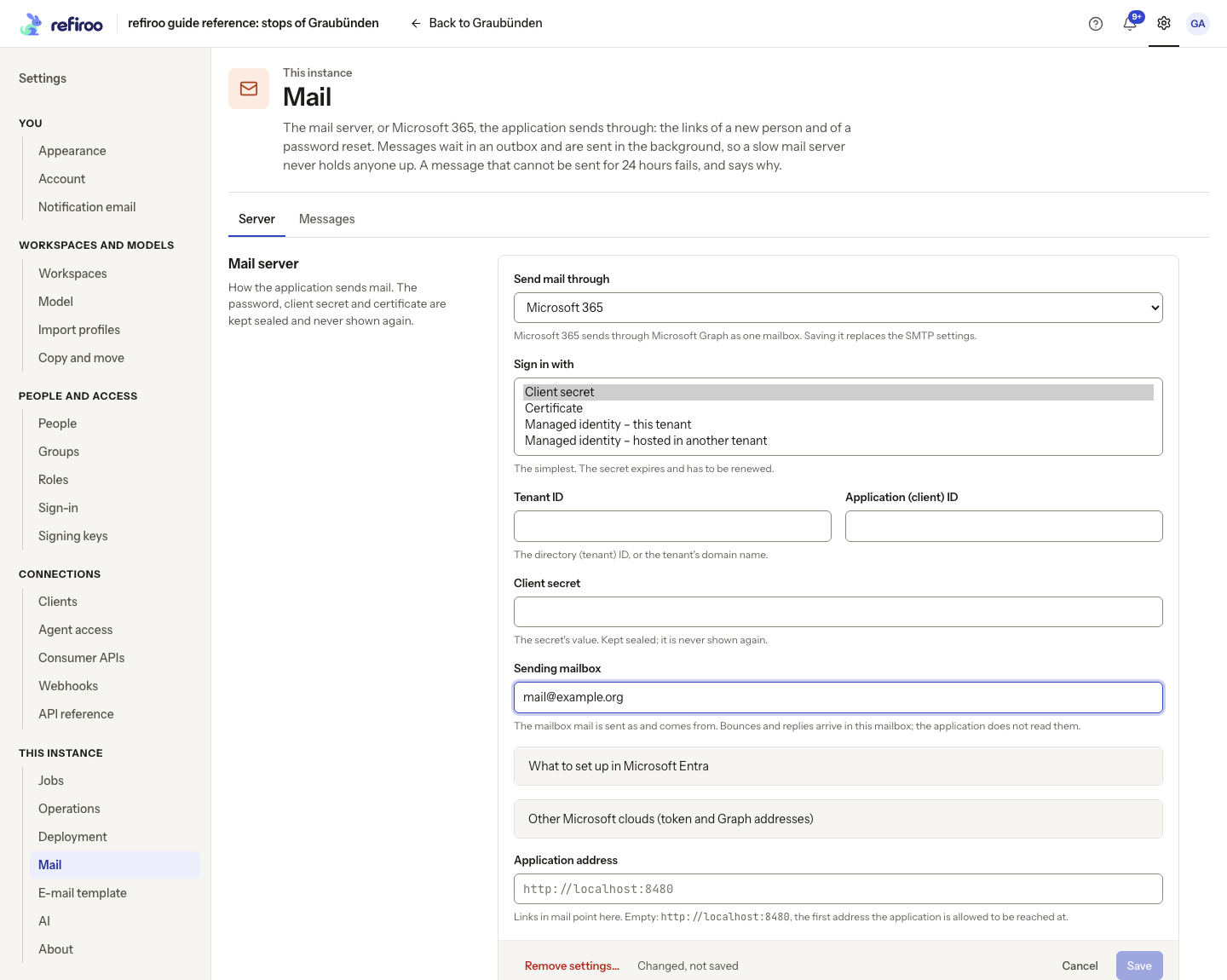
Above: Microsoft 365 is selected, and Sign in with shows Client secret, Certificate, Managed identity – this tenant and Managed identity – hosted in another tenant. The Sending mailbox address is an example; the credential fields are empty. Nothing has been saved.
| Sign in with | When to choose it and what to enter |
|---|---|
| Client secret | The simplest choice. Enter Tenant ID, Application (client) ID and Client secret. Use the secret’s value, which Microsoft shows once when it is created, not its ID. The secret expires and must be renewed. |
| Certificate | Choose this to avoid sending a shared secret. Enter Tenant ID, Application (client) ID and Certificate: the RSA private key, without password protection, and its matching certificate together as PEM text. Only the public certificate is uploaded to the app registration. Renew it before expiry. |
| Managed identity – this tenant | Choose this when refiroo runs in Azure in the same tenant as Microsoft 365. Azure supplies its login. Identity client ID is optional: leave it empty for the host’s own, system-assigned identity, or enter a user-assigned identity’s client ID. No tenant or application ID is needed or shown. |
| Managed identity – hosted in another tenant | Choose this when refiroo runs in another Azure tenant and a multitenant app in that hosting tenant trusts its identity. Enter the customer’s Tenant ID, the multitenant app’s Application (client) ID and the Identity client ID. The last field is required: only a user-assigned identity can be used this way. |
For a tenant ID, use the directory ID or the tenant’s domain name. Both managed identity choices need refiroo to run in Azure on App Service, Container Apps or a virtual machine with the identity assigned. They store no secret or certificate in refiroo.
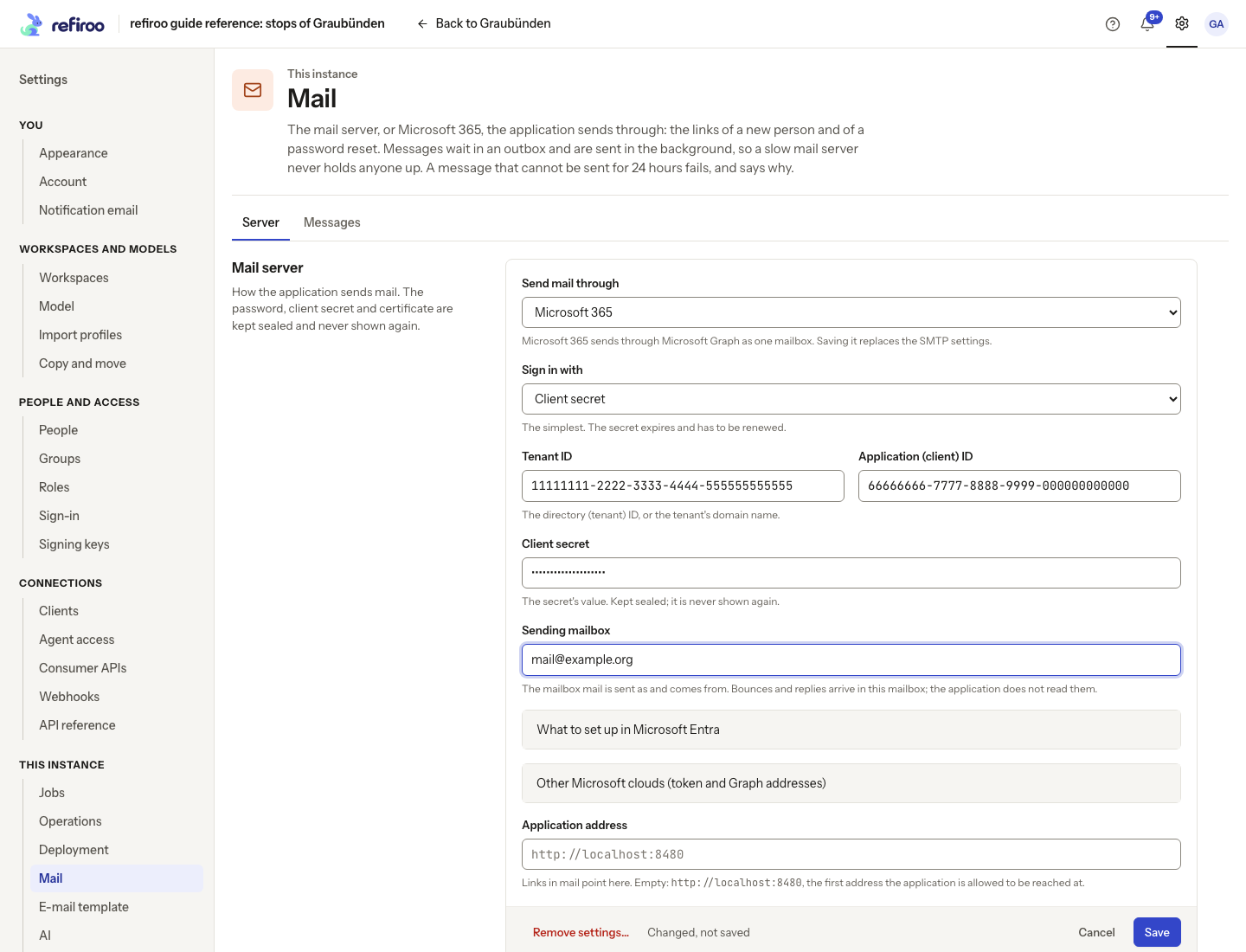
Above: Client secret is selected, with example values in Tenant ID, Application (client) ID, Client secret and Sending mailbox. The secret is masked. Nothing has been saved and no test message has been sent.
Below the sign-in fields, enter Sending mailbox: a licensed user or shared mailbox in the Microsoft 365 tenant. Then use the two folded sections:
- What to set up in Microsoft Entra shows only the preparation for the selected sign-in choice. A secret or certificate needs an app registration, Microsoft Graph’s Mail.Send application permission with admin consent, and a restriction to the sending mailbox. An identity in this tenant needs the Mail.Send app role assigned to its service principal and a mailbox restriction naming the identity’s client ID; there is no admin-consent screen for that identity. An identity hosted in another tenant needs a multitenant app that trusts it, the customer administrator’s consent, and the app’s permission and mailbox restriction in the customer’s tenant. Without a mailbox restriction, it can send as any mailbox in that tenant. Ask the operator to follow Prepare Microsoft 365 delivery.
- Other Microsoft clouds (token and Graph addresses) contains Token address and Graph address. Leave them empty for Microsoft’s global service. For a national cloud, ask the operator for both addresses and change them together. This section opens automatically when a saved address differs from the global default.
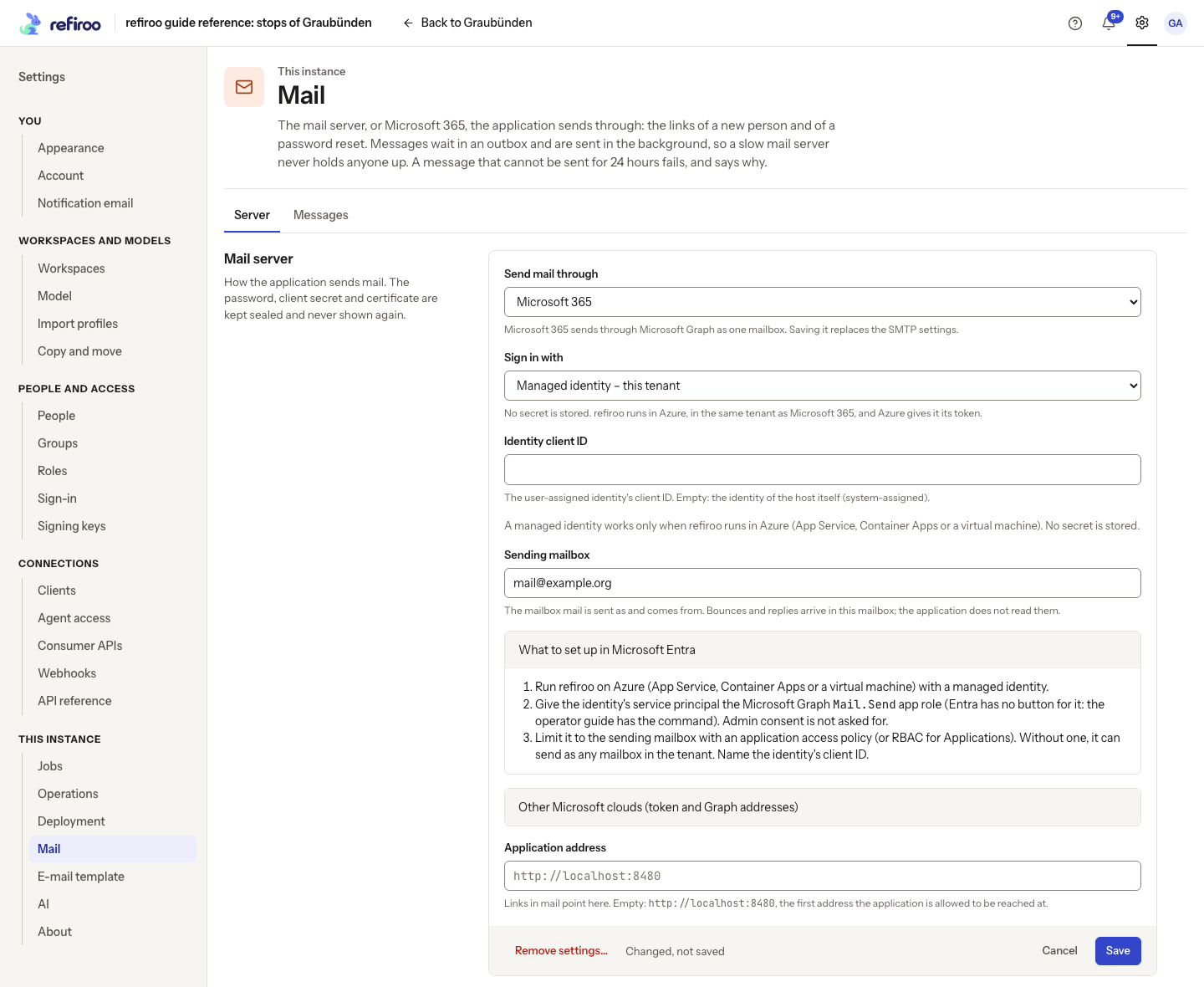
Above: Managed identity – this tenant is selected, Identity client ID is empty, and What to set up in Microsoft Entra shows the steps for this choice. Sending mailbox holds an example address. Nothing has been saved.
After these sections, set Application address to the address people use to reach refiroo. Empty uses the default shown below the field. Check that recipients can open it, then choose Save.
Like the SMTP password, a client secret or certificate with its private key is kept sealed and never displayed again. For a saved certificate, the page shows its SHA-1 thumbprint, as in the Entra portal, and its expiry. An expired certificate cannot be saved. Renew a secret or certificate before it expires; after expiry Microsoft can refuse the login and mail cannot be sent.
Leave the secret or certificate field empty to keep the saved credential only while Tenant ID, Application (client) ID and Token address remain unchanged. If any of these changes, enter the credential again. To replace it or change its kind, choose the required Sign in with entry, enter the new secret or certificate, save and test.
Saving a managed identity clears a saved secret or certificate. Saving a secret or certificate clears the identity settings. Keep the intended managed identity choice and its fields selected on each save; there is no saved secret to keep by leaving a credential field empty. Azure supplies fresh tokens as needed, so there is no mail secret or certificate to renew.
Microsoft saves messages sent this way in the sending mailbox’s Sent Items; refiroo cannot turn this off. Replies and delivery failures (bounces) arrive in that mailbox. Arrange for someone to check it: refiroo does not read replies or bounces. An address that does not exist can be reported later as a bounce, while the message still shows as Sent in refiroo. This can also happen through an SMTP relay.
Test a saved configuration
Section titled “Test a saved configuration”Send test message works with either method, uses the saved settings immediately and includes the address links point to. Sent means the mail service accepted the message, not that it reached the inbox. Check the mailbox and junk folder too.
The failure heading distinguishes an unreachable server, a failed secure connection, a refused login, a refused recipient or sender, and a rejected message. Use that reason with the mail administrator to correct the relevant setting, save and test again.
Messages and retries
Section titled “Messages and retries”Ordinary messages wait in an outbox and are sent in the background. On the Messages tab, filter State to All, Waiting, Sent or Failed. Counts show each state. Refresh reads the current list; Show more reads older entries. Columns show Queued, To, Message, State, Tries, Last problem and Actions. A waiting row also shows Next try; finished rows show their finish time.
| State | Meaning and next step |
|---|---|
| Waiting | Not yet sent, or waiting to retry. Check the next try and last problem. |
| Sent | Accepted by the mail server. Ask the recipient to check their mailbox. |
| Failed | Delivery stopped. Correct the cause and make a fresh password link if needed. |
A temporary failure retries after 30 seconds, then doubles the wait up to one hour. Microsoft 365 can ask for a longer wait, which refiroo respects. A permanently refused recipient fails immediately. Microsoft 365 fails permanently rejected messages immediately and retries other rejections. A sending mailbox that does not exist leaves the message waiting for the usual retry, exactly as with SMTP. Correct Sending mailbox, save and test; the waiting message continues on its next try, within its 24-hour window. Messages still waiting give up after 24 hours. Finished entries are kept for 30 days. Waiting message text is sealed, never shown in this list, and erased after sending or failure.
Stop sending is available for waiting messages. Confirm Stop sending, or choose Keep trying. Stopping marks the message failed and erases its text. It does not invalidate the link already made; make a new password link to replace that link. If sending finished before your action arrived, the list refreshes to its final state.
With a state selected and no matching messages, the list says No message is in this state. With All selected and no messages yet, it explains that new-person links and password resets appear here when sent.
Remove settings… asks Remove the mail settings? Choose Remove them to stop sending and delete the saved password, client secret or certificate and key. Waiting messages remain and fail after their 24-hour window unless settings are saved again in time. Cancel in the form discards unsaved edits.
Password links
Section titled “Password links”With mail set up and an e-mail address on the person, New person and Reset password also mail the link. The administrator still sees it once for copying. Read whether it was mailed; queued delivery can fail later. Follow Add a person.
The sign-in page offers Forgotten your password? when mail is configured. People enter E-mail address and choose Mail me a link. The answer is the same whether or not an account matches, and repeated requests are slowed. The one-use link opens Choose a new password; using it ends all sessions. An existing second factor remains required. An expired or already used link needs a fresh request.
A request from Forgotten your password? replaces earlier links requested there, but leaves an administrator’s link valid. A new link made by an administrator replaces every earlier password link for that person. Stopping a waiting message does not change these rules.
When a valid link opens, its secret part is removed from the address bar before the password form appears. You can reload the page in the same browser without losing the link. If the form no longer opens, reopen the original link while it is valid. If it expired, was replaced or was used, make or request a fresh one.
Notices and digests
Section titled “Notices and digests”Each person controls their own delivery under Settings › You › Notification email, in its Email group. Email me when something arrives in my inbox uses the address shown there. Without an e-mail address, or for a client, the page explains there is nothing to choose. Administrators do not choose these preferences for others.
Under How each kind reaches me, a person chooses At once, Digest, or Off for each kind. Immediate notices include both plain text and HTML, are sent once while under 24 hours old, and contain no record, change-set, workspace or person content. Turning mail on does not send a backlog of old notices.
Choosing Digest for the first kind starts a daily digest in the browser’s time zone. The digest offers its frequency and shows the zone and Next digest. Digests arrive at 07:00 daily or on Mondays; there is no mail when nothing unread remains, and notices already read are left out. Workspaces I follow lists followed workspaces with Stop following. Following is chosen from a workspace. See Inbox and approvals for the person’s notices and tasks.
After downtime, only one digest is sent, rather than one for each missed morning. Without saved mail settings, the due time waits until mail is set up. Daylight-saving changes preserve 07:00 in the person’s saved time zone; it is not the engine server’s clock zone.
Security messages
Section titled “Security messages”When a person’s way of signing in changes, refiroo writes to them: their password was changed or reset, an authenticator app was added or removed, or a passkey was added or removed. The message says what changed and when (in UTC) and tells them to contact an administrator if it was not them, so a change they did not make is noticed. It carries no password, code or sign-in link. People cannot switch these messages off. Nothing is sent while mail is not set up or for a person with no e-mail address, and choosing a first password sends nothing. They appear in Messages and retries like any other message, and the e-mail template wraps them.
Correct a failure or replace the mail login
Section titled “Correct a failure or replace the mail login”Use the test’s heading to decide who needs to act:
| Test result | Check with the operator or mail administrator |
|---|---|
| The server could not be reached | For SMTP, server name, port, network access and whether the mail service is running. For Microsoft 365, access to Microsoft’s services; a busy or unavailable service leaves messages waiting for another try. |
| The secure connection failed | Connection choice and the server certificate, name and trusted certificate authority. |
| The login was refused | For SMTP, user name, replacement password and whether the mail service offers login. For Microsoft 365, tenant and application IDs, a wrong or expired secret, an unregistered or expired certificate, Mail.Send application permission with admin consent, and whether the mailbox restriction permits this sender. Follow the sentence below the heading. |
| The login was refused — refiroo is not running with a managed identity on an Azure host | Ask the operator to check that refiroo runs on a supported Azure host with a managed identity. Otherwise choose a client secret or certificate. |
| The login was refused — the Azure host did not issue a token for the identity | Check Identity client ID and ask the operator to confirm that this identity is assigned to the host. |
| The login was refused — no federated credential, or none matches | Ask the operator to check the multitenant app’s trust in the hosting tenant and the customer administrator’s consent. The identity, hosting tenant and Microsoft cloud must match the prepared setup. |
| The server refused the address | The recipient address and the server’s stated refusal. |
| The server refused the from address | For SMTP, an approved sender in From address; the message waits for another try. For Microsoft 365, check that Sending mailbox is a licensed user or shared mailbox in the tenant; an unknown mailbox leaves the message waiting and is tried again after the usual wait, exactly as with SMTP. Correct Sending mailbox, save and test; the waiting message continues on its next try, unless its 24-hour window has ended. |
| The server did not accept the message | The service’s reason for rejecting the message. Microsoft 365 normally fails the message immediately; some rejections are retried. |
A Microsoft 365 login failure can affect all waiting messages. Correct the settings while they wait, save and test again before their 24-hour window ends. The explanation does not display the secret or Microsoft’s full response.
If saving asks for a client secret or certificate, enter it again for the chosen tenant, application and token address. If the certificate cannot be used, check that the PEM text includes an unencrypted RSA private key and a matching, unexpired certificate. Ask the Microsoft 365 administrator to register the public certificate and compare the saved thumbprint with Entra.
For a replaced or expired mail password, enter its replacement in Password, choose Save, then Send test message. refiroo does not renew the mail account’s credentials. To stop using login and use an unencrypted trusted relay instead, clear User name; the saved password is removed when no login is used.
A user name needs a password means the first login cannot be saved without one. The password is not kept when the host or the port changes: send the password again requires the password for the newly chosen server. The mail settings have changed means another save won; inspect the refreshed settings before submitting again.
If Stop sending reports The message is being sent just now; try again in a moment, wait and refresh. It may already have reached the mail server. Stopping an outbox entry cannot recall mail already sent. Not sent within 24 hours means the retry window ended; fix the cause and create a fresh link or notice through its original task.
For a move or restore, ask the operator to preserve saved mail settings and waiting messages using the instance backup procedure. Test the sender and Application address afterwards. Queued password links already contain the address chosen when they were made; changing the setting does not rewrite them. Make fresh links when the old address is no longer reachable.