Change how refiroo looks
Adjust the display without changing the data. See Appearance and devices for keyboard and phone use.
- Open All settings from your account menu, then Appearance under You. On a phone, open Settings: … to reach the settings navigation.
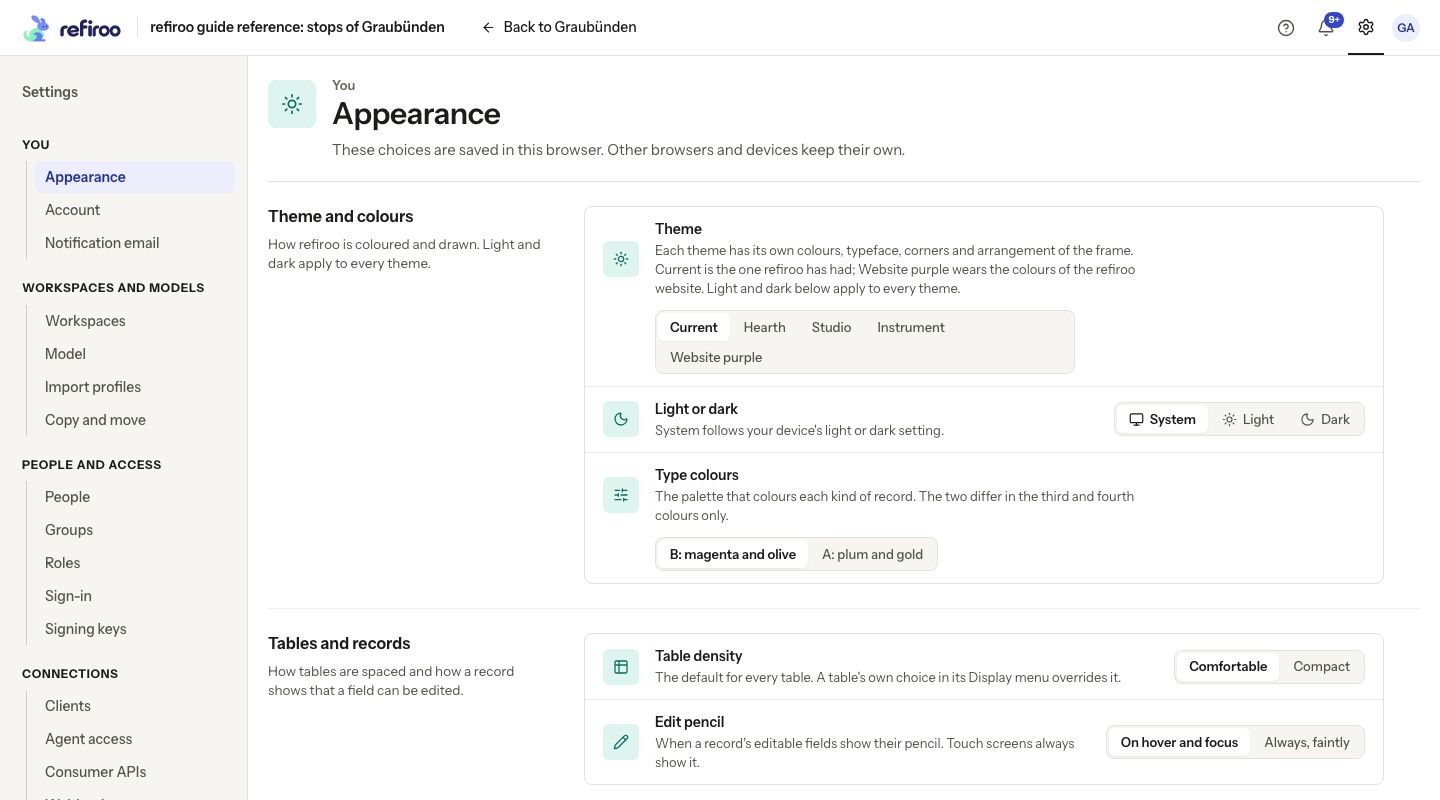
- Under Theme, choose Current, Hearth, Studio, Instrument or Website purple for the colours, typography and frame. Under Light or dark, choose System, Light or Dark. System follows the device. Every theme works in either mode. The page changes immediately; there is no Save button.
- Under Table density, choose Comfortable for more space or Compact for more rows. If one table does not change, open its Display menu: its own density overrides this default. Choose Default there to use the browser preference again.
- Under Type colours, choose B: magenta and olive or A: plum and gold. Read the record-type labels as well as colours when identifying records.
- Under Edit pencil, choose On hover and focus or Always, faintly. On a touch screen, editable fields show their pencils regardless of this choice.
The choices stay in this browser. Repeat them on another device if needed. For individual column visibility and widths, use the collection’s Display menu rather than Appearance.