Shape a model
These journeys are for model administrators shaping the types, fields, relationships and views that people use. Applications are declared by the model; they can be changed, replaced or removed. Start with Models for the difference between a draft, an installed release and the release running in a workspace.
Model authoring, model release and workspace administration permissions serve different purposes. They do not automatically grant permission to read or change reference data. Each linked task explains its required access and deployment settings.
Create and activate an application-model release
Section titled “Create and activate an application-model release”A model administrator turns a reviewed design into the definitions a workspace runs. Releases connects the lifecycle: create or import a draft, validate it, compare its differences and stored-data compatibility, then install an immutable release. Install and activate a release takes that release into the intended workspace. Saving, installing and activating are separate outcomes.
An incompatible release does not become active. Resolve its data problems or use the reviewed migration path. If another activation wins first, refresh the state and review again. Use Compare releases when checking differences, or Export a release to reuse it elsewhere. Read-only inspection remains available when model administration is switched off.
Administer workspaces
Section titled “Administer workspaces”A workspace administrator, or an authorised integrator, creates a separate place for data, gives it a stable key and a label, and chooses the release it runs. Managing workspaces leads to Create a workspace and Make a workspace the default. Changing the default affects requests that omit a workspace; an explicit choice stays explicit.
When a workspace is no longer used, retire or delete it. Retirement preserves reads and refuses changes. The default cannot be retired; deletion also requires an empty workspace with no publications. A refusal names what still prevents deletion. Choose another default or retain the workspace for reading as appropriate.
Define a consumer API in the model
Section titled “Define a consumer API in the model”A model author defines the business objects other systems should read without exposing their storage structure. Start with Consumer APIs, then define a consumer API over the chosen types, fields, related records, lists, lookup rules and events. Validate each reference and review the generated schema and message example.
Compare the consumer contract before installing and activating the release. A breaking change needs a higher contract version; activation refuses it otherwise. An operation is available only when declared. Coordinate changed contracts with integrators, who can then read through the consumer API.
Example: the reference model’s stops consumer API exposes stops with names and codes drawn from connected records. Another model can expose entirely different business objects.
Design a model in the editor
Section titled “Design a model in the editor”A model administrator creates a model draft, then uses the model editor to shape applications, types, reusable fields, relationships, navigation and pages. Each edit has issues and a history; inspect them as the model grows and undo or review steps where needed. Preview pages before installation, without writing reference data from the preview.
A draft can temporarily be invalid, but an invalid draft cannot be installed. Released keys are stable; a removal or structural change affecting stored data can require migration. If a colleague changes the draft first, review their steps before retrying your edit. Finish through installation and activation, then work with records under the changed model to check the result.
Onboard a workbook
Section titled “Onboard a workbook”A model administrator turns a workbook into a reviewed model and a repeatable loading profile. Read Workbook onboarding, then start a draft from a workbook. Inspect sheets, tables and lists; accept, change or reject proposals, or map columns by hand. Map a column and read lists in a sheet explain the choices. A proposal does not apply itself.
Check the workbook with a dry run to inspect what every row would do without writing records. Resolve missing values and mapping problems, install and activate the model, then load into a change set. Review its differences and publish. Installation saves definitions and the loading profile; it does not make the file’s records live.
Load the next version of a workbook
Section titled “Load the next version of a workbook”A steward or model administrator uses the saved profile to repeat the load without rebuilding the mapping. Load the next version of a workbook connects uploading the next file, inspecting differences, accepting column renames or ignoring new columns, and checking again. Read the report before loading into a new change set.
Missing records are reported and kept unless the profile explicitly deletes them. A deleting load needs a change set so the removals and their relationships can be reviewed. A changed model release can invalidate a profile binding; fix the named binding rather than loading around it. Finish by reviewing the changes and publishing.
Example: a newer workbook of stop names or external codes can correct existing records and add others. A stop absent from that file is not automatically deleted.
Run a workspace on a model of its own
Section titled “Run a workspace on a model of its own”A model administrator installs the desired release and creates a workspace on it or changes an existing workspace’s model after its compatibility review. Other workspaces keep their models. Switching workspace changes the available applications and views as well as the records; shared labels do not imply shared data.
To evolve that workspace’s definitions, edit its model and apply the reviewed draft there. A page built under a replaced release must reload before saving. If one workspace’s model cannot be served, inspect its explanation and recovery options; other workspaces can remain available. Releases also explains retiring unused choices and deleting releases that nothing refers to.
Move a workspace to another release
Section titled “Move a workspace to another release”A model administrator uses Migrations when the target release needs conversions or changes the existing data cannot adopt unchanged. Migrate a workspace connects the preview, type and field mapping, inspection of every loss, correction of blockers and explicit confirmation. Cancelling changes nothing. The data conversion and release switch succeed together or neither does.
An intervening write makes the review stale: preview again instead of confirming an older result. Open change sets stay on their release; move them separately or review a workspace migration with publication as one operation. Existing publications keep their model and content. If a workspace cannot open because its stored model uses an unsupported language version, follow the specific recovery in Managing workspaces; an ordinary migration and raising an unsupported stored release are different operations.
Move data between workspaces whose models differ
Section titled “Move data between workspaces whose models differ”A model administrator or steward needs a mapping between the source and target definitions, rather than assuming record types mean the same thing. Start with Model mappings, then move records to another model. Complete the proposed mapping, choose the records, and inspect the dry run’s created, updated and refused items. Confirm a copy or move into the target’s change set, then review and publish it.
A move also prepares reviewed deletion in the source; publish the target copy before that deletion. Relationships whose other end stays behind are carried only when the counterpart can be found in the target, otherwise they are dropped and reported. Matching and remembered counterparts let later transfers update records rather than duplicate them. A changed mapping or release needs a fresh review. Nothing rejected in the dry run should be treated as successfully moved.
An account of a model change
Section titled “An account of a model change”A model administrator with Model release and Use AI proposals in the workspace can ask for an explanation before activating a release or applying a draft. A configured AI provider is required; enabling only the built-in assistant does not offer this account. Follow Explain a model change.
Open the activation dialog or Apply to this workspace and read the compatibility checks. Under What this change does, choose Explain this change. Nothing is sent before that request. The provider receives the model’s differences, rule failures, consumer-contract effects and record counts, without record values or names. Requests can incur charges; the same facts are reused for up to an hour. Call records remain; request text is kept only if enabled. Read AI and your data for full access, disclosure, cost and retention rules.
Review the account and follow each numbered citation to the facts refiroo computed. These include blocked activation and the counts of affected records, not a promise that the change is safe. The explanation is English only, is not attached permanently to the release and takes no follow-up question. It appears in activation and Apply, rather than installation or migration. Accounts of model changes explains its rules and limits.
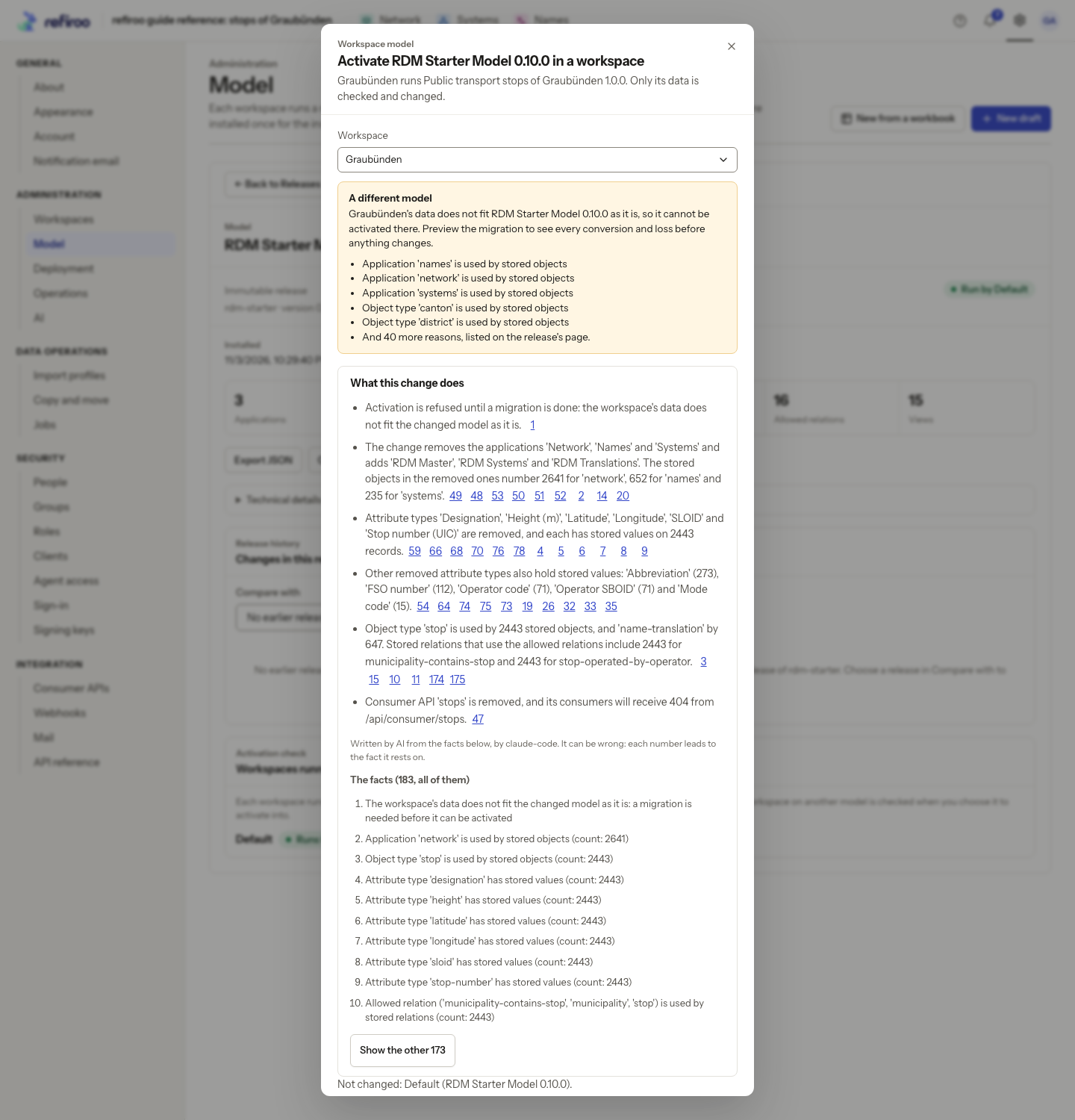
Above: The activation review compares RDM Starter Model with Graubünden’s current model. The account cites the facts below it; activation needs a migration.
If the provider fails, read the facts alone or choose Try again. Fix an invalid or newer draft before asking again. Asking does not apply or activate anything, and an explanation cannot remove a compatibility refusal. Continue through the normal activation review, or use the migration path when the existing data needs conversion.
Add types, fields and relationships
Section titled “Add types, fields and relationships”With Model authoring, add a record type and fields, reuse and change attributes and add a relationship. A shared attribute change affects all its attachments. Review required values, allowed parents and relationship candidates, then fix issues before installing. Turn an attribute into a list when values should become maintained records. Released values can need migration; a saved draft does not populate that list or convert Live.
Arrange navigation, views and record pages
Section titled “Arrange navigation, views and record pages”Find your way around the editor, then arrange applications and views and group collections in navigation. Add a view for another way to read a collection, or add a relation matrix when its structure supports one. Removing a navigation group keeps its collections; hiding a page panel keeps its stored values.
Edit a record page to arrange fields and panels, and choose table columns, filters and sort for a view’s defaults. Preview a type against populated and empty records before installation. Preview cannot write records. An invalid draft needs its issues repaired first. The specialist workbench owns supported settings without visual forms; ask a specialist to edit that draft where needed.
Refine a draft without losing identity or colleagues’ work
Section titled “Refine a draft without losing identity or colleagues’ work”Rename or re-key an element distinguishes a label change from a stable identity: released keys are fixed even without records. Split, merge and move types reshapes definitions; remove an element first reviews affected uses and data. Neither changes Live simply by saving the draft. Plan a migration when released data blocks a change.
Work on a draft with others explains reviewing a colleague’s newer steps before retrying an edit. Use Undo and draft history for an unwanted saved step. Delete a draft only after preserving needed work: its history and attached workbook go with it; installed releases stay.
Recheck a workbook design or a saved mapping
Section titled “Recheck a workbook design or a saved mapping”Propose again with a newer workbook keeps the distinction between design proposals, accepted draft edits and a fresh dry run. Inspect changed columns and skipped sheets, then return to the normal loading and review path.
For transfers, edit a mapping row and choose what moves before reviewing a fresh complete dry run. Delete a model mapping only when future transfers no longer need it; deletion does not undo earlier copies or moves.
Maintain released contracts and definitions
Section titled “Maintain released contracts and definitions”Raise a contract version before activating a breaking consumer change, and coordinate it with callers. This does not raise the model language: Raise a model language version is the separate review for a stored model outside the supported window. Keep retained publications and their definitions in the recovery plan.
Retire or delete a release hides unused choices or permanently removes an unreferenced release. Existing references can prevent deletion. Retirement does not stop workspaces already using a release. Review current use rather than treating an older version as automatically disposable.