Group collections in navigation
Arrange an application’s sidebar so people can find related collections and open a view directly. Any view can stand in a group: a table, a tree, a mapping grid, a relationships table or a relation matrix. Work in a draft with Model authoring. See Applications and views for grouping rules.
Create and open a group
Section titled “Create and open a group”- Select the application. Choose Add a navigation group… from its menu, or Navigation group… from Add and choose Application.
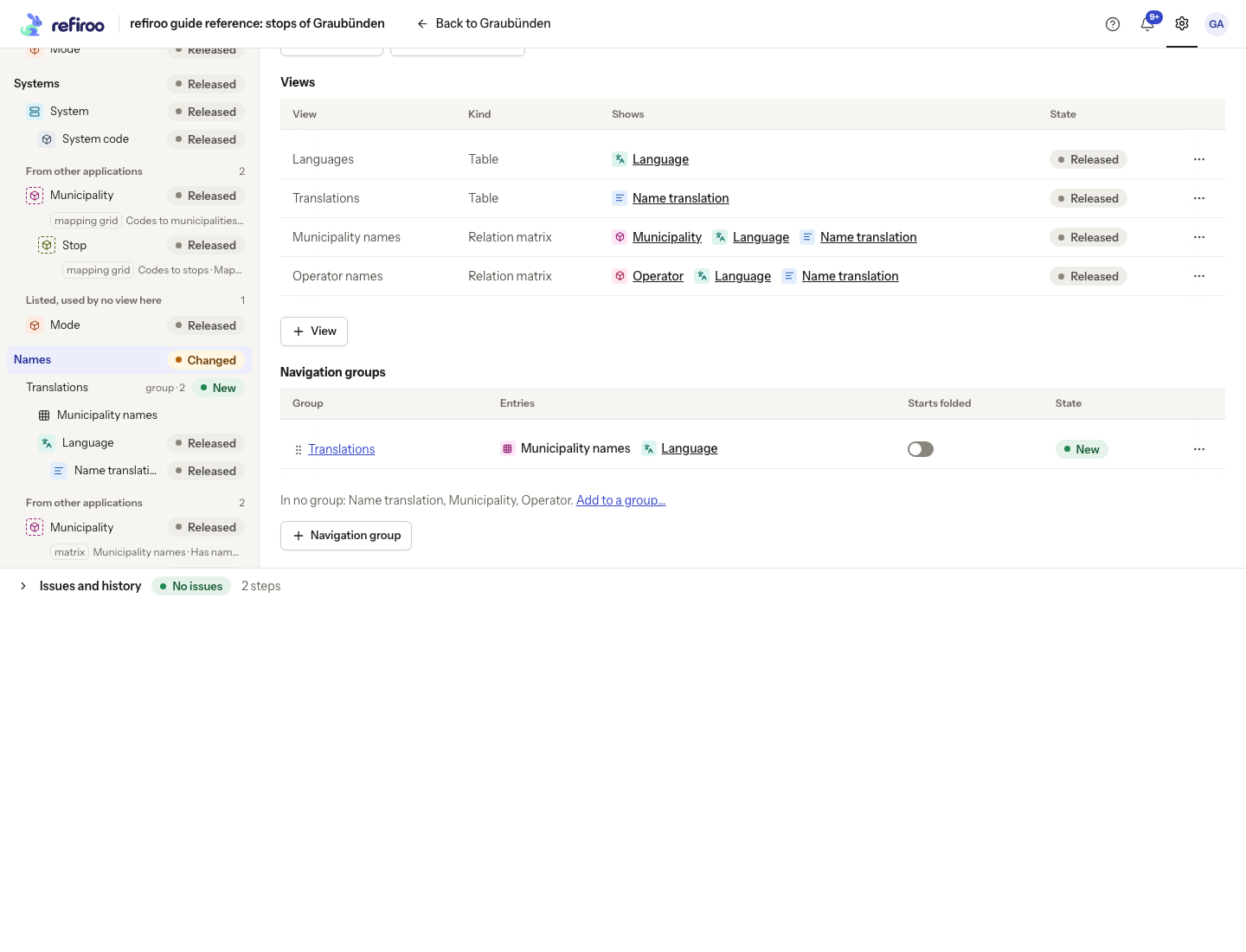
- Enter Label and choose whether it is Folded when the sidebar opens. Choose Add group and check Navigation groups in the application panel. An empty group is allowed.
- Choose the group’s name in that table, or select it in the model pane. Its panel shows the application it belongs to, its starting state and entry count. The Entries table lists Entry, Kind, Opens on and State. A new group has no entries yet.
Add collections and views
Section titled “Add collections and views”- In the group panel, choose Add to group…. The popover lists Collections and Views separately. Entries already in this group are left out.
- Use Search collections and views to find entries by name. Tick all the entries you want to add. Beside each, Top of the sidebar means an ungrouped collection; Inside followed by a type’s name means a view available through its source collection. In followed by a group name means the entry is in another group. Ticking it changes that note to Moves from followed by the old group name.
- Review those moves, then choose Apply in the popover. The same button saves selections made from the application’s Add to a group… control. The entries appear in the group’s table. A collection or view belongs to at most one group in this application; choosing a new group replaces its old placement. This does not move records under a parent.
- Check the result. Adding several entries at once is one saved step: one Undo takes the whole addition back.
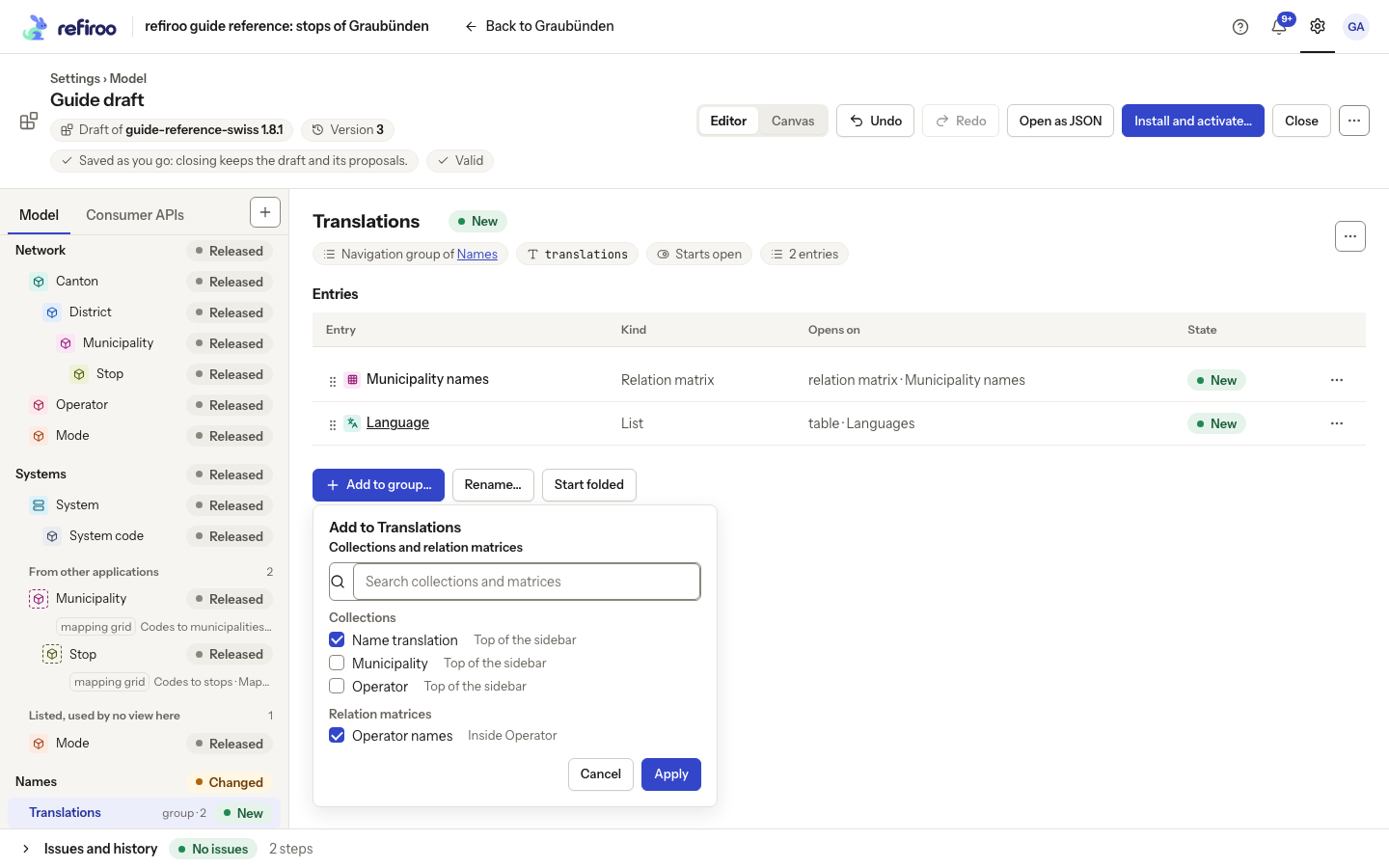
From the application panel, In no group: lists ungrouped collections. Its Add to a group… opens the same popover with those collections ticked; choose Group and adjust the selection before adding them.
You can also place one entry at a time. On a type listed in the application, choose Move to group…. Select Application if offered, then Group. No group: the top of the sidebar leaves the collection ungrouped. For a view of any kind, find it in the application’s Views table and choose Move to group… from its menu. Choose a group, or the No group: inside option to keep it within its source collection. Create a group first if the view’s menu does not offer this action.
A grouped view has its own entry in the sidebar and on the group page. It uses the view’s name and a symbol for its kind in its source type’s colour, and opens the view directly. The source collection stays where it was, and its view tabs still offer the view.
Order entries and choose what opens
Section titled “Order entries and choose what opens”- In Entries, drag a row by its grip to a new place, or open its menu and choose Move up or Move down. Collections and views share one order. The first entry cannot move up; the last cannot move down.
- Choose Move to another group… to select a different Group. This action is available when another group exists. Take out of the group returns a collection to the top of the sidebar; a view returns to being available only through its source collection.
- For a collection with several views, select its Opens on cell. Choose the view people should see when they open that collection; the choice saves immediately. Escape closes an unchanged input without saving. With only one view there is no choice to edit. A view entry always opens that view.
- Check the chosen view’s name and kind in Opens on. It sets the collection’s opening view in both the sidebar and the group page; people can still switch to its other views. Without a collection choice, refiroo uses the application’s default view if it belongs to this collection, otherwise its table, otherwise its first view.
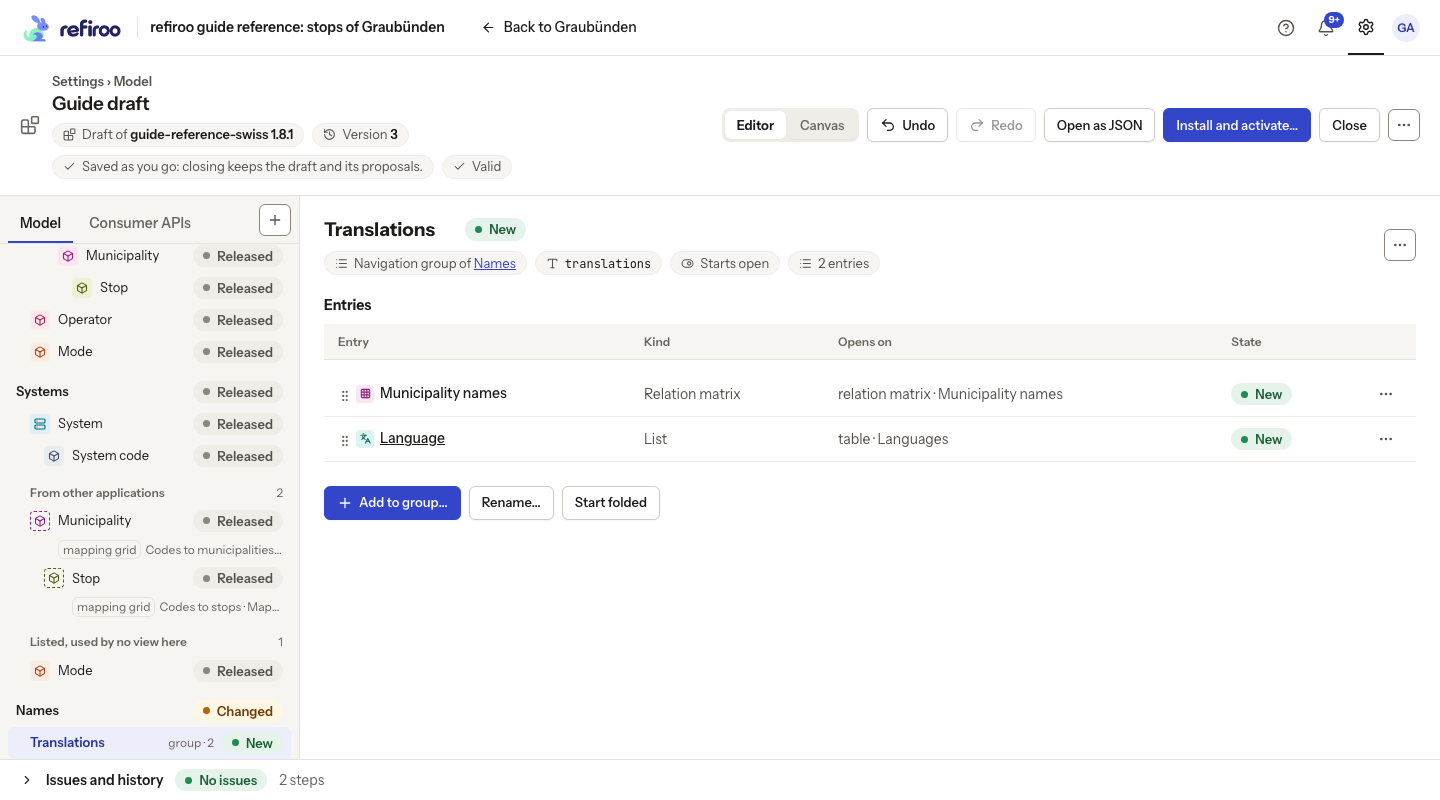
Above: a new group, Translations, in a draft of the Graubünden model holds the Municipality names relation matrix and the Languages collection, each with the view it opens on.
Adjust or remove the group
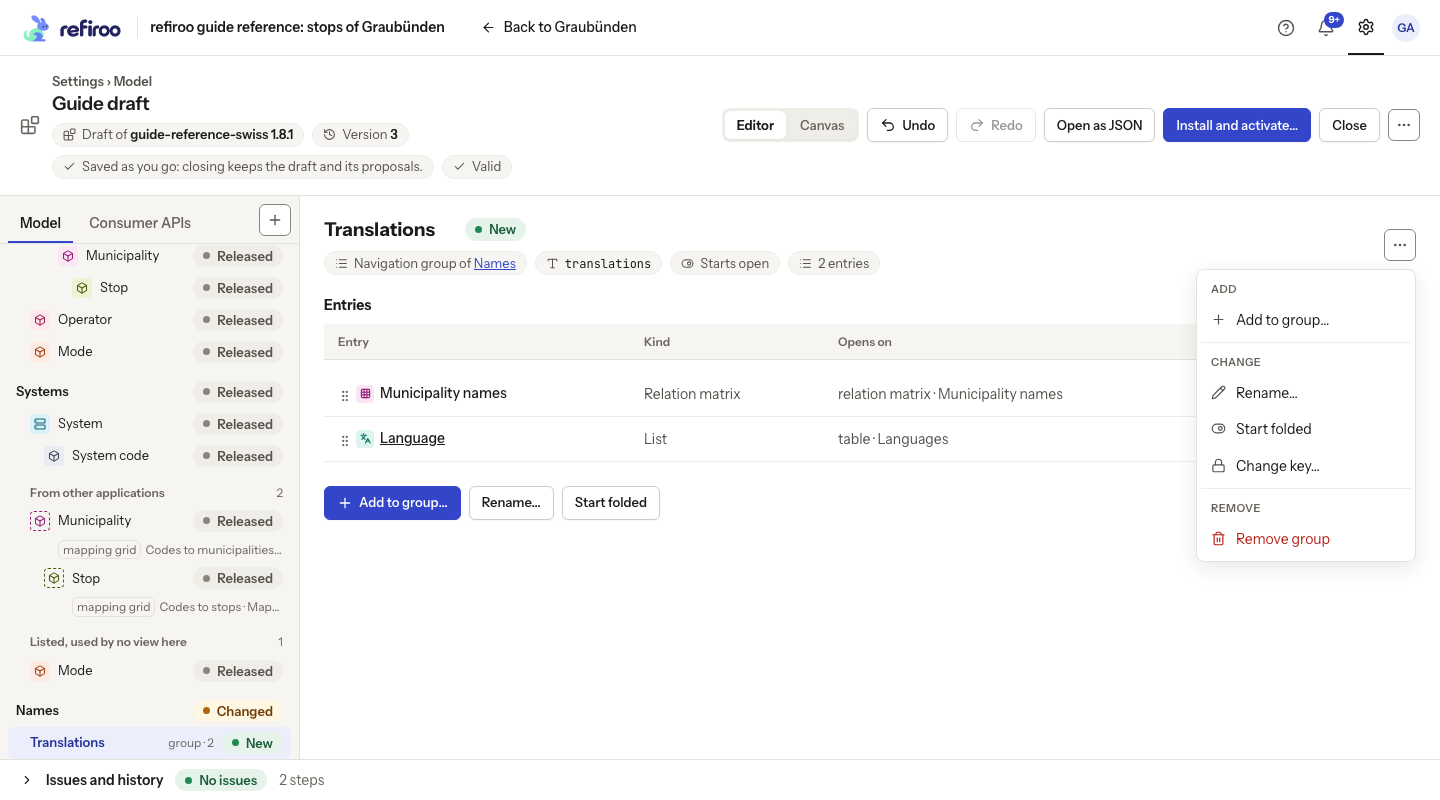
Section titled “Adjust or remove the group”- Use Rename… and Start unfolded / Start folded in the group panel to change its label and initial state. A person’s later folding choice is remembered in their browser.
- Drag a group’s row by its grip in the application table, or, when the application has more than one group, use the group menu’s Move up or Move down, to order groups. The table also lets you edit Label directly, and Starts folded is a box you click to change. Change key… is for unreleased keys only.
- To remove the grouping, choose Remove group, read the confirmation and confirm. The confirmation says that its collections return to the top of the sidebar and, when the group holds views, that they go back inside their source type’s entry; views remain available through their source collections. The views and records are kept. Check Issues and use Undo if needed.
These are model defaults. The active workspace keeps its current navigation until the release is activated. If an action says Not applied, correct the stated problem before retrying.