Record pages and tables
A record page brings one record’s fields, place in a hierarchy and related records together. A table compares records in rows. As a model administrator, you choose their arrangement in a draft before activating it for a workspace. You need Model authoring to edit the layout.
A type shared by several applications can have a different page in each one. Each application can declare one record page for that type and can offer table views with different columns. These are model choices available to every application.
The page a type gets
Section titled “The page a type gets”refiroo uses one rule for a new type’s page, Declare its page, and the page shown when an application has no declared page for the type. Adding a newly allowed relationship uses the same rule to build its panel. The starting layout therefore does not depend on how the page was created.
| Region | Starting content |
|---|---|
| Side | Details, with the type’s fields in their defined order. Hierarchy follows when the type can have a parent. |
| Main | One panel for contained types, if there are any, followed by a separate panel for each relationship in each direction the type can read. |
The contained-record panel takes the first contained type’s plural name as its title when several types are listed. Relationship panels follow the model’s relationship order. Their titles read from the open record’s side: the forward name for relationships it holds outwards, the reverse name for relationships pointing towards it. A relationship with no reverse direction is shown only from its forward side. Containment does not get another relationship panel; its context is already shown by the hierarchy and contained records.
Each generated relationship panel starts with these columns, in this order:
- Name of the related record.
- A containing type’s name, if all related types have the same single direct parent type. This column shows each related record’s parent name. A hierarchy within the same type does not add this column.
- Up to four fields of the related types, in their defined order, without repeated fields.
- Type, when the panel lists more than one type.
The relationship label is omitted because the panel’s title already says it. When the panel lists one related type and has a parent column, that column is its initial sort. Otherwise, the initial order is by name. The four-field starting limit is not a limit on the columns you can select afterwards.
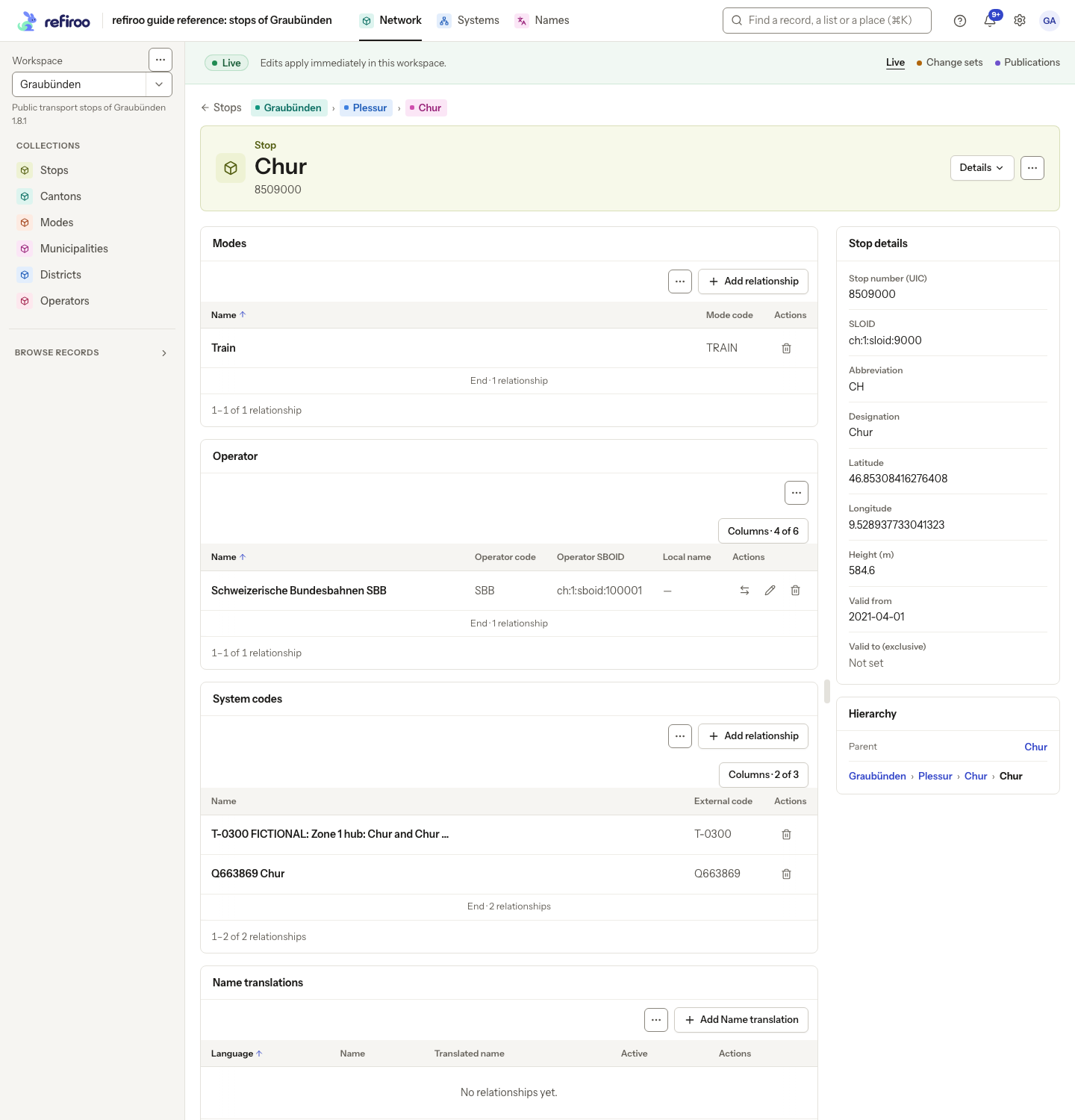
Above: the stop Chur in the guide’s Graubünden model. Stop details and Hierarchy are at the side. Main has a panel for each relationship this model declares: Modes, Operator, System codes and Name translations. The translations panel starts with a Language column.
Declared pages and later changes
Section titled “Declared pages and later changes”Without a declared page, refiroo draws the starting layout from the type’s current fields, containment and relationships. Declare its page saves that layout in the draft so you can arrange it. It does not replace a page already declared.
Existing pages keep their arrangement. Adding a newly allowed relationship adds its panel on the declared pages at both ends, where that direction is readable and no panel already lists it. It also adds a relationship column and filter to the types’ declared tables. Removing that allowed relationship, or undoing its addition, removes the dependent layout items that no longer have an available relationship. A panel covering other relationships can remain with those relationships.
This does not rebuild older pages to match a new starting layout. Use Add panel… to add a missing relationship panel to an existing page. It offers Related records, Contained records where this application lists eligible contained types, and Fields. The title follows the related or contained choice until you change it. Choose Main or Side for its region. A relationship already listed is marked (on the page) and may be used again. The server builds related-record and contained-record panels consistently for every client. Applying the dialog is one draft step, with Undo.
Follow Edit a record page for adding panels, moving fields and choosing columns.
What panels can show
Section titled “What panels can show”| Panel | Content |
|---|---|
| Fields | Selected fields of the open record. Separate field groups give them different headings. |
| Contained records | One or more types that the open record can contain. |
| Related records | Records reached through selected relationships, in the outward, inward or both directions. |
| Table | Records of a type listed in the application, optionally limited to direct children of the open record. |
| Hierarchy | The parent, ancestors, or both. |
Add panel… creates related-record panels, contained-record panels or field groups; it is not a form for every panel kind and setting. A specialist author maintains settings that have no visual form. See Applications and views.
Panels have a title, region, order and visibility. Ordering is separate within Main and Side. Hiding a panel keeps its definition; removing it takes it off the page. Neither deletes records or values. Grouping fields moves them from their current groups. Add fields… adds fields omitted from the page, not new field definitions. Menus provide keyboard alternatives to dragging panels and fields.
A list panel’s Columns… offers the listed records’ name and fields. Under Where it sits, a column for a containing type shows that ancestor record’s name, including ancestors beyond the direct parent. Type is offered when several types are listed. These choices do not include fields of the ancestors themselves; those are available as related-field columns in a table view.
Related-record panels can sort by their supported column headers. Their Sort… layout menu appears when the panel declares allowed sort fields. These can include name, type, relationship, non-JSON fields of related records, and a containing type when the panel reaches one related type. Records missing the chosen field sort last. Live timestamps are not related-record panel sort choices. A declared initial order can be descending.
List panels can read 1–100 rows per page. A reading size limits a page of results, not the whole collection. The record header normally shows the name and type; a declared title or subtitle field can supply other context. The line above the title holds the list link, when opened from a list, and the ancestors the model shows; it has no application entry. In Record page, choose Header and breadcrumbs… to set the title, optional line under it, type label and whether ancestors appear. Either type-name choice places the type in the header. This page-specific header does not change the type’s shared Display attribute.
Table columns, filters and sort
Section titled “Table columns, filters and sort”The Table layout tab arranges an existing table view. Columns, available filters and initial sort are defaults for everyone using that view, rather than one person’s saved search. The view needs at least one column, filter field and sort field, with no repeats within each list. Its initial sort must be one of its allowed sort fields. Ordinary non-JSON field columns can sort from their headers; additional allowed fields supply further sort choices.
A relationship column shows related record names as chips in name order, with +N more when they do not fit. It combines the allowed related types for that relationship at the listed record’s end. There is no fixed number of relationship columns. People can hide columns through Display; a hidden relationship column is no longer read for the table. A names column can sort only when it represents one allowed type pair and each row can have at most one related record through it.
In Columns…, Fields of beneath a relationship unfolds the related records’ fields. Where they sit · headings offer the names and fields of their containing types. Each checked field is a column of its own; selecting it does not require selecting the relationship’s names column. Its heading combines the relationship and field labels. Each related record contributes its value, with — for a missing value. A field holding JSON is not offered. These related-field columns never sort.
For example, in the guide’s Graubünden model, the Stops table can show Has name translation · Language code. The value comes from the language containing each translation, rather than from the Stop or the relationship itself.
Filters… offers the relationship itself, without unfolding its fields. A relationship filter can find records linked to any selected records, linked to any record, or linked to none. Choosing a related-field column does not provide a filter on that field. Ordinary field filters require a filterable, non-JSON field. Fields stored on a relationship itself cannot be columns.
Relationship columns can be declared in table views and contained-record or table panels; they do not add columns to trees, mapping grids, relation matrices, related-record panels or headers. The table view’s Columns… offers the related fields directly. A panel’s Columns… offers its listed records’ fields and Where it sits instead.
Follow Choose table columns, filters and sort. The draft declares no table view means there is no table to arrange here. Add one through the application’s Add a view…; see Add a view.
Mark inactive records in a table
Section titled “Mark inactive records in a table”In the Table layout, Inactive records… sits beside Filters… and Sort menu and page size…. It lets this view use one of its record type’s Yes/No fields to mark records whose value is No. The choice A record is inactive when this is No offers None and the type’s Yes/No fields. None leaves the table without an inactive mark or switch. A field of another type, or one that is not Yes/No, is invalid for this setting; the editor offers only eligible fields.
With a field selected, a record with No keeps its row and order. Its name is quieter, with a grey Inactive pill when the field is called Active, or Not followed by the field’s name in lower case for another name. A missing value is not marked. The setting neither changes stored values nor grants editing rights; a read-only field may be used. It applies to this table view, rather than every table or panel listing the type.
Readers see inactive records by default and can use Hide inactive (N) beside Filter. The switch hides exactly the marked records through a filter pill, such as Active: not No, that stays in the page address. Records with no value stay visible. It works even when the chosen field is not offered in Filters…. Its count is the number with No after the list’s search and other filters, including 0 when none match. Choosing Yes in the ordinary + Filter menu instead excludes records with no value; the switch does not use that condition. The mark and switch use the values of the current Live, change-set or publication context; publication data remains read-only.
Follow Choose table columns, filters and sort to set the field. See Lists, search and filters for the reader’s controls.
Preview and validation
Section titled “Preview and validation”Preview draws draft definitions over live records from a chosen workspace, without changing those records. Data-changing controls are disabled. Choose Workspace and Record, or Show an empty record for a type with no records yet. Follow Preview a type.
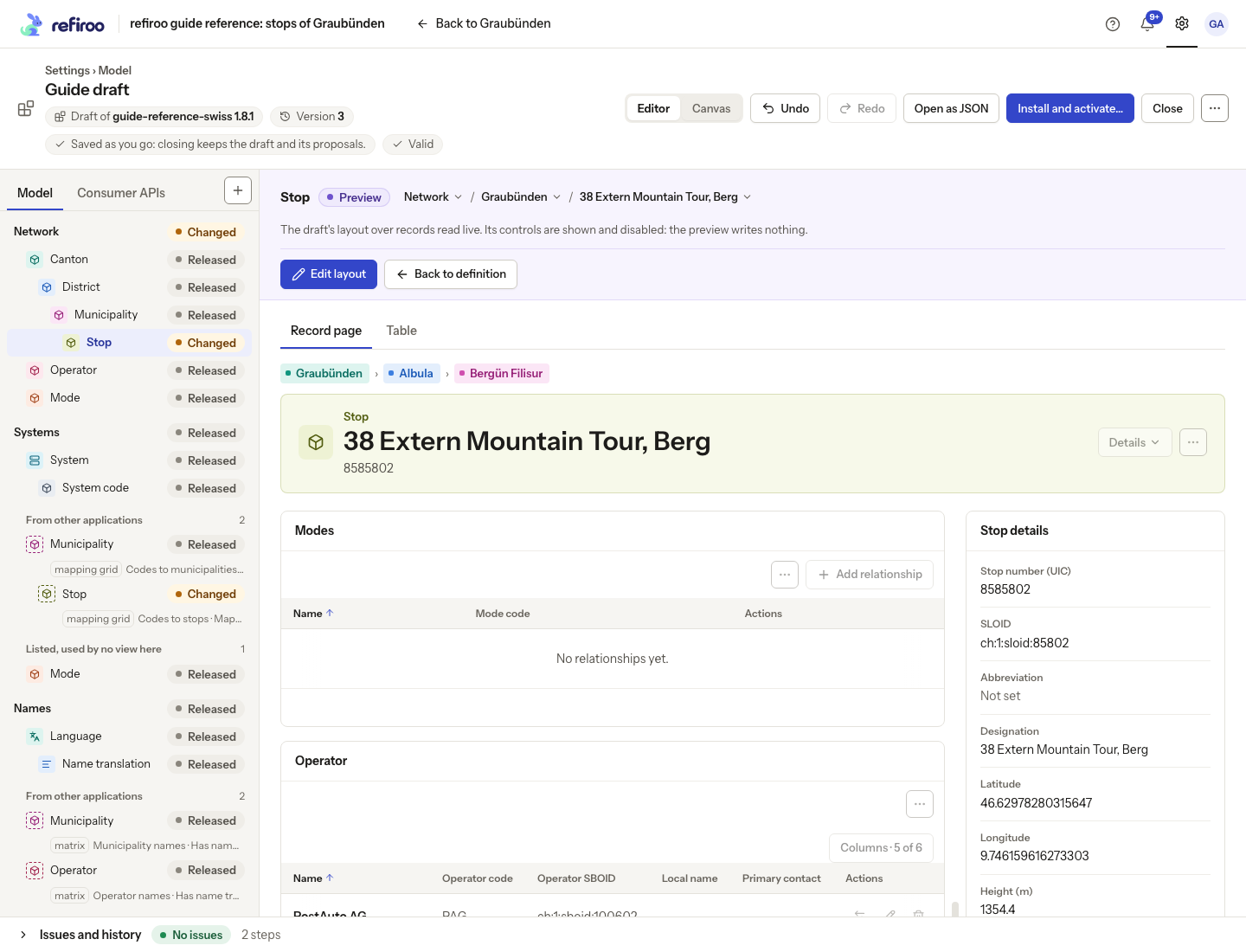
An invalid draft cannot be previewed or laid out. Show issues names the definitions to repair. Validation checks distinct panels, available fields and relationships, containment, application membership and reading sizes. Hiding an invalid panel does not repair its references. This model check does not prove compatibility with every stored record.
Every saved layout change is a draft history step. A refused action shows Not applied and changes nothing. Review populated and empty records, check Issues, then follow Install and activate a release.
Panel settings and reading sizes
Section titled “Panel settings and reading sizes”Open a panel’s Settings… in the record-page layout. The choices depend on its kind:
| Panel | Settings you can change |
|---|---|
| Related records | Relationships listed, Listed from, the relationship label column and allowed sort fields. Leaving the sort choices empty lists by name. |
| Hierarchy | Show the parent and Show the records above the parent, independently. |
| Contained records | Rows on a page. The contained types were selected when the panel was added. |
| Table | List only the records under this one and Rows on a page. The table’s record type itself needs a specialist to change. |
| Fields | No additional Settings dialog; use the field and group controls. |
Listed from can read This record to the others, The others to this record, or Both ways. Changing direction changes which connections appear, without reversing any stored relationship. Show which relationship joins each record is useful when combining several relationships in one panel. Changing panel contents can make existing columns invalid; check Issues and revise the columns as needed.
In Table, Sort menu and page size… chooses the fields people can sort by and the number of Rows on a page. The form offers Name, current choices and fields marked Sortable. If you remove the initial sort field, the first remaining field becomes the default. Leaving all choices unchecked keeps the current table sort list. This differs from a related-record panel, where no sort choices returns to name order.
Reading sizes in these forms are 10, 20, 25, 50 or 100; an existing different valid size is also preserved as an option. The model permits 1–100. Table and contained-record panels default to 20 when no size is specified; generated table views start at 50. A reading size does not cap a collection: people continue scrolling to read more. Some supported declarations still need the JSON view: changing the record type of a table panel, changing a contained panel’s type list after creation.