Prepare and publish a change set
Prepare changes away from Live, review them and publish them together. See Change sets for how starting data, live work and publications fit together.
For changes beyond fields, follow Relate records, Arrange records in a tree, Map codes between systems or Fill in a relation matrix.
Start or open a change set
Section titled “Start or open a change set”- Open an application in the current workspace. Check Workspace in the sidebar, then choose Change sets at the top. The list identifies existing change sets by name and shows their versions, starting data and creators.
- To continue existing work, find its name and choose Open change set. Changes in this change set opens first. Choose See the data with these changes to reach its lists, and check the name in the band before editing. Opening a change set does not publish it.
- To start separate work, choose New change set. Enter a Name that helps other people recognise the work. Options shows the starting point, today’s live data. A Model version choice appears there when you have Model release access and another release is available. Keep the workspace’s version for ordinary corrections; coordinate a different choice with a model administrator.
- Choose Start change set. The new set opens with a copy of the current live data. If creation is refused, read the message and resolve the named problem before retrying. Choose Cancel if you do not intend to create it.
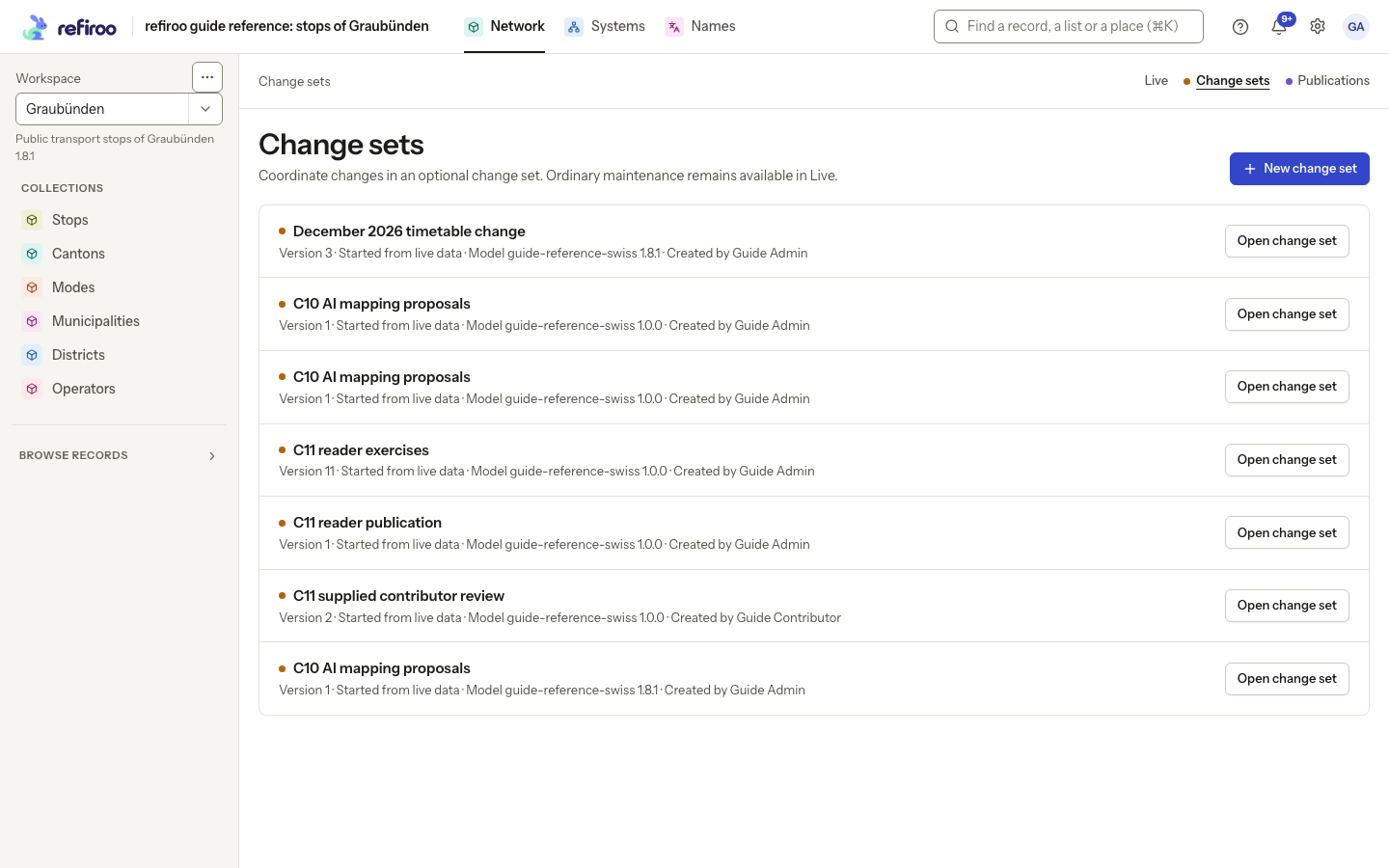
Above: Network in the Graubünden workspace lists December 2026 timetable change. Open change set continues that work; New change set starts a separate proposal.
If creation controls are unavailable, check your access with a workspace administrator. Opening and reading an existing set does not itself give permission to change or publish it.
Make the changes
Section titled “Make the changes”- Check the orange Change set band. It names the intended set, its number of changes and state. Open Details for its creator, creation time, version and model. If the band says Live, open your change set before making staged corrections.
- Choose a collection and find a record. Correct its fields and save using the ordinary record controls. Check that the saved values appear in the change set, then repeat for the other records in your proposal.
- If you switch applications or inspect Live, check the banner again before the next edit. Return to the named change set to continue preparing it. Later live corrections do not refresh its starting copy.
- If a save is refused, read the message and review the current record or change-set version before retrying. If the band says waits for approval, open Details for the submission and withdraw the request before editing.
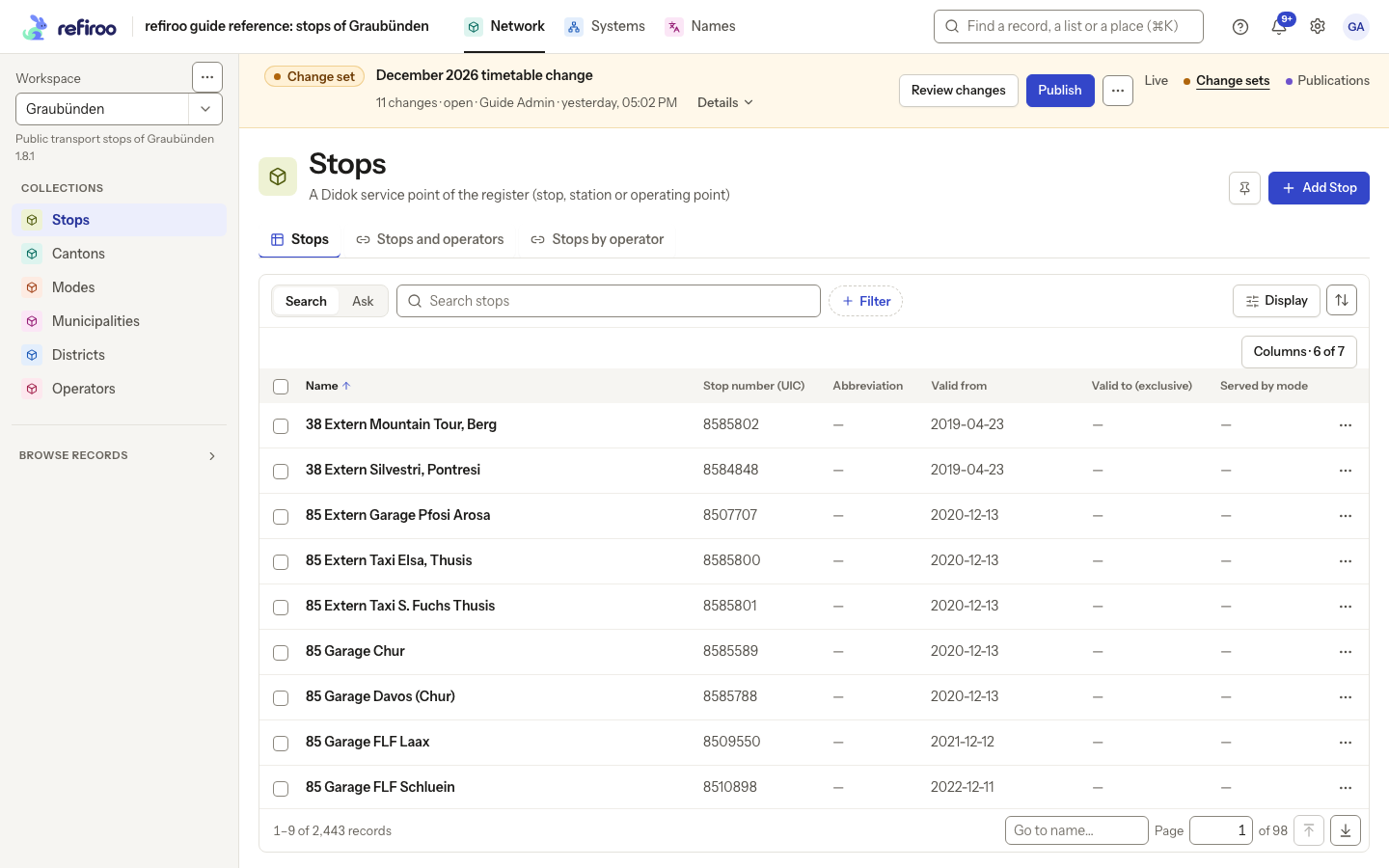
Above: December 2026 timetable change is open over Stops in Network. The orange banner shows 11 changes and offers Details, Review changes, Publish and a menu for further actions.
Review and validate
Section titled “Review and validate”- Choose Review changes in the banner. On Records, inspect every intended addition, change or removal. Expand a row with its arrow to compare the before and after values. Check names and paths to confirm that you changed the intended records.
- Choose Relationships and review the connection changes too. If a long review is hard to inspect, use Filter to narrow it, then remove the restriction to check the remaining work. An empty filtered review does not mean the whole proposal is empty.
- Choose See the data with these changes to correct anything unexpected. Save those corrections and review again before proceeding.
- Open More change set actions (⋯) and choose Validate now. If problems are reported, use the named records and reasons to correct them in the change set, then validate again. Do not proceed while problems remain.
- Check for Change set validation passed. You can also go straight to Publish, which validates the current proposal before asking for confirmation. After further edits, the next publication attempt checks them again.
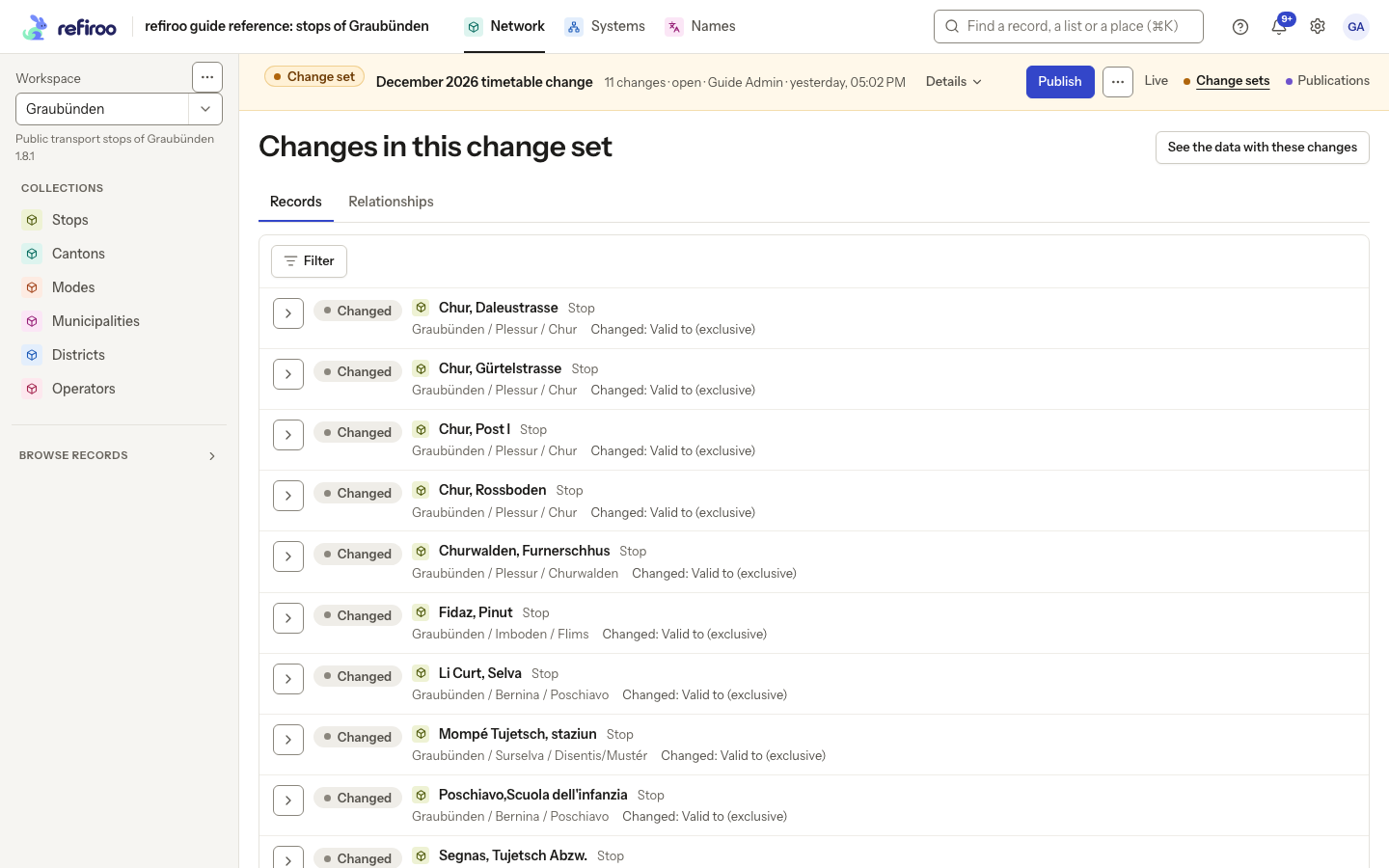
Above: the timetable change’s Records tab lists stops with Changed: Valid to (exclusive). The arrows open the differences; Relationships provides a separate connection review.
If publication remains unavailable after validation, read the banner for a model-version or approval requirement and check your permissions. If Submit for publication is offered, follow Approve a change set. Submission leaves the proposal waiting for a decision; it does not make the changes live.
Publish
Section titled “Publish”These steps apply when Publish is offered. When approval is needed, the banner instead offers Submit for publication. Follow Approve a change set for submission, corrections and the approver’s decision. See Inbox and approvals for the rules and notices.
- Choose Publish. refiroo checks the proposal first. If it fails, nothing is published; use the reported problems and record links to correct it. A passed check opens Publish this change set?.
- Read the confirmation. It names how many records and relationships become live, explains that unrelated live changes stay, and that a conflicting live edit publishes nothing. Follow Review changes if you need another look. Choose Cancel if you are not ready; the change set stays available for preparation.
- To apply the reviewed changes, choose Publish in the confirmation. Wait for the result. Success is reported as Published as Publication followed by its number. Check the changed records in Live and find the resulting snapshot under Publications.
- If publication is refused, read the reported reason. For conflicts, compare the named records with Live and agree which corrections are needed before changing the proposal. Review and validate the revised work before attempting publication again. A conflict or failed check publishes nothing; the proposed work remains available.
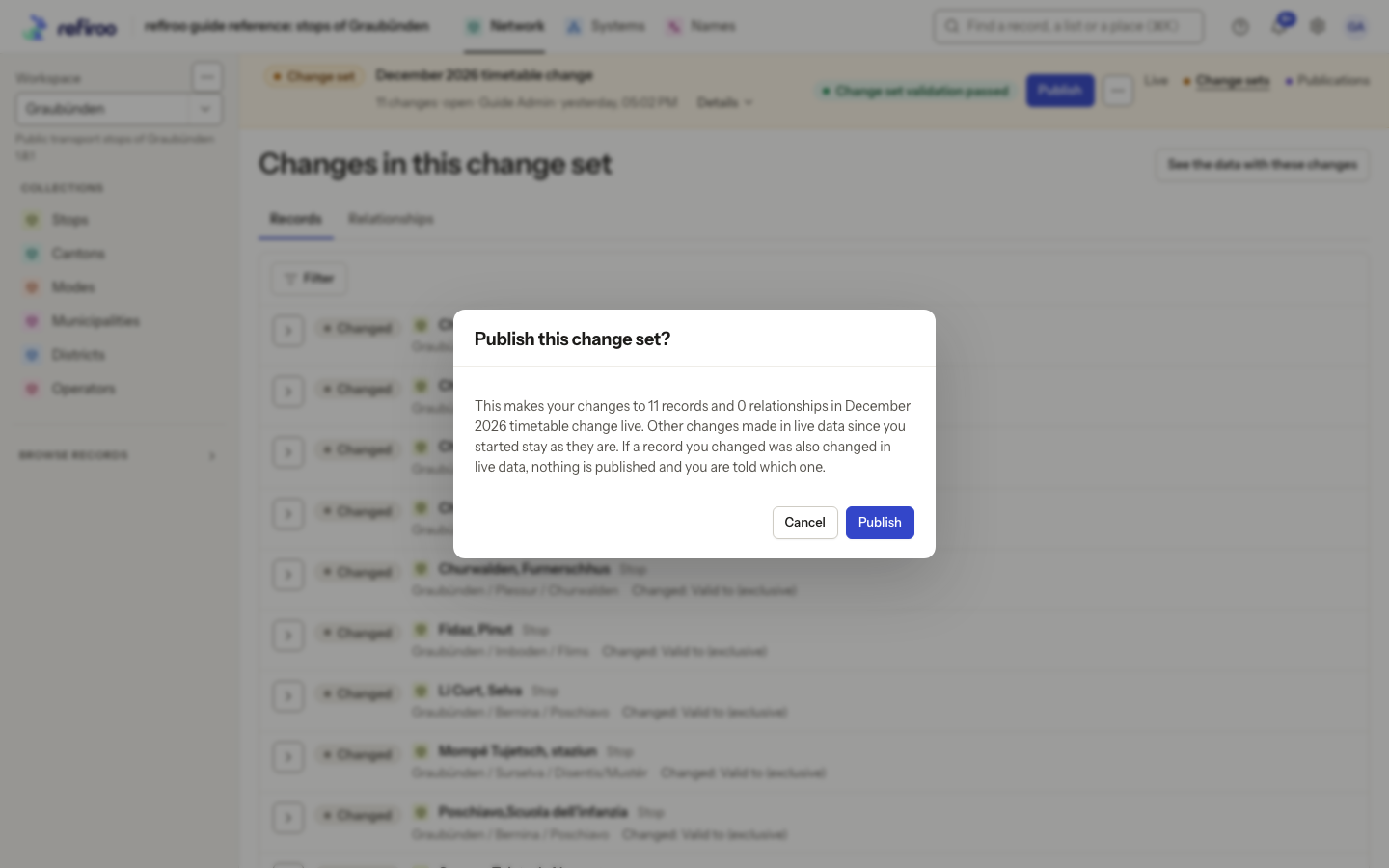
Above: December 2026 timetable change has passed validation and its confirmation is open. No publication has been confirmed in this screenshot; Cancel leaves it unpublished.
An intervening live edit can still prevent publication after validation. See Publishing and intervening live work for what conflicts and what is preserved. A refusal needs review before another attempt.
Discard work you no longer need
Section titled “Discard work you no longer need”- Open the change set and check all its proposed changes, including work by colleagues. If it is waiting for approval, its submitter or an approver must Withdraw request first.
- Open More change set actions and choose Discard.
- Read Discard this change set?. Discard change set removes all staged work in it. Choose Cancel to keep it. Live records and existing publications stay unchanged.
- If the action fails, read its reason and refresh the change set before trying again. There is no undo for discarded work; a fresh change set does not recover those edits.