Arrange records in a tree
Use a tree view to inspect where records belong and move them to an allowed place. See Hierarchies for parents, type rules and the effect on descendants.
Browse a branch
Section titled “Browse a branch”- Open an application in the current workspace. Choose a collection and its tree view, where offered. Check the heading and the banner: Live, a named change set or a publication.
- Expand the arrow beside a type group or record. Its children appear below it. Continue down to the branch you need; collapse an arrow to hide that branch without changing data.
- Use Find a record to search, checking names, types and paths before selecting a match. Clear the search to return to browsing. A branch loads more records as you scroll.
- For keyboard browsing, focus the tree and use arrow keys to move through it and expand or collapse branches. Open the record when you need its full fields and relationships.
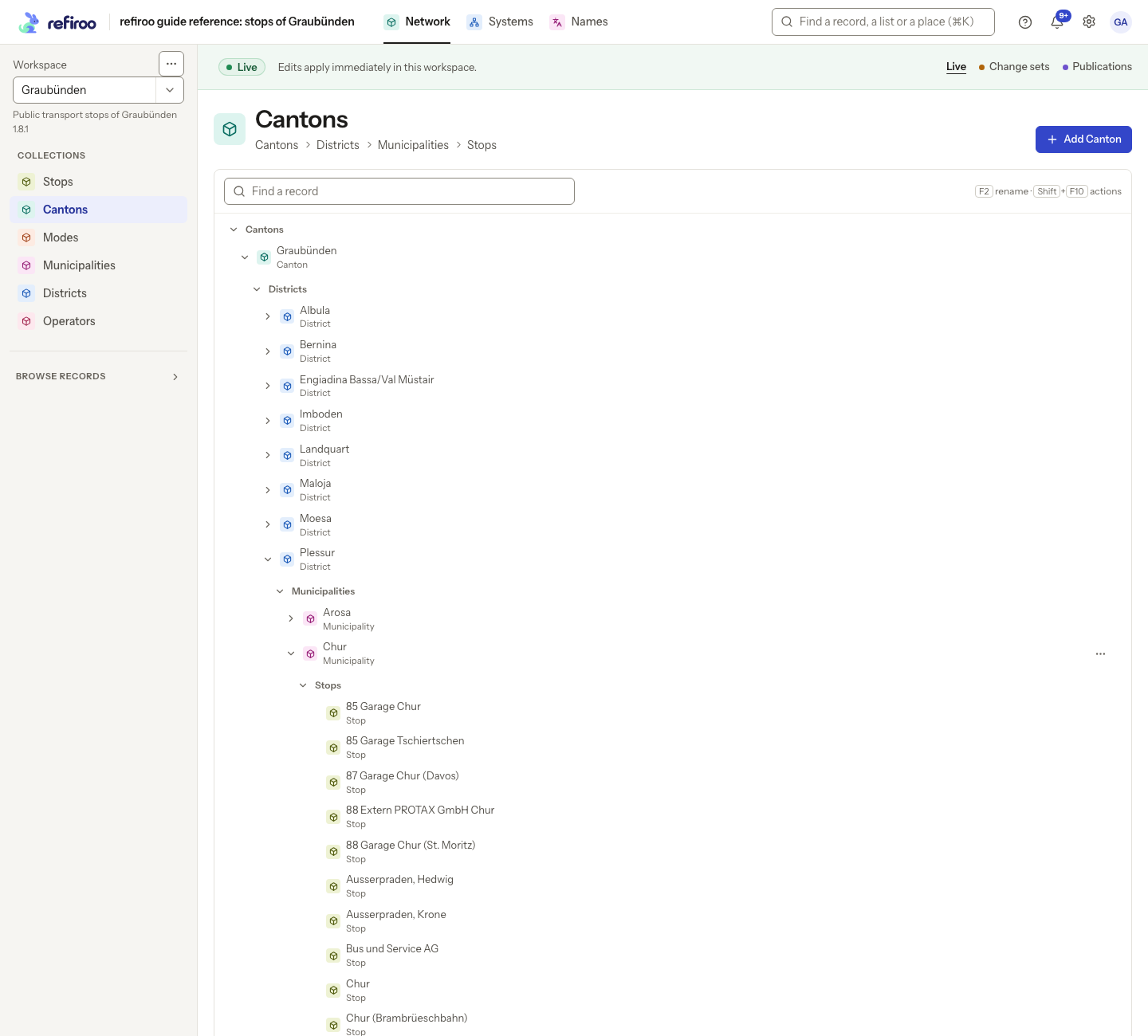
Above: Geography in Network is expanded through Graubünden, Plessur and Chur. Stops appears as a type group above the stop records.
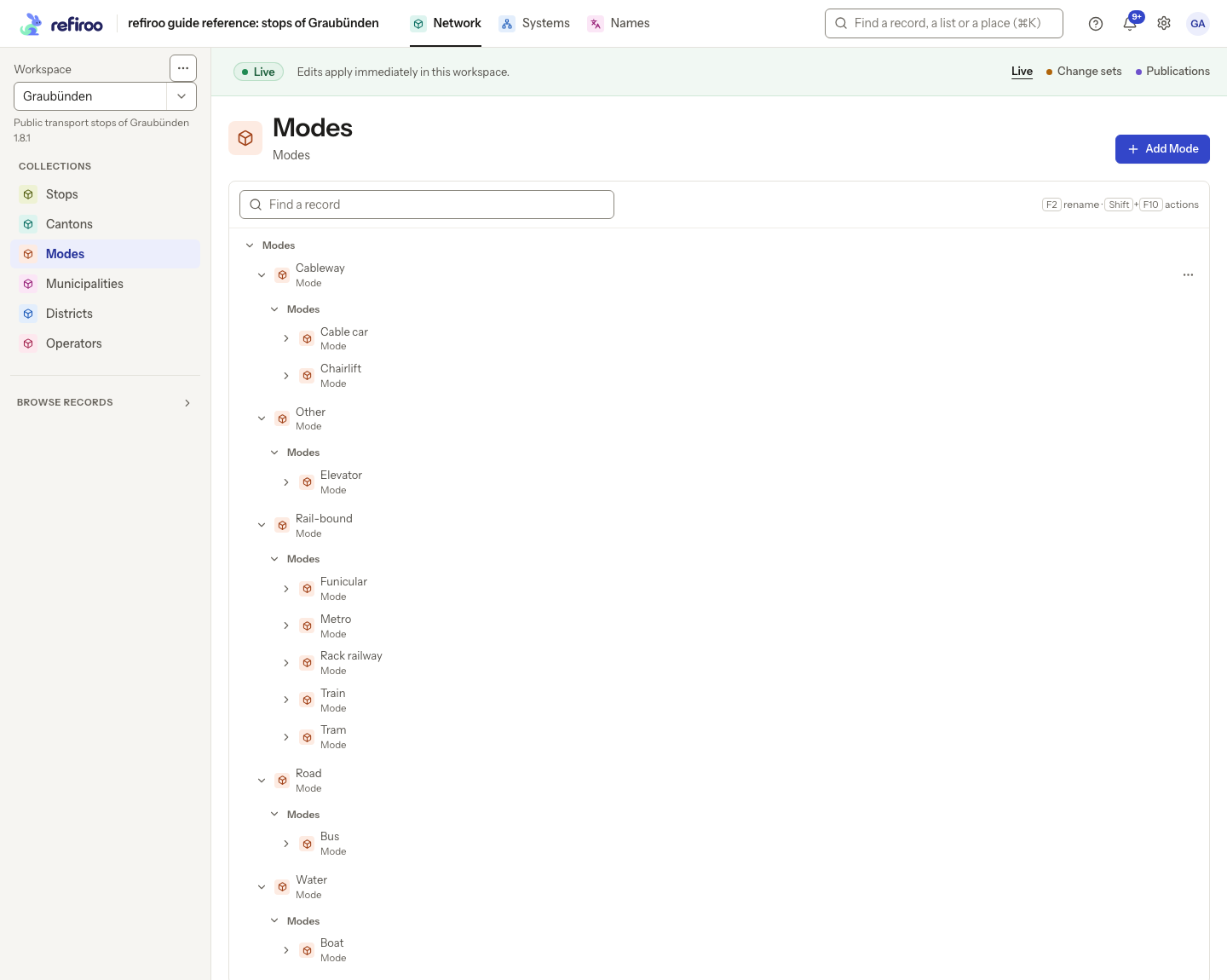
Above: Modes groups Train and Tram under Rail-bound, and Bus under Road. The record type is Mode at both levels; a tree is not limited to a chain of different types.
If a branch reports a loading failure, retry it. A failed read does not mean the parent has no children. If the tree is empty, check its workspace, context and search before adding data.
Move a record
Section titled “Move a record”- Choose Live for an immediate move, or open a change set to stage it. Check the banner and the record’s current ancestors.
- Open the record’s … menu and choose Move to…. You can also open the menu with a right click or Shift+F10 while the record has focus. The dialog names the record and shows Now in followed by its current path.
- Type in Search by name… to find the new parent. Check the path below each candidate to distinguish repeated names. Select its radio button; typing a name alone is not a selection.
- Use Top level only if you intend to remove the parent and the choice is available. Unavailable destinations state their reason. If no destination matches, shorten the search and check the model’s allowed placements before continuing.
- Check the selected destination and choose Move to followed by its name, or Move to the top level. Before selection the button reads Move. Wait for completion, then inspect the new branch or the record’s path. The descendants move with the record. Cancel leaves its placement unchanged.
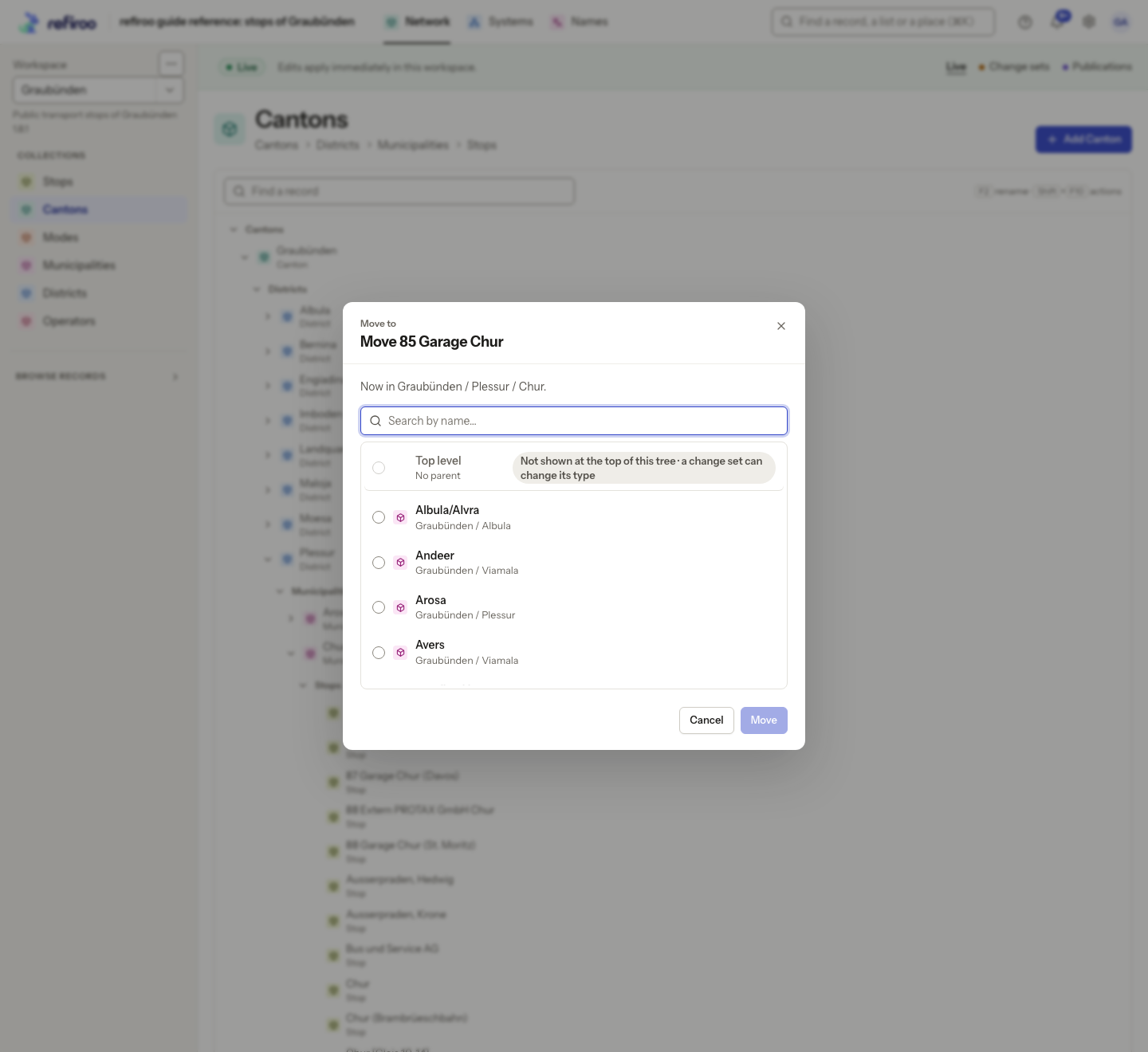
Above: Move 85 Garage Chur shows its current place under Graubünden / Plessur / Chur and offers other municipalities. Top level explains why it is unavailable in this tree. The dialog was cancelled.
A choice marked Becomes changes the record’s type in a change set. Its button opens a type change preview instead of making an ordinary move; review the resulting fields and missing values before applying it. Cancel if you only intended to change the parent.
Dragging a record onto a parent is another way to move it. Review the destination and any confirmation before proceeding. On touch screens, hold the record still until it lifts, then drag. Beginning to move your finger before it lifts scrolls the tree instead.
Add the first top-level record
Section titled “Add the first top-level record”In an editable tree, choose Add … for the intended top-level type in the header or empty view. Complete the new record’s name and required fields, then choose Add followed by the record type’s name. This form has no parent field: the record starts at the top of this tree. Add children from its menu afterwards. The action appears only for types allowed at the top, when the view allows creation and your permissions allow writing that type.
Rename or add a child
Section titled “Rename or add a child”- Open the record’s menu and choose its rename action, or press F2 on the focused record. Enter the intended name and confirm the rename. Check the new label; the record retains its identity and connections.
- To add within a parent, choose the menu’s add-child action for an offered type. Complete the new record form, check its parent and choose Add followed by the record type’s name. If the needed type is absent, ask a model administrator about the permitted children.
- Where an availability action is offered, use it only to change whether the record is available under that model’s rule. It does not delete the record.
If a move or rename is refused, read the reason and review the current record before retrying. Another person’s change can make your version stale. If editing controls are absent, check permissions and the configured actions; publications and retired workspaces are read-only. For permanent removal and its impact, see Deleting a record.
Move a selection together
Section titled “Move a selection together”- In the sidebar tree or tree view, use Cmd or Ctrl to select individual records, or Shift for a range. With the keyboard, use Ctrl+Space and Shift+arrows. Escape clears the selection.
- Open the selection’s menu with right click or Shift+F10 and choose Move to…, or drag the selected records together onto the new parent.
- Read the destination and confirmation for the whole selection. Confirm only when every selected record belongs there. If any cannot move, none moves; correct the selection or destination and try again.
In a long branch opened partway down, use Show earlier records to read those above it. For Change type…, Insert level above…, Remove this level… or Change type of all … in here…, first open a change set. Review the preview’s types, values, missing values and content kept only in history before applying; see Restructuring.
Screenshot data: Source: opentransportdata.swiss, Service Points (Didok), Federal Office of Transport / SBB, snapshot 2026-11-02. Wikidata, CC0. See The example data for sources and fictional additions.