Migrate a workspace
Start from a draft’s install or Apply review, or an activation check that says the data needs migration. You need Model release in the workspace, with model administration and jobs enabled. See Migrations.
- From Install and activate…, read Activation needs a migration and choose Install … and preview the migration…. From Apply to this workspace…, choose Preview what happens to the records…. For an installed release, choose Preview the migration… where offered. Check the workspace and target release on the migration page. Nothing has changed yet refers to workspace data: the editor flow has installed the release, but has not activated it. Wait for every record to be checked, or Cancel the preview. Leaving keeps the job running.
- For an editor proposal, read What the draft proposes. Each row shows Records of, Become, In, Under, Records and a Proposed mark for the draft’s choice. Check the destination type, application and parent placement, plus the split, list-conversion or relationship-key lines below. Change Become in place if another destination is intended; it previews again without changing the draft. Under What … no longer has, review any remaining missing type or field and select Became … only for its genuine replacement. Type mappings retain record IDs and history. Not kept removes the type’s records and relationships or the field’s values. Each choice previews again.
- Open each outcome: Converted, Type changed, Removed, Must be fixed and, when shown, Created. Created lists the records and relationships a split or list conversion makes. Read the item lists, including before and after values. These count items, not just records. Check top-level moves for the removal of the old parent connection; tighter rules can leave records under Must be fixed even when their proposed destination is correct.
- Fix every blocking item in the named workspace or change set. Required values, required relationships, parent placement, uniqueness and publication conflicts cannot be waived by accepting loss. Choose Preview again and review the refreshed lists.
- If Removed contains items, inspect them. While Must be fixed contains blocking items, the acceptance checkbox is hidden and the migration button is disabled. Resolve those items first, then tick I accept that … to accept the listed removal. Choose Cancel to keep the current data; a release already installed remains installed.
- Check the final action. Migrate … to … changes the workspace. Move change set changes only the named change set onto the workspace’s current release. Migrate and publish also publishes the named change set and needs publication permission and any required approval.
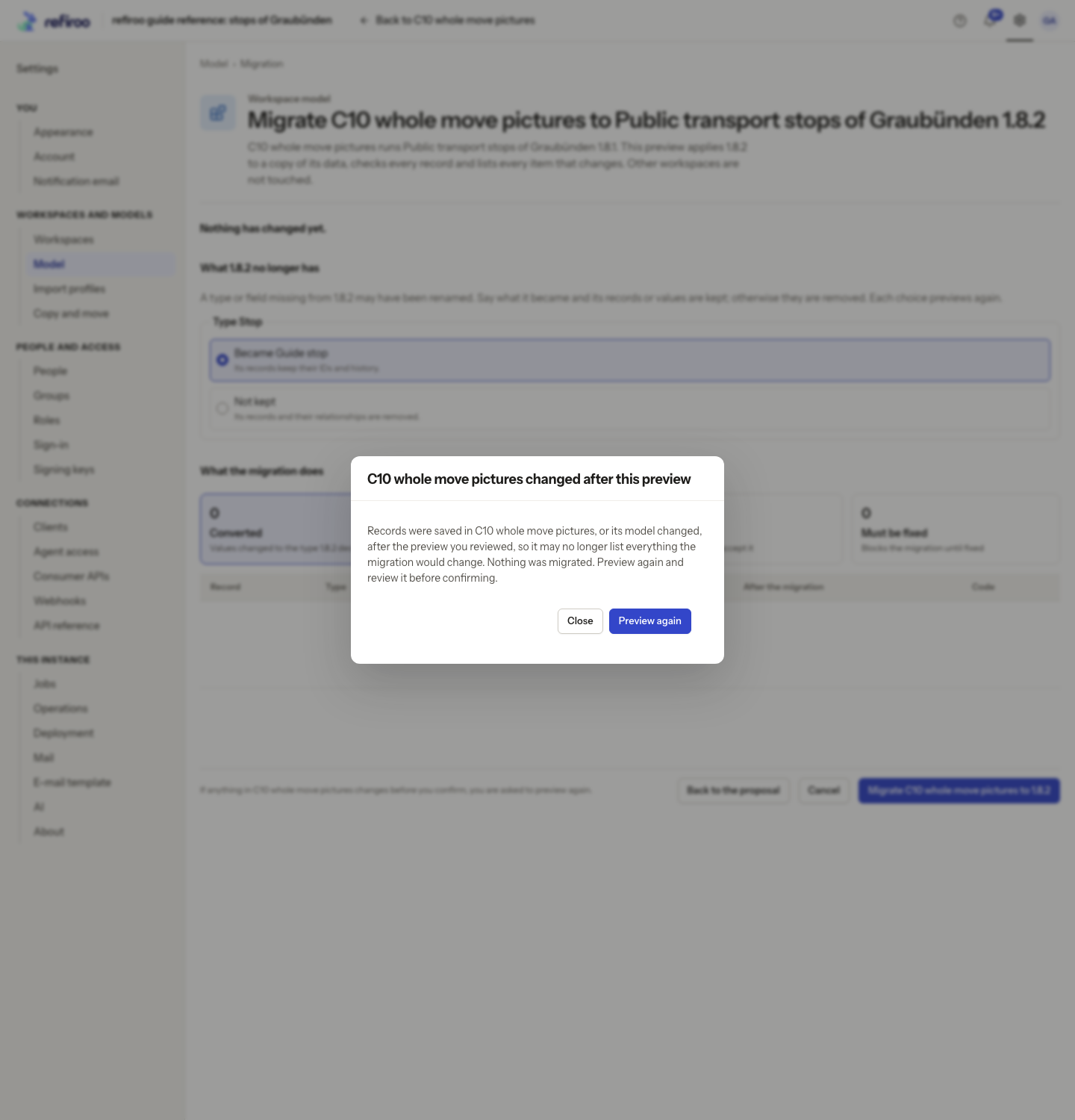
- Confirm only the reviewed action. If a stale notice appears, Close or Preview again; nothing was migrated by that refusal. Review the new result before another confirmation.
- Read the success counts and destination. For a workspace migration, inspect its applications and arrange to move or discard old change sets. For a change-set move, choose Open the change set and review and validate it. For migration and publication, inspect the named publication.
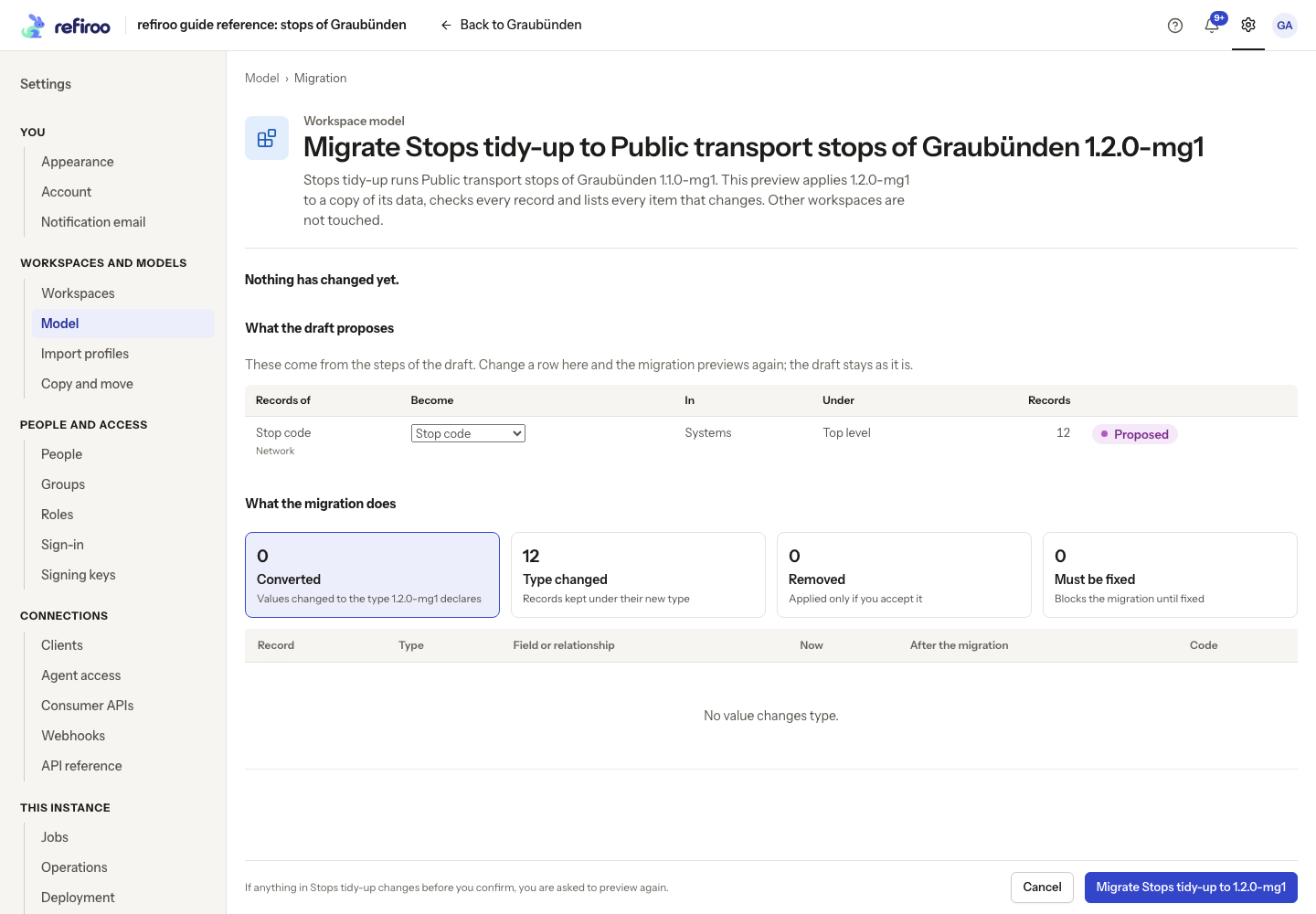
Above: the draft proposes moving 12 Stop code records from Network to the top level of Systems. The row is marked Proposed, and Type changed counts 12 records; nothing has changed yet.
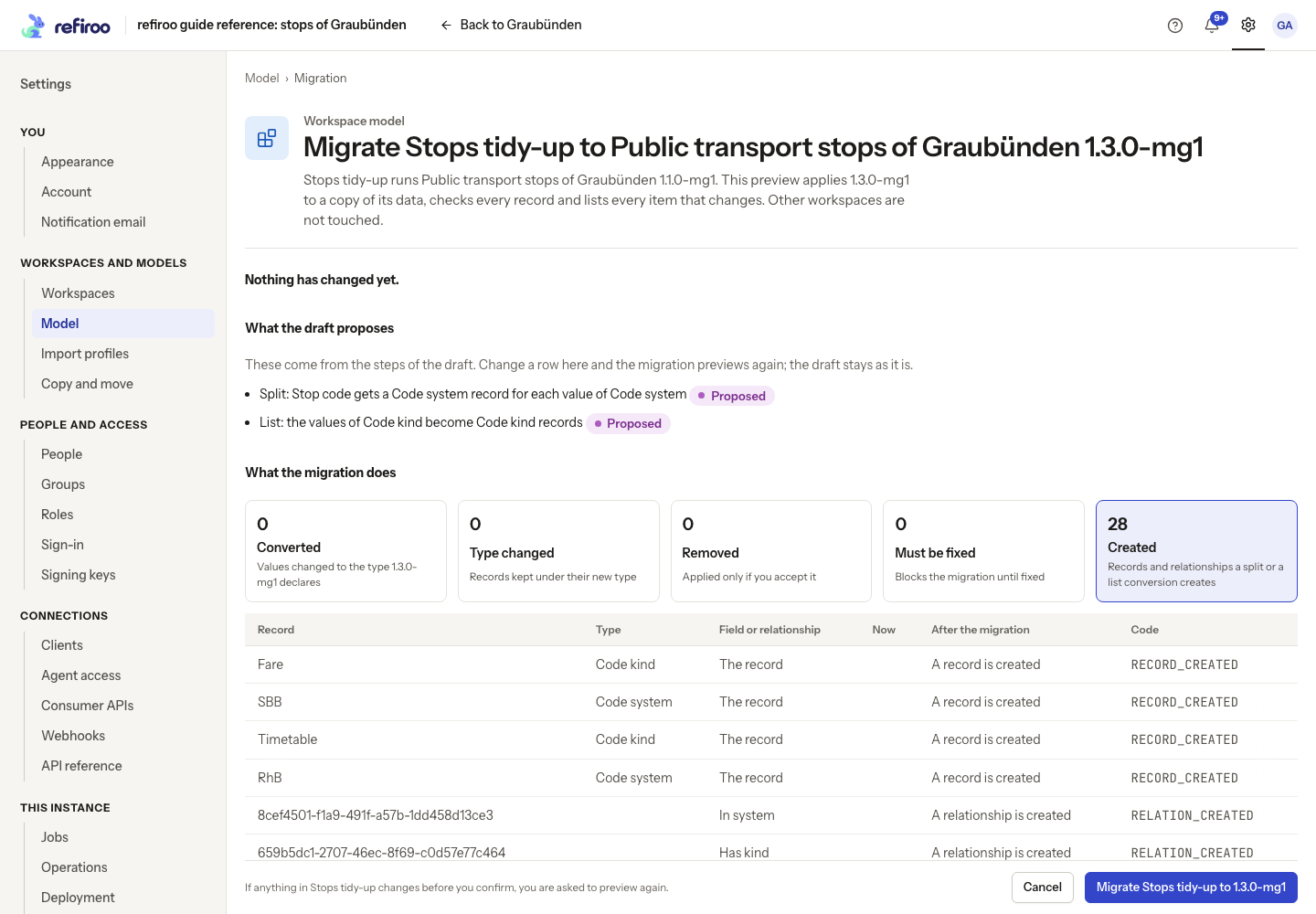
Above: the draft splits Code system from Stop code and turns Code kind values into list records. Created lists 28 new records and relationships across both changes; nothing has changed in the workspace yet.
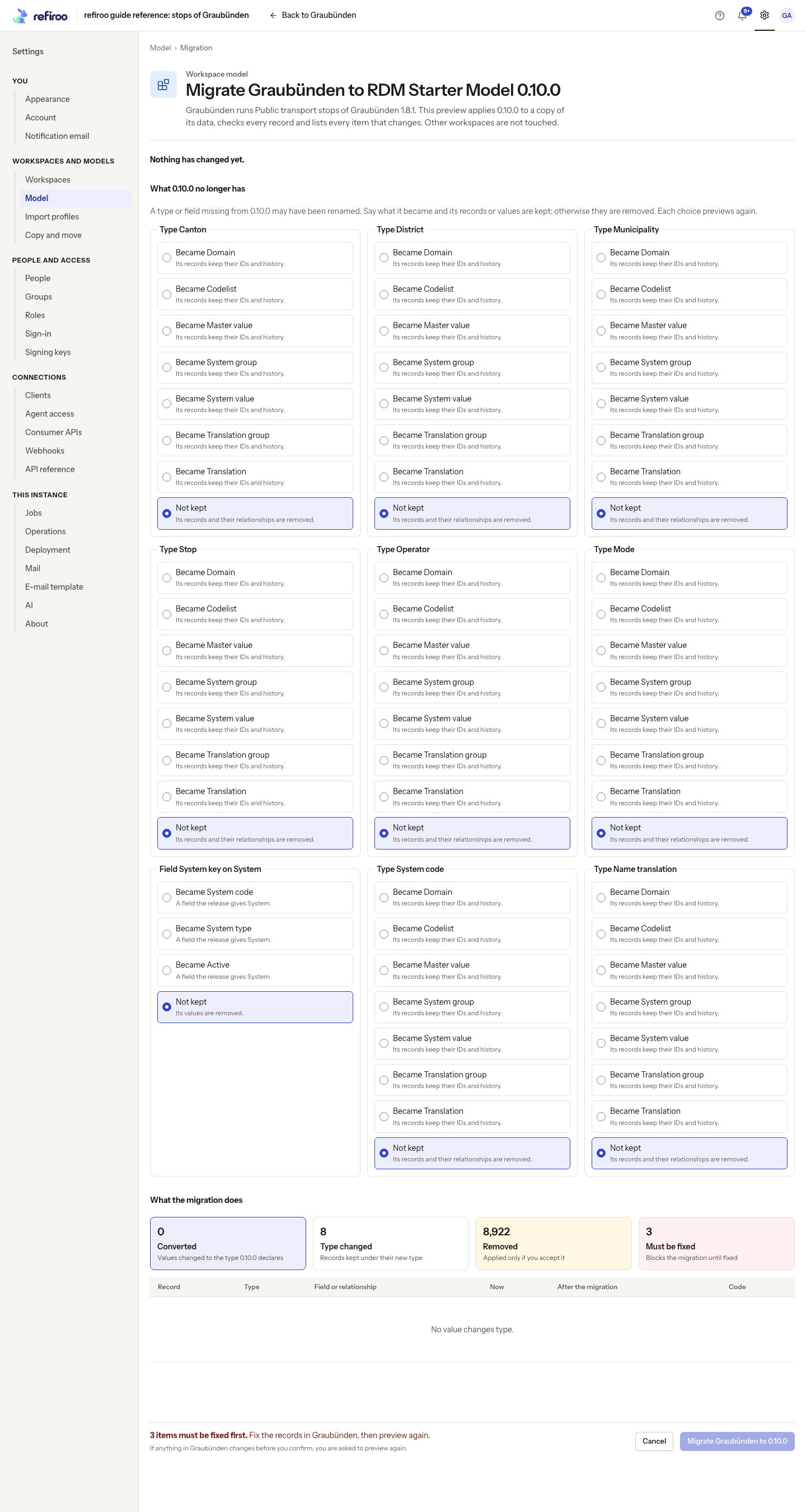
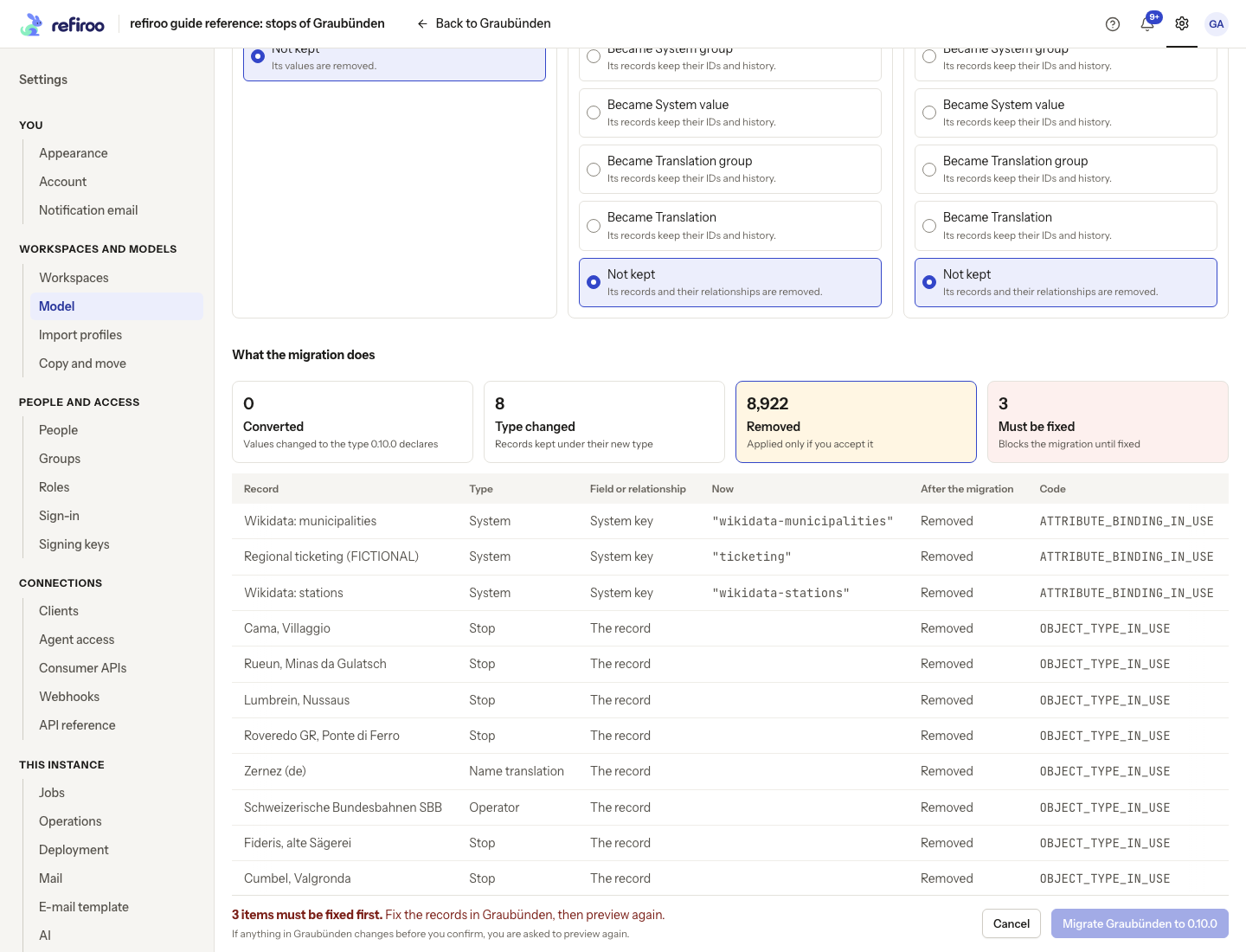
A failed execution leaves data and the release switch unapplied together. Read Not migrated or Not moved, correct its cause and preview again. History retains removed content, but migration has no automatic reverse button.