Roles and grants
A role is a set of action groups. A grant gives that role to a person, group or client in chosen workspaces or across the whole instance. Manage them under Settings with Security administration. A role’s name alone does not give it every kind of access: for example, a Security administrator manages people but needs Browse to read their data.
The predefined roles
Section titled “The predefined roles”Open People and access › Roles to compare roles by action group. The predefined roles cannot be edited. The following table lists their action groups; the descriptions below explain them.
| Role | Action groups |
|---|---|
| Reader | Browse |
| Contributor | Browse; Work in change sets |
| Data steward | Browse; Edit live; Work in change sets; Publish; Bulk and import; Use AI proposals |
| Data owner | Browse; Edit live; Work in change sets; Publish; Approve publications; Bulk and import; Feed; Copy and move; Use AI proposals |
| Model administrator | Model authoring; Install a model; Model release; Use AI proposals |
| Workspace administrator | Workspace administration; Use AI proposals |
| Integration administrator | Integration administration; Feed; Use AI proposals |
| Operator | Operations |
| Security administrator | Security administration |
| Agent | Browse; Work in change sets |
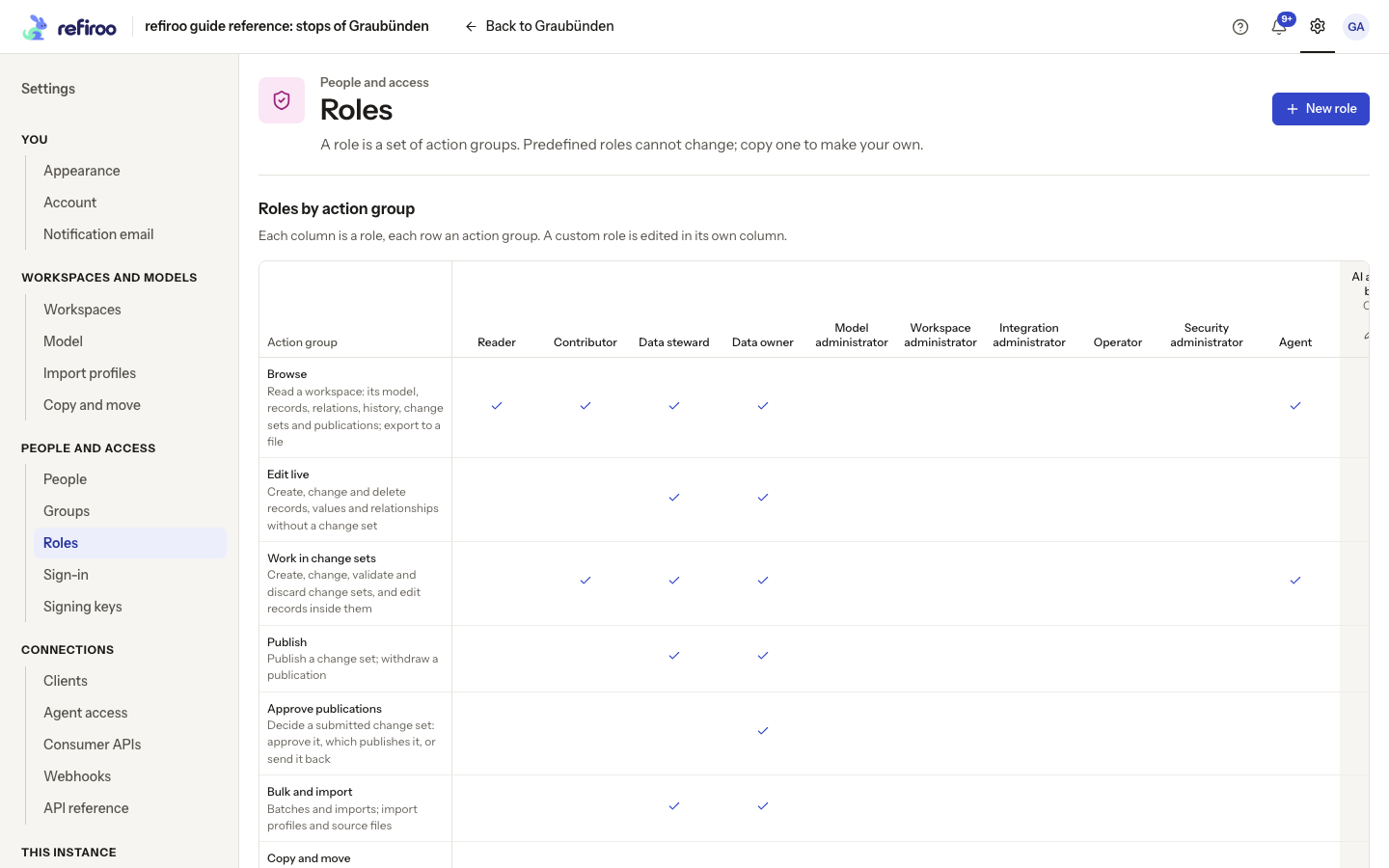
Above: the reference instance shows the predefined roles as columns and action groups as rows.
| Action group | What it allows |
|---|---|
| Browse | Read the workspace’s model, records, relationships, history, change sets and publications; export to a file. |
| Edit live | Create, change and delete records, field values and relationships in Live. |
| Work in change sets | Create, edit, validate and discard proposals; submit them for publication. It does not permit publishing them. |
| Publish | Publish a change set and withdraw a publication, subject to approval policy. |
| Approve publications | Decide submitted proposals: approve and publish, or send back. |
| Bulk and import | Work with batches, imports, import profiles and source files. |
| Copy and move | Work with model mappings and move records between workspaces. |
| Model authoring | Edit model drafts and read model releases. This responsibility applies across the instance. |
| Install a model | Install a draft as a release without activating it. This responsibility applies across the instance. |
| Model release | Install releases, activate them in a workspace and migrate a workspace. |
| Workspace administration | Create, rename, retire and delete workspaces, set the default and manage approval policies. This responsibility applies across the instance. |
| Integration administration | Manage consumer API subscriptions and deliveries. |
| Feed | Read a workspace’s change feed. |
| Operations | Inspect processes, readiness, metrics, backup rehearsals and deployment settings. This responsibility applies across the instance. |
| Security administration | Manage people, groups, roles, grants, clients and signing keys. This responsibility applies across the instance. |
| Use AI proposals | Ask for proposals and summaries where configured. Keeping a proposed change also needs permission to write it. |
Administrative responsibilities do not imply Browse or data editing. Give additional roles only where the person’s task needs them. Roles also do not enable a feature the deployment has disabled.
For the complete list of actions, the roles holding each group and what someone without it sees, see the Permissions reference.
Where a grant applies
Section titled “Where a grant applies”The whole instance covers every workspace now and later. Workspaces limits a grant to the selected workspaces. The Grant dialog greys out roles held only across the instance when workspace grants are selected. Choose the whole instance if that is the intended responsibility.
On a person’s page, Roles lists Where, Role, Narrowed to (writes) and Through. Direct and inherited access are shown separately. On Settings › Workspaces, select a workspace and open Access to see the people, groups and clients whose grants apply there. Use Search people, groups, clients, and filter by Role or Kind (People, Groups, Clients). The colour legend distinguishes Reader, Contributor, Steward, Data owner, Administration and Consumer API. Names and labels identify roles as well as colours.
Each recipient’s plus control, Add a role for …, opens the grant dialog for that recipient. A workspace grant’s remove control asks Remove … from …? before removing it. Whole-instance grants are labelled and must be removed at their source rather than on the workspace’s Access tab.
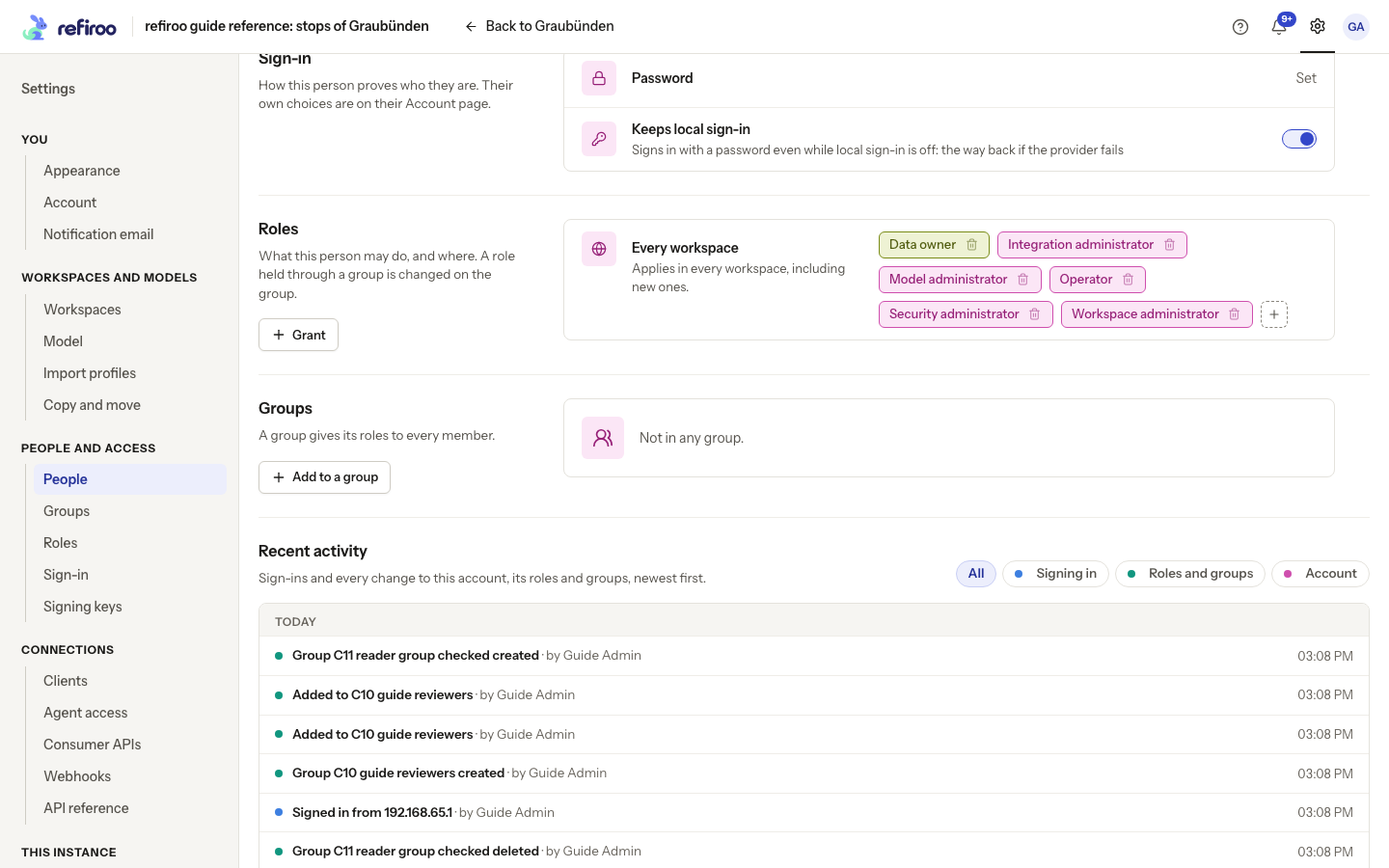
Above: Guide Admin has six roles for every workspace, all granted directly.
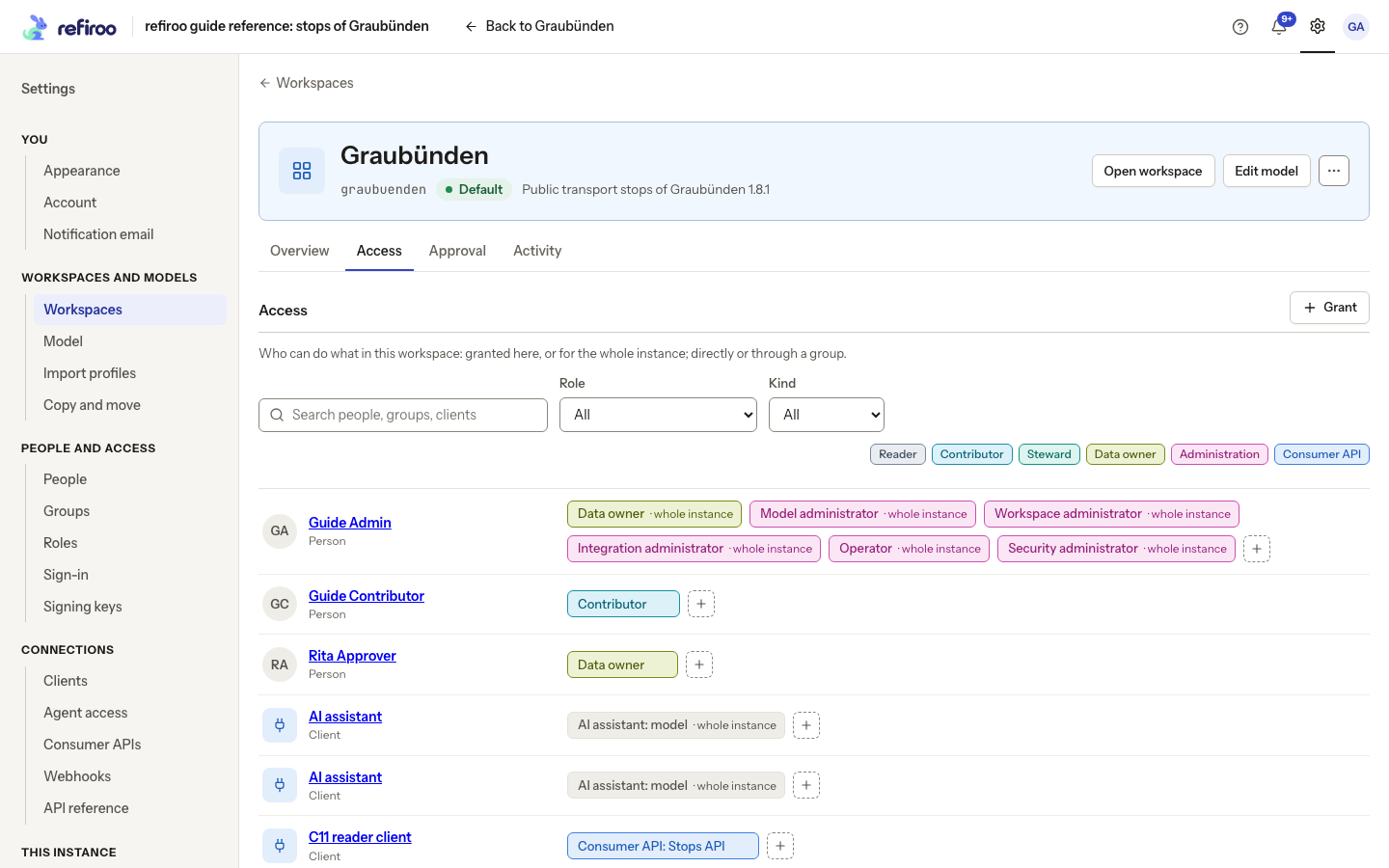
Above: Graubünden includes Guide Admin’s whole-instance roles, fictional Rita Approver’s workspace Data owner grant and the Stops reader client.
How grants combine
Section titled “How grants combine”Grants add access together. A direct grant and grants through any groups all count; there is no denying grant that cancels another grant. Removing one leaves the others in effect. Changes to roles, grants and memberships apply on the next request. A job also uses its requester’s current permissions; taking away required access can stop its next step.
Only Edit live, Work in change sets, Publish, Bulk and import and Copy and move can be narrowed. A grant can narrow those writes to selected applications or record types. A record matches when either its application or its type is selected; multiple grants add their permitted records together. This affects live edits, change sets, imports, publication, moves and type changes. An instance grant cannot be narrowed. It never narrows reading: Browse reads the whole workspace. Keep data that different readers must not see in separate workspaces. Another applicable grant can still allow wider writes.
The dialog offers narrowing for one role in one workspace. If a later model change removes the named applications or types, a grant can become stale and cease to allow those writes. Review and replace stale grants rather than assuming a matching old name still grants access.
Clients need an explicit Consumer API grant for each API in each workspace they read. A management role, even Security administrator, does not substitute for that grant. See Clients.
Custom roles
Section titled “Custom roles”Choose New role, enter Name, and choose Start from: Nothing for an empty role or an existing role to copy its action groups. Add role returns to the matrix with the new role available for editing. Tick its action groups, adjust its name or optional description and choose Save. Creating a copy does not change the source role.
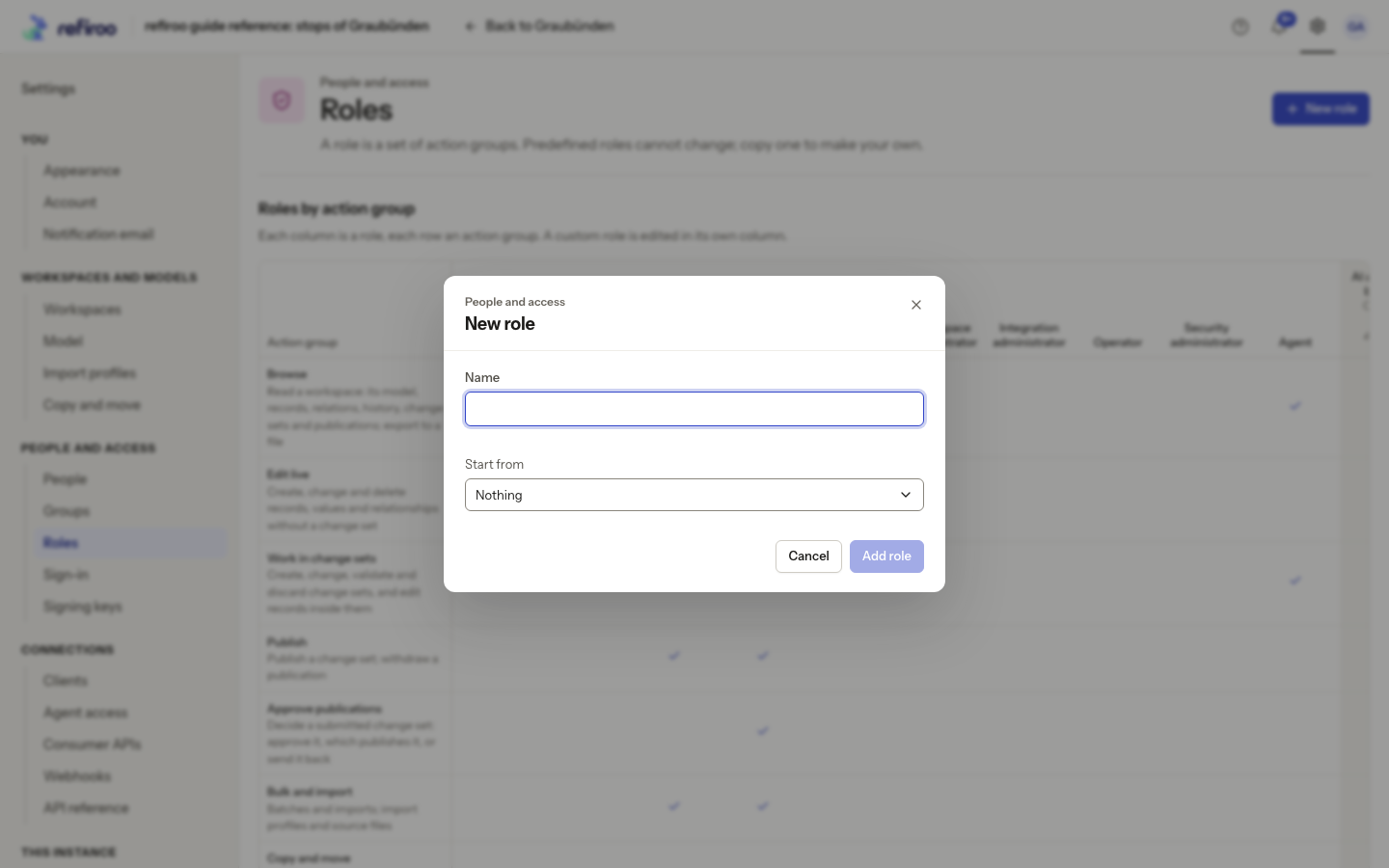
Above: the reference dialog starts from Nothing. Action groups are selected in the matrix after creation.
Editing a custom role changes access for everyone holding it on their next request. A role still granted cannot be deleted; remove its grants before Delete role. refiroo refuses changes that would leave no active Security administrator. Follow Grant a role to give or remove access.
A narrowed grant permits a relationship write when either endpoint is within its allowed records. An import, batch or move refuses individual items outside that scope; publishing a change set containing an unpermitted type is refused as a whole. Review stale grants after a model change even when an old type name looks familiar.
In the Grant dialog, roles are ticked as cards for the whole instance or selected workspaces; consumer APIs use a grid of APIs by workspace for clients only. Existing access is shown and is not granted again. To check the resulting access as its recipient, open Account › What you can do.
What the recipient sees
Section titled “What the recipient sees”A Reader sees You can read this workspace and no edit actions. A Contributor sees Propose a change or Propose a new … and works in their own change set; live editing and publishing are refused. A role with only Edit live does not also give Work in change sets. People and clients with the same role have the same management permissions.
A narrowed writer sees edit controls on the permitted types. The interface offers imports, moves, publication and other tasks according to their required groups. A permission change can still refuse an action already open on screen; read the message’s action, required groups and workspace, then review the grants. The server checks every operation as well as the browser.
The workspace selector shows readable workspaces. refiroo opens the default if readable, otherwise the first readable workspace. There is no workspace you can open yet offers People to a security administrator, otherwise Settings, with Account to check access. Grant Browse in the intended workspace to provide data access; an administration role alone is insufficient.
For import files, the uploader and people allowed to import in that workspace can see them. Job visibility and cancellation also follow the requester and the kind of work; see Jobs and limits.
Make and review grants
Section titled “Make and review grants”Grant access asks Who when opened from a workspace: find a person, group or client by name. Roles selects their management access. Where chooses Workspaces or The whole instance, meaning every workspace now and later. No workspace chosen yet requires a workspace before granting. A client can instead choose Consumer APIs; people and groups cannot.
Each selected role/workspace combination or consumer grid cell is saved separately. If … could not be granted appears, successful grants remain and failed choices keep their reasons. Try again retries the remaining choices. Closing the dialog does not undo successful grants.
Follow Create a custom role, Narrow a grant to record types, or Grant a consumer API to a client for those tasks. Before deleting records, a narrowed writer also needs permission for every type removed by a cascade; an out-of-scope cascade is refused before showing its impact.
AI permissions and assistants
Section titled “AI permissions and assistants”Use AI proposals enables the configured built-in AI features in the granted workspaces. It does not provide Browse, import, model editing or publication rights by itself. The five predefined roles holding it are listed above; combine grants for the person’s actual task. Operations separately allows inspection of AI settings and the provider test. See AI settings and access for what is sent, costs and retained information.
The Agent role contains Browse and Work in change sets. These groups also limit every external assistant’s connection, even when its person holds stronger roles. An assistant cannot approve, publish or write live data, and its preparation is confined to change sets created by its own person or client. A person needs no extra Agent grant to connect an assistant using existing rights. See Agent access for the complete limits and how to stop access.