Preview a type
Use preview to check a draft’s appearance before applying it. You need Model authoring. See Record pages and tables for what preview reads.
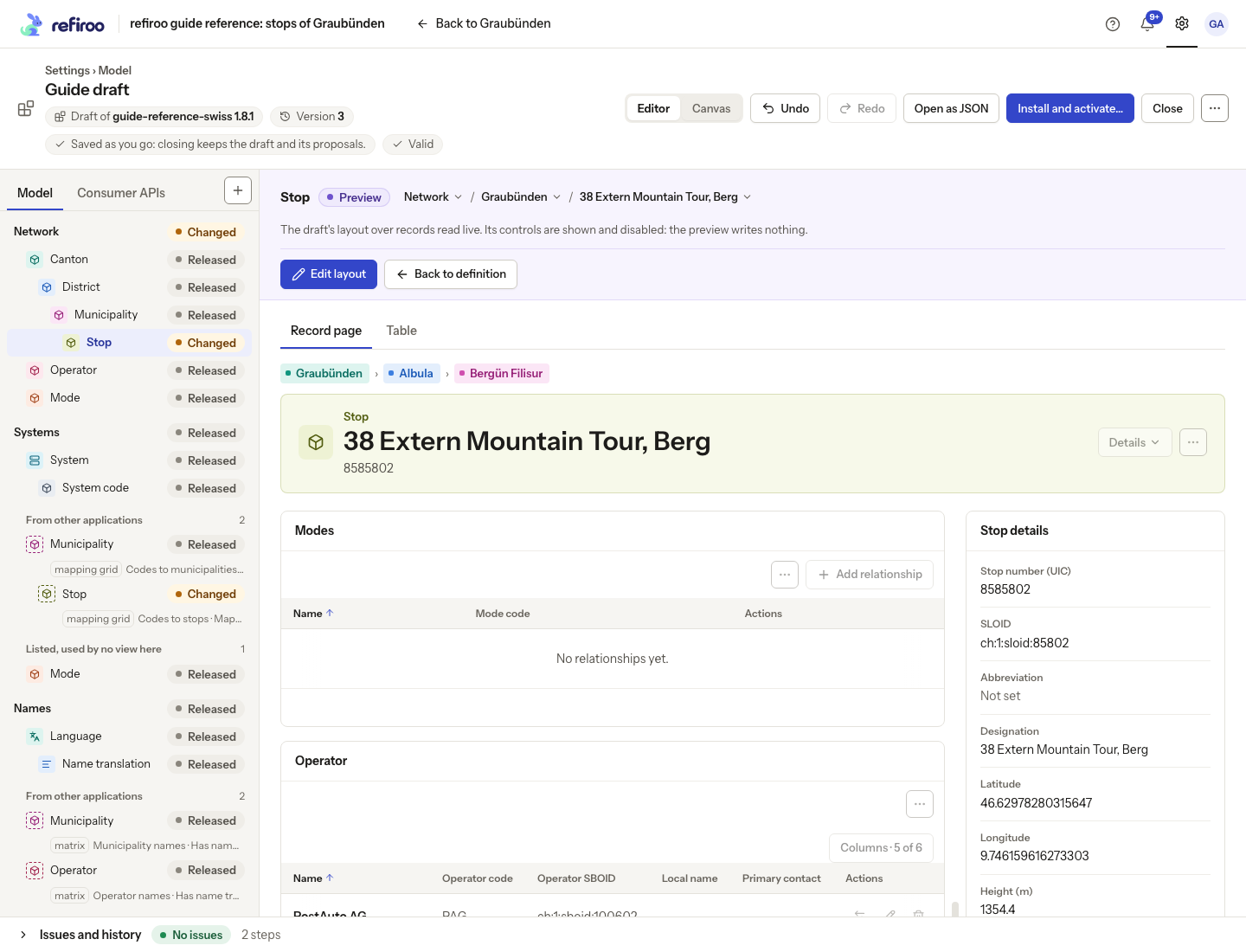
- Select the type in the model pane and choose Preview. A type listed in several applications is previewed in the application whose row you selected (a type another application only borrows for a relation view opens on the application that holds its records); when none is selected, in the one that holds the workspace’s records of the type. Choose the application in the band to switch. If The draft has … issues, so it cannot be previewed appears, choose Show issues, fix the errors and return.
- Choose Workspace and Record. The record’s live values are drawn using the draft’s definition. Check that the workspace is the one whose records you intend to inspect.
- Use Show an empty record to see unfilled fields, especially for a new type. No value in a preview does not itself mean that the field or type is invalid.
- Inspect Record page and Table, including long labels and records with missing optional values. Controls that would change data are disabled. Previewing does not save a record.
- Choose Edit layout to change the draft’s presentation, or Back to definition to return to the selected type. Review Issues after layout changes.
Preview shows individual screens. The separate activation check decides whether all stored data fits the release; a good-looking preview does not replace it.