Set an approval policy
You need Workspace administration to change the policy. Someone with Security administration grants the approver roles. Read Approval policies for the effect on publication and Live edits.
Establish approvers
Section titled “Establish approvers”- Open Settings › Workspaces, select the intended workspace and choose Access. Check who holds a role with Approve publications there, directly, through a group or across the instance. Data owner is the predefined role with that action group.
- If approval rights are missing, have the access administrator grant a role before requiring approval. Data steward can publish but cannot approve someone else’s submission.
- If submitters must never decide their own work, arrange another approver for every submitter who is also an approver. One person holding several roles is still one person.
Save the policy
Section titled “Save the policy”- Open the workspace’s Approval tab. Read the count of people or clients that can approve.
- Tick Changes need approval before they are published to require reviewed publication. Leaving it off allows people with Publish to publish directly.
- To require a different decision maker, also tick The person who submitted a change set cannot approve it. It is available only with the first setting on. Without it, someone permitted to publish and approve their own work can publish in one step.
- Read any warning about missing approvers. The form can still save even if requests would have nobody to decide them; correct the grants before relying on the policy.
- Choose Save approval policy. Wait for Approval policy saved. The checkboxes alone do not save the change.
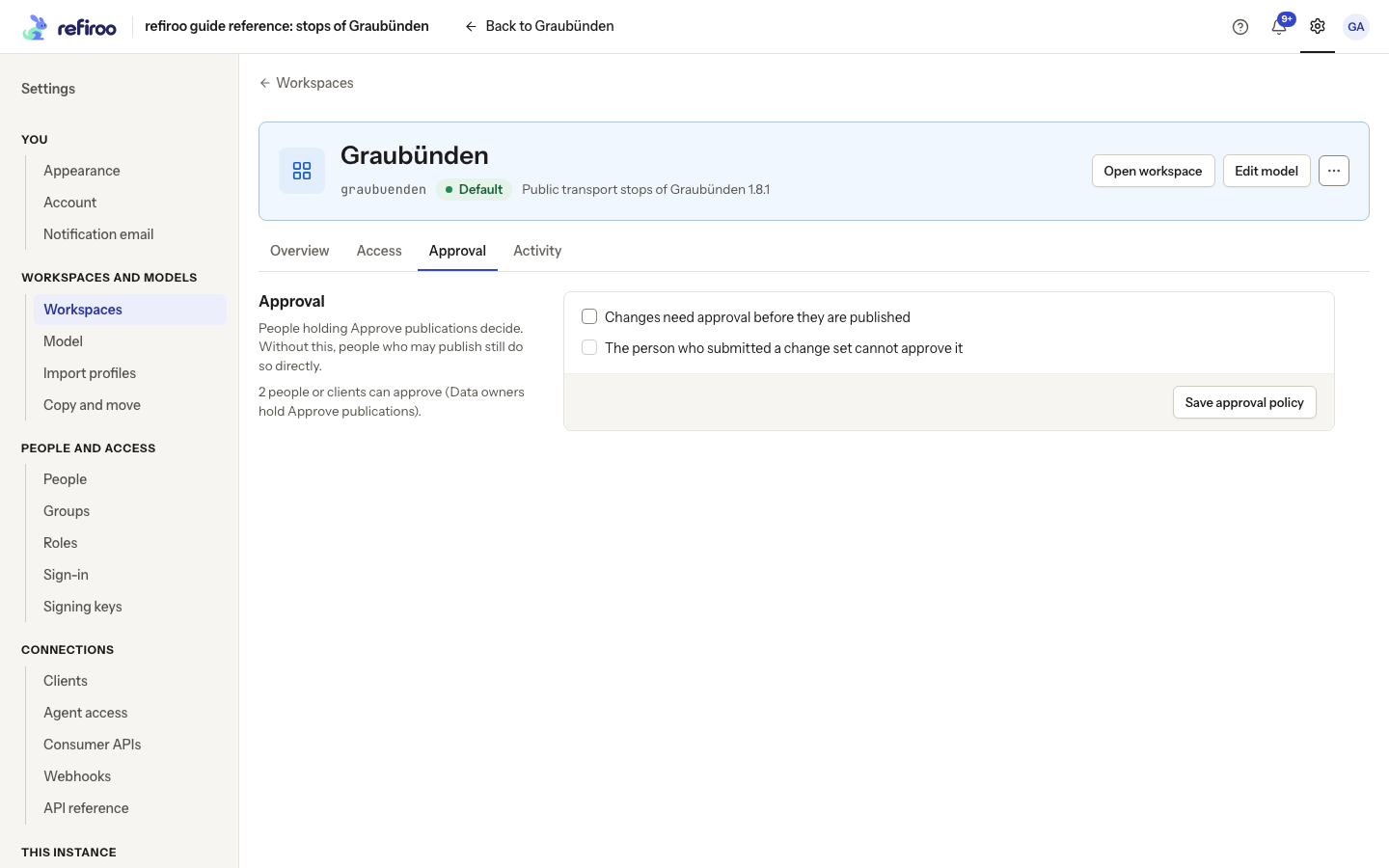
Above: Graubünden requires approval, allows a submitter with approval rights to decide their own work, and has two qualifying people or clients. Rita Approver is fictional.
Check the result
Section titled “Check the result”Ask a person preparing work to submit a change set and an authorised approver to find it on Home or in their notices. Follow Approve a change set for the complete review task. With the second-person rule on, a submitter’s own review says a second person must decide.
If saving reports that the policy changed meanwhile, choose Reload the policy, inspect the current values and apply the intended change again. Other failures show their reason; check it before retrying. To stop requiring approval, clear the first setting and save. That also clears the second-person setting. This policy governs change-set publication; it does not remove any grants that allow direct edits to Live.
A saved policy also applies to the next decision on work already waiting. It does not decide those requests automatically. With the second-person rule on, the submitter cannot send their own submission back; they can withdraw it, or another approver can decide it.