Relationships tables
Use a relationships table to work on connections between records, including values belonging to each connection. A model administrator chooses the relationship, its directed pair of record types, columns and layout. Any application can offer this view when its model declares it. See Relationships for direction, ownership and allowed choices.
Reference-data example: the connection between a stop and an operator carries Local name, Primary contact and Inspected on. The inspection date describes their connection. Changing it does not change a date on the stop or the operator. The model chooses these fields.
One row per relationship
Section titled “One row per relationship”Each row is one existing connection. It shows fields of the from record, fields of the to record and the selected attributes of the relationship. A record with several connections appears in several rows. Names open the corresponding records; endpoint columns identify the records rather than editing them here.
Search narrows connections by their records. The view can offer equality filters on either record’s fields and the relationship’s attributes, and sorting by the fields declared for the view. Choose a sortable heading or Sort. A filter’s empty choice removes that restriction. The declared grouping can put rows beneath their from or to record, with a heading and count of matching relationships. Scroll to continue reading the list; the heading can recur when a window starts partway through a group.
Display chooses columns and the reading size. Attributes of the relationship separates connection values from record fields. An editable relationship value opens its editor in the cell, without Save or Cancel buttons. Leaving the field by clicking elsewhere or pressing Tab saves it; Enter also saves a single-line value. In text of several lines, Enter adds a new line and Ctrl+Enter (Cmd+Enter on a Mac) saves. Escape puts the old value back. An unchanged input closes without saving or showing a notice. A Yes or no value saves when changed. A saved input shows ‹Field› saved with Undo, including for a value set for the first time. Emptying an optional input and leaving it removes its value; ‹Field› removed offers Undo. A refusal keeps the input open with the reason and Cancel and Save again beneath it. Leaving it again retries only after its input changes. A stale save shows the current saved relationship so you can review it before retrying. Tick existing relationships to set one attribute across them; see Change relationship values in bulk.
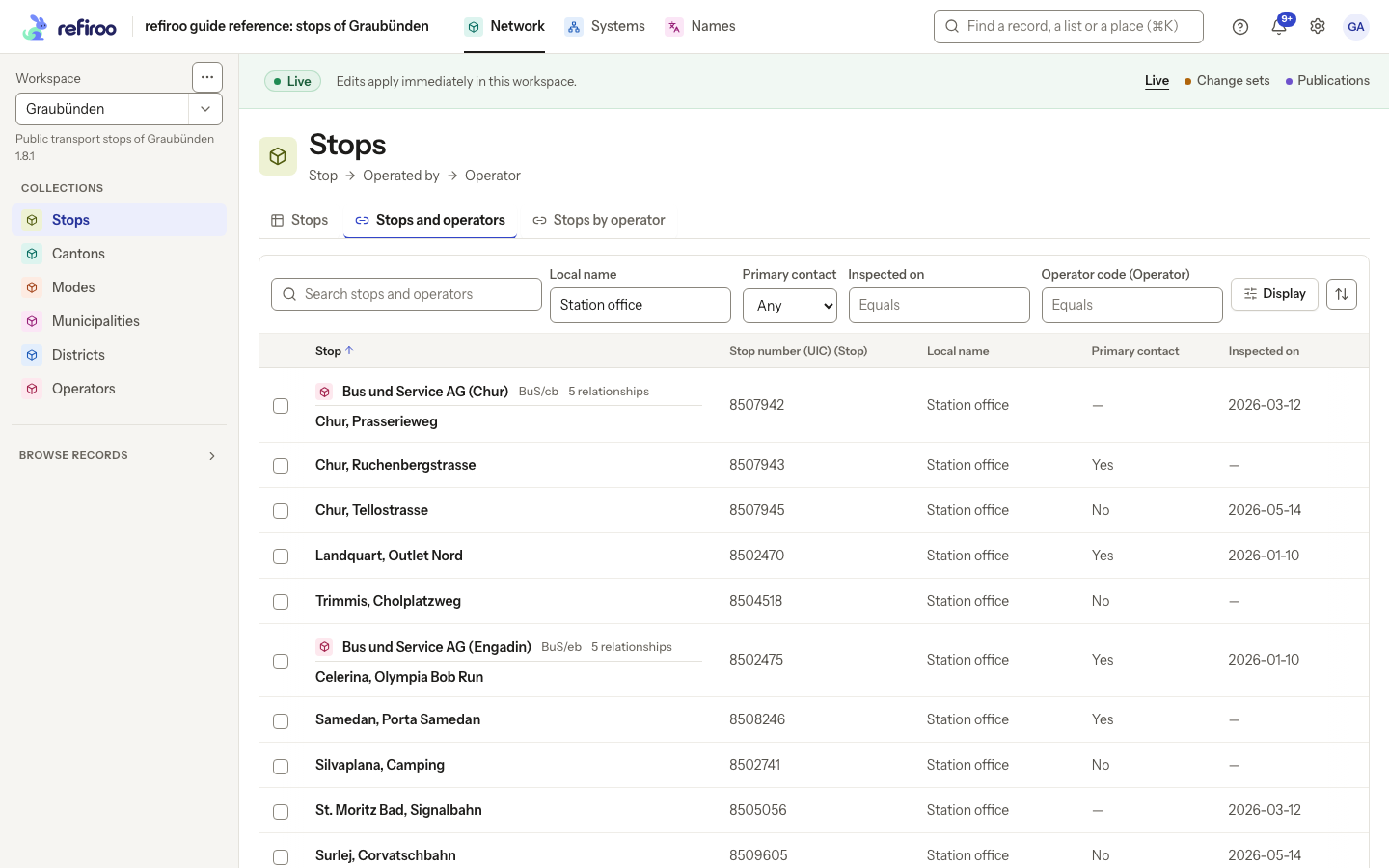
Above: Stops and operators in the Network application of the Graubünden workspace, filtered to Local name Station office and grouped by operator. Each group shows 5 relationships, with Stop, Stop number and the relationship values alongside tickboxes.
Grid: each from record once
Section titled “Grid: each from record once”A grid puts each from record in one row. Each shown to record supplies a column group. Under it are the relationship attributes chosen for this view. A group heading reads the record’s label followed by n of m linked, showing how many matching source records are connected to that column record. These counts cover the filtered result, not just the rows on screen. Both header rows stay visible while scrolling. Scroll sideways to reach further column groups.
A linked group shows its connection values. An empty value means that connection has no value for the field; it is different from a hatched Not linked group. + Link creates a connection for that row and column where permitted. Linking still has to meet candidate and number rules. It does not create either endpoint record.
Edit a linked value where it stands. A Yes or no checkbox saves in one click. Other values open their input over the cell: leaving it saves, as does Enter for a single-line value. In text of several lines, Enter adds a new line and Ctrl+Enter (Cmd+Enter on a Mac) saves. Escape puts the old value back; leaving an unchanged input saves nothing. A saved input offers Undo in ‹Field› saved, or ‹Field› removed when emptied. The row refreshes after saving. If a save is refused, the input and reason stay with Cancel and Save again beneath; leaving it again retries only after its input changes. If another person saved first, review Current saved relationship before retrying; your stale value is not silently applied.
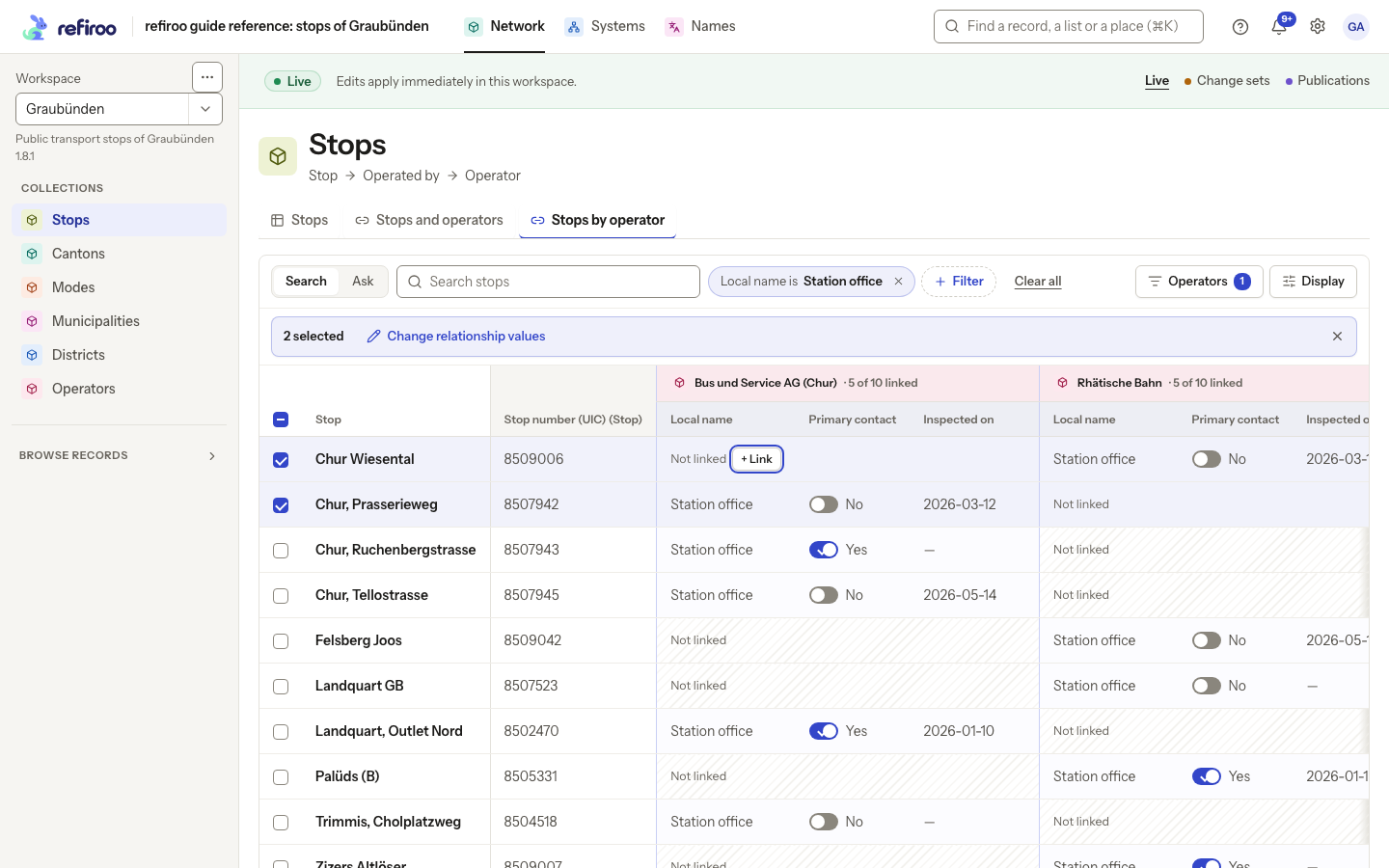
Above: Stops by operator in the Graubünden workspace, filtered to Local name Station office. Bus und Service AG (Chur) and Rhätische Bahn each show 5 of 10 linked. Two stops are ticked, with 2 selected and Change relationship values in the selection bar. Hatched Not linked cells include a + Link action; Operators and Display are above the grid.
Narrow rows and choose column records
Section titled “Narrow rows and choose column records”The grid’s row toolbar offers the from type’s search and filter bar, with the same fields and operators as that type’s main view, plus the view’s additional filter fields. Each non-JSON relationship attribute shown by the view is also offered as a row filter. Such a filter finds a row when a connection to a shown column record matches. With several relationship conditions, the same connection must satisfy them together. Hidden column records do not supply a match. See Lists, search and filters for the operators.
Open the menu named after the to type’s plural name to choose column records. It offers that type’s own search and filters and a searchable pick list under … to show. Choose particular records or narrow their fields. At most 50 column groups appear at once. When more match, the notice reports how many are shown out of the total; narrow the column-record filter to reach the others. Show all … clears the column choices and restrictions, within that display limit.
Display chooses the from-record fields and the relationship attributes shown under each column record. The row’s name stays visible. Search, filters, column choices and display choices belong to this page and stay in its address. They do not change the type’s main view or another person’s view. Share or bookmark the address to return to those choices.
Select records and change their connections together
Section titled “Select records and change their connections together”Tick source rows, or select the loaded rows and choose Select all N matching when offered. That includes matching records beyond those on screen; untick exceptions to leave them out. Change relationship values sets or clears one attribute at all shown column records or one chosen column record. Its preview distinguishes values that would change, values already held and pairs that are not linked. Adding missing connections is a separate choice. Follow Change relationship values in bulk before applying a large selection.
Live, change sets and publications
Section titled “Live, change sets and publications”Live saves take effect immediately. In a change set, the grid marks affected connections as Proposed in this change set. Proposed values remain in that change set until publication; other readers of Live keep seeing Live values. A publication shows its frozen values and has no editing or linking controls. Retired workspaces are also read-only.
Reading requires Browse access. Changing connections needs Edit live, or Work in change sets in a change set, for a permitted endpoint, subject to scoped grants. Required ownership and containment connections are managed by their record operations, rather than edited here as independent connections. A view does not grant permission by displaying a value.
If editing or selection is absent, check your context, access and whether the model offers editable relationship fields. Bulk selection also depends on the deployment’s bulk-work capabilities. JSON values do not appear in the grid’s bulk-change attribute choices.
A failed read is not an empty grid. Retry before linking anything. A refused write keeps the saved data unchanged; correct the named value, rule or stale version before retrying. In the grid’s bulk-change dialog, the preview and Nothing was changed notice name each refused connection as From record → To record: reason when both names are known. Otherwise, the line shows only the reason. The same connection and reason appear once. Each notice shows at most five lines; the preview heading counts all distinct refusal lines. Narrow the selection to investigate any others. If a bulk request is too large, narrow the rows or column groups and apply smaller reviewed selections.