Find who changed something
Start with the record or workspace when you do not know the author. Start with People or Clients when you do. You need permission to read the affected workspace to inspect its data; Security administration alone does not grant that. See Who changed what for the scope of each history view.
Start from the changed data
Section titled “Start from the changed data”- Open the affected record and its History. Find the change by time and read the before and after values and the named person or client. For a broader search, open Settings › Workspaces, select the workspace and choose Activity.
- Filter the workspace’s activity to the relevant work and period. Use the entry’s workspace, change set and publication context to distinguish authored changes from changes applied by publication. Follow History for those controls.
- Follow the author’s name where it is linked to open their Changes page. If you already know the person, use the route below instead.
Start from a person or client
Section titled “Start from a person or client”- Open Settings › People and access › People or Settings › Connections › Clients. Search and open the identity’s row. Check their e-mail address or client ID if similar names exist. For a deactivated identity, use the Deactivated list.
- Choose More actions › See changes. The page names that person or client and lists their visible changes, newest first, grouped by day. It can cover several workspaces. ← Back on the first line returns to the previous page.
- Set Workspace to the relevant workspace, or keep All workspaces. Under What, choose Records, Relationships, Change sets, Publications or Model, or keep Everything.
- Choose Period: Last 24 hours, Last 7 days, Last 30 days or Any time. If no result matches, widen the filters. Use Show more to retrieve older entries.
- Read the action, subject, changed-field summary, time and workspace. Open a linked title to inspect the surviving subject. Use the record’s own History for the changed values; the person’s Changes page is a summary.
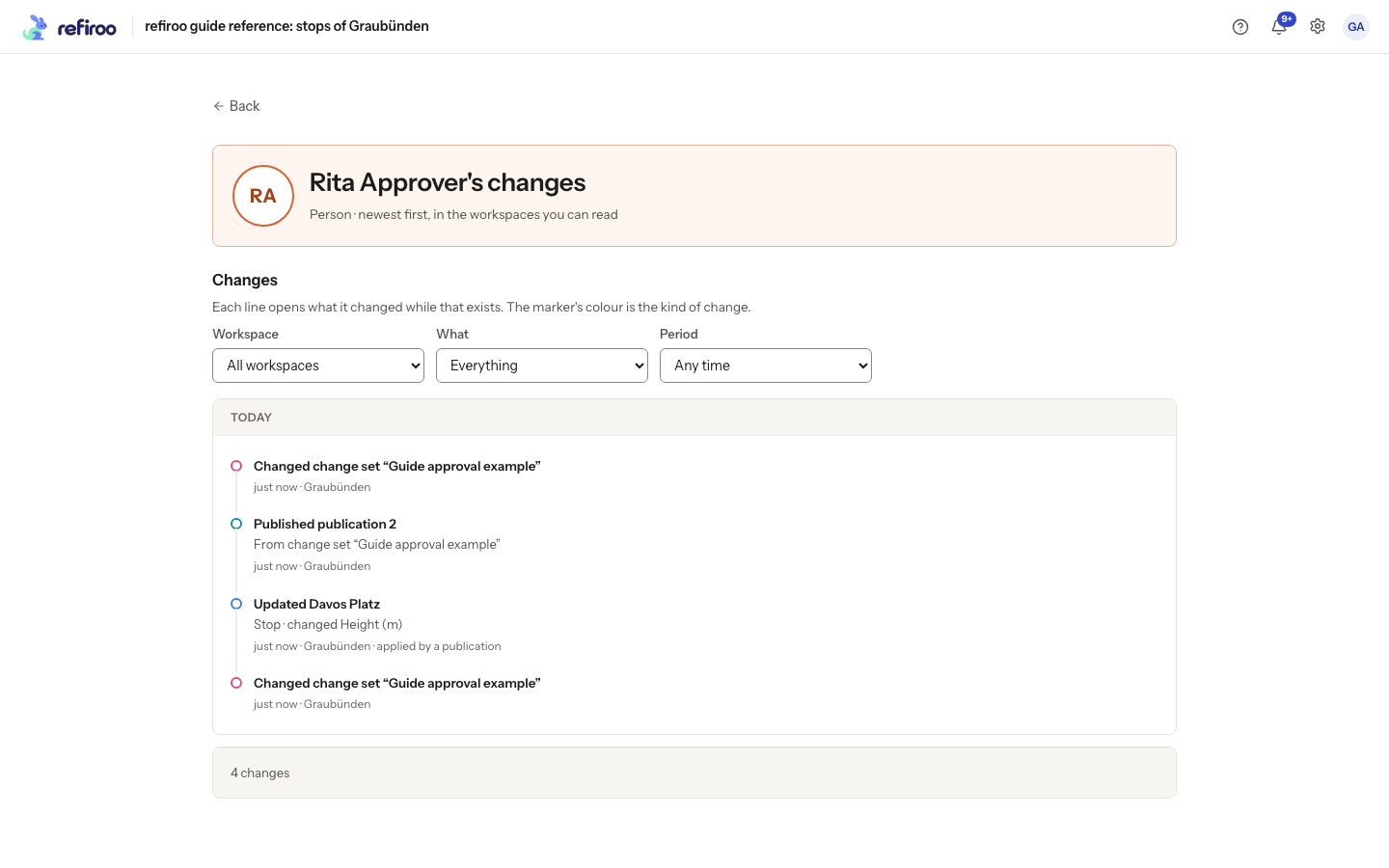
Above: Fictional Rita Approver’s page lists her changes across the workspaces you can read. The visible entries include record edits, a model draft change and a publication; each entry identifies its workspace.
An empty list does not prove there were no changes outside your access. Check that you can read the workspace. If the changed record was removed, its history entry can remain without an openable record. A renamed person is shown by their current name.
Find an account or access change
Section titled “Find an account or access change”- Return to the person’s or client’s security page and scroll to Recent activity. This is separate from their data changes.
- Choose Signing in, Roles and groups or Account to narrow the events, or All to include every security kind associated with that identity.
- Read the event, time and named actor. Use Load more for older activity and Show fewer to reduce the displayed list.
- If loading fails, choose Retry after reading the error. A failed load is not an empty audit result. Do not look for passwords or secrets in this history; they are not shown.
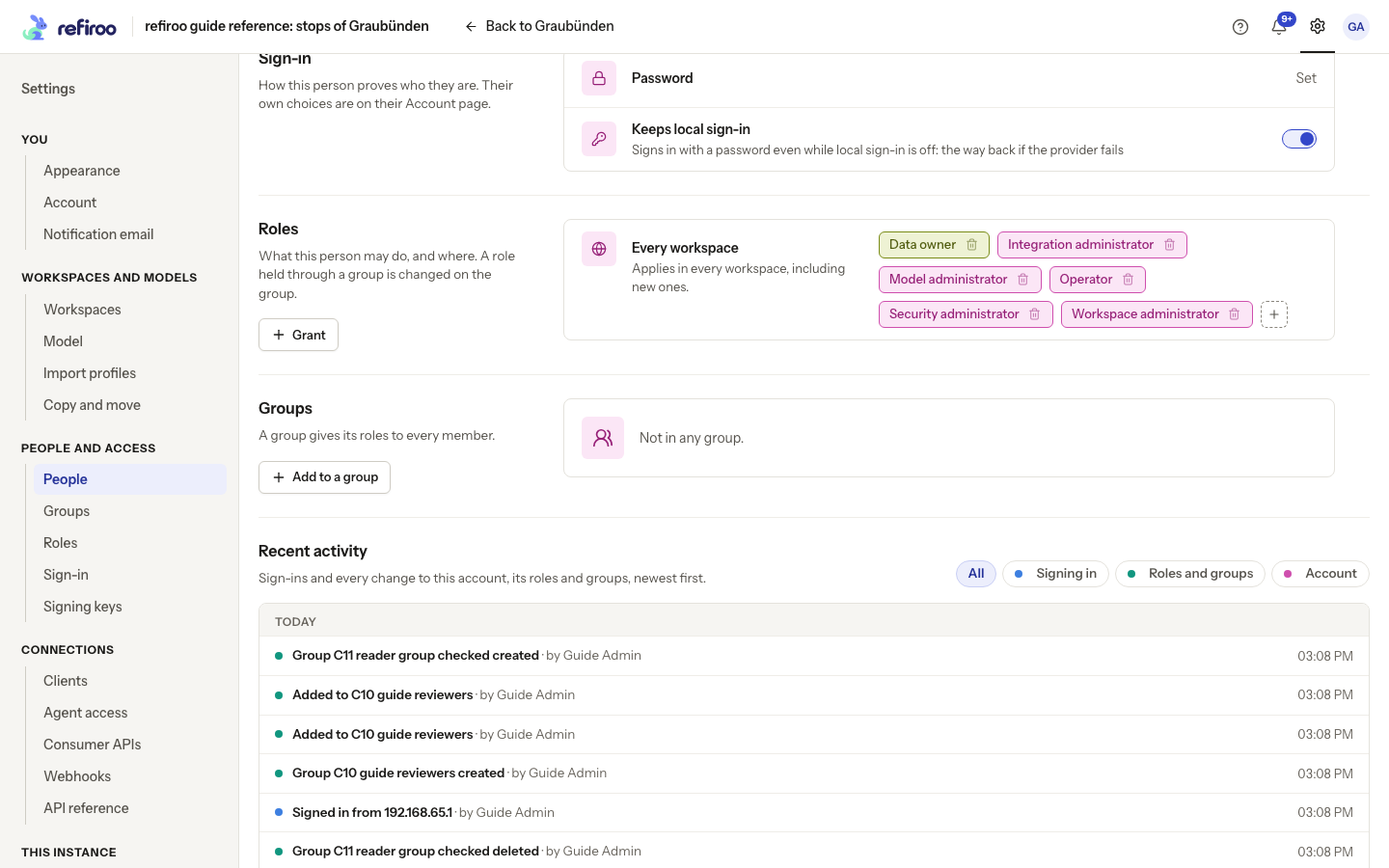
Above: Guide Admin’s Recent activity follows their roles and groups. The visible entries include group changes and a sign-in.
There is no separate instance-wide audit page to open. Use these identity views and the workspace’s Activity for the question at hand.