Inbox and approvals
The bell in the top bar opens your inbox. It tells you about work needing attention and results of work you started. Approval notices lead an approver to a submitted change set. Follow Approve a change set for submitting and deciding.
Read and manage notifications
Section titled “Read and manage notifications”The bell’s count is the number of unread notices. Open it to see up to 20 unread notifications; the panel indicates how many more remain. Use See all notifications for the rest. Mark all read clears their unread state; See all notifications opens the full page. You can also reach Notifications from the avatar menu.
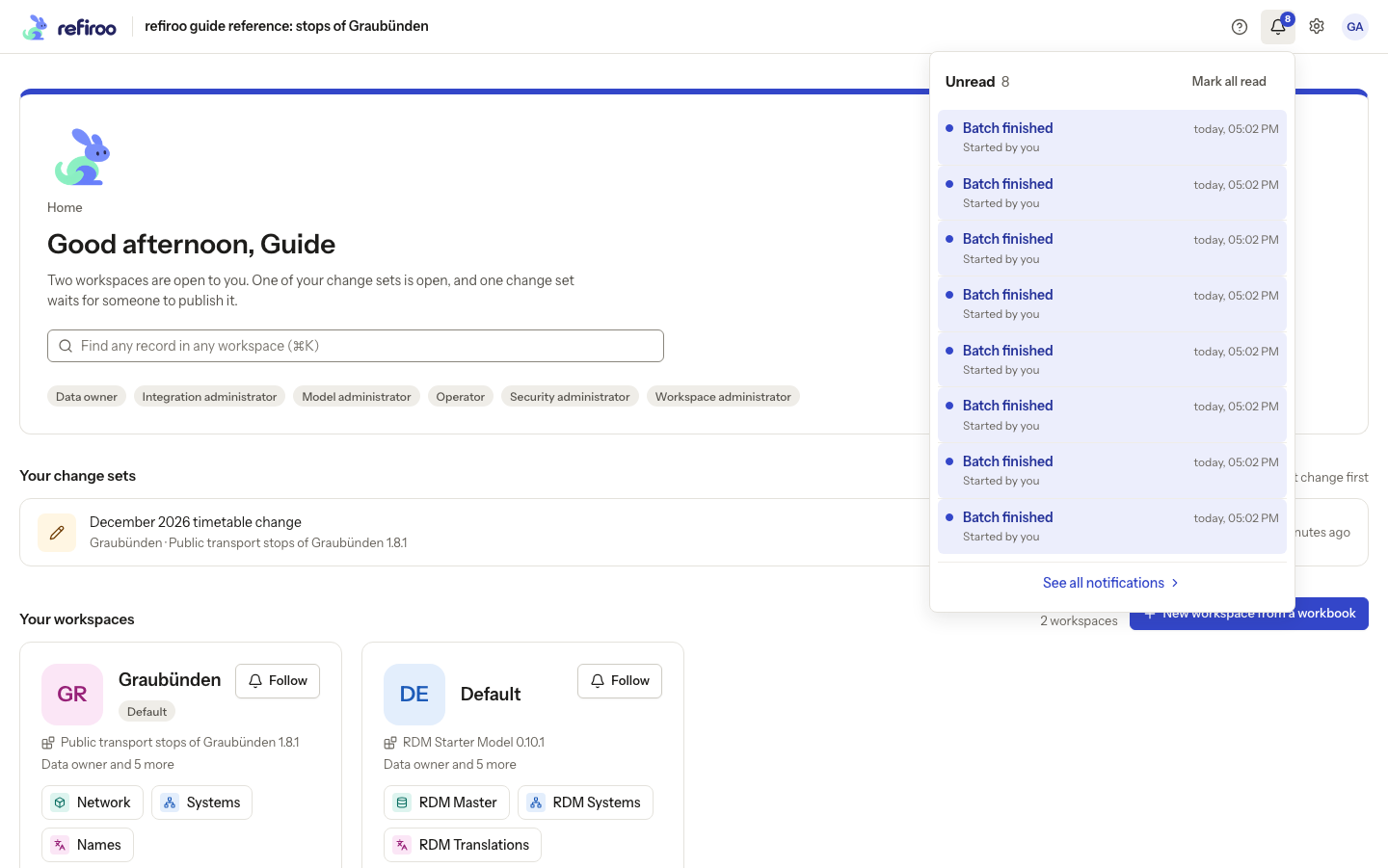
Above: Guide Admin’s inbox includes unread workbook, mapping-proposal, move and batch notices. Mark all read is at the top.
Notices include a change set waiting for your approval, approval or return of your submission, a job that finished, failed or needs confirmation, and publications in workspaces you follow. A notice is an invitation to inspect the result; a finished job may still have refused items.
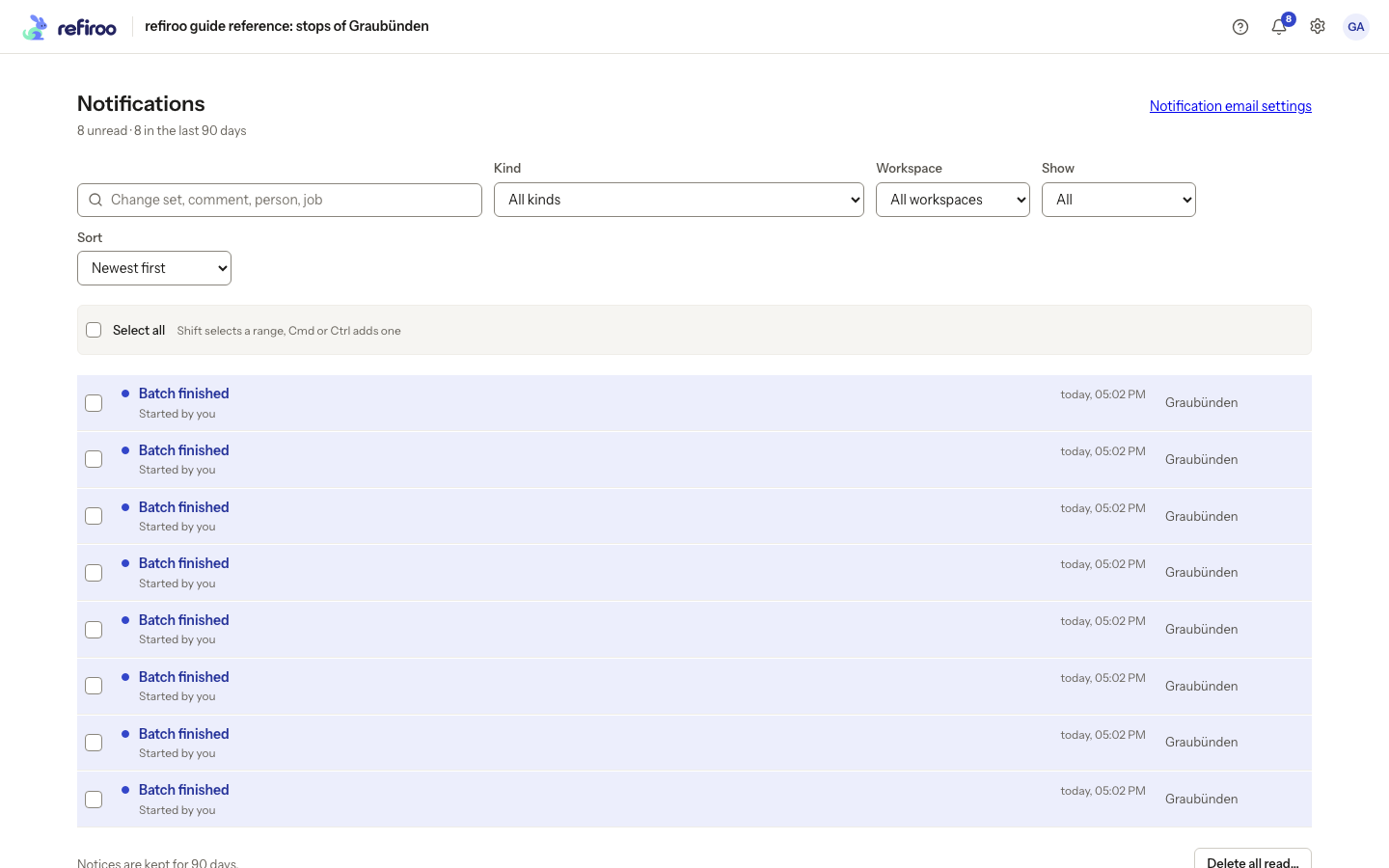
Above: The reference account’s notices include workbook results, mapping proposals, migrations, batches and moves. Unread notices are highlighted; read notices have a plain background.
On the Notifications page, type in Search to find notices by change set, comment, person or job. Kind, Workspace and Show narrow the list; Sort chooses newest or oldest first. Filters cover the stored notices, not just the rows you have scrolled to. Notices are kept for 90 days.
Opening a notice marks it read and opens its subject in the workspace it belongs to, where one remains available. Completing a job’s confirmation also marks its notice read. A job notice opens its state, result and items. An approval notice can remain after publication has consumed the change set, so not every notice has an editable destination.
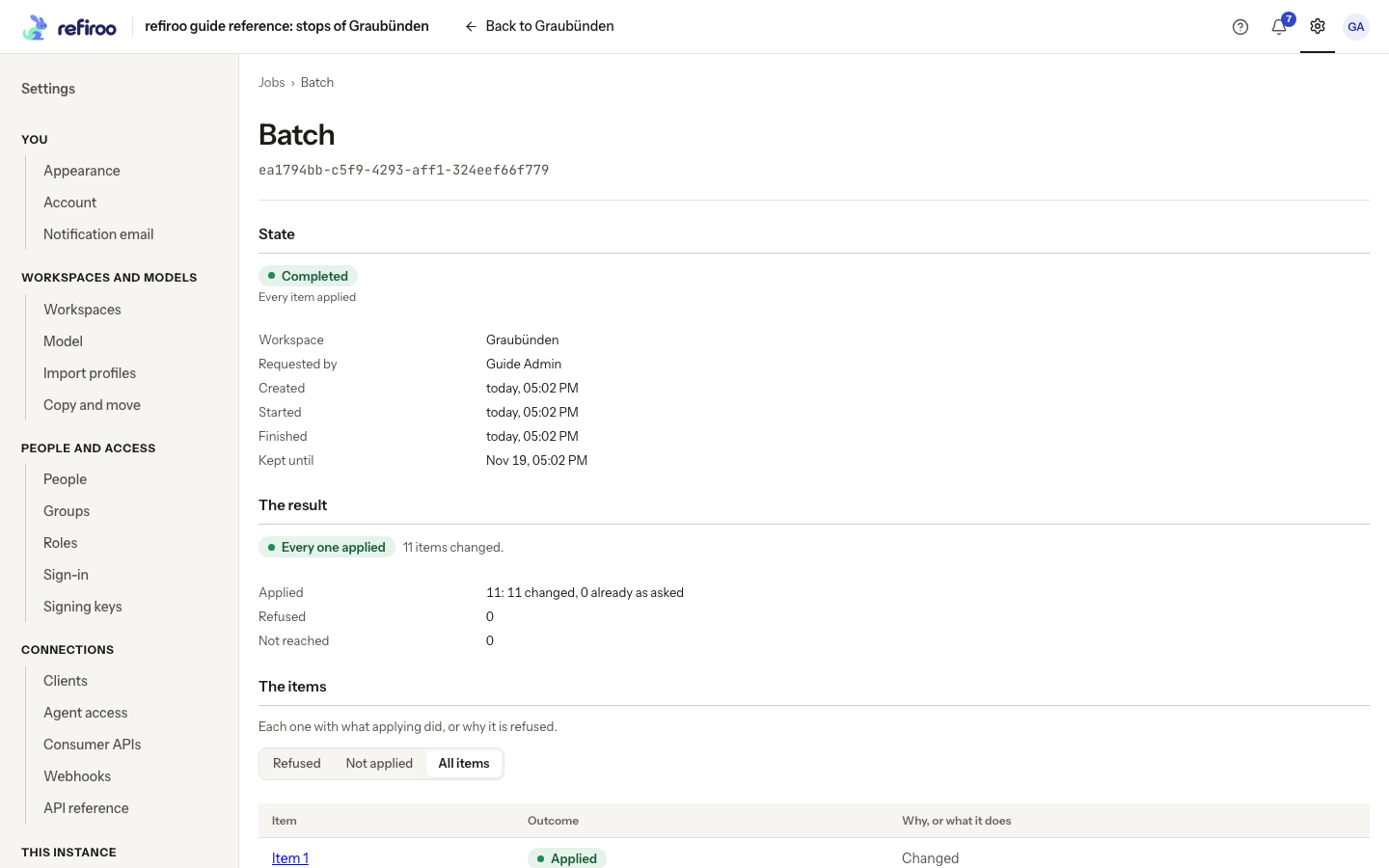
Above: the batch completed with 11 items already as asked and no changed items. Opening this job marked its notice read.
Tick notices to Mark read, Mark unread or Delete them. Shift selects a range; Cmd or Ctrl adds one. Select all selects loaded notices, not every matching notice in storage. At most 500 notices can be changed at once. Changing filters clears the selection. Delete all read… opens Delete all read notifications?. Choose Delete read notifications to permanently delete all your read notices, including those outside the current filters, or Cancel to keep them. Unread notices and the jobs or change sets remain. If an action fails, read the error and retry; clearing a notice does not fix its underlying job.
Notification email settings opens your mail choices. Where mail is configured and your account has an email address, you can choose email notifications and their kinds. Turning mail off does not turn off the inbox. If mail is unavailable, the settings page explains why.
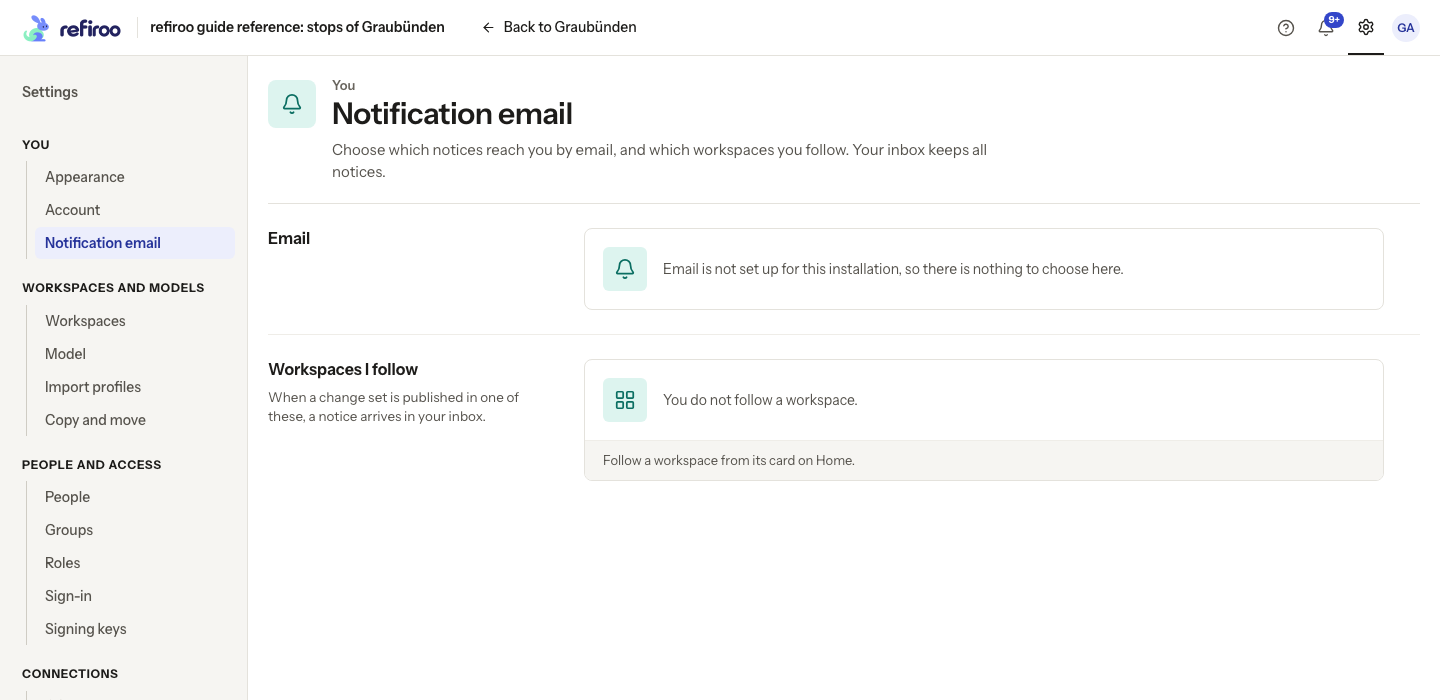
Above: mail is not configured on the reference instance, so the email choices are absent. Workspaces I follow is empty; following starts from a workspace card on Home.
When a change needs approval
Section titled “When a change needs approval”A workspace can require approval before publication and a different person to decide. Administrators set these rules under Approval policies. To decide a request, you need Approve publications; the Data owner role includes it. Check Account for your own access.
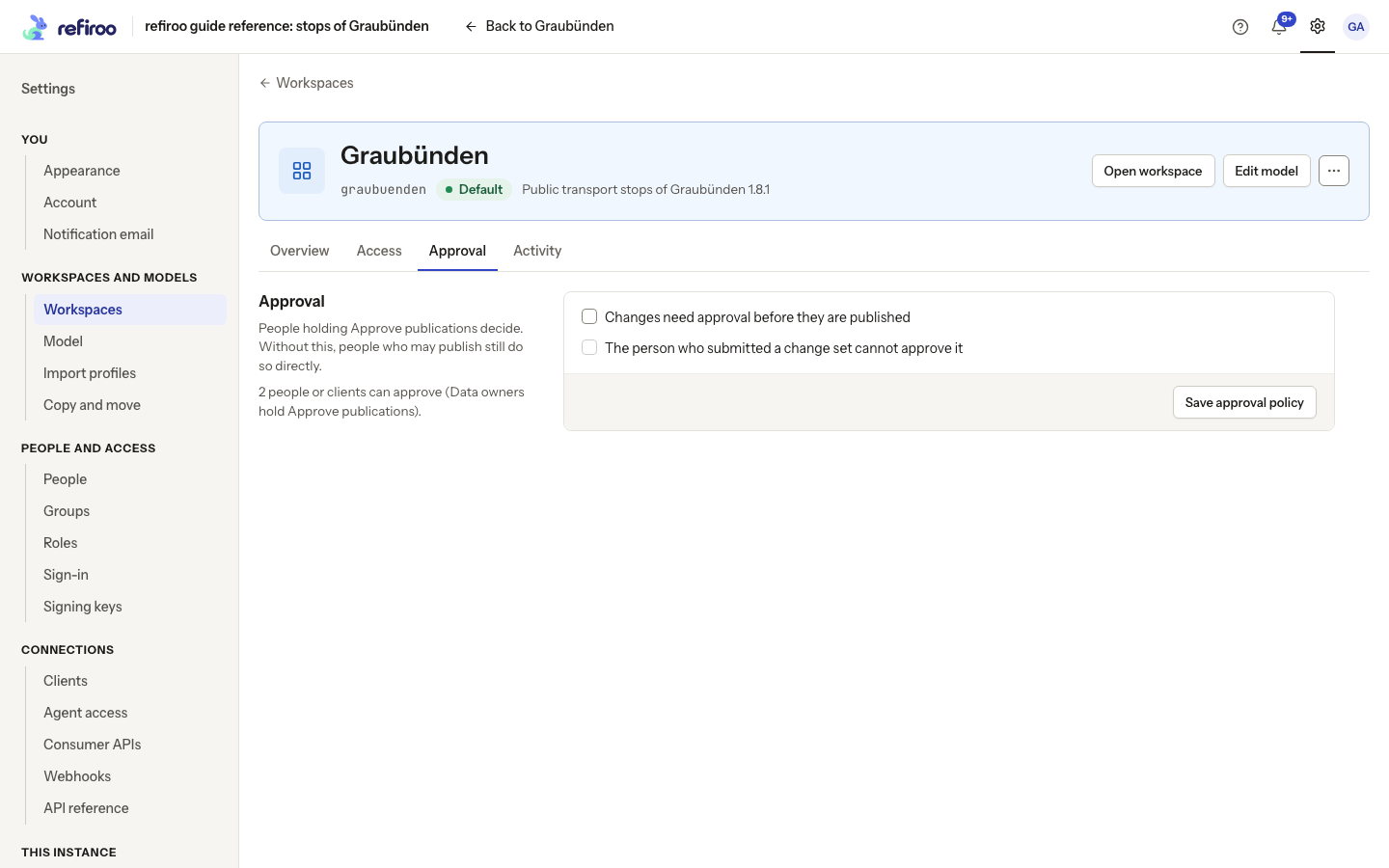
Above: an earlier view of Graubünden’s Approval settings, with both policies off. The request shown below uses approval with a second person required.
With no approval requirement, people allowed to publish can do so directly. A person who prepares work but cannot publish can submit it to an approver. When approval is required, direct publication is available only to someone allowed to publish and approve their own work, with no second-person requirement. That action records their approval as it publishes.
From submission to decision
Section titled “From submission to decision”Submit for publication validates the change set and records its submitted version. An optional comment gives the approver context. Submission does not change Live. The band says waits for approval. Open Details for the submitter and submitted version, and the review’s Decision panel for the comment. The proposal cannot be edited while it waits. Withdraw request ends the request and keeps the proposed work for editing; the submitter or an authorised approver can withdraw it.
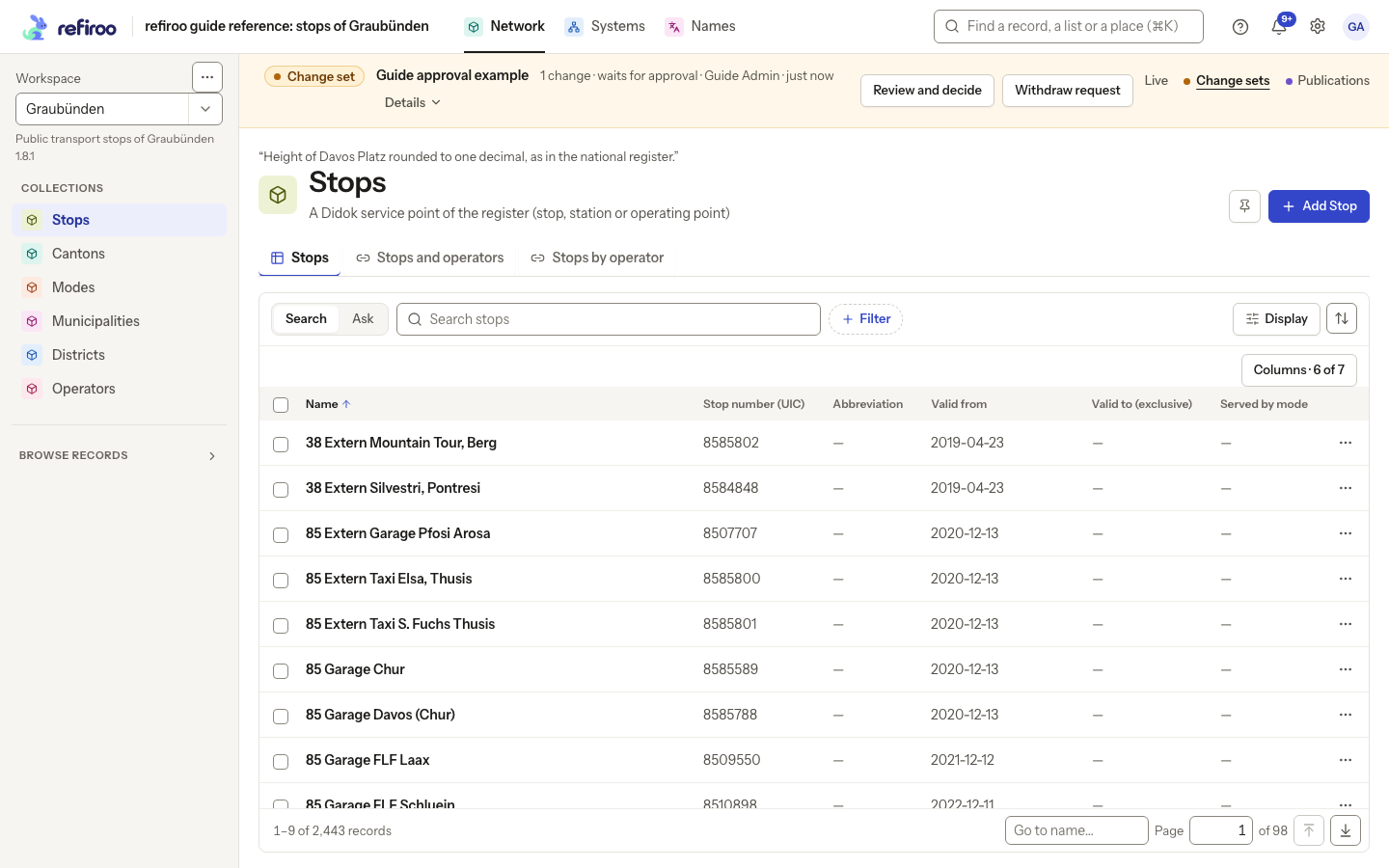
Above: Guide approval example waits for approval in Graubünden. The banner offers Review and decide and Withdraw request; open the review to read the submission details.
Approvers can find requests under Waiting for your approval on Home, or through the bell’s Waiting for your approval notice. Both lead to the review. Opening a submitted change set also offers Review and decide.
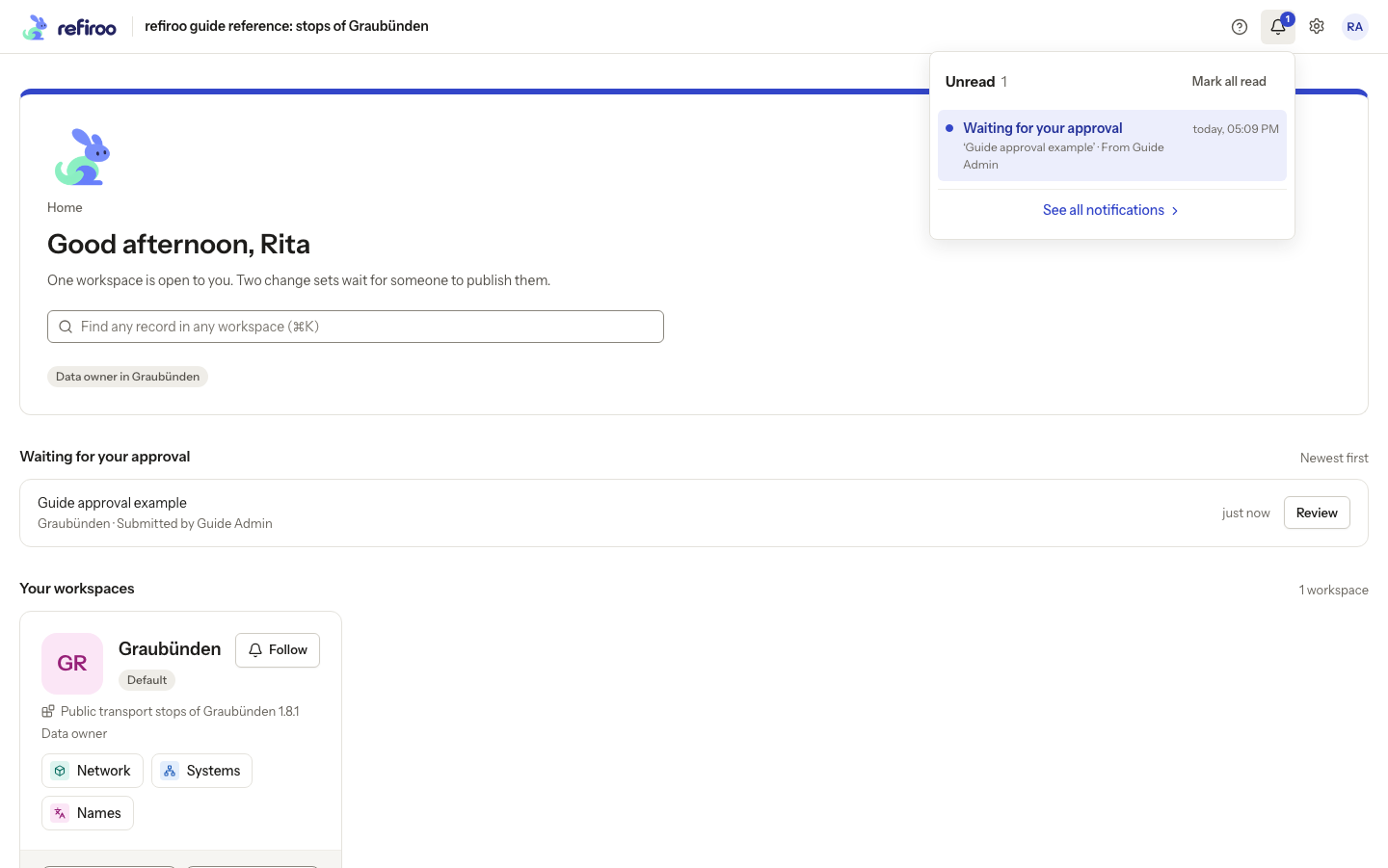
Above: fictional approver Rita Approver receives a notice for Guide Admin’s request.
The review’s Decision panel identifies who submitted which version and when, and shows their comment. Below it, Records and Relationships show the proposed differences.
| Decision | Result |
|---|---|
| Approve and publish | Checks the current data again, applies the changes to Live and creates a publication immediately. Comment is optional. |
| Send back | Requires a Comment explaining what needs attention. Ends the pending request and keeps the change set for correction and another submission. Nothing is published. |
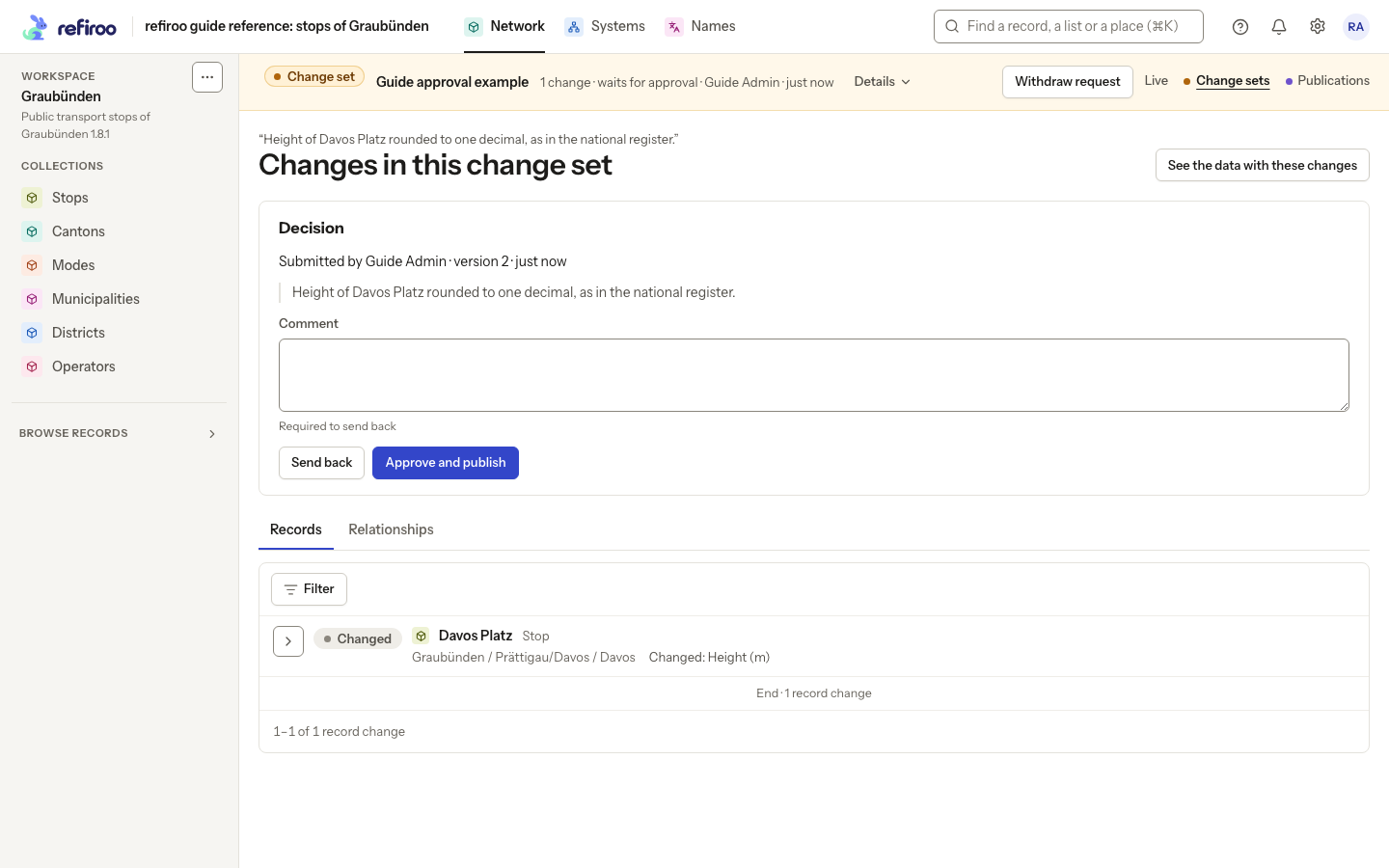
Above: Rita reviews Guide Admin’s proposed change to Davos Platz. The empty Comment field says Required to send back; approval does not require a comment.
With the second-person rule on, the submitter sees A second person must decide this request. instead of a Decision panel, even if they hold approval permission. They can inspect the changes but must wait for another authorised approver.
Sent back and submitted again
Section titled “Sent back and submitted again”After Send back, the submitter receives a notice with the reason. The change-set banner names the approver and repeats that reason. The proposal is editable again and Submit for publication is available. The submitter can correct the work and submit again with a new comment. That is a new request needing its own decision.
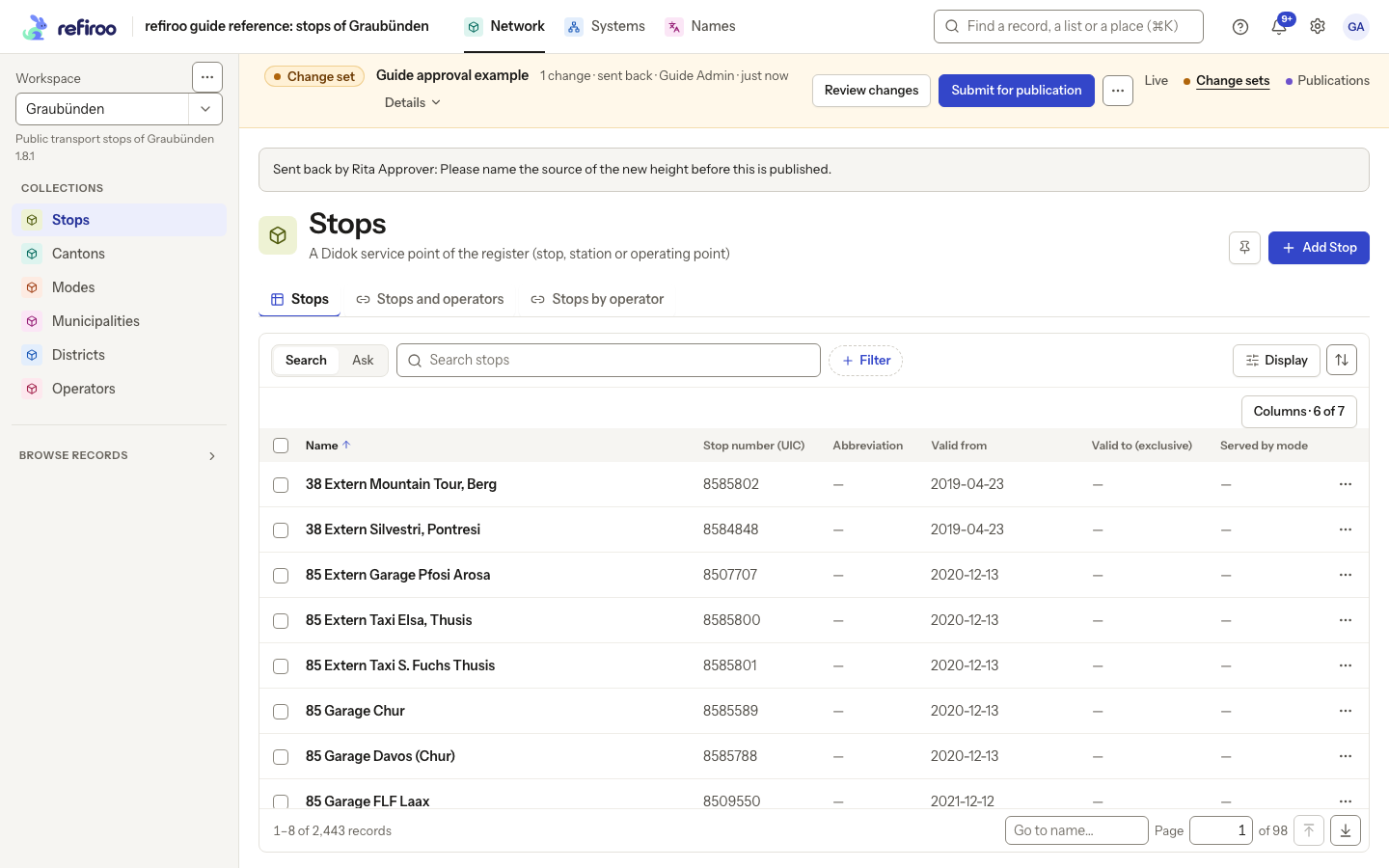
Above: Rita asks Guide Admin to name the source of the new height. Review changes and Submit for publication are available again; the correction has not reached Live.
Where the result appears
Section titled “Where the result appears”A successful approval publishes immediately and notifies the submitter. Under Publications, the new snapshot is Current and names the person who published it. See Publications for the saved result.
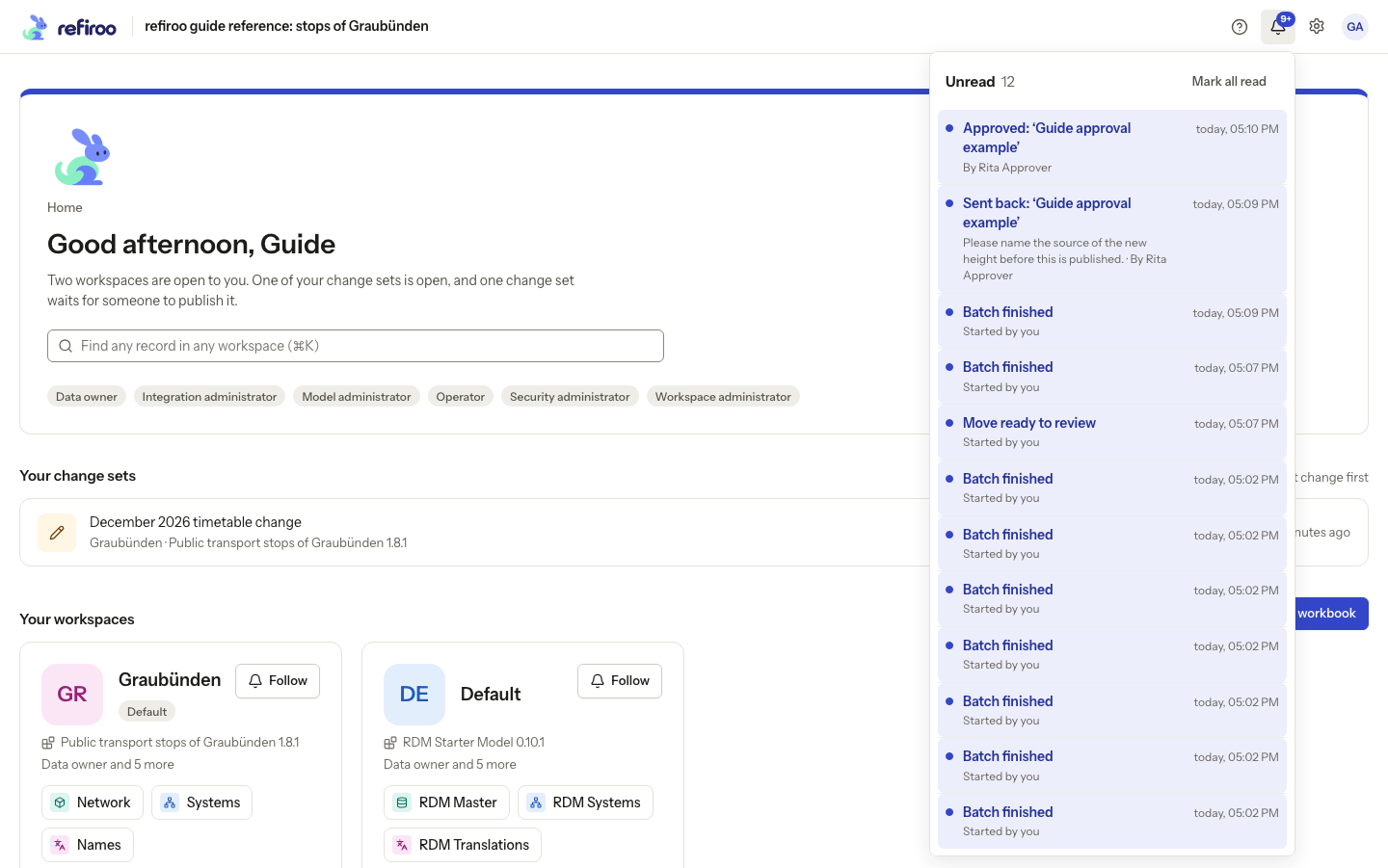
Above: Guide Admin’s newest notice says Rita approved Guide approval example. The earlier send-back notice remains below it; it is no longer the request’s current state.
Workspace Activity records the actions with who and when. Open Settings, Workspaces, select the workspace and choose Activity. See History for its filters.
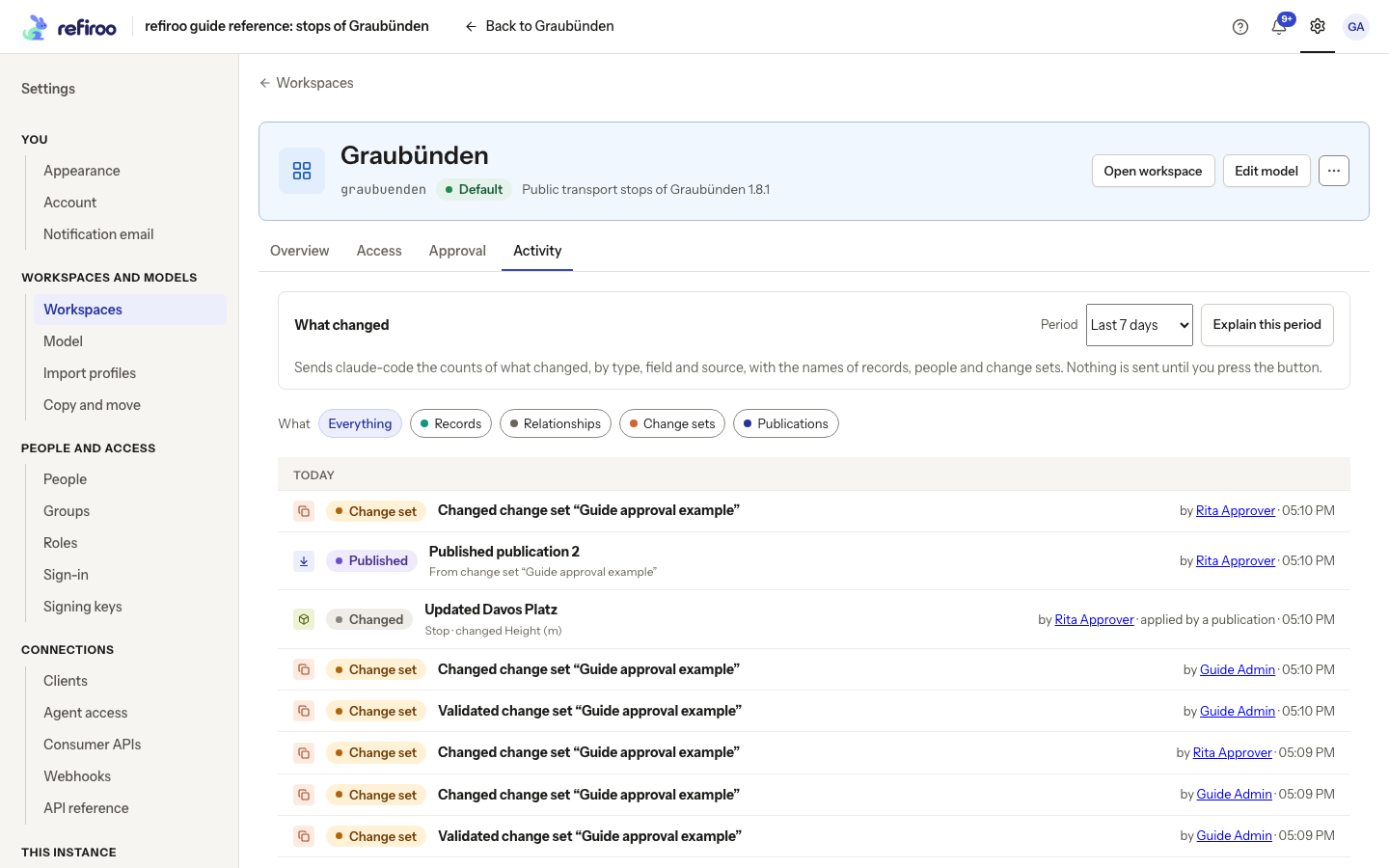
Above: Graubünden’s Activity after the submission, send back, resubmission and approval. The visible latest entries include Publication 2 and Rita’s published correction to Davos Platz. Change-set actions use the general label Changed change set.
Publication can still be refused because of a conflict or invalid combined data. A changed or withdrawn request cannot be approved as the older submitted version. Reload, inspect the current state and resolve the reported problem before retrying. The review also keeps the decision history. Follow Approve a change set for the steps, and Change sets for how proposed work merges into Live.
Email and following
Section titled “Email and following”Under Settings › Notification email, switch on Email me when something arrives in my inbox to enable email where mail is configured and your account has an address. Choose At once, Digest or Off for approval waiting, your approval decisions and your job notices. Off stops only email; the inbox keeps receiving notices. Choose every morning or Mondays at 07:00 in your browser’s time zone for digests, and check the next digest time shown. There is no choice of another hour. A digest counts all eligible unread notices and lists the newest 50; if none remain, none is sent.
Follow on a Home workspace card adds notices when someone else publishes there. Your own publications do not notify you through following. Stop following on Notification email ends these notices; losing Browse access does too. If mail is unavailable or you have no address, the page explains why and hides the email switch.
Administrators configure the publication rules on Approval policies. That page and its linked guide explain saving the policy and establishing approvers; the submission and decision flow is above.
When a notice has already been handled
Section titled “When a notice has already been handled”Opening a job, move, migration or change-set review marks its notices read, including notices arriving while you keep that subject open. A decision on a request, or confirmation or cancellation of waiting work, also closes the waiting notice. A publication notice opens its publication from Notifications or a digest while it is active and you have Browse. If it is no longer active, it opens the workspace’s Publications instead. The bell also leads to Publications. Opening marks the notice read; it does not restore lost Browse access.
For immediate email eligibility, digest counts and schedules, see Notification settings. A digest counts all eligible notices but lists only the newest 50, and has no one-day cutoff. Job lines can include retained outcome counts. Stop following removes a saved follow choice; losing access only suspends its notices. Follow Set up email notices or Follow a workspace to change these choices.
The Submit for publication dialog’s Comment (optional) accepts up to 2,000 characters. Choose Submit to validate and send the request, or Cancel to leave it editable. Submitted for publication. It waits for approval. confirms submission. While waiting, Withdraw the request to edit it. explains why controls are absent. Request withdrawn. confirms that editing can resume; it does not discard the change set.
The change-set banner’s ordinary write and model-version actions are explained in Change sets. For a person’s activity, rather than inbox notices, see History.