Add a relation matrix
Open a draft with Model authoring. A matrix needs row records related to cell records that stand under column records. See Applications and views.
- Select an application and choose Add a view… from its menu. Enter Name first (it is red while empty), then in Kind of view choose Relation matrix: rows and columns with the related records in the cells. The form has a preview beside it.
- Choose Rows, then Each cell shows. Read the explanation of the relationship offered. If a type is missing, check its allowed relationships and the cell type’s parent structure.
- Choose Columns. There is one column per record of a type the cell records sit under. Choose Column heading to identify those column records clearly.
- Choose and order Fields in a cell and Row columns. Use the add, remove and up/down controls to inspect the intended order. The first text or number cell field is used for the cell display; if none is available, it uses the record name.
- Set What people can do in a cell from the offered Create, Edit, Link existing and Unlink choices. Availability depends on the declared structure. A checked action still needs the person’s record or relationship permissions at runtime.
- Inspect the preview and choose Add view. Review Issues before installing. A preview is a design aid, not proof that every user has permission to perform its actions.
- For an existing relation matrix, open its row in Views and choose Change…. Use Rename… for its label or Remove relation matrix to remove the view. Removing the view does not delete the data it displayed. Undo can restore the draft step.
Choose the cell actions
Section titled “Choose the cell actions”For an existing view, select the application, find the matrix in Views, open its menu and choose Change…. In What people can do in a cell, select any offered combination:
- Create makes a record and connects it to the row. The creation form uses the relationship’s rules and the groups already holding this view’s records to suggest where it belongs under the column. It can propose a missing group, without a model change; the person checks the proposal or chooses another eligible group. See Where new records go. Create is offered only when Fields in a cell includes every required field, and creation needs no other required incoming relationship beyond the one this cell supplies. Parent containment is handled separately.
- Edit allows editing the displayed record fields. It is offered when at least one selected cell field is writable.
- Link existing connects a record already under the column. It is offered in the editor, but each candidate must satisfy the relationship rules when someone uses the matrix.
- Unlink removes a connection and keeps the record. It is not offered for a required relationship.
Choose Save, review Issues, then install and activate the release through your usual model release process. Check the actions after changing row types or cell fields: dependent choices can be reset or removed when they no longer fit.
For a translation matrix, Create and Edit can support one name per language. For a mapping matrix, Create and Link existing let people choose between a new code and reuse of an existing code. Reuse creates another relationship to the same record, which keeps its identity for connected systems after publication. These are model choices, not separate kinds of application. A filled one-per-cell matrix suppresses Create even when the view enables it; see Relation matrices.
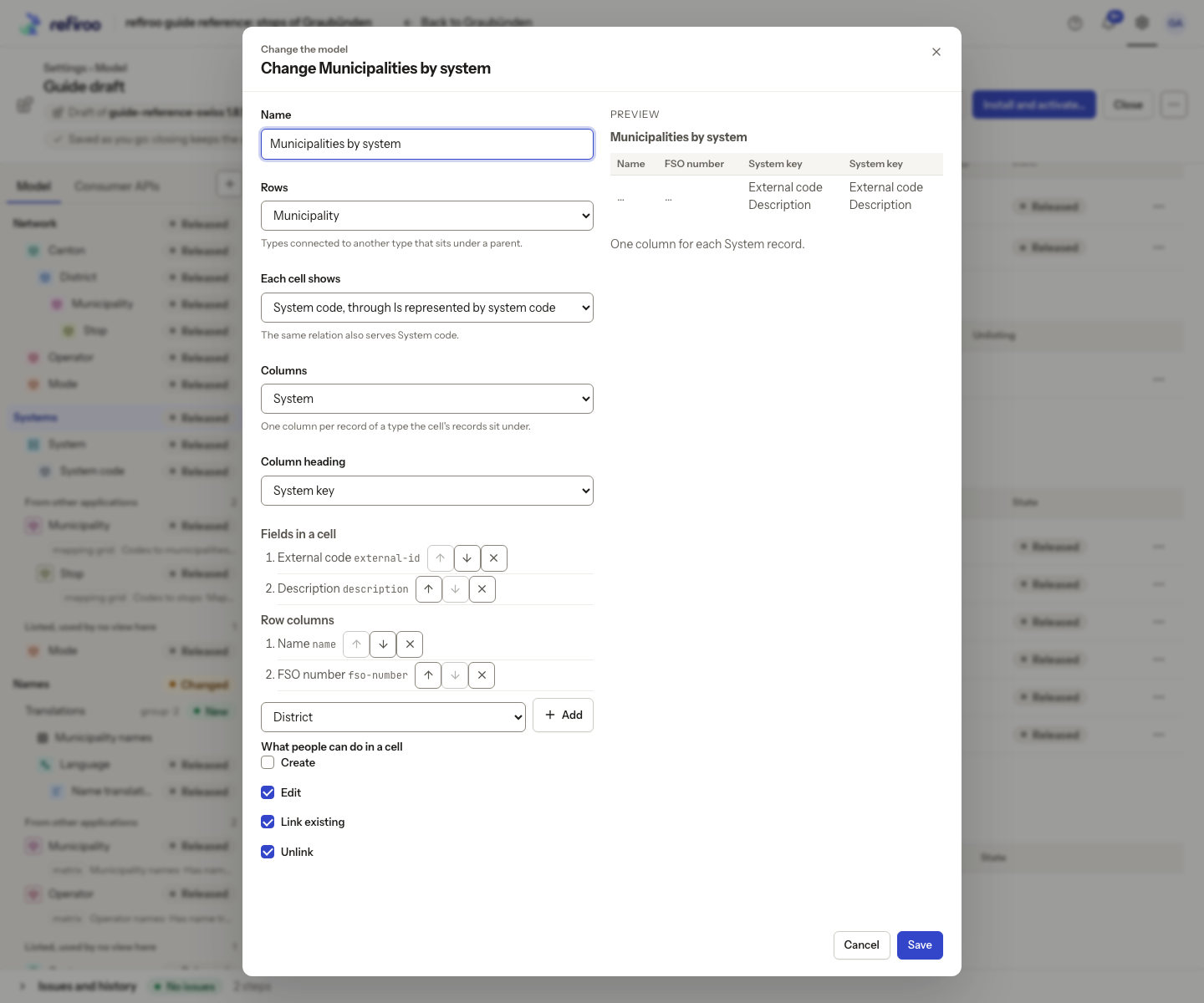
Example: Municipality rows connect to System code cells, which stand under System columns.
A Not applied notice leaves the attempted change unapplied; read its reason and correct the structure or choices. Saving this view in a draft does not change the live application.
Adding a matrix also adds any type listings it needs to the application in the same step. Records retain their owning applications. Removing the matrix can remove listings needed only by that view; a released listing in use can require migration. Inspect the removal confirmation and Issues rather than assuming the view is the only affected definition.