Set up sign-in and mail
Set the installation’s stable HTTPS address before configuring sign-in or mail. Browser tasks for people, groups, providers and clients belong to administrators; use Sign-in, People and groups and Clients.
Public address and session settings
Section titled “Public address and session settings”PUBLIC_URL is the token issuer and external origin, defaulting to http://localhost:8000 for
local use. Set it explicitly in production. CORS_ORIGINS defaults to http://localhost:5173;
Compose supplies PUBLIC_URL instead. Each listed origin allows the browser’s sign-in return at
/signed-in. Serve the browser at that origin’s root and keep browser and engine on one site.
| Setting | Default | When to change it |
|---|---|---|
ACCESS_TOKEN_MINUTES |
60 |
Shorten the access-token lifetime to meet policy. Deactivation still takes effect on the next request. |
SESSION_IDLE_HOURS |
12 |
Shorten how long a session lasts without renewal. Working browsers renew it. |
SESSION_DAYS |
14 |
Maximum session lifetime before a fresh sign-in. |
PASSWORD_RESET_HOURS |
24 |
Lifetime of a single-use password reset link. |
PASSWORD_MIN_LENGTH |
15 |
Leave at 15 in production. Development can lower it to 1; common passwords remain refused. |
TOKEN_SIGNING_KEY_DAYS |
30 |
Automatic signing-key rotation age. |
Apply environment changes by recreating the engine. A public host change signs people out, requires new passkeys for that host, and needs provider callback addresses to be registered again.
Change the public address or move the host
Section titled “Change the public address or move the host”Moving the server while keeping the same public HTTPS origin preserves the issuer and passkey host. Use replacement-host recovery, keep the keys and configuration, and move DNS/traffic only after checking the replacement.
Changing the public origin needs a coordinated sign-in change:
- Keep a working local recovery administrator and its password/second factor available. Arrange a maintenance window and preserve the previous configuration and database/file backup.
- Prepare DNS and a trusted certificate for the new host. Update
PUBLIC_URLand browser origins; Compose derivesCORS_ORIGINSfromPUBLIC_URL. Recreate engine, web and Caddy as applicable, using the same Compose files and stored volumes. See HTTPS. - Register the new provider callback and signed-out addresses with your identity provider. Check the configured Mail application address too: queued messages and already-issued links can still contain the old address. Coordinate their use rather than assuming the text is rewritten.
- Verify OAuth discovery, local recovery sign-in, provider sign-in and a newly generated mail link at the new public address. Clients must use the new issuer/address and fetch fresh tokens.
- Ask people to sign in again and register passkeys for the new host while another sign-in method is available. Passkeys registered for the old host cannot authenticate at the new one.
If the cutover fails, keep writers closed and restore the previous address, DNS/proxy configuration and provider callbacks, then recreate and verify the former entry. A configuration rollback is separate from restoring database state and does not undo writes accepted during the cutover.
API authentication
Section titled “API authentication”There is no switch to disable authentication. Requests without access tokens return
401 AUTHENTICATION_REQUIRED. Invalid, expired, wrong-audience or deactivated-identity tokens
return 401 TOKEN_INVALID with a reason. Insufficient roles return 403 FORBIDDEN, naming the
action, the action groups that permit it and the workspace. Role changes apply on the next request.
The public exceptions are /health, /health/live, /openapi.json, /docs and its files,
including /docs/api, and the OAuth discovery, public keys, token, revocation and sign-in/password
routes. Public documentation is not permission to read workspace data.
A server-created administrator initially holds Security administrator, Data owner, Model
administrator, Workspace administrator, Integration administrator and Operator at the whole
instance. Once setup is complete, arrange narrower responsibilities and remove unnecessary
bootstrap grants. Use Command-line tools to create the first identities.
For monitoring, create a dedicated client with --role operator.
A client uses OAuth client credentials. Run the following in Bash with jq available to
extract the token without printing it. Set INSTANCE_URL to your public HTTPS origin, for
example https://refiroo.example.org, without a trailing slash. Supply CLIENT_ID and
CLIENT_SECRET securely from the credentials you stored when creating the client; do not
put literal secrets in shell history. Leave shell tracing off.
set -o pipefailACCESS_TOKEN=$(curl --fail --silent --show-error \ --user "$CLIENT_ID:$CLIENT_SECRET" \ --data-urlencode grant_type=client_credentials \ --data-urlencode scope=management \ "$INSTANCE_URL/oauth/token" | jq -er '.access_token')Success is silent. Stop if the command fails; inspect the error rather than using an empty or older token. With a client that has Browse, check the workspace list:
curl --fail --silent --show-error -H "Authorization: Bearer $ACCESS_TOKEN" \ "$INSTANCE_URL/api/v1/workspaces"The Compose installation does not publish engine port 8000. Use its public origin for both
requests; http://localhost:8000 is only for a development engine that actually listens there.
An Operator-only client can scrape metrics, but does not gain Browse from that role.
The role-key table gives keys for create_client --role.
The default scope, management, serves /api/v1 and /metrics;
scope=consumer requests access for /api/consumer instead. These tokens are not interchangeable.
On expiry or a refusal caused by signing-key retirement, the client fetches another token with its
unchanged credentials. See Signing in and tokens and the
API reference for integration details.
Make a first write without a browser
Section titled “Make a first write without a browser”To check administrative writing on a new installation, create an empty workspace. This does not copy records. Workspace administration must be enabled and the default workspace must have a usable model. Create a dedicated setup client:
docker compose run --rm engine python -m app.cli.create_client \ --name "Workspace setup" --role workspace-admin --role readerThis grants Workspace administrator (workspace-admin) and Reader (reader) at the
instance. Store its one-time credentials privately, then obtain a management ACCESS_TOKEN
as above. Choose an unused workspace key and a suitable display name:
curl --fail-with-body --silent --show-error -i \ -H "Authorization: Bearer $ACCESS_TOKEN" -H 'Content-Type: application/json' \ --data '{"key":"setup-check","label":"Setup check"}' \ "$INSTANCE_URL/api/v1/workspaces"Expect HTTP 201 and the created workspace, using the default workspace’s model. A duplicate key is refused; do not repeat creation as a readiness probe. Read the workspace operation for the full contract. Confirm the new workspace appears in the workspace list. Keep it only if needed; otherwise remove the empty workspace through the documented workspace operation or Settings. Deactivate the setup client when finished and clear its credentials and token from this shell:
unset ACCESS_TOKEN CLIENT_ID CLIENT_SECRETBrowser sessions and throttling
Section titled “Browser sessions and throttling”Browser sign-in uses the OAuth authorization-code flow with PKCE. Access tokens stay in page
memory. The oauth_refresh session cookie is HttpOnly, SameSite=Strict and scoped to /oauth;
it is Secure when PUBLIC_URL uses HTTPS. Each renewal replaces its refresh token. Presenting
an already-used refresh token ends that session as a suspected copied credential.
If VITE_API_URL separates the frontend and engine, both must share a site, such as
refiroo.example.org and api.refiroo.example.org. Unrelated domains cannot share this strict
cookie even when CORS permits requests. Outside applications can use the engine’s
/oauth/authorize page; it cannot be framed. Its passkey script is served by the engine itself.
The first five failed attempts for an e-mail address and twenty for a caller address incur no delay.
Subsequent attempts wait 1 second, then 2, 4 and so on, up to 15 minutes after the last failure.
A correct password is not checked during a wait. Success clears the e-mail address count; counts lapse
after 24 hours. Wrong current passwords, passkey proofs and client secrets also count against
throttling. Logs identify failures with sign_in_failed, e-mail address and caller address.
Trust forwarded caller addresses only from the actual proxy, or everyone shares its address limit.
At most 2,000 unfinished provider sign-ins can be open per provider. Further starts show HTTP 429
until starts expire after ten minutes.
Password links prefer the Mail settings’ application address, then the first CORS_ORIGINS
entry. If neither is available, they use the engine’s /oauth/password page; older links can
also point there. A newer reset link replaces the previous one. Using it ends all sessions.
Changing a password from Account instead preserves the current browser session and ends the others.
Prepare a sign-in provider
Section titled “Prepare a sign-in provider”Register refiroo as an OpenID Connect web application with your organisation’s provider. The
administrator chooses the provider key and configures its issuer and secret in Settings.
Register the exact callback <PUBLIC_URL>/oauth/providers/<key>/callback. If provider sign-out is
enabled, also register <PUBLIC_URL>/oauth/providers/<key>/signed-out.
Allow outbound HTTPS from the engine to the issuer’s discovery and key endpoints. Certificates must be trusted. Plain HTTP is accepted only for a loopback provider; link-local destinations are refused. An issuer mismatch, TLS error or unreachable provider prevents saving it as enabled and returns a reason. Resolve that reason rather than weakening certificate verification.
The client secret is write only and sealed with SECRETS_ENCRYPTION_KEY. Changing issuer requires
supplying the new issuer’s secret in the same save. Once people have signed in through that provider,
its issuer cannot change; add another provider instead. Keep a tested local recovery administrator.
A provider’s removal of a person does not end their existing refiroo session immediately: deactivate
leavers in refiroo too. Disabling the provider ends its sessions.
Provider registration details
Section titled “Provider registration details”The requested OpenID Connect scopes are openid profile email. Example issuers are
https://login.microsoftonline.com/<tenant-id>/v2.0 for Entra ID,
https://accounts.google.com for Google and https://<host>/realms/<realm> for Keycloak.
Use the issuer stated by that registration, including its tenant or realm.
Provider sign-out requires end_session_endpoint in discovery. Register the exact signed-out
address displayed by refiroo in the provider’s post-logout redirect configuration. The engine keeps
the sign-in ID token sealed for that session only when provider sign-out is enabled.
For a failed provider sign-in, Security events record the reason and detail: issuer or nonce
means the token did not belong to this sign-in, exchange means code exchange failed (check secret
and callback), browser means the flow started in another browser, and deactivated identifies a
disabled person. Give the reason to the responsible administrator without copying tokens or secrets.
For the layout of outgoing messages, an operator uses E-mail template. It is separate from the delivery connection: changing the template does not set up SMTP or Microsoft 365.
Prepare SMTP delivery
Section titled “Prepare SMTP delivery”Arrange an SMTP server and a sender address. A security administrator saves these on the Server tab of Settings › This instance › Mail:
- Choose SMTP server under Send mail through. In Mail server, enter Server and Port, then choose Connection (STARTTLS or TLS for an authenticated server).
- Enter User name and Password if required, From address and the public Application address used for links. Choose Save. A save refusal leaves the existing settings intact; use the refusal table below before trying again.
- Under Test message, enter Send to and choose Send test message. Sent means the SMTP server accepted it; confirm arrival in the recipient’s mailbox as well.
- Open the Messages tab for later delivery attempts and Last problem. Stop sending ends
retries for a waiting message, but its one-time link remains valid until expiry.
The SMTP password is a secret, sealed in the database and never shown. Changing host or port needs
the password again in the same save (
MAIL_PASSWORD_REQUIRED).
Use STARTTLS, usually port 587, or TLS, usually 465. Unencrypted delivery is only for a trusted relay
without a login: the engine refuses sending credentials without encryption. Supply your internal
CA to the engine’s trust store or SSL_CERT_FILE when needed. Check that the mail application
address is the public address; if empty, links use the first CORS_ORIGINS entry.
Configure SPF and DKIM for the sender’s domain at your mail provider. refiroo does neither. A successful SMTP test does not prove delivery to the recipient’s inbox; check junk folders and mail-provider logs too.
Mail is queued in the database and sent in the background. Transient failures retry after 30 seconds,
doubling to at most one hour, for up to 24 hours. Permanent recipient refusal fails immediately.
Finished messages stay for 30 days; message text containing links is erased after sending or failure.
The Mail page reports connection, TLS, login and address failures; Operations shows mailSender.
Removing mail settings stops sending; waiting messages fail once their retry window ends.
Prepare Microsoft 365 delivery
Section titled “Prepare Microsoft 365 delivery”Use Microsoft Graph to send as one mailbox in your Microsoft 365 tenant. Arrange access to Microsoft Entra app registrations, an administrator who can grant consent, and Exchange Online administration to restrict the sending application. A refiroo administrator needs Security administration for the whole instance to save and test the settings.
Choose a client secret, certificate or managed identity. The managed identity setups below apply only when refiroo runs in Azure; otherwise prepare a secret or certificate.
Client secret or certificate
Section titled “Client secret or certificate”Prepare the application in Microsoft Entra before saving it in refiroo:
- In the Microsoft Entra admin center, open App registrations and register an application. Copy its Directory (tenant) ID and Application (client) ID. refiroo also accepts the tenant’s domain name in place of its directory ID.
- Give the registration one credential:
- For a client secret, open Certificates & secrets, create a secret and copy its Value, which is shown once. The secret’s ID is not its value. Record the expiry and store the value securely until the refiroo administrator enters it.
- For a certificate, upload the public certificate to the registration. Give the refiroo administrator its matching RSA private key and certificate together as PEM text. The private key must not be password-protected. Do not upload the private key to Entra.
- Add Microsoft Graph’s Mail.Send Application permission and grant admin consent. The engine sends as an application, without a person signing in to approve each message.
- Restrict the application to the sending mailbox. Without a restriction, the permission allows
it to send as any mailbox in the tenant. In Exchange Online PowerShell, use
New-ApplicationAccessPolicyrestricted to a mail-enabled security group holding that mailbox, or use RBAC for Applications in Exchange Online. Allow time for the restriction to apply before testing; a newly changed policy may not take effect immediately. - Confirm that the sending address belongs to a licensed user or a shared mailbox in this tenant. Arrange access for someone to monitor that mailbox for bounces and replies.
On the Server tab of Settings › This instance › Mail, choose Microsoft 365 under Send mail through. Enter Tenant ID and Application (client) ID, choose Client secret or Certificate under Sign in with, and enter the prepared value or PEM text. Set Sending mailbox to the mailbox above and Application address to the public address recipients use to open refiroo. An empty application address uses the default displayed below the field.
Managed identity in the same tenant
Section titled “Managed identity in the same tenant”Choose Managed identity – this tenant when the Azure host and Microsoft 365 belong to the same tenant. The engine asks the host for a Microsoft Graph token and sends with it; it makes no request to the tenant’s token endpoint. Use either the host’s system-assigned identity or a user-assigned identity attached to the host.
-
Enable the system-assigned identity on the Azure host, or assign the intended user-assigned identity. Find its principal (object) ID under Enterprise applications › Managed identities. Keep this distinct from its client ID: the role assignment below names the principal ID, while the mailbox policy and refiroo form use the client ID.
-
Give the identity’s service principal the Microsoft Graph Mail.Send app role. Entra has no portal button for this assignment. Run these Microsoft Graph PowerShell commands with
Application.ReadWrite.AllandAppRoleAssignment.ReadWrite.Allconsented, replacing the placeholder with the identity’s principal ID:Terminal window Connect-MgGraph -Scopes "Application.ReadWrite.All","AppRoleAssignment.ReadWrite.All"$identity = "<the identity's principal (object) ID>"$graph = Get-MgServicePrincipal -Filter "appId eq '00000003-0000-0000-c000-000000000000'"$role = $graph.AppRoles | Where-Object { $_.Value -eq "Mail.Send" }New-MgServicePrincipalAppRoleAssignment -ServicePrincipalId $identity `-PrincipalId $identity -ResourceId $graph.Id -AppRoleId $role.IdThe assignment is the consent. There is no separate admin-consent screen for a managed identity.
-
Restrict the identity to the sending mailbox. In Exchange Online PowerShell, replace both placeholders and run:
Terminal window New-ApplicationAccessPolicy -AccessRight RestrictAccess -AppId <the identity's client ID> -PolicyScopeGroupId <mail-enabled security group holding the mailbox> -Description "refiroo"The group must hold the sending mailbox. RBAC for Applications is another way to restrict it. Without a restriction, the role allows sending as any mailbox in the tenant. Allow time for a changed policy to apply before testing.
-
On the Server tab of Settings › This instance › Mail, choose Microsoft 365, then Managed identity – this tenant under Sign in with. Leave Identity client ID empty for the system-assigned identity, or enter the user-assigned identity’s client ID. Do not supply a tenant or application ID; this choice neither asks for nor accepts them. Enter Sending mailbox and Application address, then save and test as described below.
Managed identity hosted in another tenant
Section titled “Managed identity hosted in another tenant”Choose Managed identity – hosted in another tenant when refiroo runs in the hosting organisation’s Azure tenant and sends through the customer’s Microsoft 365 tenant. This needs a user-assigned managed identity: a system-assigned identity cannot be a federated credential. A multitenant app registration in the hosting tenant trusts that identity.
-
Assign the user-assigned identity to the Azure host running refiroo. In the hosting tenant, register a multitenant app. Record the hosting tenant ID, the app’s object ID and client ID, and the identity’s principal (object) ID and client ID; these are different values.
-
Add a federated credential to that app under App registrations › Certificates & secrets › Federated credentials. For Microsoft’s global cloud, save the following as
credential.json, replacing the placeholders as written:{"name": "refiroo-managed-identity","issuer": "https://login.microsoftonline.com/<hosting tenant ID>/v2.0","subject": "<the user-assigned identity's principal (object) ID>","audiences": ["api://AzureADTokenExchange"]}With Azure CLI signed in to the hosting tenant, create it with this command, replacing the app object ID placeholder:
Terminal window az ad app federated-credential create --id <the app's object ID> --parameters credential.json -
Add the Microsoft Graph Mail.Send application permission to the app registration. The customer’s administrator grants admin consent to the app in the customer’s tenant, for example at the following address after replacing both placeholders:
https://login.microsoftonline.com/<customer tenant ID>/adminconsent?client_id=<the app's client ID>Confirm that the app has the Mail.Send application permission in that tenant.
-
In the customer’s Exchange Online tenant, restrict the app to the sending mailbox with an application access policy, using
-AppId <the app's client ID>, or RBAC for Applications. For an application access policy, use a mail-enabled security group holding that mailbox. Allow time for the restriction to apply. -
On the Server tab of Settings › This instance › Mail, choose Microsoft 365, then Managed identity – hosted in another tenant under Sign in with. Enter the customer’s Tenant ID, the multitenant app’s Application (client) ID and the user-assigned Identity client ID. All three are required. Enter Sending mailbox and Application address, then save and test below.
The engine obtains an identity token from the Azure host for api://AzureADTokenExchange and
uses it as the client_assertion in an OAuth client-credentials grant at the customer’s tenant.
The audience follows the cloud of Token address: api://AzureADTokenExchangeUSGov for US
Government or api://AzureADTokenExchangeChina for China. The federated credential must trust
the matching issuer, subject and audience. Microsoft does not support federation to a cloud
different from the identity’s cloud.
How the Azure host supplies tokens
Section titled “How the Azure host supplies tokens”Both managed identity choices work on Azure App Service, Container Apps or a virtual machine
with a managed identity. The engine uses IDENTITY_ENDPOINT together with IDENTITY_HEADER
when both are present, as supplied by App Service and Container Apps. It sends the header as
X-IDENTITY-HEADER and uses api-version=2019-08-01.
Otherwise it uses the virtual machine instance metadata service at
http://169.254.169.254/metadata/identity/oauth2/token, with Metadata: true and
api-version=2018-02-01. A user-assigned identity’s client ID is passed as client_id.
The engine process must be able to reach the host’s endpoint. AKS workload identity, which
supplies a token file, is not supported.
No mail secret or certificate is stored with a managed identity, and none needs renewal. Tokens are cached in each process until shortly before expiry and obtained again as needed. Saving a managed identity clears a saved secret or certificate; saving a secret or certificate clears the identity settings. Keep the identity choice and its fields in every save. For automated mail configuration, use the API reference; omitting the identity settings does not keep a previously saved identity.
Service addresses, saving and testing
Section titled “Service addresses, saving and testing”After Sending mailbox, the folded What to set up in Microsoft Entra section shows the steps for the selected Sign in with entry. Open Other Microsoft clouds (token and Graph addresses) to set the addresses below. It opens automatically for a saved non-default address. Application address follows both sections.
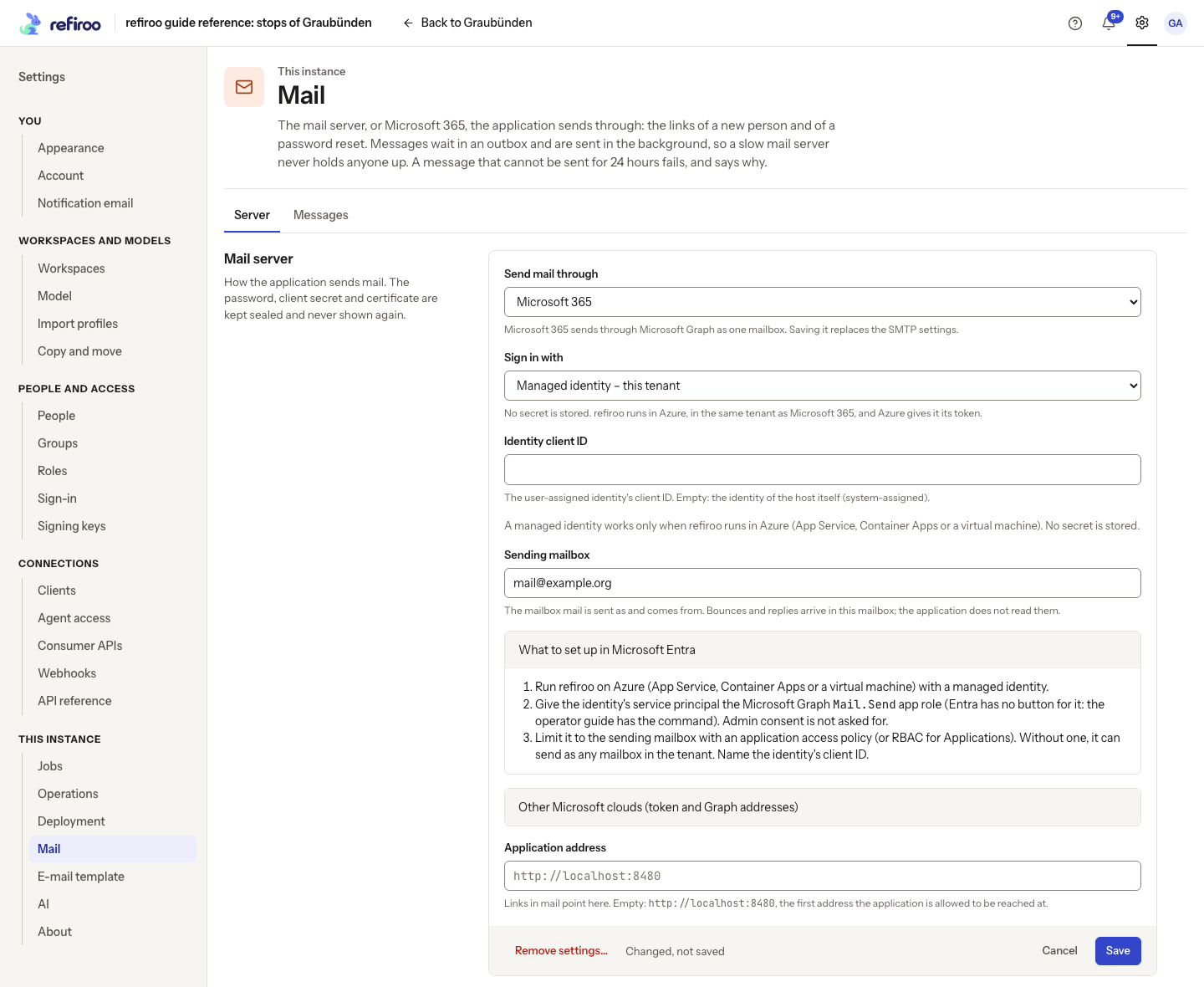
Above: What to set up in Microsoft Entra is open for Managed identity – this tenant, showing the Azure host, app-role and mailbox-restriction steps. Identity client ID is empty, and Sending mailbox holds an example address. Nothing has been saved.
| Address | Global-service default | Operator action |
|---|---|---|
| Token address | https://login.microsoftonline.com |
Where the engine requests Microsoft’s tokens. Leave empty for the global service. |
| Graph address | https://graph.microsoft.com |
Where the engine sends mail. Leave empty for the global service. |
For a national cloud, set both addresses to the services for that cloud. Allow outbound HTTPS from the engine to both, including DNS resolution and trusted certificates. These are service base addresses; do not append a tenant, token path or mailbox path. With a secret or certificate, the engine uses the OAuth client-credentials grant and signs an RS256 assertion for a certificate. A federated identity uses the exchange described above; an identity in the same tenant obtains its Graph token directly from the host. Tokens are cached in each process until shortly before expiry. No Microsoft client library is required.
Choose Save, then send a test from Test message. Saving Microsoft 365 replaces the saved SMTP fields and password; saving SMTP replaces the Microsoft 365 fields and credential. One method is active, with no fallback. A refused save leaves the saved settings intact. For automated configuration, use Mail settings in the API reference; send only the chosen method’s fields, since fields belonging to the other method are refused.
The settings live in the database, not in .env. The client secret and certificate with its key
are sealed with SECRETS_ENCRYPTION_KEY, like the SMTP password, and never returned for reading.
The page shows a saved certificate’s SHA-1 thumbprint, as in Entra, and expiry instead. Preserve
the encryption key with backups. When changing that key, stop all engines and follow the
resealing procedure; replacing the environment value alone does
not reseal stored secrets. The reseal_secrets tool covers these values as Microsoft 365 client
secret and Microsoft 365 certificate.
Renew the secret or certificate before its expiry. Create the replacement in Entra, then enter
and save it in refiroo and send a test before retiring the former credential. For a certificate,
upload the replacement public certificate first and compare its thumbprint with the one saved in
refiroo. An expired certificate is refused on saving; credentials that expire after saving can
cause a login failure when Microsoft refuses them. refiroo does not renew Entra credentials.
Leaving the credential empty keeps the saved one only for the same tenant ID, application ID
and token address. Supply it again in the same save if any of these changes.
Mail contains the same plain text, HTML and embedded brand images as through SMTP. Microsoft saves each message in the sending mailbox’s Sent Items; this cannot be disabled in refiroo. An HTTP 202 response means Microsoft accepted the message, so refiroo shows Sent. A bad recipient can be reported later as a bounce to the sending mailbox, just as with an SMTP relay. refiroo does not read bounces or replies. Check that mailbox and the recipient’s inbox and junk folder when confirming delivery.
Read mail refusals
Section titled “Read mail refusals”| Message | What to do |
|---|---|
422 MAIL_INSECURE_LOGIN |
Choose TLS or STARTTLS before supplying a username, or remove the login for a trusted unencrypted relay. The settings were not saved. See Save mail settings in the API reference (PUT /api/v1/mail-settings). |
409 MAIL_NOT_SET_UP |
A security administrator must save mail settings for either method before a test or a request that queues mail can run. Removing settings also refuses further mail requests; queued messages remain pending until delivery can resume or their retry window ends. See Mail settings and test operations. |
422 MAIL_PASSWORD_REQUIRED |
Supply a password for a new login, or enter it again when changing host or port. A stored password is never forwarded to a new server automatically. |
422 MAIL_CREDENTIAL_REQUIRED |
Supply a client secret or certificate for Microsoft 365. A saved credential is kept only while the tenant ID, application ID and token address stay unchanged. Enter it again in the same save when changing any of these. The settings were not saved. |
422 MAIL_CERTIFICATE_INVALID |
Supply PEM text containing an unencrypted RSA private key and its matching, unexpired certificate. Read the reason to find what is missing or unusable; the settings were not saved. |
409 VERSION_CONFLICT |
Another administrator changed the settings. Reload, review their changes and save again. |
For a test failure, the mail test operation reports 422 MAIL_SEND_FAILED with
a failure kind and an explanation. The Mail page displays that explanation under a heading;
queued messages record it under Last problem. Microsoft 365 uses these kinds:
| Kind and heading | Meaning and recovery |
|---|---|
login — The login was refused |
Microsoft refused a token, Mail.Send application permission lacks admin consent, or the mailbox restriction does not allow this sender. Check the tenant and application IDs, secret value and expiry, certificate registration and expiry, consent and mailbox scope. Fix settings while messages wait. The failure is shared with other waiting messages handled in that sending round. |
login — refiroo is not running with a managed identity on an Azure host |
The host’s identity endpoint did not answer. Confirm that refiroo runs on supported Azure hosting with an identity and can reach its endpoint. Outside Azure, use a client secret or certificate. The test and queued mail share this login failure. |
login — The Azure host did not issue a token for the identity |
Check the identity client ID named in the explanation and that the identity is assigned to this host. An unreadable host token response is also a login failure. |
login — Microsoft did not issue a token, AADSTS 70025 or 700213 |
For 70025, add the missing federated credential to the hosting tenant’s app registration. For 700213, check its issuer, subject and audience against the user-assigned identity, and confirm the customer administrator’s consent. Check that both tenants use the same Microsoft cloud. Correct the setup while queued messages wait. |
connection — The server could not be reached |
Microsoft could not be reached, timed out, was busy (HTTP 429) or returned a server error (5xx). Check outbound HTTPS to the required Microsoft services. A busy Azure identity endpoint (HTTP 429 or 5xx) also causes this kind of failure. Queued mail retries after the usual wait of 30 seconds, doubling up to one hour, or Microsoft’s Retry-After if longer. |
sender — The server refused the from address |
Microsoft does not know a sending mailbox that can send. Confirm a licensed user or shared mailbox in this tenant. This is not a permanent failure: the message waits and is tried again after the usual wait, exactly as with SMTP, until its 24-hour window ends. Correct Sending mailbox, save and test; the waiting message continues on its next try. |
rejected — The server did not accept the message |
Microsoft refused the message for another reason. The queued message fails immediately except for HTTP 409, which is retried. Use the reported HTTP status and short error name when investigating. |
Waiting messages still have a 24-hour limit. Microsoft’s full response, the credential and the token are not included in the explanation, outbox or normal logs. An AADSTS code or a short Graph error name may be included to help diagnose the refusal.
Inbox mail and digests
Section titled “Inbox mail and digests”The same sender delivers inbox notices and digests. People choose them in Settings › You › Notification email; clients receive no mail. These choices do not need AI or another server setting. Immediate notices are mailed only after a person opts in and while the notice is less than 24 hours old, preventing an old backlog after a long outage. The inbox retains notices even when their mail is off.
Digests are scheduled for 07:00 daily, or Monday at 07:00 weekly, in the person’s saved time zone.
Daylight-saving changes keep that local time. Several engine processes still queue one digest.
After downtime the sender queues one digest rather than one per missed morning. Nothing unread
means no message. If mail is not configured, the due time stays put until it is configured.
Outbox entries distinguish notice and digest; use the Mail page to inspect waiting, sent and
failed messages. An authorised administrator can stop a waiting message. Browser choices and
following a workspace are described in Notifications.
Every process runs a mail sender. Database leases prevent two senders delivering the same queued message. Notice messages contain the event kind and application link, without record, change-set or person content; their message text is protected and erased like password-link mail.
Verify the whole sign-in path
Section titled “Verify the whole sign-in path”Before handing setup to the access administrator, you need the permanent HTTPS origin, an enabled
local recovery administrator, provider-registration rights if using one, and direct outbound access
from the engine to that provider. A provider’s token-exchange endpoint and signing-key endpoint
must be reachable as well as discovery. Its configuration and mail settings live in the database;
they are not additional .env settings. Environment/session settings above are non-secret and
all need engine recreation after a change.
-
Check public readiness, then fetch the advertised OAuth metadata:
Terminal window curl --fail https://refiroo.example.org/.well-known/oauth-authorization-serverExpect JSON advertising the public issuer and endpoint addresses under the same intended origin. If the issuer is a development or internal name, correct
PUBLIC_URL, recreate the engine and recheck before registering callbacks. -
Sign in using the local recovery account at the public origin. With a provider configured, sign out and test provider sign-in in a fresh browser session too. Confirm the resulting person can open only the intended workspaces; proof of identity alone grants no roles.
-
Verify callback and optional signed-out addresses against those displayed on the provider page.
SIGN_IN_PROVIDER_IN_USEmeans the saved issuer already identifies people; create a different provider rather than trying to change those identities in place. -
Before disabling ordinary local sign-in, verify provider sign-in and the recovery account. If all administrators lose access, run the server-side recovery command:
Terminal window docker compose run --rm engine python -m app.cli.create_admin \--email recovery-operator@example.org --name "Recovery administrator"Expect the password prompts and
Created administrator 'recovery-operator@example.org' (...). This creates another privileged person who keeps local sign-in. Complete required second-factor setup on first use. Once access is recovered, review and narrow temporary recovery grants.
Repeated login failures are slowed per e-mail address and caller address. Check forwarded-address trust if many different users appear to share a throttle. A correct password does not bypass a wait already in force. Do not reset passwords or disable second factors just to work around a proxy that supplies one address for everyone.
Diagnose mail without exposing message links
Section titled “Diagnose mail without exposing message links”You need Security administration to save/test mail, a sender allowed by the chosen mail service and a recipient whose mailbox you can inspect. For SMTP, the engine connects directly from its network to the configured host and port. A successful TCP connection alone does not prove TLS, credentials or sender permissions. For Microsoft 365, check HTTPS access to both the token and Graph addresses; access to one does not prove access to the other.
| Exact message fragment | Cause and next step |
|---|---|
Mail is not set up |
Save mail settings for the chosen method before testing or requesting mail. |
A user name needs a password |
Supply the login password in the same save. |
Could not connect to |
Check DNS, routing, server port and whether SMTP is listening. The message names the host and underlying reason. |
The TLS handshake with and failed: |
Check TLS/STARTTLS mode, trusted CA chain, hostname and expiry. |
would not start TLS: |
Use a port/service that supports STARTTLS, or the provider’s direct TLS port with TLS mode. |
refused the login of |
Correct the SMTP account and password; check whether the provider requires an application credential. |
refused the address: |
Check the recipient and the SMTP service’s policy; a permanent refusal is not retried. |
refused the from address |
Authorise the configured sender address with the SMTP service. |
did not accept the message: |
Read the SMTP reason and inspect the sender’s limits or policy. |
closed the connection: |
Check the server log, connection policy and network path; transient failures retry in the background. |
Microsoft did not issue a token: |
Check the explanation and AADSTS code. Use the secret’s Value rather than its ID, replace an expired secret, check tenant/application IDs or register the matching certificate. If the signed assertion is not valid now, check the engine’s clock. |
did not accept the app's token: or refused to send as |
Check Mail.Send application permission, admin consent and the application’s access to the sending mailbox. Allow a changed Exchange Online policy time to apply. |
Microsoft 365 has no mailbox |
Correct Sending mailbox to a licensed user or shared mailbox in this tenant. Save and test the corrected settings. The message remains waiting and continues on its next try after the usual wait, exactly as with SMTP, unless its 24-hour window has ended. |
Could not reach, did not answer in time, is busy and asked the engine to wait or is not available |
Check access to the Microsoft service named in the explanation. Queued messages wait and retry, respecting Microsoft’s requested delay. |
If a new host or port save is refused as MAIL_PASSWORD_REQUIRED, re-enter the password in that
same save. To undo a mistaken change, save the prior server details and password again with the
current settings version; reloading first avoids overwriting another administrator. Removing mail
settings stops sending and eventually expires queued attempts, but does not roll back notices in
the inbox or invalidate links already issued. Keep one-time reset links out of diagnostic reports.
For Microsoft 365, a changed tenant, application ID or token address needs the credential again
(MAIL_CREDENTIAL_REQUIRED). Reload the current settings before correcting them. When reporting
a failure, include its kind, safe explanation and any HTTP, AADSTS or Graph error code shown;
keep client secrets, private keys, tokens and message links out of the report.
After the mail service accepts the test, confirm receipt and open its public link from the recipient’s network. For password reset, use a test person and complete the single-use reset, then sign in; this checks link address and expiry as well as delivery. For digests, inspect the person’s saved time zone and notification choices before changing the server clock: delivery is due at that person’s 07:00.
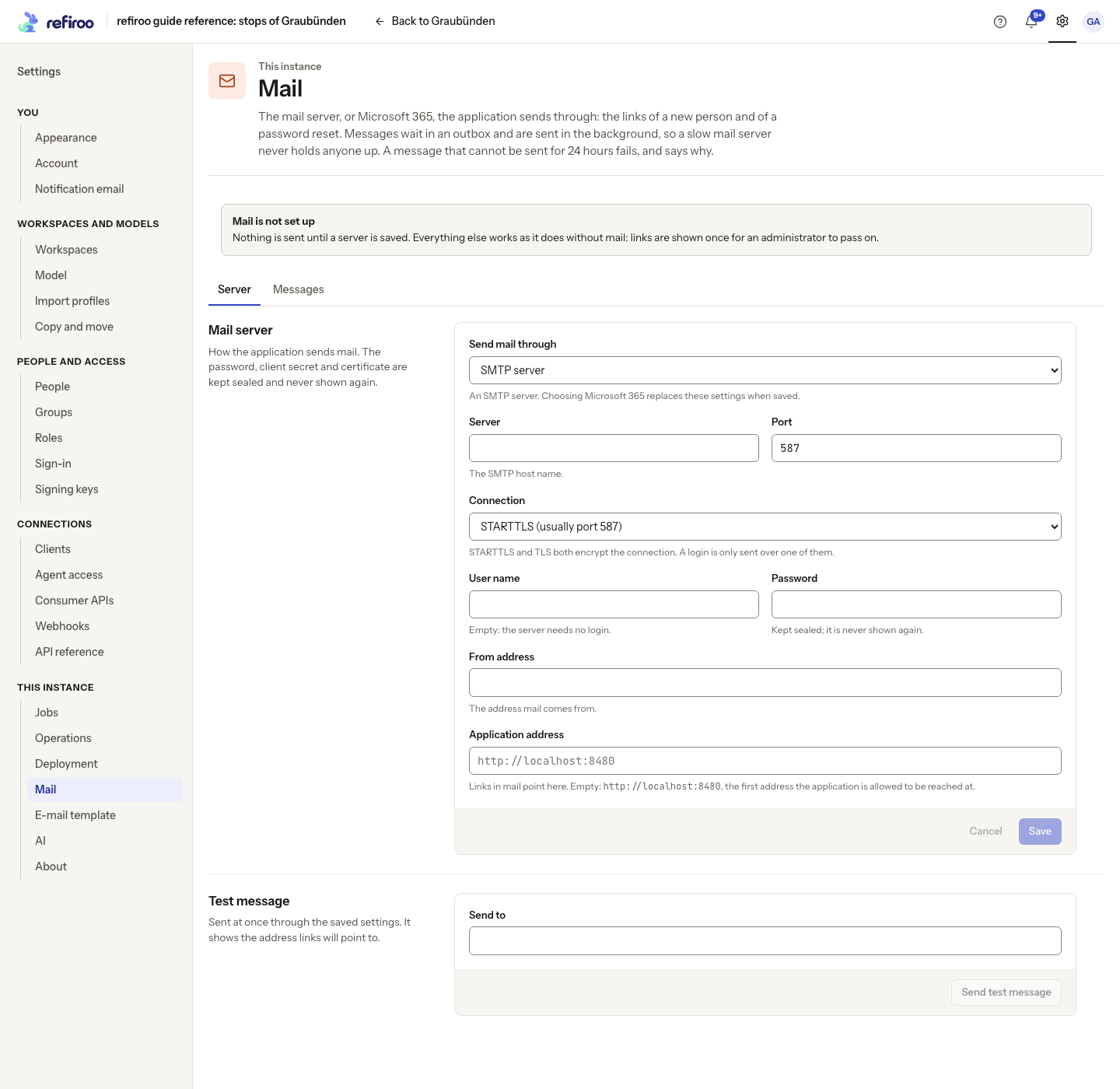
Above: mail is not set up on the reference instance. The test becomes available after server settings are saved; this picture does not show a successful test or delivered digest.