Undo and review the draft history
Use history to understand and correct a draft before releasing it. You need Model authoring. The model editor saves actions as steps; an installed release stays fixed.
- Expand Issues and history, or Issues, history and dry run with a workbook. Choose History. Steps appear newest first with their author, time and state: Applied, Undone or JSON edit. One step may include several related changes. A released-element change that affects stored data also shows Needs a migration, with the records, values and relationships that hold the element. A released key change needs a migration even when those counts are zero; integrations naming the key must change with it.
- Use Earlier steps to read older entries. No steps yet. means there is no saved step in this history. A document edit appears as JSON edit, rather than a list of visual actions.
- To reverse the latest step, choose Undo in the header. To reverse an older step, use its Undo action in History. Check the resulting model and Issues afterwards.
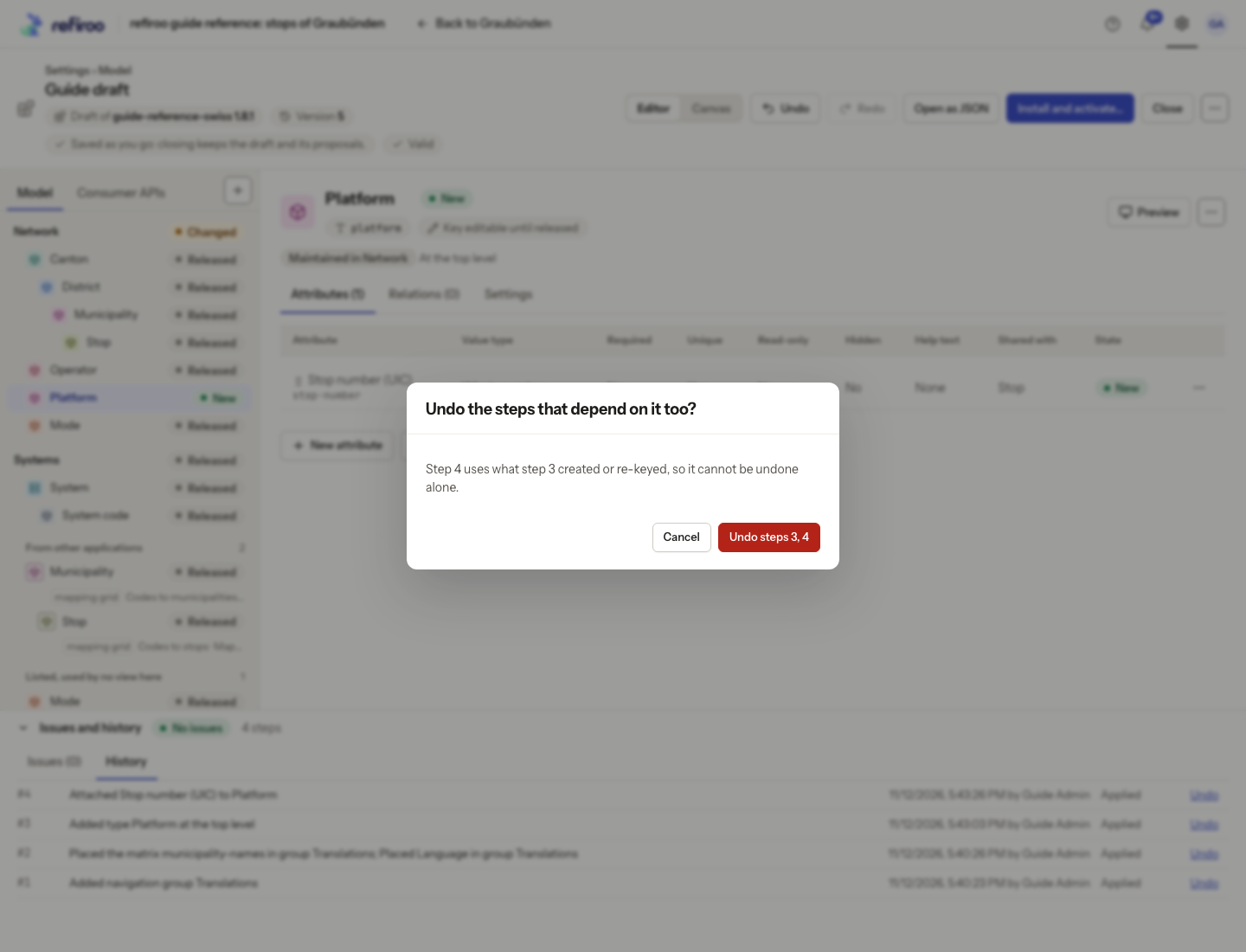
- If Undo the steps that depend on it too? appears, read every dependent step. Confirm only if all those reversals are wanted. Cancel keeps them. A field added later cannot stay attached to a type whose creation is being undone.
- Choose Redo to restore the available undone step. A new edit clears redo history. If the draft changes elsewhere, review its newer history before retrying.
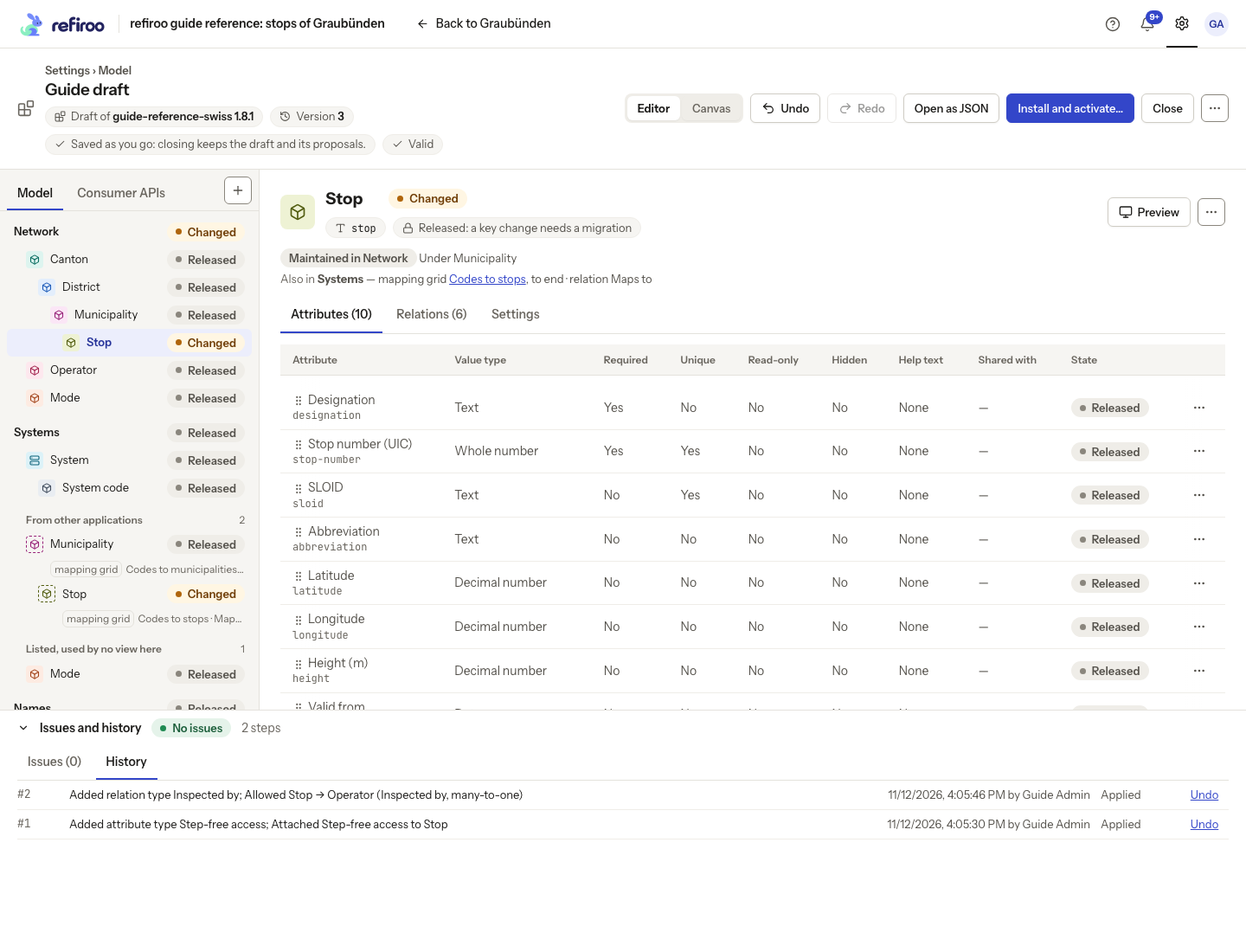
Above: Guide draft records adding Step-free access and allowing Inspected by as two saved steps. Each step offers Undo.
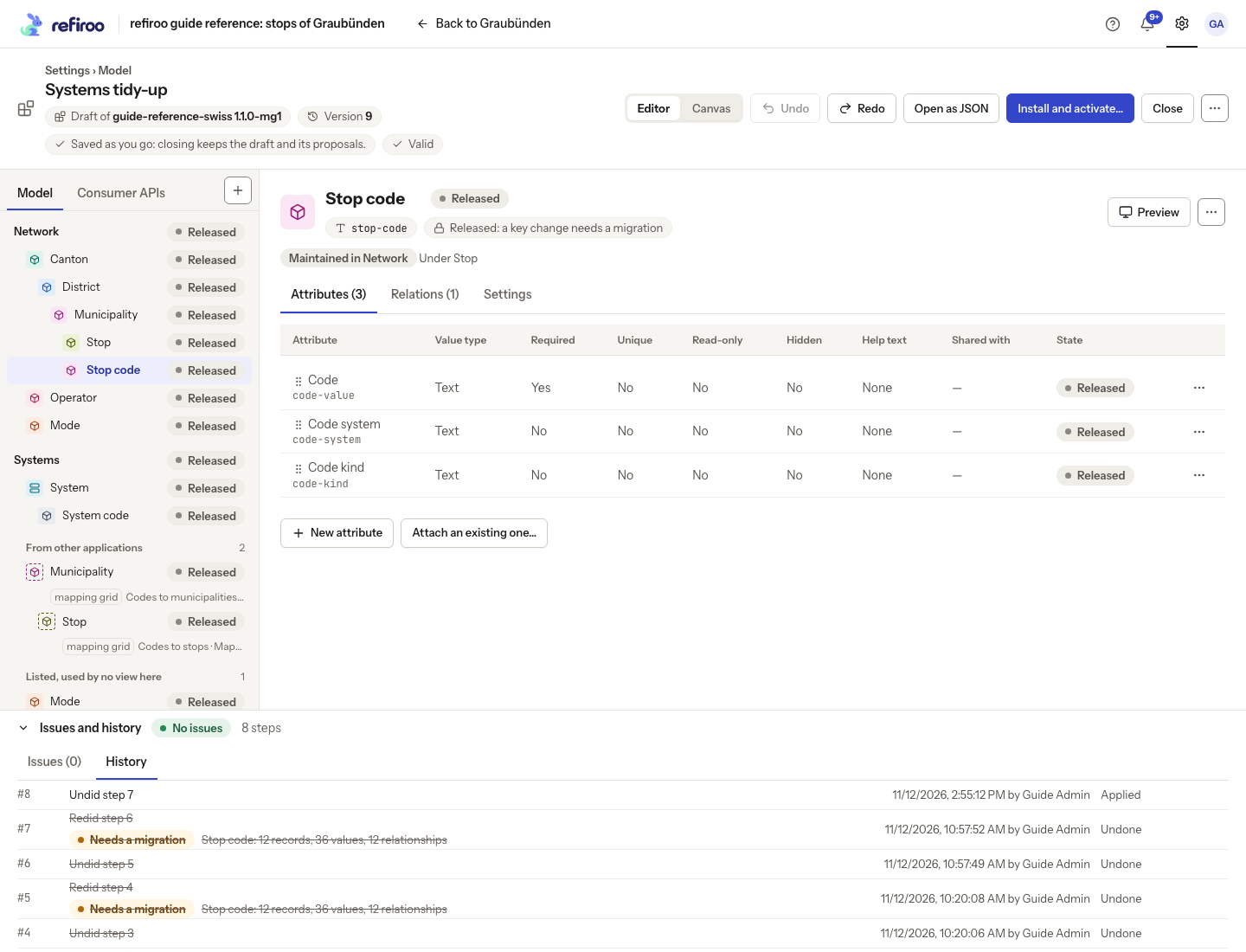
Above: the move is Undone and its migration mark is crossed out. Stop code is back under Stop in Network in the draft; Redo is available.
Undo changes the draft and takes the undone step’s part out of the proposed migration. Redo restores it; the install or Apply review reflects the steps that stand now. A migration mark records a step’s impact; activation checks the workspace’s current data again. See Migrations before installing marked steps.
Undo neither changes an installed release nor reverses published records. For concurrent edits, see Work on a draft with others.