Jobs
A job is work refiroo runs in the background, such as an import, export or change to many records. Open Settings › This instance › Jobs to find the jobs you may see across workspaces, newest first. On the Jobs tab, in All jobs, the list shows Workspace, State, Items, Requested by, Created, Finished and Actions. Open a job to read its progress and results.
Follow Follow and cancel a job for the steps.
Jobs grouped under a task or a draft
Section titled “Jobs grouped under a task or a draft”Above the list, Grouped puts an assistant task’s related work, including jobs queued by its session, in one row. A model draft’s jobs also form one row. A job with neither owner remains a row of its own. All jobs shows the individual jobs instead. Your browser remembers this choice when you return to Jobs.
The grouped table shows Job or group, Workspace, Jobs, State, Latest and Actions. A group is labelled Assistant task or Model draft and named after its workbook or draft. A workbook’s extension appears beside its name. Jobs counts the group’s visible jobs; State gives counts for states with jobs, such as running, failed and completed. Latest is the latest job time. These counts describe retained jobs you may see, not every job ever started or every job in the instance.
Open the group name to see its jobs:
- The heading names the workbook or draft. Above it, Assistant task or Model draft and the workspace identify the group; Jobs in the first line returns to the main list.
- Summary of the group gives the job count and latest time. All shows the total; state buttons show non-zero counts for Running, Queued, Awaiting confirmation, Failed, Completed, Cancelled or Expired. Select one to narrow the table; select All to restore every visible job. The selected state stays in the page’s address.
- The Jobs table shows Job, State, Items, Requested by, Created, Finished and Actions. Inspect processed, applied, rejected and unprocessed counts. Refresh reads again; Show more continues the list. Cancel is offered for queued or running work where cancellation is available; it opens a confirmation.
- Open the task or Open the draft opens the owning work. The button appears only after refiroo has confirmed you can read that task or draft. Seeing a group’s jobs does not itself grant access to its owner; a missing button is not a stopped job.
- Open a job to inspect its result. When opened from the group, its trail includes ‹ Assistant task: [name] or ‹ Model draft: [name]. Use that link to return to the group with the state choice preserved, or Jobs to return to the main list.
Esc goes up one level: job to the group it was opened from, then group to Jobs. A job opened from the flat list returns directly to Jobs. Esc does not navigate while a dialog is open or you are editing a field.
If the group says This group has no jobs you can see, its task or draft may have been removed or its jobs may have expired. Return to Jobs. No jobs in this state means the selected state has no visible rows; try All or Refresh. A read failure offers a retry; it does not establish that the group is empty.
States and results
Section titled “States and results”A job can wait in the queue, run, wait for confirmation, complete, fail, be cancelled or expire. Cancel requested means stopping has been requested, not that all work has stopped. An import moves through Reading the file, Previewing and Loading. A waiting preview has not applied its changes. Load the file confirms an import; Apply confirms a bulk preview. Review the counts and item reasons before confirming.
Completion does not mean every row succeeded. Read applied, unchanged, rejected and unprocessed counts and the item outcomes. A failure has Why it failed; a stopped job explains What stopped it. Fix that cause before starting fresh work. A sample preview is informative, while execution checks every item, the stored file, versions and the current context again.
An expired preview cannot be confirmed, even if a stale page still says it is waiting. Start a new preview. The Kept until fact tells you when the job’s retained results expire. The Limits tab describes this deployment’s batch, job and retention limits; do not rely on a universal file size or item count.
What a job’s page shows
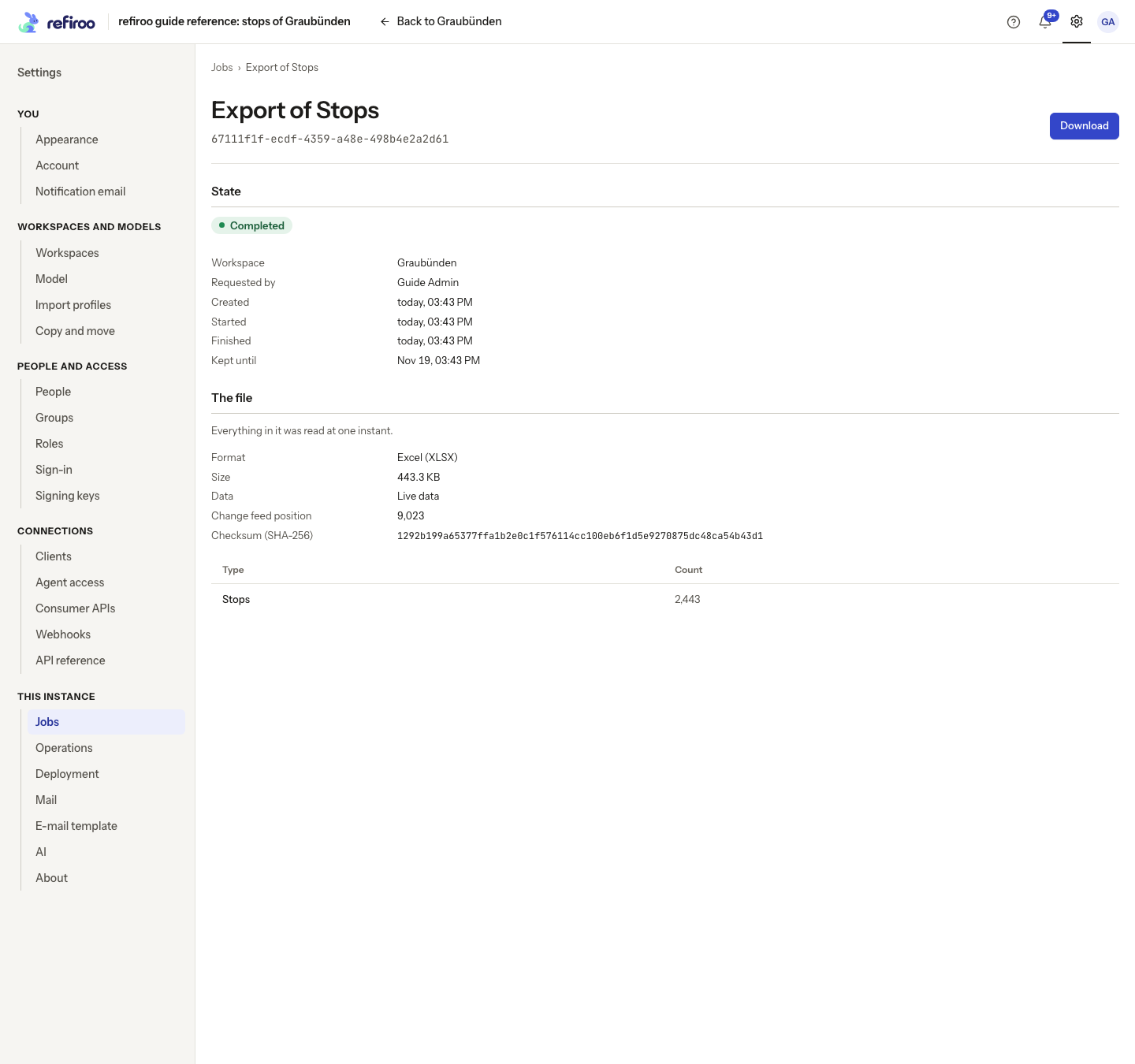
Section titled “What a job’s page shows”An import has its file/profile choices, row outcomes and column report. An export has The file, with counts by type, format, size, checksum, context and Download after success. An unsuccessful export has no file. Keep any file you need before its retention ends.
A copy or move shows records and relationships made, refused and not moved, breakdowns by type, and outcomes filterable by reason. Source record names open in their original workspace. Older retained jobs may lack relationship-type counts. A migration shows converted, type-changed, removed and must-be-fixed counts. These operations are described under Model mappings and Migrations. A job without item outcomes instead explains what it belongs to and links there where allowed.
Cancellation and access
Section titled “Cancellation and access”Cancel queued, running or waiting work with the offered cancel button and its confirmation. Cancellation stops future work; it does not roll back already committed chunks. All-or-nothing work commits as one unit, while independent work can leave partial results. A colleague’s edit to a shared change set between chunks can stop the next chunk; earlier chunks remain.
Jobs run with the requester’s current rights. Deactivation or losing a required permission can fail work at its next step. You see your own jobs and jobs your permissions allow; knowing a job’s address does not grant access. A retired workspace refuses new data changes.
The tab that starts work reports progress and completion while open. The inbox can also receive waiting and finished-job notices. Opening a job marks its notices read, including notices that arrive while it stays open. Closing a page does not itself stop a running job.
Read the job labels
Section titled “Read the job labels”| State | Meaning and next action |
|---|---|
| Queued | Waiting to start. Cancel if the work is no longer wanted. |
| Running | Work is in progress. Follow its counts or leave it running in the background. |
| Awaiting confirmation | A preview is ready; review it before Apply or Load the file. |
| Completed | Processing ended. Check the result and refused items before relying on it. |
| Failed | Work stopped with an error. Read Why it failed and any applied counts. |
| Cancelled | Cancellation has finished. Check what was applied before it stopped. |
| Expired | Retention ended. Start new work if you need another preview or file. |
The result label is separate: Every item applied, Partly applied or Nothing applied. A failed independent chunk is rolled back, while earlier committed chunks stay applied. Cancelled all-or-nothing work rolls back its transaction completely. Not reached items can mean cancellation, failure, a model change or a colleague changing the change set. With all-or-nothing work, an otherwise valid item can be unwritten because another was refused.
The list distinguishes Batch, Import, Export, Workbook for people, Profile, Profile check, Dry run, Inference, Mapping proposal, Migration and Move. Some belong to model-administration tasks; their pages link to that work. Refresh reloads the list and Show more continues it. New export starts a file; New import appears when your permissions allow importing.
State names the workspace and requester and shows creation, start and finish times. For an export, The file also records Sheets, its Live/change-set/publication scope, Change feed position, Valid on when chosen and Checksum (SHA-256). Use those facts to distinguish similar retained files; the checksum identifies the completed file’s contents.
Cancel this job? offers Stop the job or Keep the job. If it finished first, read the refusal and refreshed state rather than assuming it was cancelled. The change was not applied after confirmation leaves the preview waiting: cancel it and create a fresh preview against current data. The old result remains readable until retention ends.
Copies keep their source identity so a later copy can update its earlier counterpart instead of making another one. Moving a copy back can update the original, or recreate its original identity if it was removed. Inspect the source links and results before publishing. A move’s source deletions wait for the target copy to be published first; the deletion proposal cannot be published ahead of the copy it depends on. See Model mappings for mapping design, or Copying and moving records for preparing and reviewing a transfer.
On a waiting preview’s own page, Cancel this import? offers Discard the import, or Cancel this preview? offers Discard the preview. Keep the import or Keep the preview returns to the preview. Discarding writes nothing and leaves the preview readable until expiry. On the Jobs list, the confirmation button is Cancel job instead. Results and files are normally kept for seven days; your deployment’s Limits and the job’s Kept until give the applicable retention.