Rotate signing keys
You need Security administration. Choose the normal or emergency procedure below according to the reason for replacement. See Signing keys for the automatic schedule and how these keys differ from client secrets.
Start a normal replacement
Section titled “Start a normal replacement”- Open Settings › People and access › Signing keys. Note the key marked Signing and its Created time. A previously replaced key may still show Verifying until.
- Choose Start a new key when ready. This acts immediately, without a dialog. It is not a preview or the start of a confirmation sequence.
- Check that a new row is Signing and the previous key has a replacement time and a verification deadline. Existing access continues until it expires. People and clients move to the replacement through normal renewal; no secret handover is needed.
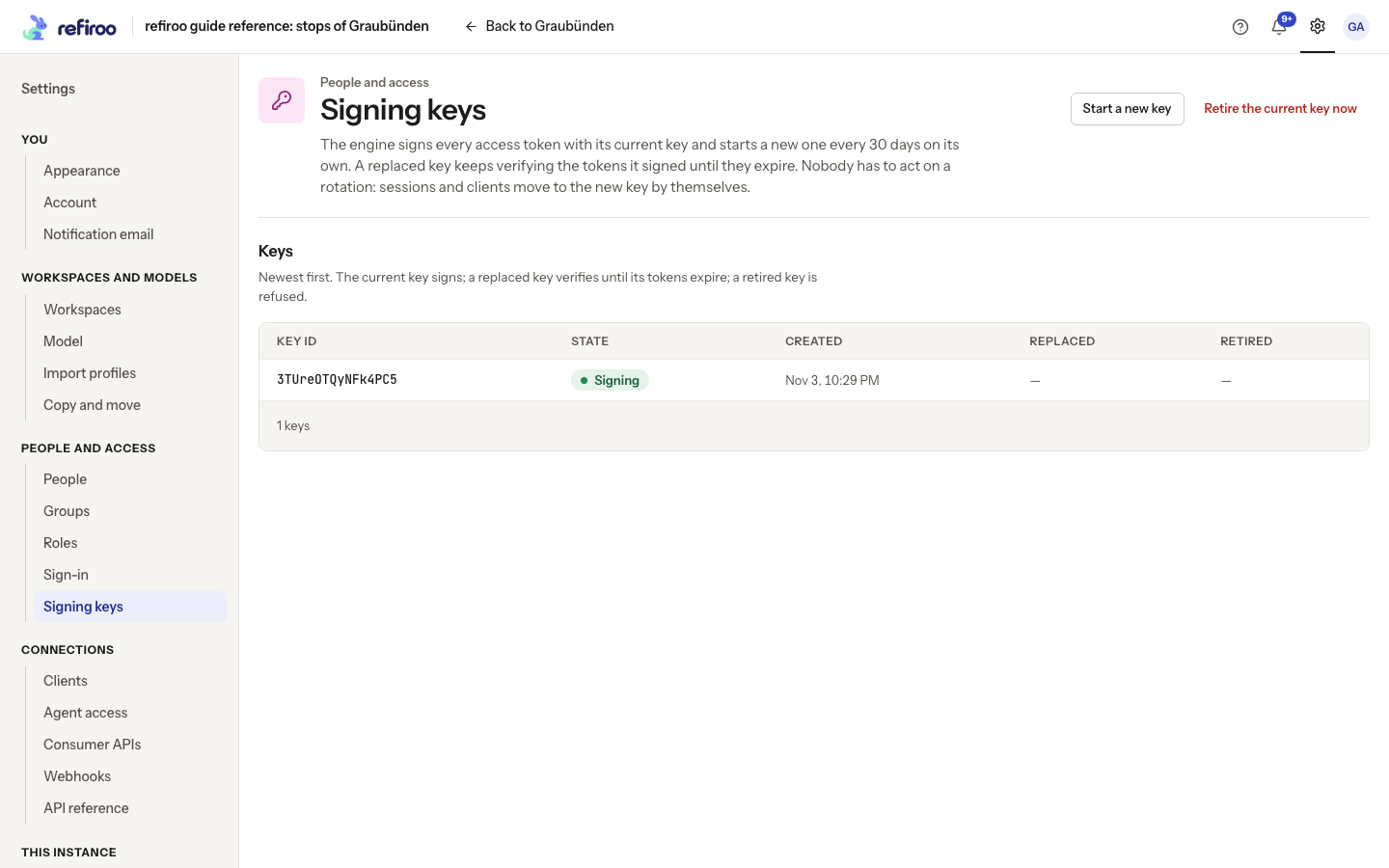
Above: The reference instance has one current key, marked Signing.
Retire the current key after suspected disclosure
Section titled “Retire the current key after suspected disclosure”- On the same page, check which key is Signing. Choose Retire the current key now.
- Read Retire the current key now?. Access signed with that key is refused from the next request. People’s sessions renew without a fresh sign-in; clients must retry with fresh access obtained using their unchanged client secret.
- Choose Retire it now to proceed, or Cancel to leave the key in place.
- Check the list for the retired key’s Retired time and a new Signing key. Have affected integration owners check renewal if their systems report a refusal.
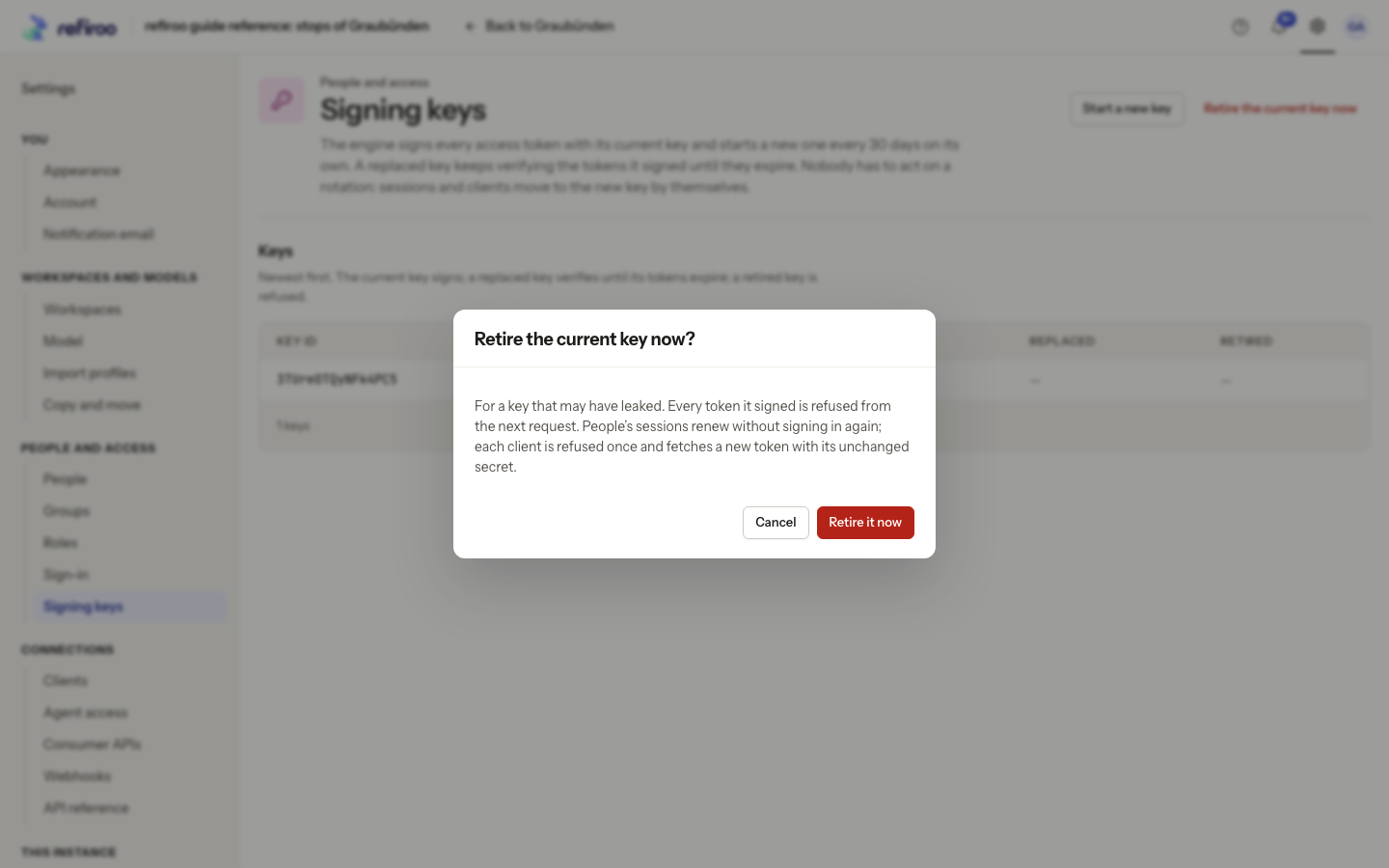
Above: the reference retirement confirmation is open but has not been confirmed.
If the action reports a failure, read the message and reload the key list to establish the current state before trying again. A signing-key retirement does not replace a leaked client secret; use Rotate a client secret for that separate credential.