Retire or delete a workspace
Open Settings › Workspaces with Workspace administration. See Managing workspaces for active and retired states.
- Open the workspace and check its name, key and default status. The default cannot be retired or deleted; make another workspace default first.
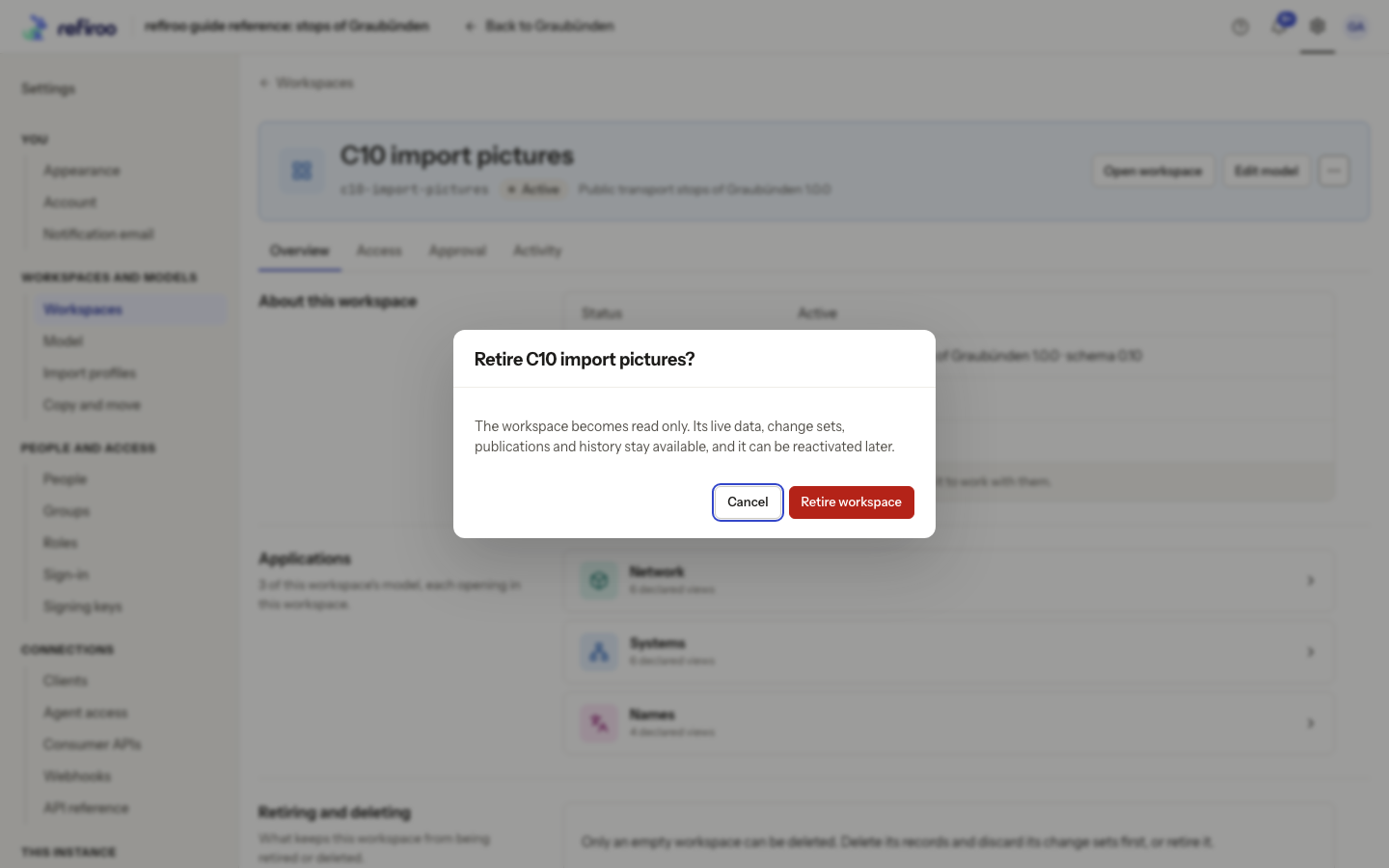
- To keep the data but stop changes, choose More actions › Retire…. Read the confirmation and choose Retire workspace, or cancel. It leaves the active selector and becomes read-only. Records, change sets, publications and history remain readable through workspace management.
- To resume work later, open the retired workspace in this list and choose More actions › Reactivate. Check the active state. Reactivation does not change its model release. Retirement also suspends its active webhook subscriptions; ask their administrator to resume them separately after reactivation.
- Use More actions › Delete… only for an empty workspace that has never been published and has no change sets or webhook subscriptions. Read the page’s explanation of anything preventing deletion. Even an emptied workspace with past publications must be retired instead.
- If eligible and no longer needed, read the deletion confirmation’s name and key, then choose Delete workspace. Cancel preserves it. Do not treat deletion as reversible retirement.
If an action fails or reports a newer workspace version, review the current state before retrying. A missing action can also mean insufficient permissions or disabled administration.