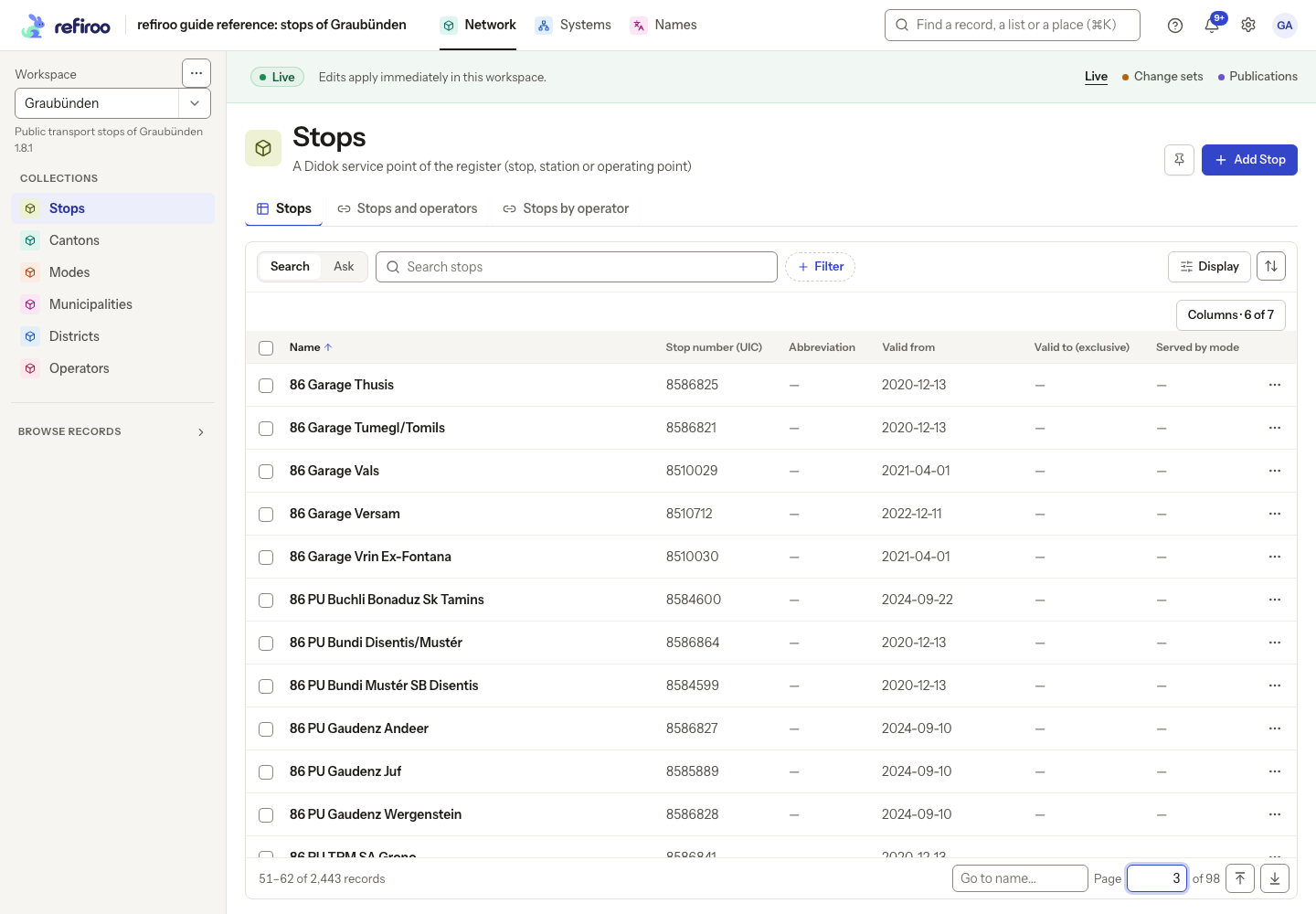
Continue a long list
Find a distant row without scrolling through every earlier result. See Lists, search and filters for what the controls mean.
- Open a collection and check its workspace and context. Search, filter and sort before choosing a position: a different condition changes which records occupy that position.
- Scroll the rows inside the table. The footer shows your range and the full matching total. Scroll back up to read earlier rows; where an append-style list offers Show earlier records, choose it to read the preceding group.
- To reach a numbered page, enter the number in Page and press Enter. Check the range after it loads. Use Go to start or Go to end for either end. With the list focused, Ctrl+Home and Ctrl+End reach those ends too.
- Where Go to is offered, enter a value for the current sort and submit it. This seeks the value’s place in that ordering; it does not add a filter. Check nearby names and identifying fields if there is no exact match.
- Open a record. Choose ← and the list’s name above the title to return with your search, filters, sort and position. Save or share the address if you need to return later. Changes to the underlying data can change the records at that position.
If a jump fails, retry the failed read. Do not clear your search just because a page failed. Use the list’s own search rather than the browser’s Find command: Find sees only drawn rows.