Set up mail
Use this task to deliver account links and notices through your organisation’s mail server. You need Security administration for the whole instance and the server details from your mail administrator. Mail explains delivery states and retry limits.
For the layout and logo around every message, an operator uses E-mail template. Saving mail delivery settings does not change that template.
Save the server
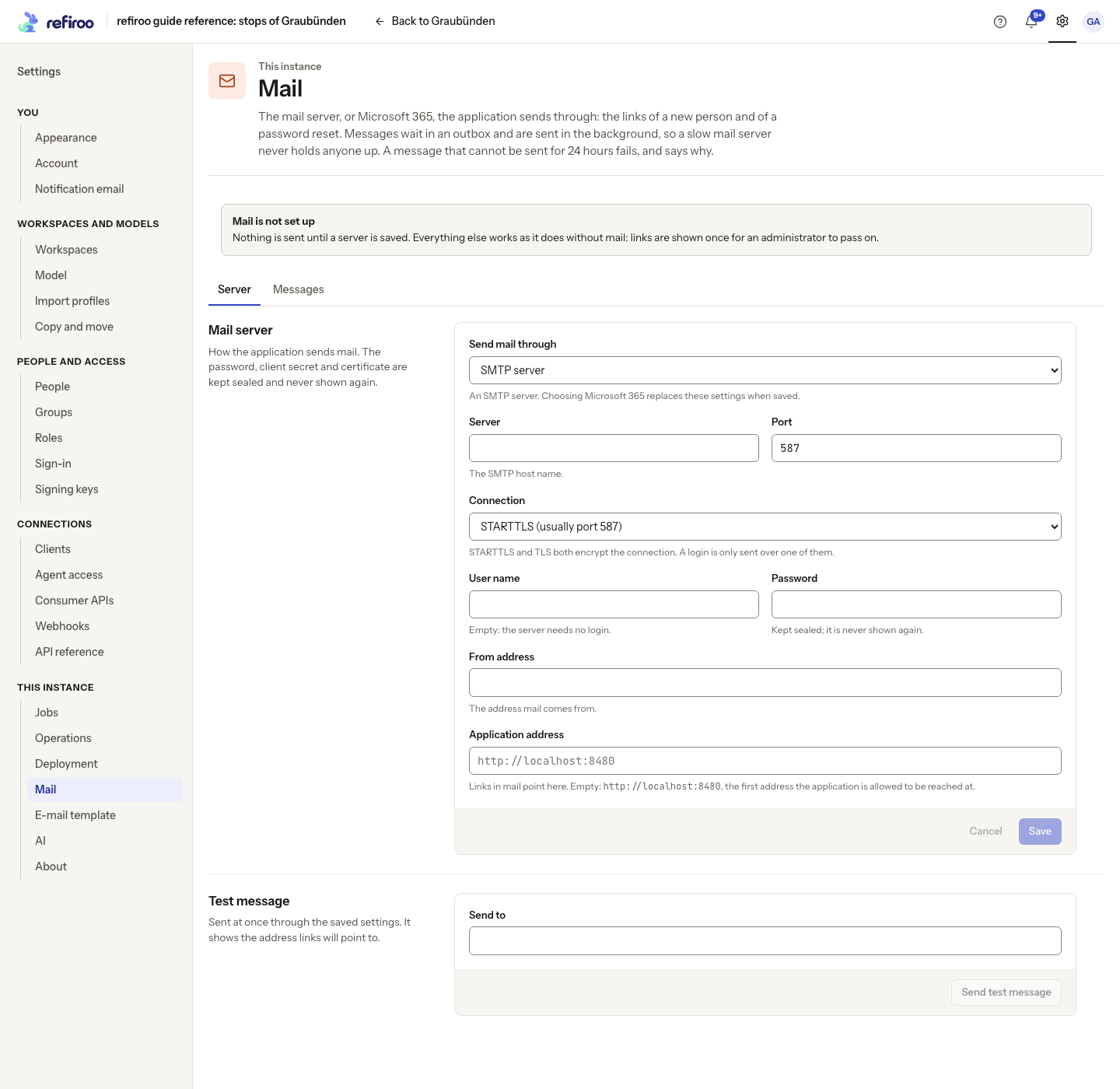
Section titled “Save the server”- Open Settings › This instance › Mail and the Server tab. If nothing is saved, Mail is not set up explains that password links must be passed on by an administrator.
- Under Mail server, enter Server and Port. Choose Connection: STARTTLS usually uses 587; TLS usually uses 465. Choose None: not encrypted (a relay on a trusted network) only for an approved relay without login.
- Enter User name and Password if the server requires a login. Save is unavailable for a login over an unencrypted connection. A saved password is never displayed; enter it again when changing server or port.
- Enter From address, approved by the mail administrator. Enter Application address if links should use a different address from the displayed default. Recipients must be able to reach it.
- Choose Save. Wait for Mail settings saved. Send a test message to try them. Saving alone does not prove the mail server works. Cancel restores the saved values.
If The settings were not saved appears, read the reason and correct the named field. If someone changed the settings meanwhile, review the reloaded values before reapplying your edits.
Prove delivery
Section titled “Prove delivery”- Under Test message, enter your mailbox in Send to and choose Send test message. This uses the saved settings.
- If Sent appears, open the mailbox. Check junk mail and verify that the message’s application address opens the intended refiroo site.
- If the server could not be reached, check host, port and network access with the operator. For a failed secure connection, ask them to check the server certificate and trust. For a refused login, recipient or sender, correct that detail with the mail administrator, save and test again.
Check ordinary messages
Section titled “Check ordinary messages”- Use Add a person or make a password link for the intended person, checking their e-mail address first. Keep the one-time link securely until delivery is confirmed.
- Return to Mail › Messages and choose Refresh. Filter State to Waiting, Sent or Failed. Read Tries, Last problem and Next try before retrying the user’s task.
- Correct a server problem in Mail server. Waiting messages retry automatically; a failed password message needs a new link. Do not expect a stopped or failed message to restart.
- To stop a waiting message, choose its Stop sending, check the recipient and confirm Stop sending. Keep trying leaves it queued. Its text is erased, but its existing link remains valid until used, replaced or expired.
Removing the mail settings stops sending; waiting messages remain until their delivery window ends. Use Remove settings…, read the warning and confirm Remove them only when that is intended. People choose their own notice mail and digests under Settings › You › Notification email; configuring a server does not opt them in.
Replace credentials or move the site
Section titled “Replace credentials or move the site”- For a replacement mail password, enter it in Password, keep the agreed server and sender, and choose Save. Blank keeps an existing password for the same server; it does not replace an expired one.
- Send a test and check both delivery and the link destination. If the site moved, save the new Application address before creating any new password links.
- Check Waiting messages. Existing links keep their old address. Where that address no longer works, stop the waiting entry when possible and make a fresh password link; do not assume changing the setting rewrites the outbox.
After removing mail settings, recovery means entering and testing them again. Previously failed messages do not restart when settings return, and the deleted password cannot be read back from refiroo.