Agent access
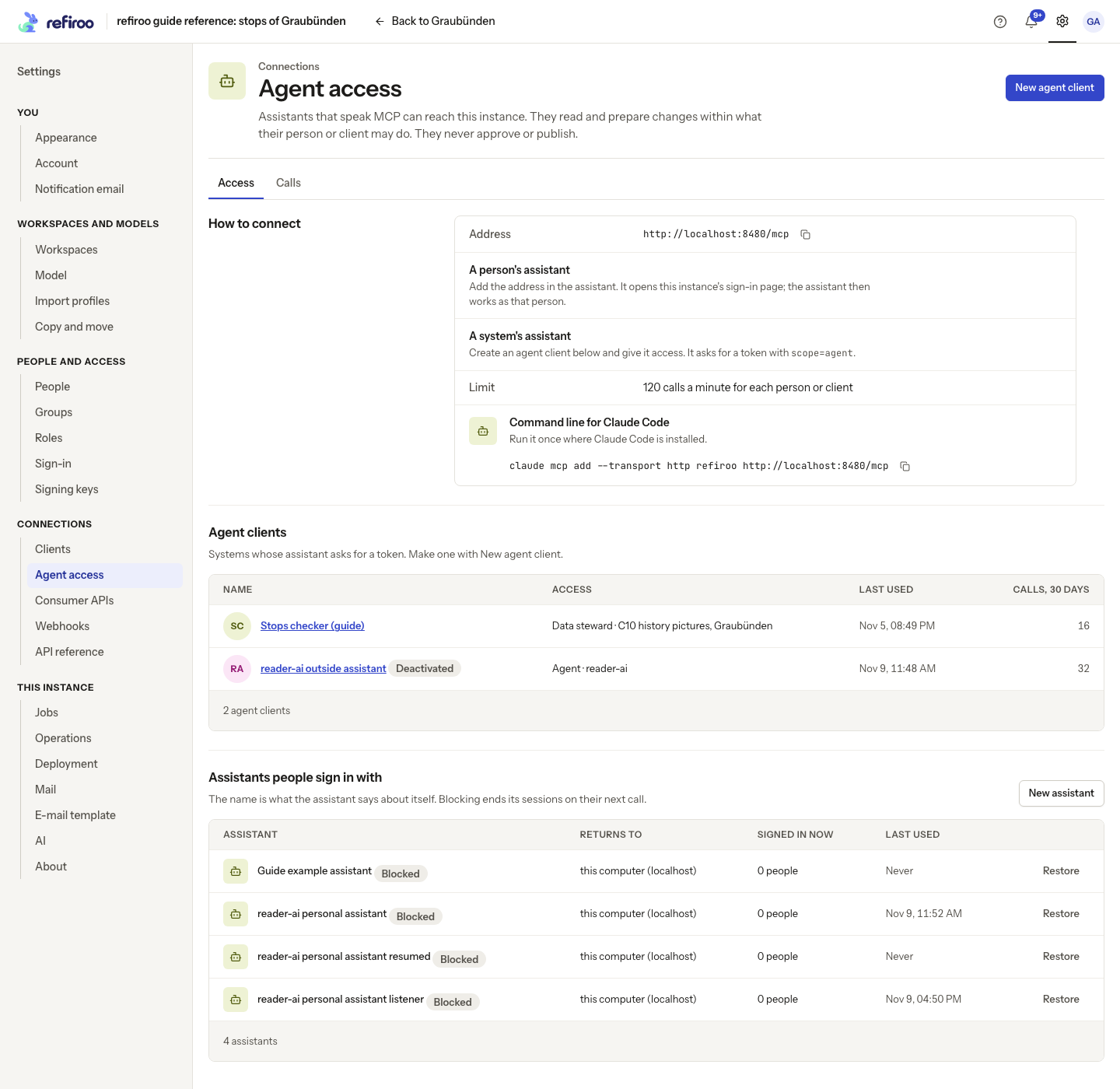
Use Settings › Connections › Agent access to manage assistants that connect to refiroo through the Model Context Protocol (MCP). You need Security administration across the instance. The page shows how to connect, agent clients for systems, assistants people sign in with and the calls they made.
An external assistant acts as its person or client, within their grants and a further limit: it can read and prepare changes, but never write live data, approve or publish. Giving its person a more powerful role does not remove that limit.
This is separate from the built-in Claude Code assistant used to load workbooks or change a model. See AI settings and access for that assistant, its permissions, costs and retained files. Follow Manage an assistant’s access for the steps on this page.
Connection and sign-in
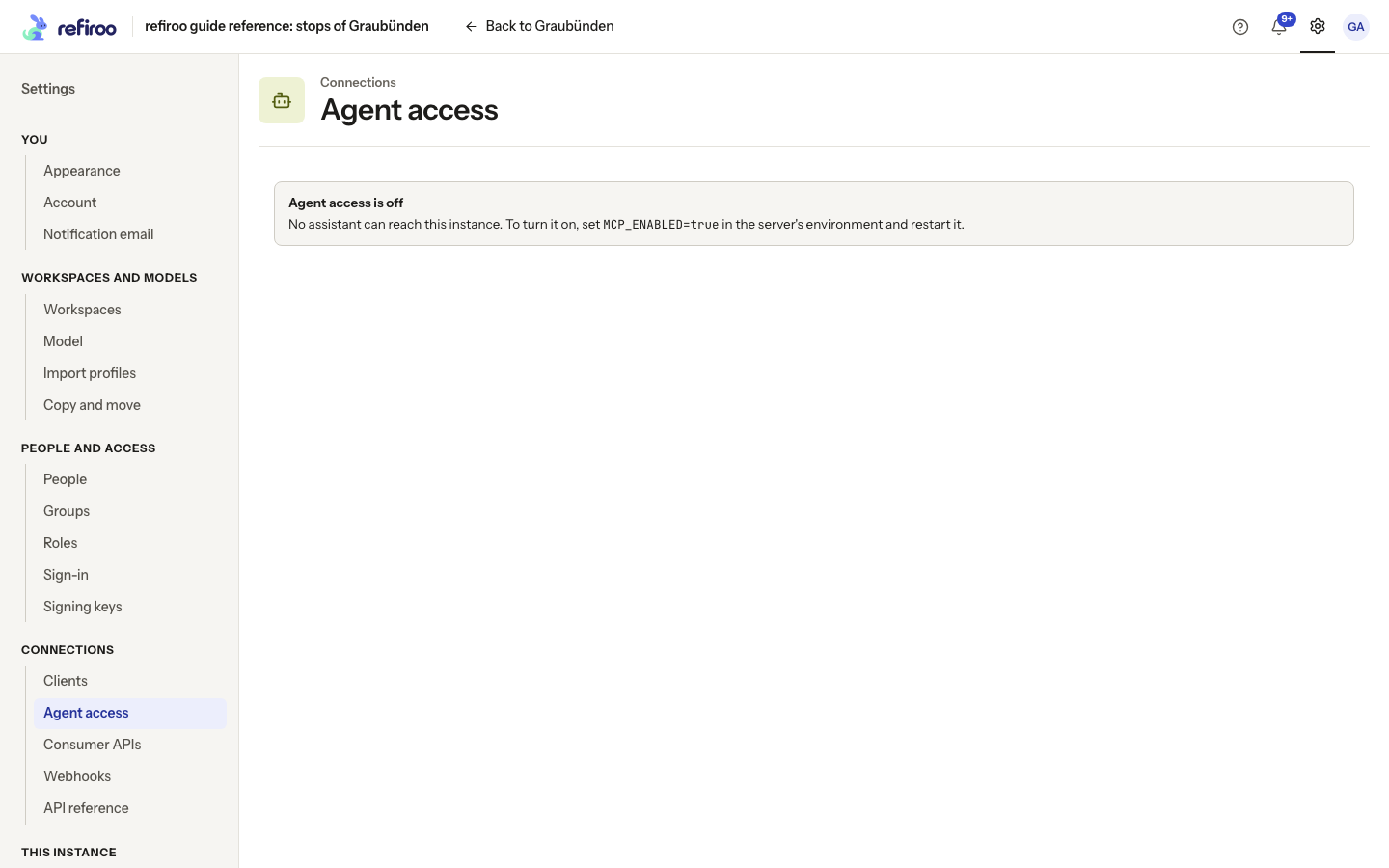
Section titled “Connection and sign-in”The operator enables agent access and restarts the server. Agent access is off means assistants cannot connect; this page cannot switch it on. When enabled, the Access tab’s How to connect shows Address, a copy control and Limit, the number of calls each person or client can make per minute.
An external assistant connects at the address shown. Give the exact copied address to the assistant. Developers who need the protocol path, authentication and tool details can read Assistants and agents.
A person’s assistant opens this instance’s own sign-in page. The page names the assistant and where it returns. The name is the assistant’s own claim, not proof of its identity. Check both before signing in. Signing in authorises it to act as that person; no additional Agent role or Use AI proposals grant is needed for this connection. Its session appears among the person’s account sessions, with the assistant’s name. Ending that session stops its access.
A system’s assistant uses an agent client, created here with its own access grants. It does not sign in as a person. The connection credentials for agent access are separate from those used by ordinary integrations; they cannot be used to reach the other APIs. An ordinary integration’s credentials cannot be used for agent access either. Ask the integrator to use the correct connection type rather than widening roles to solve a sign-in failure.
What an assistant can read
Section titled “What an assistant can read”With Browse in a workspace, an assistant can read its model, applications, types, records, relationships, mapping coverage, record history and workspace changes. It can also read the facts of what changed in a period, without asking an AI provider for an explanation.
Consumer APIs declared by the model become lookup tools. Browse allows those tools in the readable workspace. A client granted only a consumer API sees its lookup tool and information about its own access, without gaining general browsing or change-set tools. See Clients for consumer grants.
Tools the caller may not use are absent and are refused if called anyway. A workspace it cannot read is reported as not found. Reads normally show live data. An assistant can also read its own change sets and their model, but cannot browse an older publication. Large lists come back in pages that the assistant must continue reading.
What it can prepare
Section titled “What it can prepare”The predefined Agent role contains Browse and Work in change sets. This is also the maximum role access retained through any external assistant: the person’s or client’s actual grants are cut down to those groups, with their workspace and record-type restrictions preserved. Consumer API grants remain available as described above. The Agent role grants no permission to use the built-in AI features.
With Work in change sets, an assistant can:
- Create a change set, add or change records and relationships, and set field values.
- Read its changes and validation problems, correct them and validate again.
- Submit the change set for publication and read a decision’s comment if it is sent back.
It works only in change sets created by its own person or client. A person’s existing change set counts; a colleague’s is reported as not found. It cannot remove records or relationships, clear field values, withdraw a submission, discard a change set, run batches, reshape a model or choose a release. A submitted change set is frozen to the assistant. Browse alone grants none of the preparation tools.
Writes check the current versions. If someone changed the work meanwhile, the assistant must read the new version before deciding what to do; it cannot silently overwrite it. Validation failures and permission refusals still apply.
A person opens the change set, reviews the proposed records and relationships, arranges any corrections and uses the normal submission and publication process. Changes reach live data only through that human review and publication. When the workspace requires a second person to decide, the person whose assistant submitted the work cannot also approve it. See Approval policies.
History identifies work Prepared by an assistant, with the name the assistant supplied, and records later human edits and publication. The workspace Changes page has no separate assistant filter or mark. For reviewing data changes, see Who changed what.
Registration and stopping access
Section titled “Registration and stopping access”Assistants people sign in with shows Assistant, Returns to, Signed in now and Last used. An assistant appears after someone connects it, or after an administrator registers it. Registration allows sign-in; it does not grant workspace access.
The operator can allow assistants to register themselves. Self-registration permits return addresses on the same computer or approved HTTPS hosts. Otherwise an administrator must choose New assistant, then Add assistant, providing a name and exact return addresses. A registration accepts at most ten return addresses, each at most 2,000 characters, without fragments. The default permits self-registration with no external hosts approved. Self-registered assistants unused for 30 days are removed when they have no open session. Administrator registrations and blocked registrations remain; at most 1,000 unused self-registrations may stand.
Block prevents new sign-ins and ends existing sessions on their next call. Restore permits new sign-ins but does not revive sessions that ended. For a system’s assistant, open its agent client and use More actions › Deactivate instead. A person can end only their own assistant session through their account. If a permission was revoked, the next call is checked against the remaining grants.
Calls, data and costs
Section titled “Calls, data and costs”The Calls tab shows When, Who, Through, Tool, Arguments and Outcome, newest first. Arguments contains names only, never the supplied values. Outcomes are Answered, Refused, Limit reached and Failed. Show more reads older calls. The client list also shows Last used and Calls, 30 days.
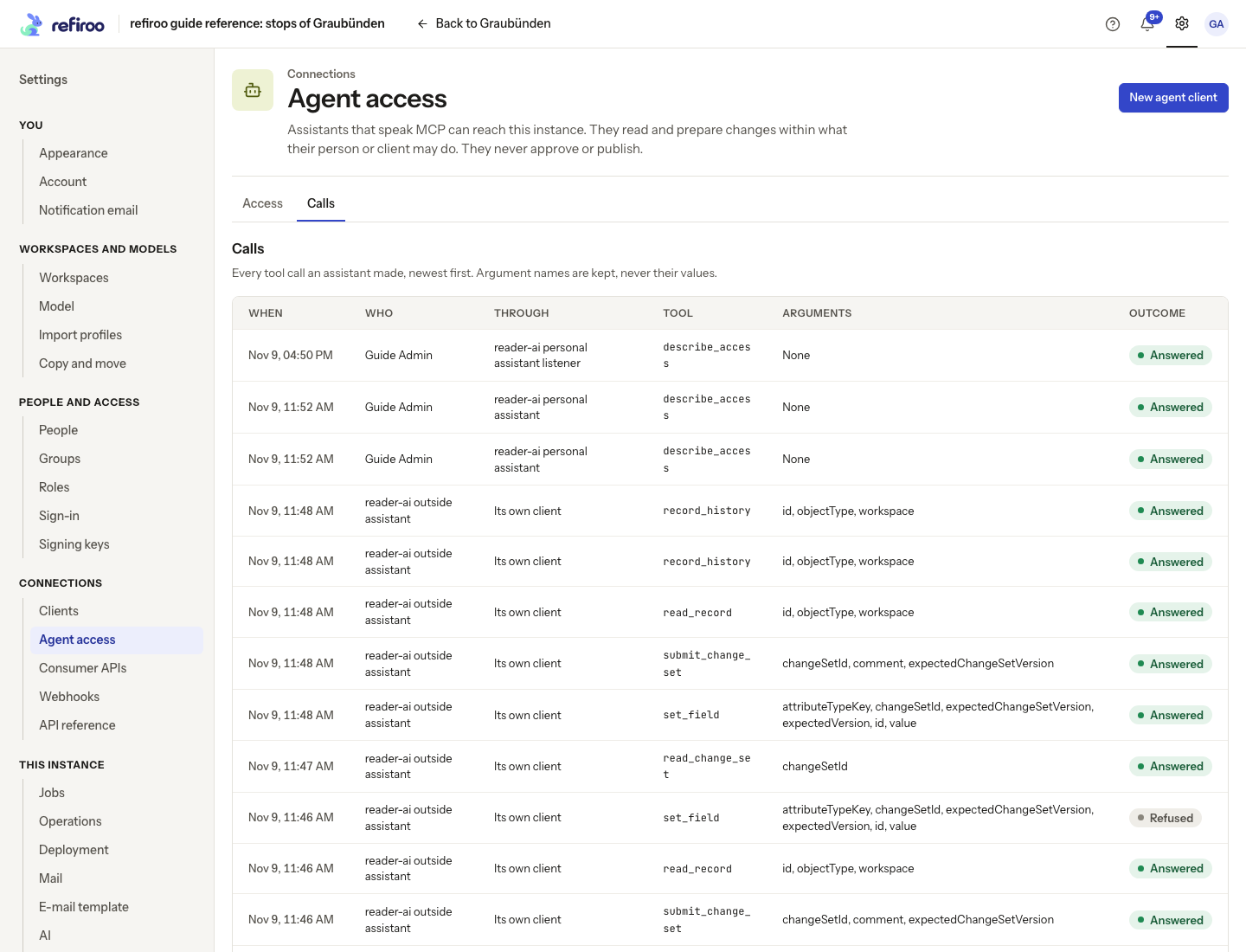
Tool-call records are normally kept for 90 days; the operator controls this retention. Reads do not add separate data-change audit entries. Writes still appear in the normal history and audit. A rate limit refusal tells the assistant how long to wait; investigate repeated refusals before increasing a limit.
Data returned by a tool can go to the external assistant and its provider. The built-in AI send levels do not restrict that assistant after it reads permitted records. Check its data handling, retention and charges under your organisation’s agreement. This page records calls, not the assistant’s complete conversation or provider bill. AI retention and costs explains the separate built-in records.
Text inside a record may mislead an assistant. refiroo treats record text as data, and its tools do not execute instructions found there. Review what an assistant proposes and check its facts against the records before approving publication.
Change or remove a connection
Section titled “Change or remove a connection”There is no edit or delete control for an assistant registration on this page. If its return addresses need changing, register the replacement and have people connect and sign in again; block the old registration when it must no longer be used. Restore acts immediately without a second confirmation. It permits new sign-ins and does not restore ended sessions.
To turn off all external assistant connections, ask the operator to disable agent access and restart. This does not turn off the built-in assistant or erase already prepared change sets. While Agent access is off, the page hides its connection, client, registration and call sections. Turning it back on does not create new grants.
For Failed, obtain the actual error from the assistant or its integration owner; Calls shows the outcome and argument names, not the full request, response or failure explanation. A failed section offers Retry; it is not an empty-list confirmation. For Limit reached, allow the requested wait. Calls by several connections of the same person or client share that caller’s limit.
Moving or restoring registrations, client identities and retained call records belongs to the operator’s instance backup and restore procedure. A public-address change also requires updating assistants with the new connection address. Keep review and publication of their existing proposals in the normal workspace process.