Browse a publication
Use a publication to inspect records as published, even after Live changes. See Publications for snapshot contents and status.
Open the snapshot
Section titled “Open the snapshot”- Open an application in the intended workspace. Check Workspace in the sidebar.
- Choose Publications above the records. The list is newest first. Read the number, model release, publication time and publisher; Current identifies the designated snapshot. Choose Load older publications if the one you need is further back.
- Choose Open publication beside the intended entry. Check the purple banner for the publication number and model release. It says the records are read-only.
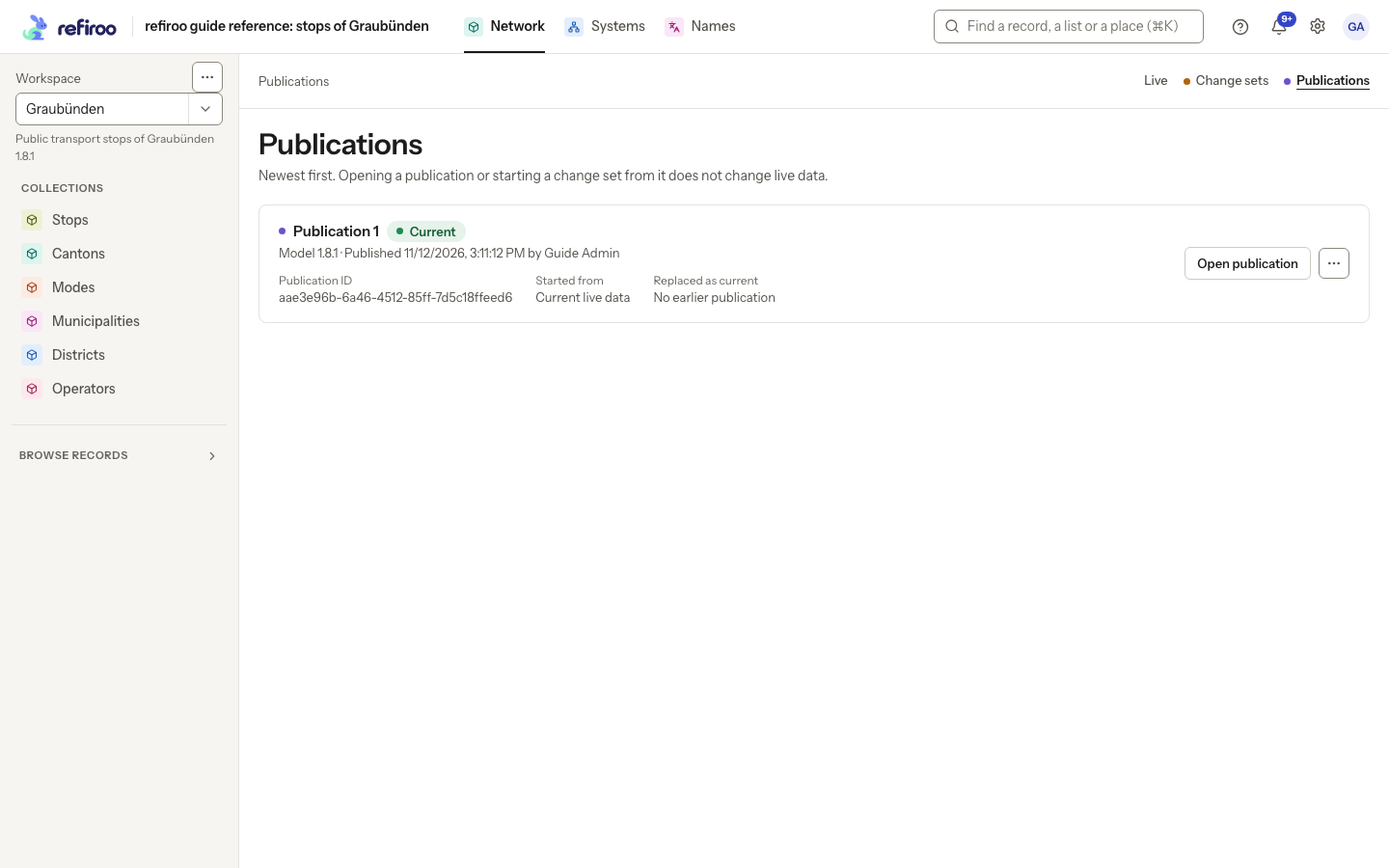
Above: Graubünden has one publication, made after the abbreviation correction.
Find and inspect the record
Section titled “Find and inspect the record”- Choose a collection or view in the snapshot’s navigation. It uses the saved model’s definitions, so its available views may differ from Live.
- Search or filter as you would when finding records. Open the record to read its fields and relationships. An empty result means no records match those filters in this snapshot; clear them before concluding the record was absent.
- Use Back to publications to return to the list, or Live to inspect today’s data. Check the banner again before making a correction in Live.
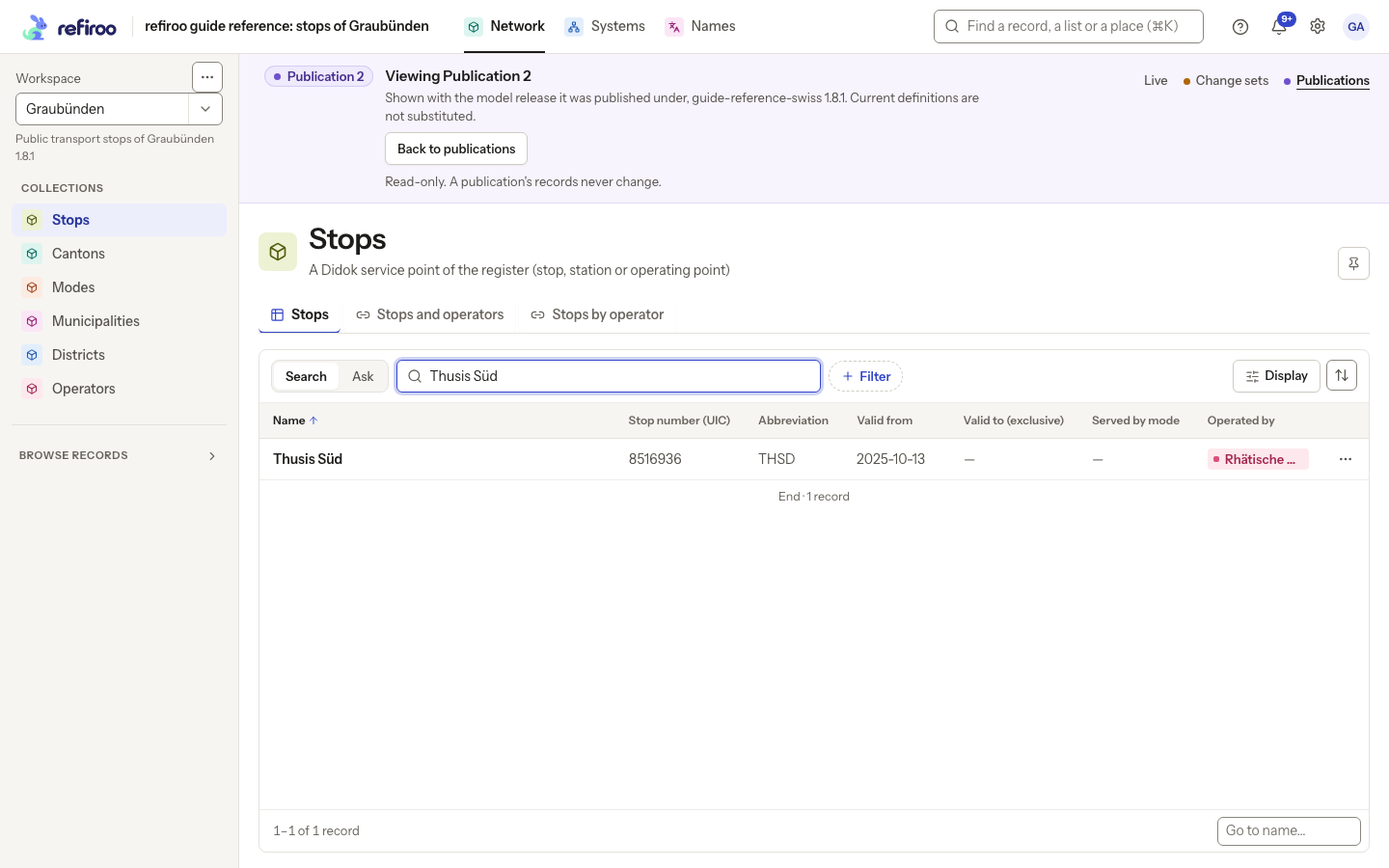
Above: Thusis Süd reads THSD in Publication 1. The purple banner keeps the snapshot context visible.
If the list says No publications yet, the workspace has not had a successful publication. If loading fails, retry. If you need to prepare a correction based on a snapshot, use its menu’s Start a change set from this publication where permitted; opening the snapshot itself never restores or changes live data. Follow Prepare and publish a change set for the editing and review that follows.