See who changed what
Choose the view that matches your question. See History for the meaning of authors, event kinds and publication context.
Check one record
Section titled “Check one record”- Find the record in the intended workspace and open it.
- Scroll to History. Start with All and By: Anyone to avoid hiding an event.
- Choose Values, Relationships or Moves to narrow the list, or select a person in By.
- Read the action, author and time. Expand the entry’s arrow to inspect the stored detail, such as the previous and new field values where recorded.
- Check whether the action was prepared in a change set or applied by a publication before comparing it with the current fields.
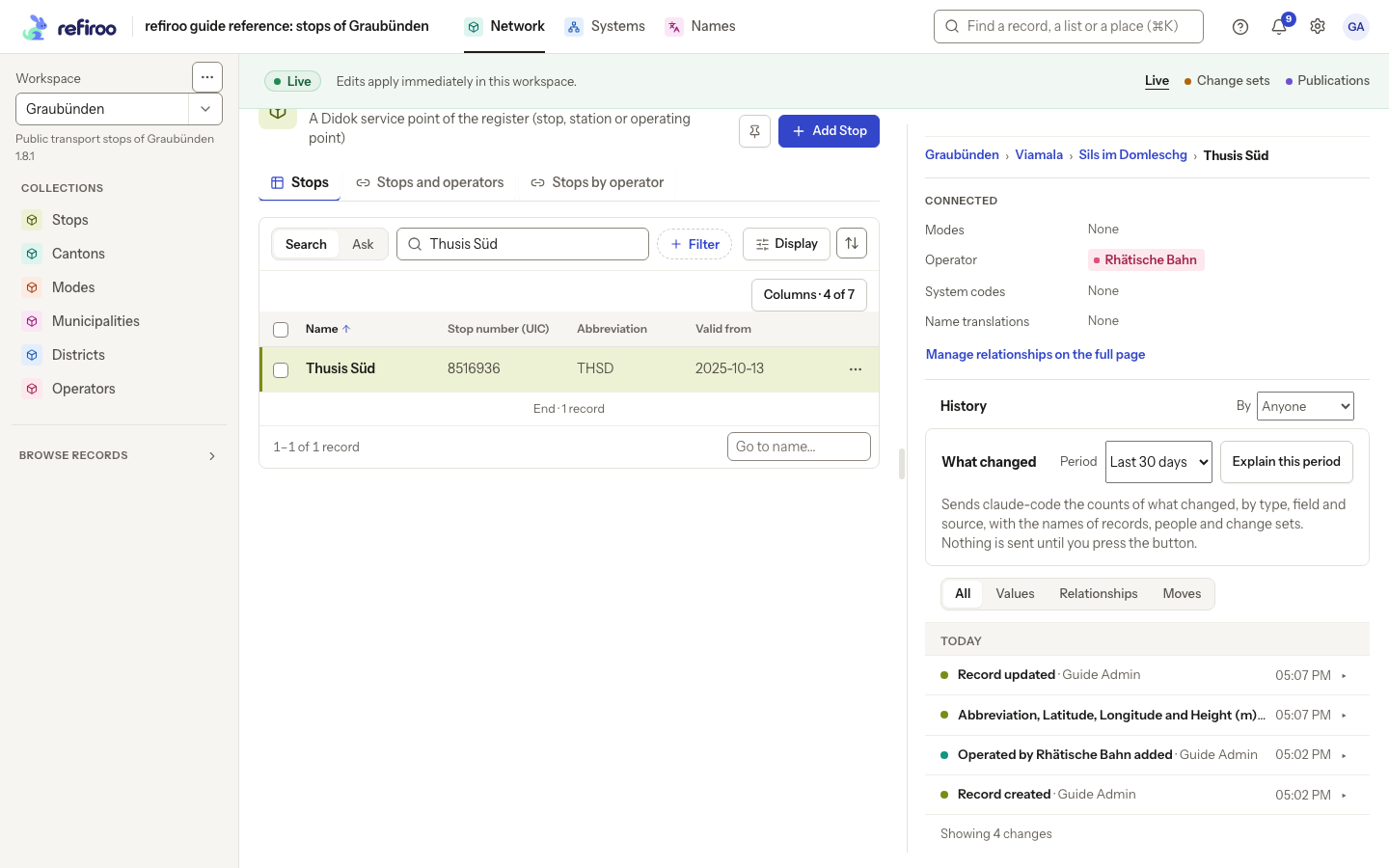
Above: Thusis Süd’s history shows the correction and its later publication. The current field is THSD.
Check activity across records
Section titled “Check activity across records”- Where available to your role, open Settings, Workspaces and select the workspace.
- Choose Activity. It lists the newest actions first.
- Under What, choose Records, Relationships, Change sets or Publications. Return to Everything to see their sequence together.
- Read who acted and the context beside the time. Follow a linked person’s name to inspect their changes if you need to trace their other work.
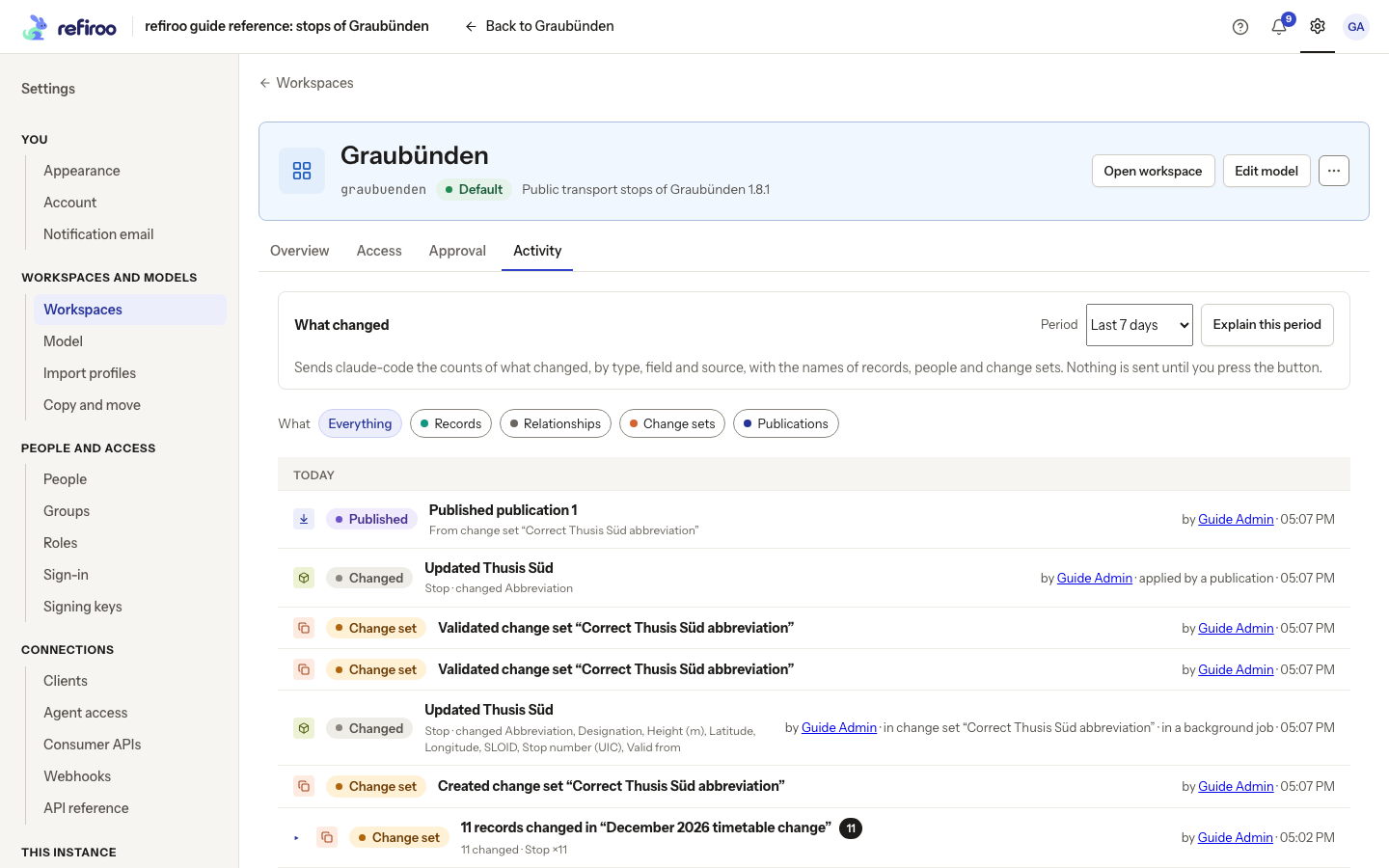
Above: Graubünden’s activity connects the correction change set with the resulting publication.
Find your own work
Section titled “Find your own work”- Select the refiroo name to open Home. Read Your recent changes for recent actions.
- Choose See all your changes. The Your changes page opens.
- Choose Workspace, What and Period. Read each result’s action and context. Widen those filters if the expected action is missing.
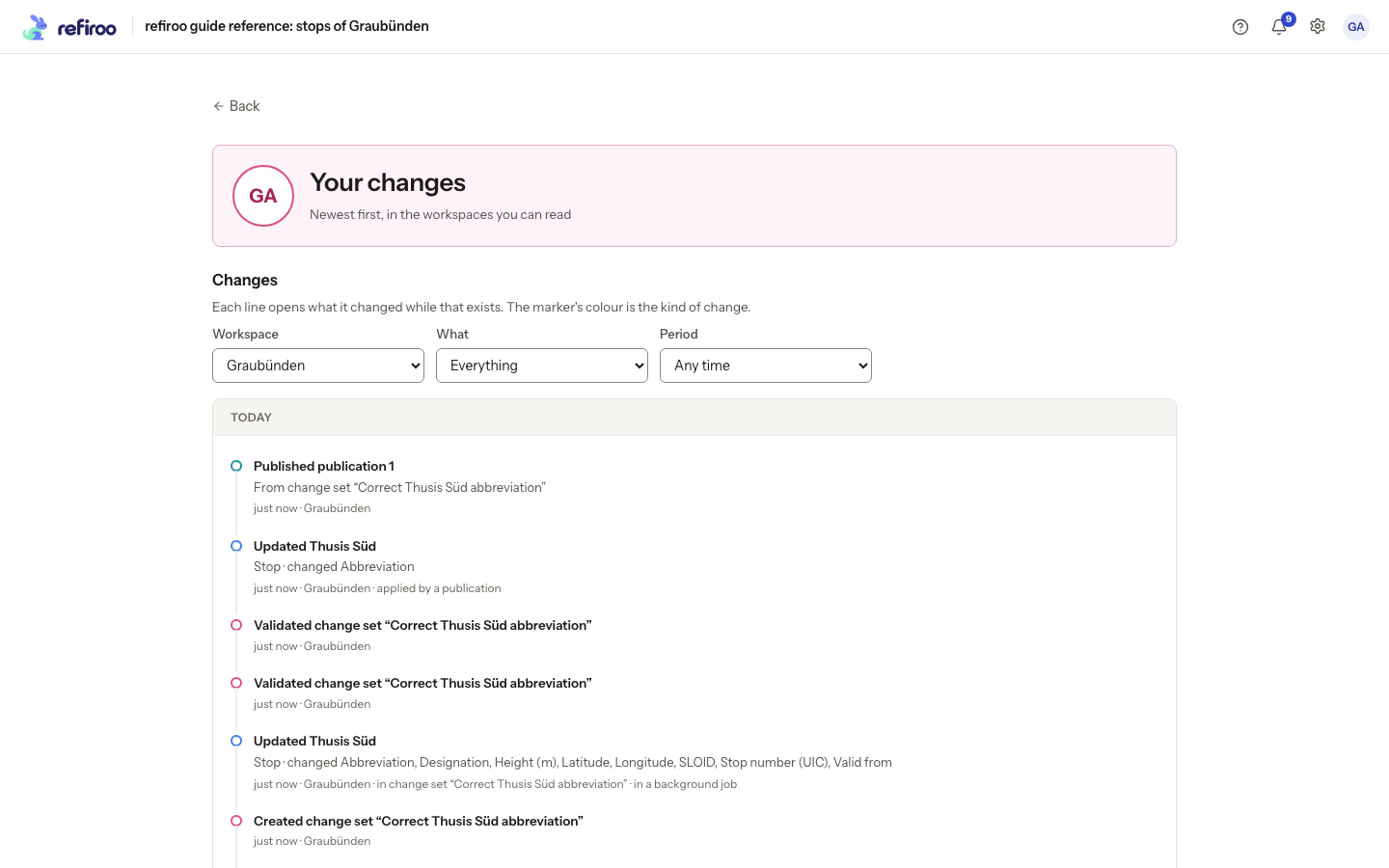
Above: the list is narrowed to Guide Admin’s work in Graubünden.
A failed read needs a retry; an empty filtered result needs broader filters. If workspace management is unavailable, use the record’s History or Your changes, or ask someone with the necessary access to inspect workspace Activity. History cannot restore a value by itself: follow Correct a record to make a new correction.
Under each day heading, read the newest entries first. On the record’s History, use Load older history to read 20 more after the initial ten and Show fewer to shorten the list. Check a job or publication named as the cause; client marks a system’s work, and Before sign-in marks an older entry with no recorded author. Your changes has no value details or export: return to the record’s History for the saved values.
Read an AI account or assistant origin
Section titled “Read an AI account or assistant origin”For a short explanation with links to the counted changes, follow Explain a period in history. Opening History sends nothing; asking for the account sends counts and, at values, names to the provider. Calls can incur costs and are recorded; AI and your data explains sending and retention.
On a record history entry, read Proposed by the AI assistant or Prepared by an assistant alongside who asked, who edited and who published. These are different responsibilities. An external assistant’s displayed name is its own claim. The personal Changes page has no assistant filter; use the record’s History for the mark.