Help someone who lost a device
You need Security administration to change another person’s sign-in methods. Confirm the person’s identity through your organisation’s recovery process before removing protection. A password reset alone does not bypass a second factor. See Sign-in and second factors for how the methods work.
If an administrator manages this account’s sign-in, the person cannot replace their own sign-in methods or end other browsers’ sessions on Account. Use the administrator actions below to remove a lost authenticator app or passkey, make a password link and sign them out. They can still sign out of their current browser. A forgotten-password request sends no mail for this account; make the link yourself. See People and groups for changing this setting.
Check the remaining ways in
Section titled “Check the remaining ways in”- Ask whether they have another registered passkey, a working authenticator app or a saved recovery code. On the sign-in screen, Use a recovery code instead lets an app user use one of their unused codes.
- If they can sign in and manage their own sign-in, have them open Account to replace the lost method and manage their sessions. For an administrator-managed account, continue with the administrator actions below even if the person can sign in. A person with only passkeys has no app recovery codes; another passkey may still work. See Your account.
- If they use the organisation’s provider, recover the provider’s factor there. Removing a refiroo authenticator does not reset a factor managed by the provider.
Remove a lost local authenticator
Section titled “Remove a lost local authenticator”- Open Settings › People and access › People, search for the person and open their row. Check their name, e-mail address and sign-in method.
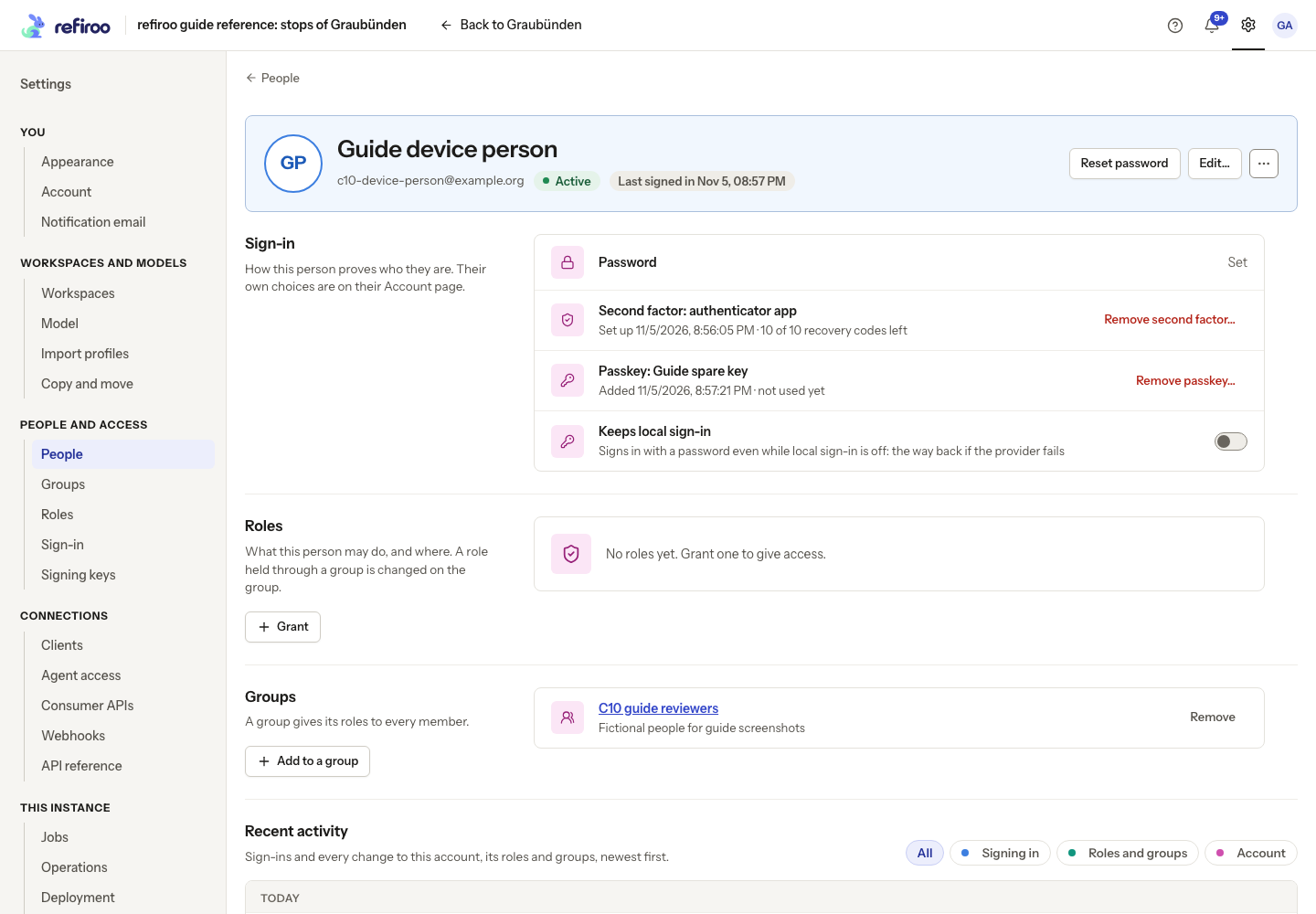
- Under Sign-in, choose Remove second factor… beside Second factor: authenticator app. This button appears only when an app is set up.
- Read the confirmation, then choose Remove second factor. Their app and its recovery codes stop working. Cancel leaves the factor in place. The change is recorded in activity.
- For someone who manages their own sign-in, a required second factor means setting up a new app at their next password sign-in if no passkey remains. Otherwise, ask them to set it up again on Account and save new recovery codes. An administrator-managed account cannot set up a replacement. With no remaining factor, it signs in with the password alone even if the instance requires a second factor.
Remove a lost passkey
Section titled “Remove a lost passkey”- On the same person’s page, find the named passkey under Sign-in. Compare its added and last-used times with the person to identify the lost device’s registration.
- Choose Remove passkey… for that entry. Check the name in the confirmation and choose Remove passkey. That registration can no longer sign them in; other passkeys remain.
- Have them use another available sign-in method. Someone who manages their own sign-in can register a replacement on Account; an administrator-managed account cannot. If they also lost their password, use the password procedure below. An app still set up remains a required step; remove a lost app separately if necessary.
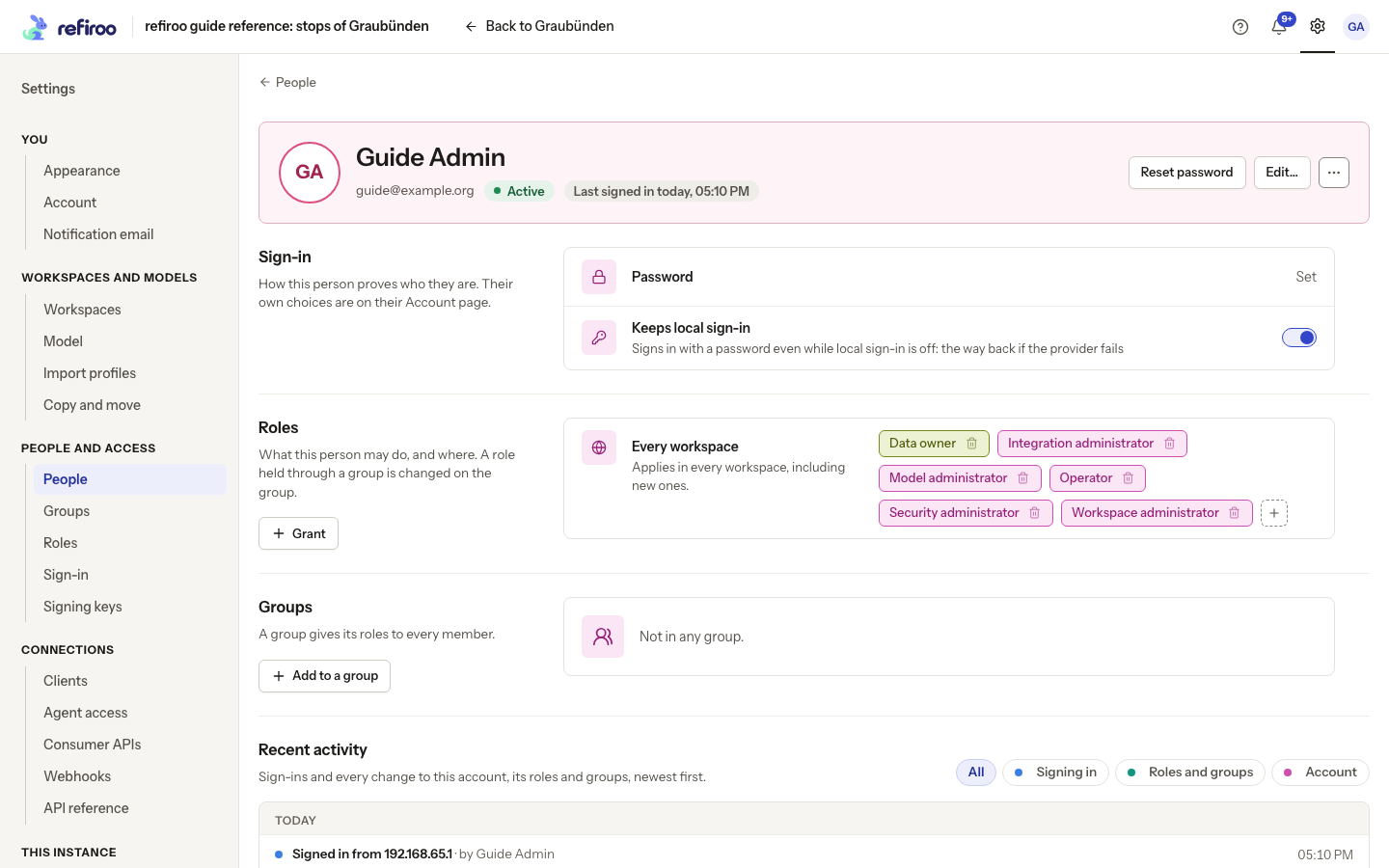
Above: Guide Admin has a password but no authenticator app or passkey configured in this capture, so the removal buttons described above are absent.
Reset a forgotten password and end sessions
Section titled “Reset a forgotten password and end sessions”- With the intended person’s page still open, choose Reset password if they need a new local password. It makes a link at once; there is no confirmation first.
- Copy and pass on the link in Pass on the password link before choosing I have copied it. If available, use Mail it to … and check the sent-to message. A new administrator link replaces every earlier password link for that person; give them the newest administrator link. A later Forgotten your password? request does not cancel this administrator link. Read its expiry.
- Have them open it and set a new password. The secret part of the link leaves the address bar before the form appears. They can reload the page in the same browser without losing the link. If the form no longer opens, reopen the original link while it is valid. Using it ends their refiroo sessions everywhere. A configured second factor remains in force. If the link expired, was replaced or was used, make another.
- If the lost device may still hold a signed-in session, choose More actions › Sign out everywhere on the person’s page and confirm. Every refiroo session ends at its next request. They can sign in again with their remaining or replacement methods. This does not sign other browsers out of the organisation’s provider.
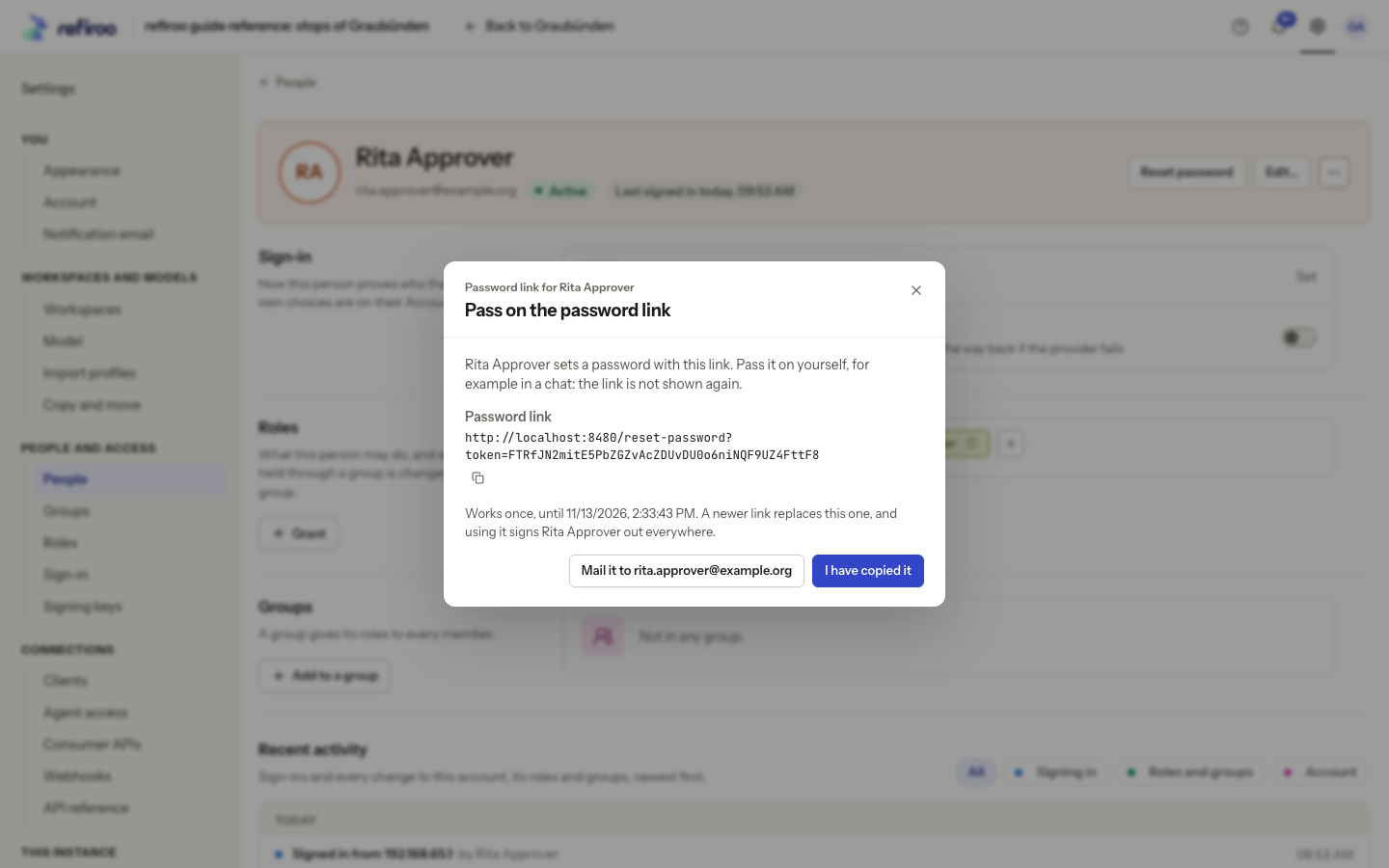
Above: fictional Rita Approver’s reset dialog. The captured link was not used.
If an action fails, read the message and reload the person’s page to check its state before retrying. If no administrator can sign in, ask the operator to use the server recovery procedure. Do not turn off the requirement merely because one person needs a replacement factor.