Open an application
Open the right data before searching or editing. See Applications and Workspaces for how models, datasets and views fit together.
Start from Home
Section titled “Start from Home”- Select the refiroo name in the top bar to open Home. Under Your workspaces, find the intended workspace. Check the model name and release on its card; similar workspace names do not guarantee the same data or structure.
- Choose the workspace’s name or tile to open its page, then choose an application. Its default view opens in that workspace. The application names come from the model. An application link on the Home card opens that application directly.
- Check Workspace in the sidebar and the context banner above the records. Choose Live for current data, or open the intended change set or publication. A publication is read-only; Live saves apply immediately.
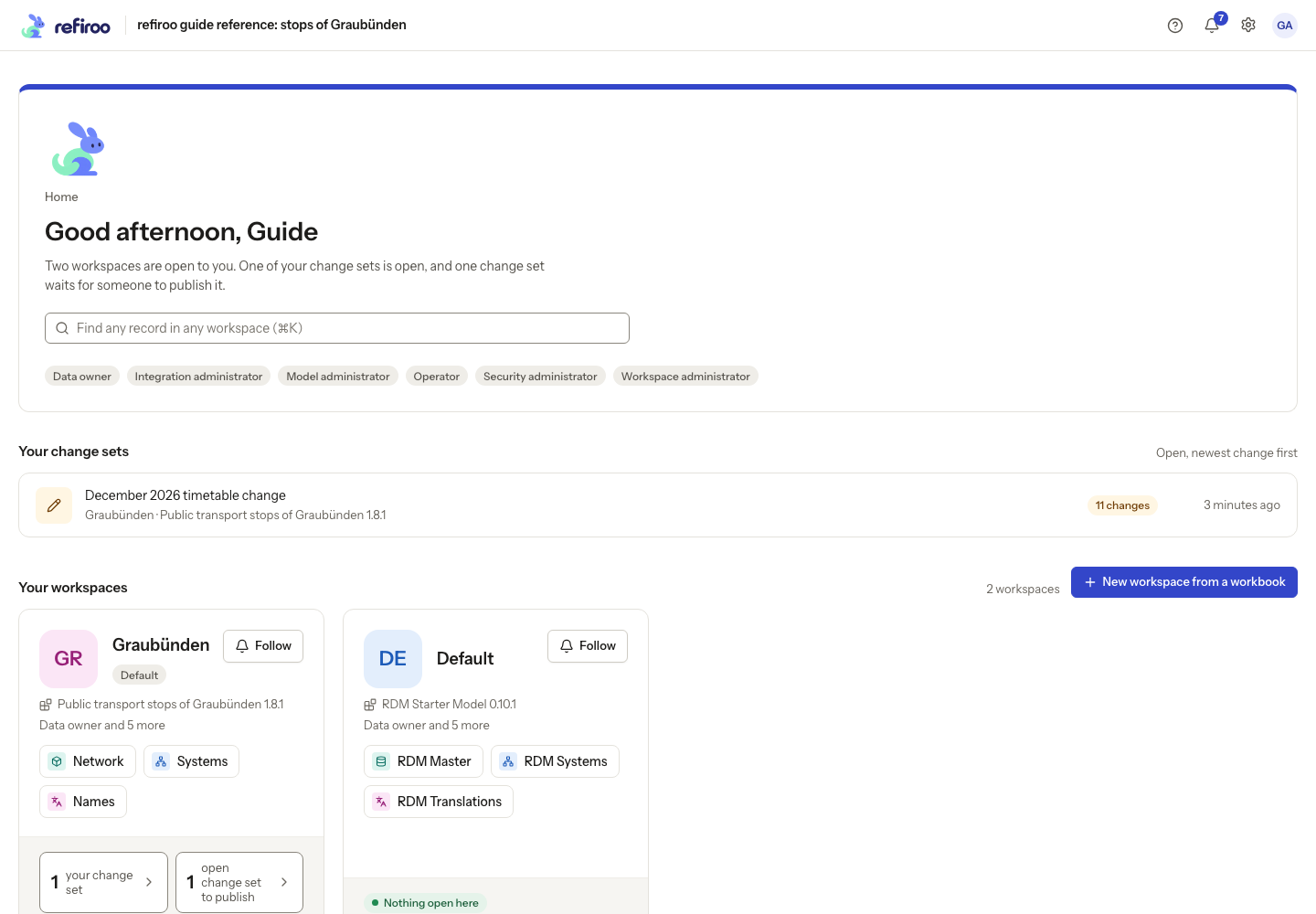
Above: Graubünden offers Network, Systems and Names. Default offers RDM Master, RDM Systems and RDM Translations under a different model.
If no workspace is offered, ask an administrator for Browse access. If Home reports a loading failure, retry it before concluding that no workspaces exist.
Choose a collection and view
Section titled “Choose a collection and view”- Select an application in the top bar, using More if it does not fit. On a phone, choose it in the band beneath the top bar. Read its sidebar collections; switching applications can change which collections are offered. If a collection group is folded, expand it.
- Choose the collection you need. Check the page heading and description.
- If tabs appear below the heading, choose the view that suits your task. A table helps find records; a tree helps arrange records; a mapping grid helps map records; a relation matrix helps check coverage.
- Check the banner again before changing anything. Opening an application or changing a view does not itself save a data change.
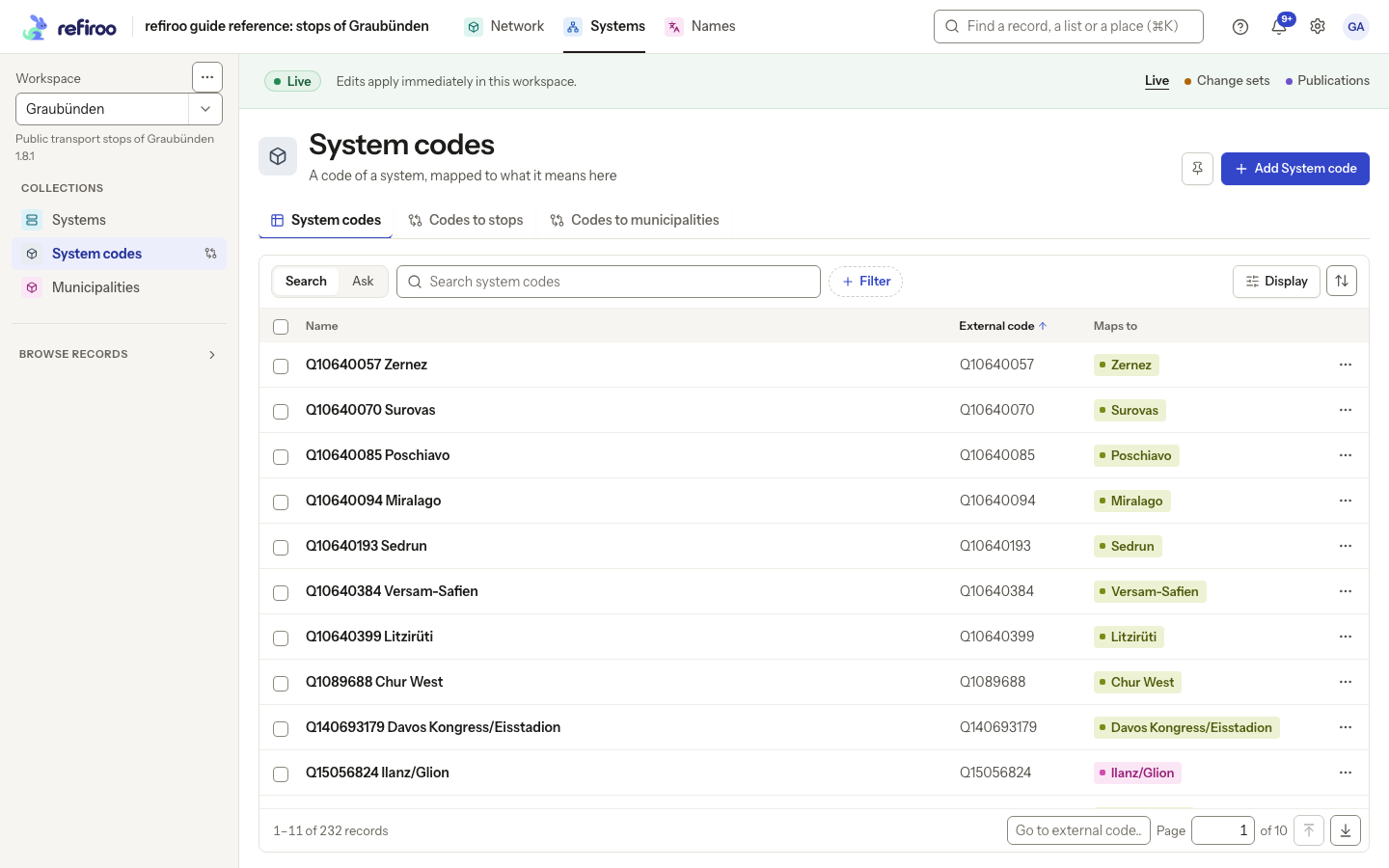
Above: System codes in Systems has a table and the Codes to stops and Codes to municipalities mapping tabs. Other collections can offer different view kinds.
A missing view may simply not be declared by the model. Ask a model administrator about the intended configuration. An empty collection means there are no matching records in that context; a reported loading error needs a retry instead.
Switch workspace
Section titled “Switch workspace”Follow Switch workspace to choose another dataset and check its model, applications and context before editing.
If the address does not fit this workspace
Section titled “If the address does not fit this workspace”After switching, read the toast if the model or release differs. An old bookmark can open Not in this model: the named application, collection or type is absent here. Choose one of the offered workspaces whose model has it, or return Home and open an application this workspace provides. If the workspace itself cannot be served, read the displayed reason and ask the operator for help. Other workspaces remain available. A retired workspace can be opened through Settings › Workspaces where permitted, but stays read-only.
Screenshot data: Source: opentransportdata.swiss, Service Points (Didok), Federal Office of Transport / SBB, snapshot 2026-11-02. Wikidata, CC0. See The example data for sources and fictional additions.