Hierarchies
A hierarchy places records under parents so you can browse and maintain their structure. Use Arrange records in a tree to expand branches, rename records and move them.
Parents, children and branches
Section titled “Parents, children and branches”A record has at most one parent. Records directly inside it are its children; all the records below it are its descendants. The path on a record’s page shows its ancestors. A branch can contain several record types, or repeat the same type through several levels.
The model defines which types may contain which others and which types may stand at the top without a parent. A type label grouping records in a tree is navigation, not another record. A tree view shows the roots and types chosen by the model; it need not show every record in the workspace. The sidebar’s Browse records tree is another route to records. Open its folded heading to browse; your choice is remembered in this browser. Use Find any record in the top bar to search names across the workspace.
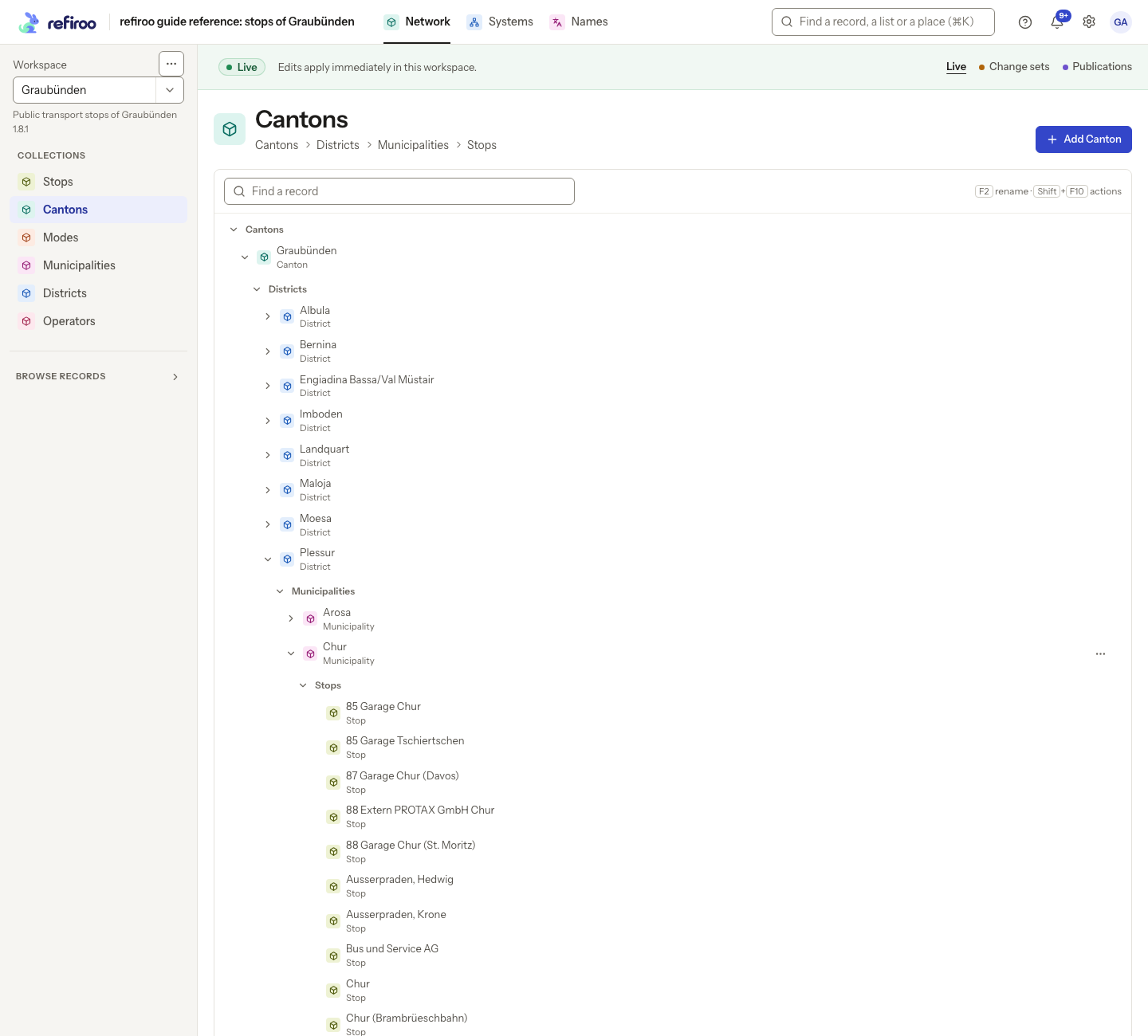
Above: Geography in Network follows Graubünden through Plessur and Chur to Chur’s stops. Cantons, Districts, Municipalities and Stops are type groups between record levels.
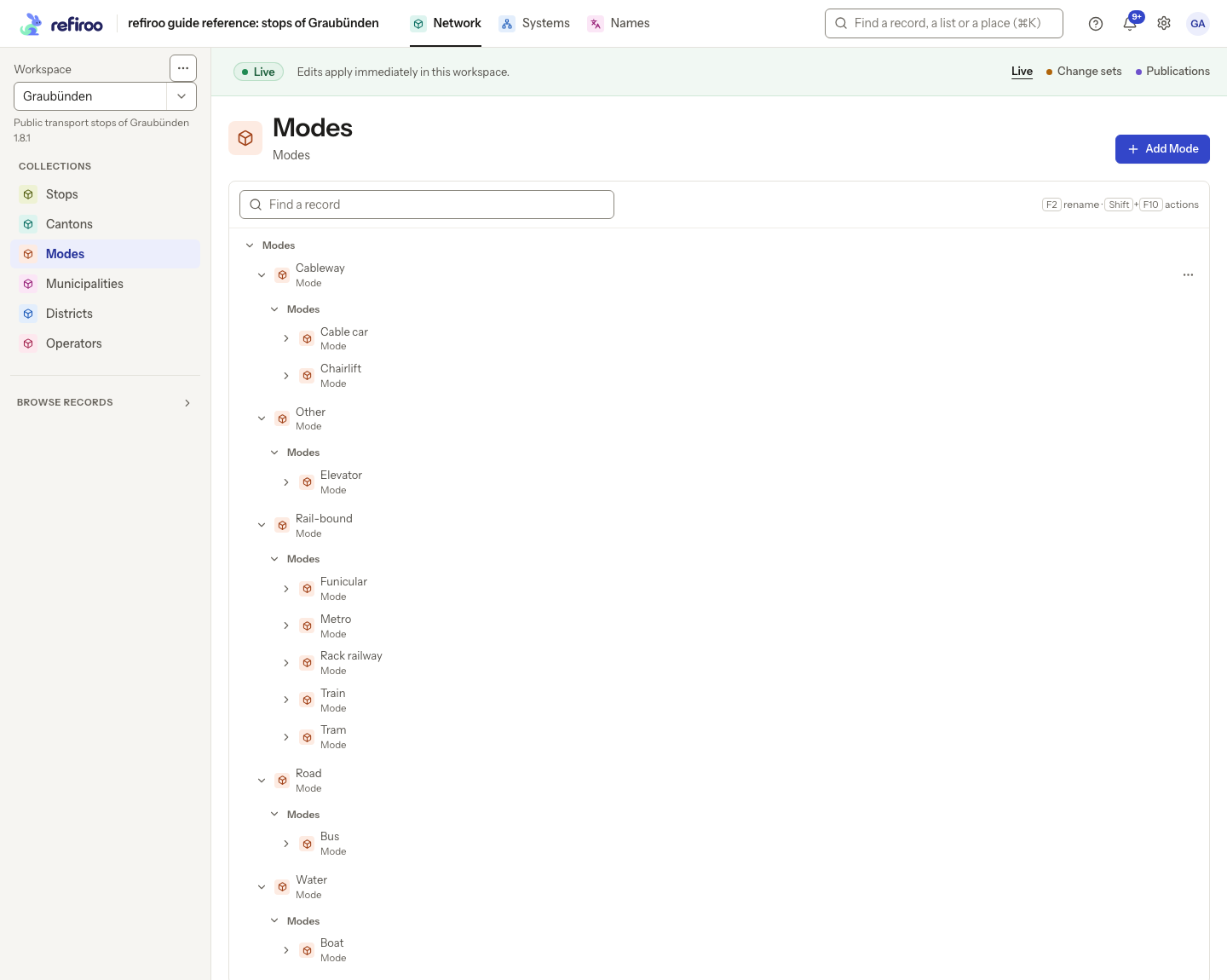
Above: Modes in the same application has Mode records below other Mode records. Rail-bound contains Funicular, Metro, Rack railway, Train and Tram. This is another model-defined hierarchy.
What a move changes
Section titled “What a move changes”Moving changes a record’s parent. Its descendants move with it, keeping their places relative to that record. The record keeps its identity and history. refiroo changes the parent and the containment relationship together; ordinary relationship editing cannot change only one of them.
A move is refused if the destination has a disallowed type or would create a cycle, such as moving a record into itself or one of its descendants. The Move to… dialog lists destinations with a reason beside unavailable choices. Top level means no parent; it is available only where the model and the view permit that placement. A record allowed at the top of the workspace may still be outside the roots shown by this particular tree.
In Live, a move preserves the record’s type. In a change set, a destination marked Becomes can offer a type change. That opens a preview of the resulting types and fields before applying it to the change set. Review what needs values and what is retained only in history. Live data changes only when the change set is published. Do not use this route for an ordinary move unless you intend to change the type too.
Other tree actions
Section titled “Other tree actions”Where configured, a record’s menu offers adding a child, renaming and changing availability. The model chooses the allowed child types and whether an availability field exists. Renaming keeps the record’s identity. Availability is a field value; it does not remove the record.
Change sets can also offer restructuring actions such as Change type…, Insert level above… and Remove this level… where allowed. These require reviewing their preview and the proposal before publication. They are different from merely folding a branch or moving it.
Deleting a parent can delete its descendants. Review record deletion and the impact shown before confirming; collapsing a branch never deletes it.
Access and recovery
Section titled “Access and recovery”Browse allows reading a tree. Editing needs Edit live or Work in change sets for the records affected, and the view must offer the action. See Record permissions. A publication or retired workspace is read-only. A change set awaiting approval may need to be withdrawn before editing.
A move based on an older record version can be refused. Review the latest parent and values before trying again. A loading error is not evidence that a branch has no children: retry it. For related records that do not determine placement, see Relationships.
Browse and move several records
Section titled “Browse and move several records”The sidebar tree handles hierarchies of any size and depth. Its search lists matching records of every type with their paths. Type groups fold like records; a single top-level group starts open. Expanding can also open its only child one level further. Long groups load as you scroll; Show earlier records reads the part above a group opened midway through. Your sidebar place is kept within the application and workspace.
Use Cmd or Ctrl to add or remove a record from selection, Shift for a range, Ctrl+Space to select by keyboard and Shift+arrows to extend it. Escape clears selection. Drag the selected records together or open Move to… with right click or Shift+F10. One confirmation moves all selected records or none. On touch screens, hold still for half a second until the record lifts; moving earlier scrolls. Rest near an edge while dragging to scroll to the destination.
Type groups normally start folded; the sole top-level group is the exception and starts open. Expanding a group or record opens its only child one level further without repeatedly expanding an entire branch. Loading more records keeps the sidebar’s scroll position. On touch screens, the drag preview stays above your finger. Letting go at the starting place does not open the record; in the sidebar it opens the record’s menu instead.
Restructure in a change set
Section titled “Restructure in a change set”Besides Becomes destinations, the node menu can offer Change type…, Insert level above…, Remove this level… and Change type of all … in here…. Only model-permitted changes appear. A preview lists each resulting type, values and origin, values still needed and anything with no place in the new structure. Content with no place is kept in history. Records retain their IDs and history; the new structure reaches Live only when the change set publishes. Cancel the preview if the result does not match your intent; resolve missing values before proceeding.
Screenshot data: Source: opentransportdata.swiss, Service Points (Didok), Federal Office of Transport / SBB, snapshot 2026-11-02. Wikidata, CC0. See The example data for sources and fictional additions.
Ordering, limits and changing back
Section titled “Ordering, limits and changing back”A parent must be in the same application and workspace. Its type must be allowed to contain the child. A self-hierarchy can continue to any depth, but a record cannot become its own ancestor. Moving beneath a new ancestor also rechecks uniqueness in that scope. A tree drop chooses a parent or level, not a position among siblings; the model’s order decides that position. Moving several selected records together requires their types to stay unchanged. Follow Move several records together.
Restructuring carries fields between equal value types, and can widen text to long text or whole numbers to decimal numbers without losing information. A value failing the destination’s rules becomes a required answer in the preview. Values and connections with no place remain in history. A later type change can offer them back from effective earlier reclassifications in the current or published change sets, keeping restored connections’ identities. Deliberately cleared values and discarded work are not restoration sources.
An operation can restructure at most 500 records. A larger subtree is refused with its limit; choose a smaller operation and inspect its impact. The preview also becomes stale if the change set changes before applying. Follow Reshape a hierarchy. Opening an old address for a retyped record follows its current type in the selected context; review filters can match either the old or new type.
A tree view opens a record beside the list, with Expand to full page for its full page. An explorer-tree record opens without a collection behind it. A table record instead offers ← and the list’s name in the line above its title, followed by its parents where shown. Resize navigation rail changes the rail width; see Appearance and devices for keyboard resizing.
The rail is named Browse application, or Application navigation in its phone drawer. A Move to… dialog for several selected records is headed Move … records. Search Search new locations, or choose Top level — No parent where allowed. Not every record can move there means the destination does not fit the whole selection; revise the selection or choose another parent. Could not save the change leaves a failure to resolve; Dismiss closes the message, without applying the refused change.