Review the assistant's workbook design
Use this task when a workbook needs a new or extended model. The assistant proposes how its sheets, columns and records fit the workspace. You review that design before anything is installed or loaded. For the manual editor route, use Start a draft from a workbook.
You need Use AI proposals, Bulk and import and Work in change sets in the workspace. Model changes also need Model authoring, Model release in the workspace and permission to install model releases at instance level. The assistant and job creation must be enabled.
The whole file, your words and the workspace’s model go to Claude Code. It reads workspace records as needed. Assistant turns may incur charges; tasks and files normally remain for 90 days, and session files and transcripts remain while the task can continue. See About AI in refiroo for the full account of permissions, costs, retention and data leaving the instance.
Give the file and its purpose
Section titled “Give the file and its purpose”- Open the intended workspace and its ⋯ menu beside the workspace selector. Choose Import. With the assistant enabled, Load a workbook opens first.
- Choose an XLSX or CSV Workbook, or drop it onto the field. Check Into names the intended workspace.
- In Tell the assistant about this file (optional), explain whether this updates existing records or adds something new. Say which column identifies a record and how new types should relate to the existing ones, if you know. A stable key matters more than a row number. A list of records not yet held needs a key too; otherwise a later load can create them again.
- Read what is sent, then choose Read the workbook. Import without the assistant… uses the manual import instead. Cancel sends nothing.
- Wait on the task page. The bar below the top bar shows the current stage and next action. It follows you into the model editor and change set. Stop ends the current turn; it does not discard the task.
Example: a file of stop names in several languages may extend the existing stop model with related name records. Check that those names attach to the existing stops and that each language column is accounted for.
Review the model before accepting
Section titled “Review the model before accepting”- Read The assistant’s proposal, including each type’s fields, relationships and record counts. The assistant can reuse the current model, extend it or propose a new one. Do not assume each sheet should become a separate type.
- Read Checks, especially Needs attention, and What the load does. Compare new records with existing records matched: unexpected new records can mean an intended update did not find its records. Inspect One name twice in one type if shown; the finding says whether those records sit at the top level or under parents. Decide whether they represent different things or an unwanted duplicate. Checks and examples do not establish that the design means what you intended.
- Read Columns left out and the questions with their assumed answers. Check every intentional omission. Conflicting workbook names or values are not automatically errors to normalise: explain whether they are intended.
- Open Show the model change. Choose Open in the model editor to inspect the draft’s types, fields and relationships, or edit them. The draft belongs to this task; a second task cannot write it while this task holds it. Close in the editor returns to the task. No type, attribute or relationship changes means the summary has no structural changes to list; the draft can still change views or layout. Open it in the editor to review those. For a task without a workbook or a model draft, the proposal says No change to the model. and has no model editor button.
- Answer the questions or use Tell the assistant what to change under Correct the model. The same session revises the design and rereads your editor changes. Check the new proposal and its record and relationship counts again.
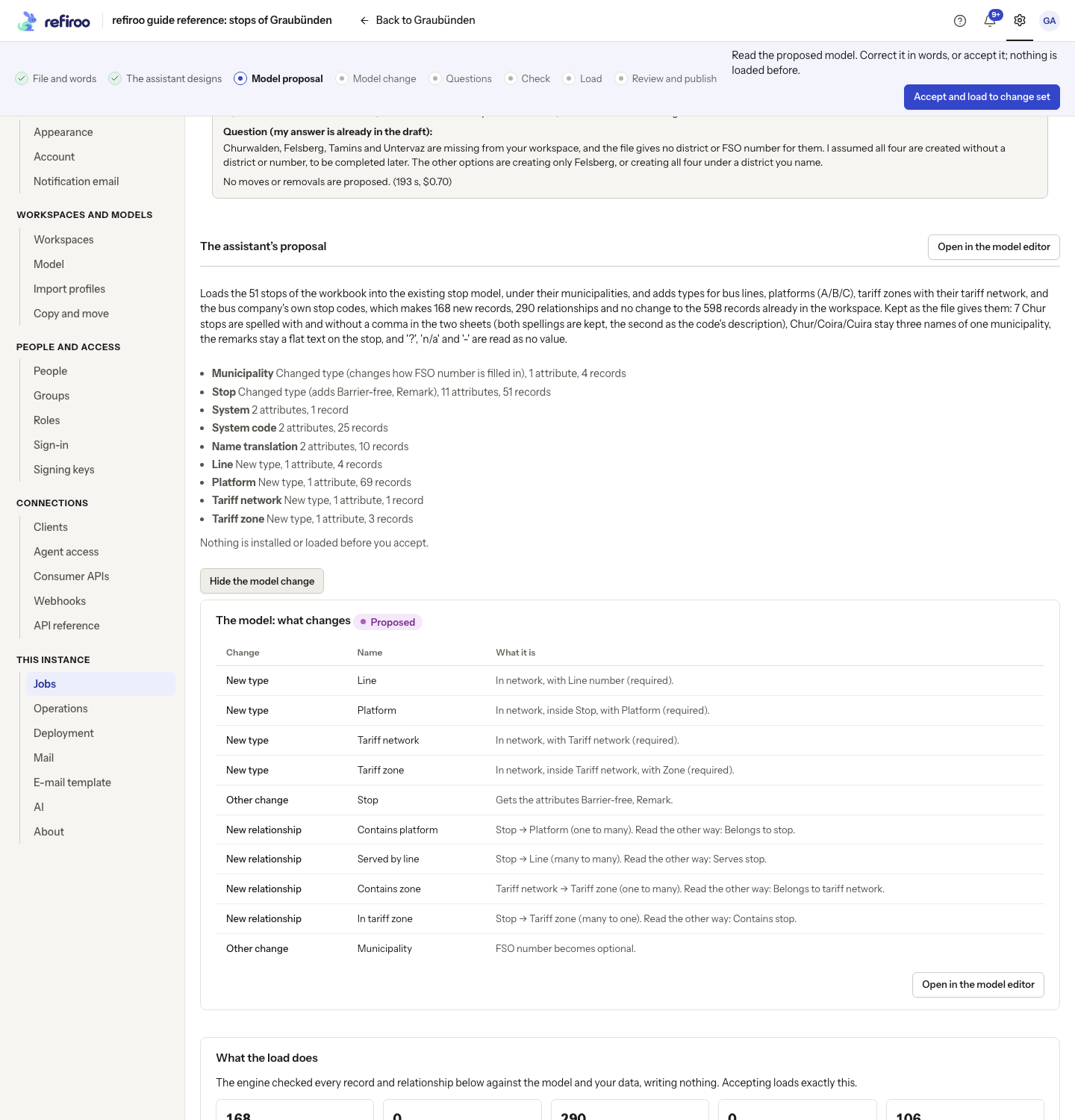
Above: The reference workbook proposal adds Line, Platform, Tariff network and Tariff zone types and their relationships. It adds Barrier-free and Remark to Stop and makes Municipality’s FSO number optional; the expanded table shows these changes.
The assistant reads the workbook, the model and workspace records, then turns the file into proposed records and relationships. It changes the draft where needed and asks the engine to check every proposed record and relationship without saving them. It writes no import profile. Review the resulting fields and counts: one source row need not mean one output record. This does not edit your original workbook.
Check the records and accept
Section titled “Check the records and accept”- Review What the load does: new records, existing records matched, new relationships, refused items and rows read. New relationships include the links of new records to their parents; the summary gives their count separately too. In the type table, compare New, Matched, Changed, Refused and Linked to. Open a type’s row with a click, Enter or Space to see example records, their values, links and the cells they come from. These are examples, not every record.
- Expand Where each part of the file goes to inspect the sheet and cell ranges that supply records or relationships. Compare them with the file and Columns left out. Read the reasons and source cells of refused items and tell the assistant what to correct.
- Check how the assistant matched existing records. Explain which fields identify the same record when names repeat. Questions ask about choices the file and your instructions leave open; they do not ask you to design a loading mechanism.
- If the draft changed after the check, the card warns you. Accepting checks every record and relationship again first. If any is refused, nothing is installed or loaded. Ask for a new proposal before accepting if your edit changes the result you want to review.
- Choose Accept and load to change set when the design and proposed records are right. The engine installs a release if the model changed and loads exactly the checked records and relationships into a new change set as one batch, without another assistant turn. It activates and publishes nothing. If the batch refuses any item because the data changed, none of the batch is loaded and its change set is discarded. A release already installed can remain installed. Whole-type or partial reshapes follow the model-move steps.
- On the loaded page, compare the actual counts with the checked result. Both include parent links in the relationship total. Choose Review the change set, inspect its changes and validate. Follow the workspace’s approval rules. If the workspace runs a different model version, review offers Move followed by the workspace name, the proposed version and and publish…. Use it to preview the migration, then choose Migrate and publish to switch the workspace’s model and publish together. You need model-release and publication permission and any required approval. A separate activation first is not required; follow Migrate a workspace for the preview and blockers. The assistant does not activate, approve or publish.
If the engine cannot apply the proposal, its reason appears on the page. Tell the assistant what to change rather than accepting an unusable design. A failed turn can Try again as it was; a stopped one can Go on as it was. If a required permission is lost, the page names what is needed and offers a link to copy for the person who can load.
Load another file, or correct a load
Section titled “Load another file, or correct a load”An assistant load saves no import profile. Send the next file of the same layout to the assistant again, explaining how it should match the records already held.
A separately saved import profile can still let the engine recognise a layout before starting a session. Its load confirmation can install and activate a changed model before importing; review that confirmation even though this path makes no assistant call. If the saved layout no longer fits, Read it with the assistant starts its reading. Before loading a saved layout, Back to the proposal and the words box let you reconsider it.
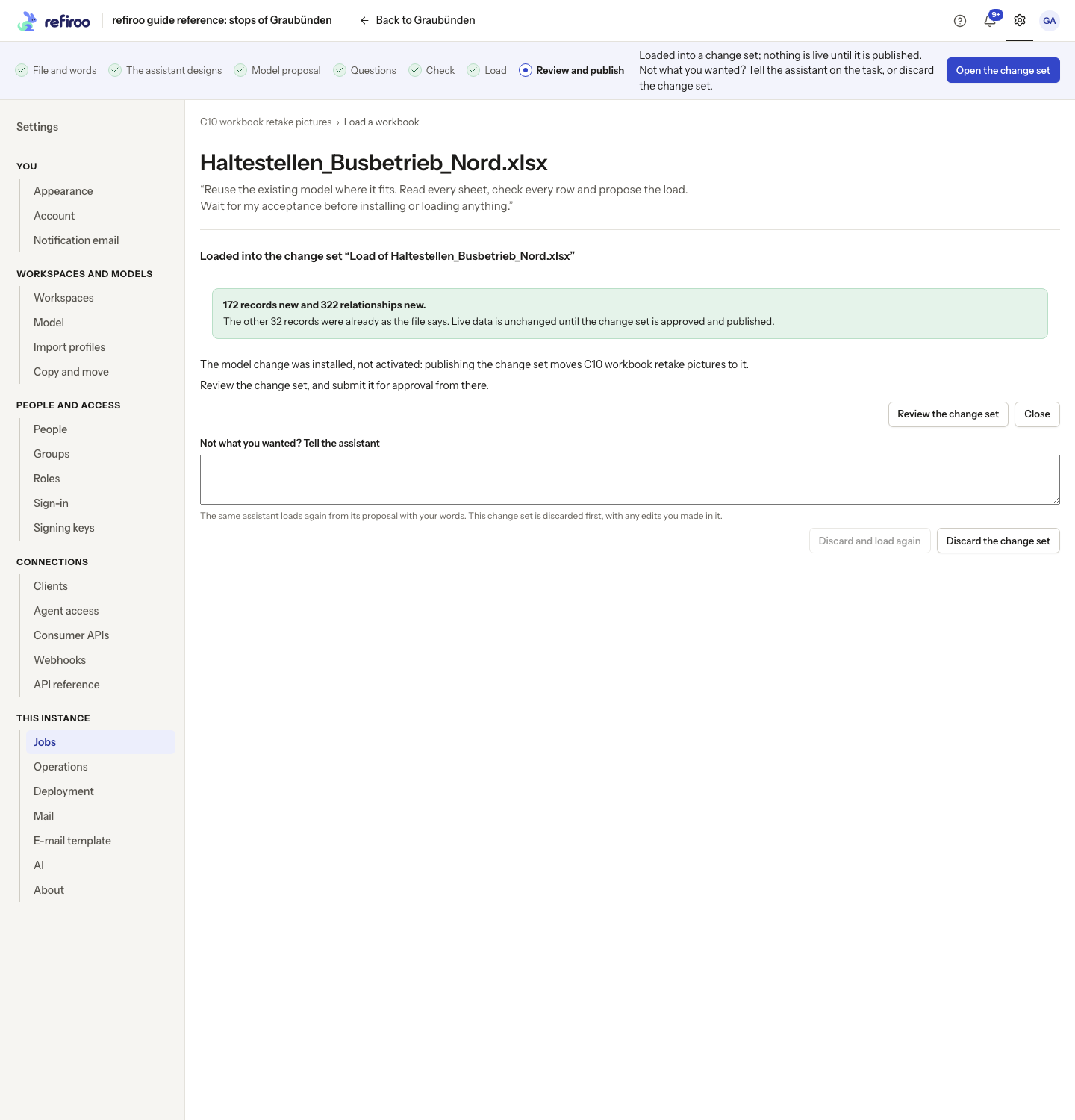
Above: the reference workbook task has prepared records in a change set. Live data is unchanged until publication.
For a wrong load that is not published, enter a correction and choose Discard and load again. Confirm only after reading that this removes the entire change set, including manual edits in it. The assistant then revises the proposal and checks the records again. Review it and choose Accept and load to change set before reviewing the replacement change set. Discard the change set ends the task instead. A stopped load discards the change set it was making and returns to the accepted proposal. Once published, the task offers new work; it cannot discard that publication through this correction flow.