Your account
Open the avatar at the top right and choose Account to see who you are signed in as, manage your sign-in methods and inspect your permissions.
The account menu
Section titled “The account menu”The avatar menu shows your name and the roles you hold in the workspace currently open. Account, Notifications and All settings open those pages. Theme offers System, Light and Dark. System follows your device; the choice is saved in this browser. Sign out ends your current sign-in.
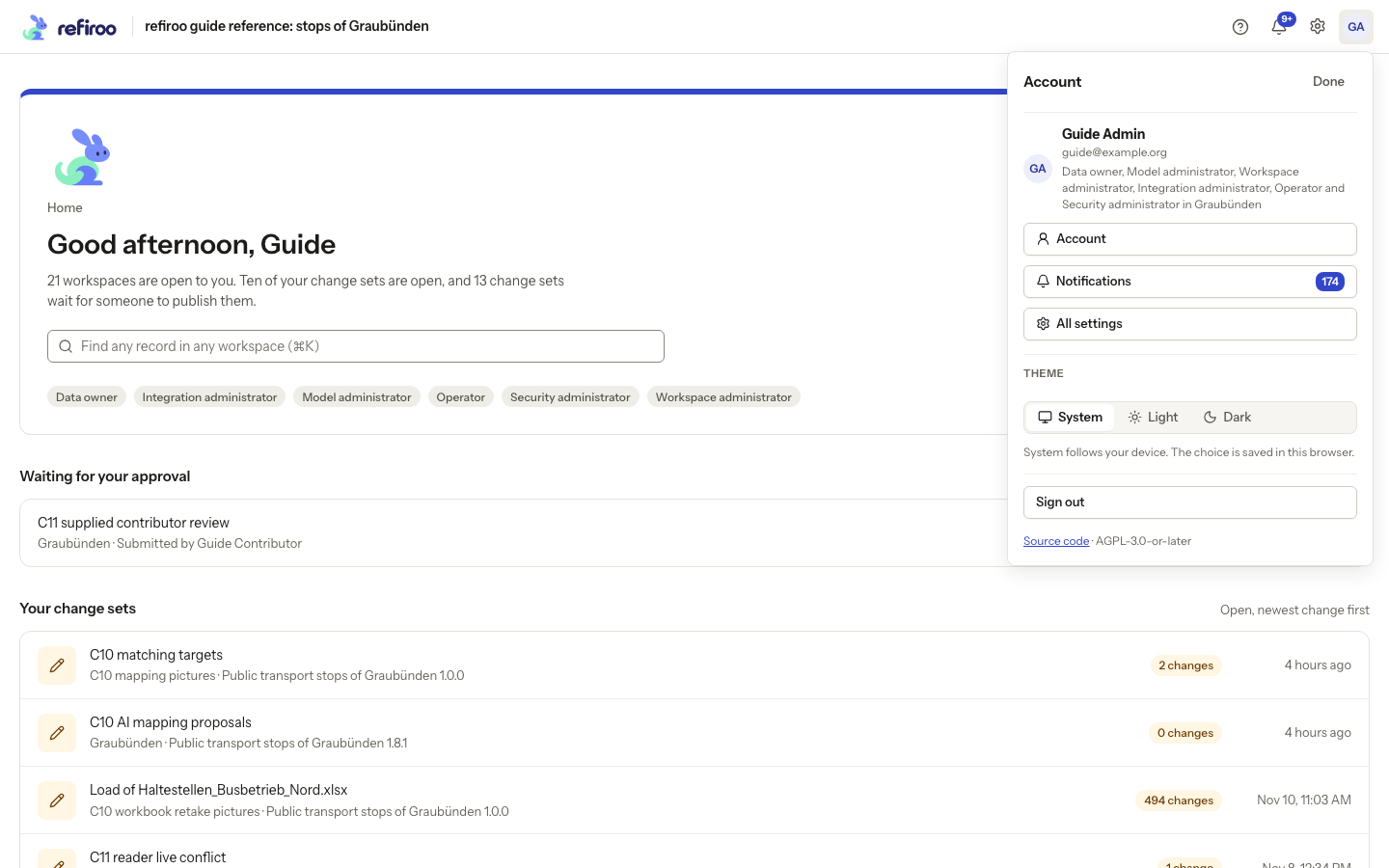
Above: Guide Admin’s menu shows their roles in Graubünden. Other people can have fewer roles.
Your identity and sign-in
Section titled “Your identity and sign-in”The You panel shows your name, e-mail address, how you signed in and when. These details help you check that you are using the intended account. Sign out in that panel ends the current browser’s sign-in.
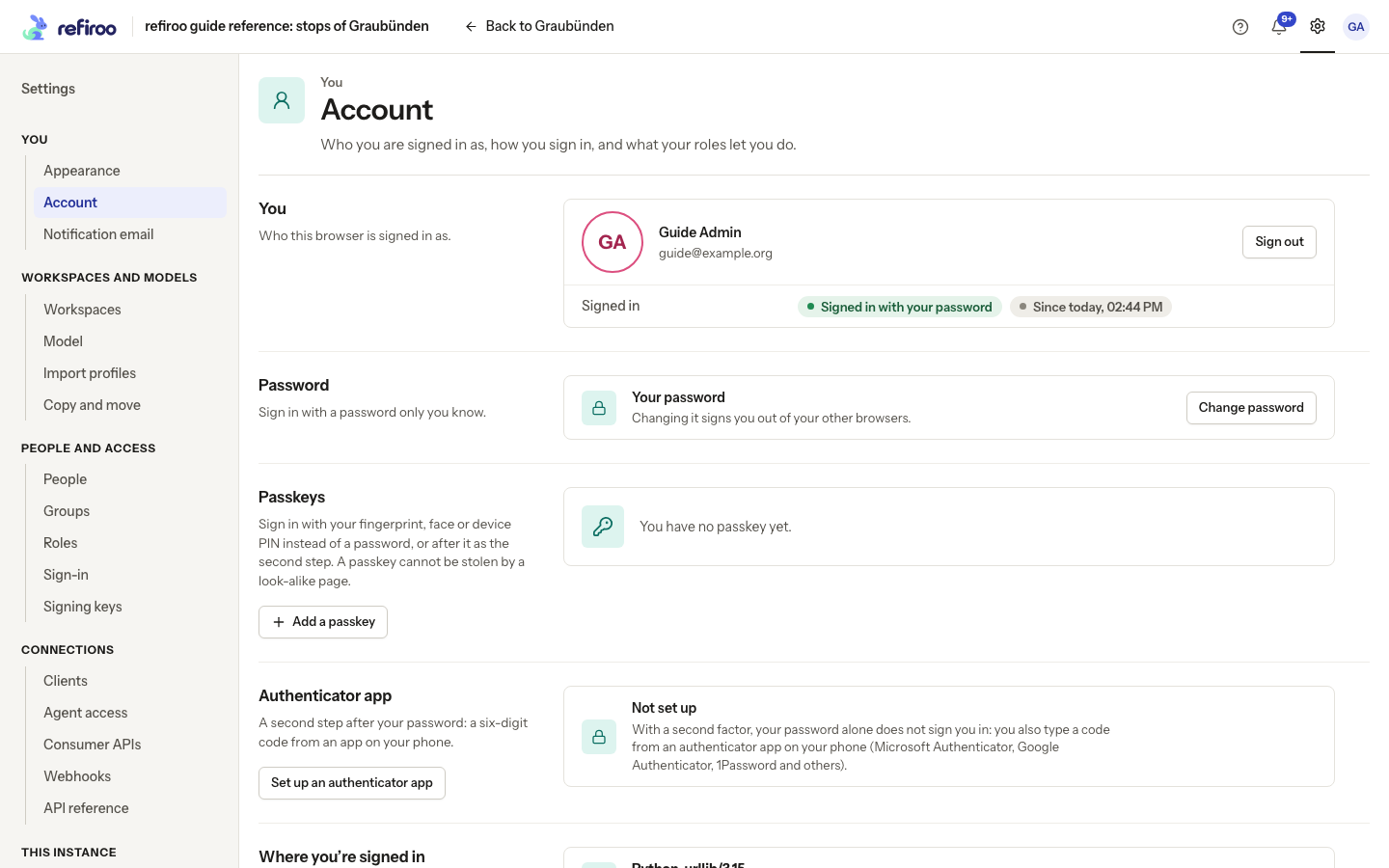
Above: Guide Admin signed in with a password and has not set up an authenticator app.
When an administrator manages your sign-in
Section titled “When an administrator manages your sign-in”If Account says An administrator manages the sign-in of this account., the password, passkeys, authenticator app and Where you’re signed in sections are not shown. Your profile and Sign out remain. You can sign out of this browser, but you cannot sign out other browsers or sign out everywhere.
You cannot change your own password, set up, confirm or remove an authenticator app, make new recovery codes, or add, rename or remove passkeys. Ask a security administrator for a password-setting link or help with a lost device. Forgotten your password? gives the usual response but sends no mail for this account. See Help someone who lost a device.
When you manage your own sign-in
Section titled “When you manage your own sign-in”The controls depend on how you signed in. If your organisation provides sign-in, its password is managed there. The local Password control appears when you signed in with your refiroo password.
To change that password:
- Choose Change password. Enter Current password and New password.
- Choose Save new password. A successful save keeps this browser signed in and signs out your other browsers. Cancel closes the form without changing the password.
- If a password is refused, read the reason beside the field and correct it. A failed save does not change your password.
Under Passkeys, choose Add a passkey and follow your browser or device’s instructions. A WebAuthn passkey uses your fingerprint, face or device PIN to sign in, or to provide the second step. Registered passkeys can be renamed so you can tell them apart, or removed. Removal asks for your password or a code from your authenticator app. If the device prompt is cancelled, no passkey is added.
An authenticator app supplies time-based one-time passwords (TOTP). Under Authenticator app, choose Set up an authenticator app. Scan the displayed code with your app, or enter its key, then enter Code from the app to confirm setup. Keep the recovery codes shown afterwards somewhere safe: each works once if you lose access to your phone. They are shown once. New recovery codes… replaces the old codes after you prove your sign-in; the old ones then stop working. If the instance requires a second factor with a password, removal is offered only when a passkey provides another way to meet that requirement. Otherwise, ask a security administrator.
Where you’re signed in
Section titled “Where you’re signed in”Each row names a signed-in browser or other sign-in session and shows when it last acted and when it signed in. This browser marks the one you are using. Several rows can have the same browser name; use their times to distinguish them.
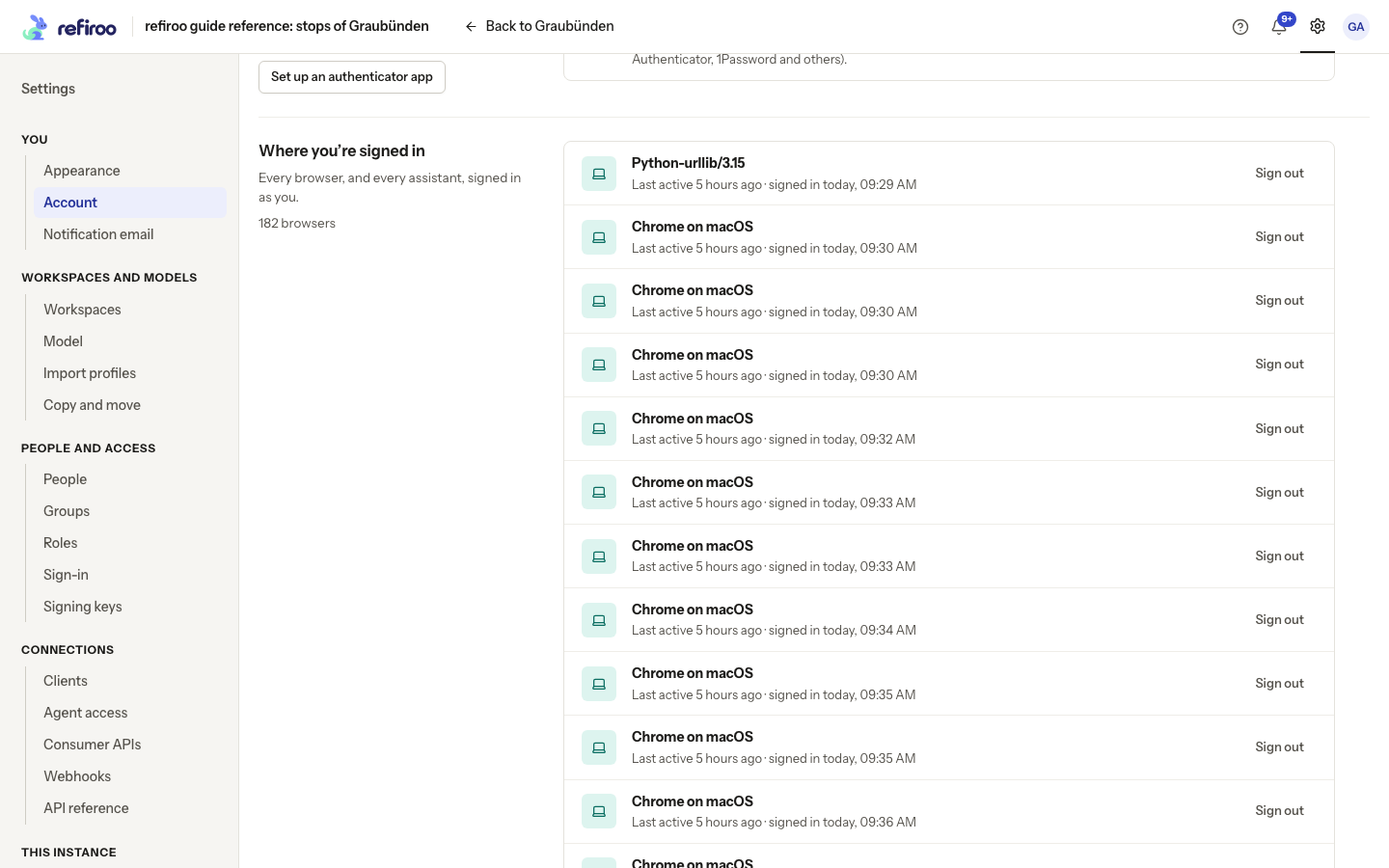
Above: the reference account has many sessions from browser work and automated captures. A row labelled Python-urllib is not another person’s browser.
Choose a row’s Sign out to end that session. Choosing it for This browser signs you out here. For a lost device or an unfamiliar session, Sign out everywhere asks for confirmation and ends all your sessions, including this one, at their next request. It does not delete your work. If ending a session fails, retry after reading the error; do not assume it has ended.
What you can do
Section titled “What you can do”The bottom of Account lists your roles by workspace and what they allow: reading, proposing changes, changing Live, publishing and approving. Restrictions may name particular applications or record types. Instance-wide roles appear separately under Across the instance.
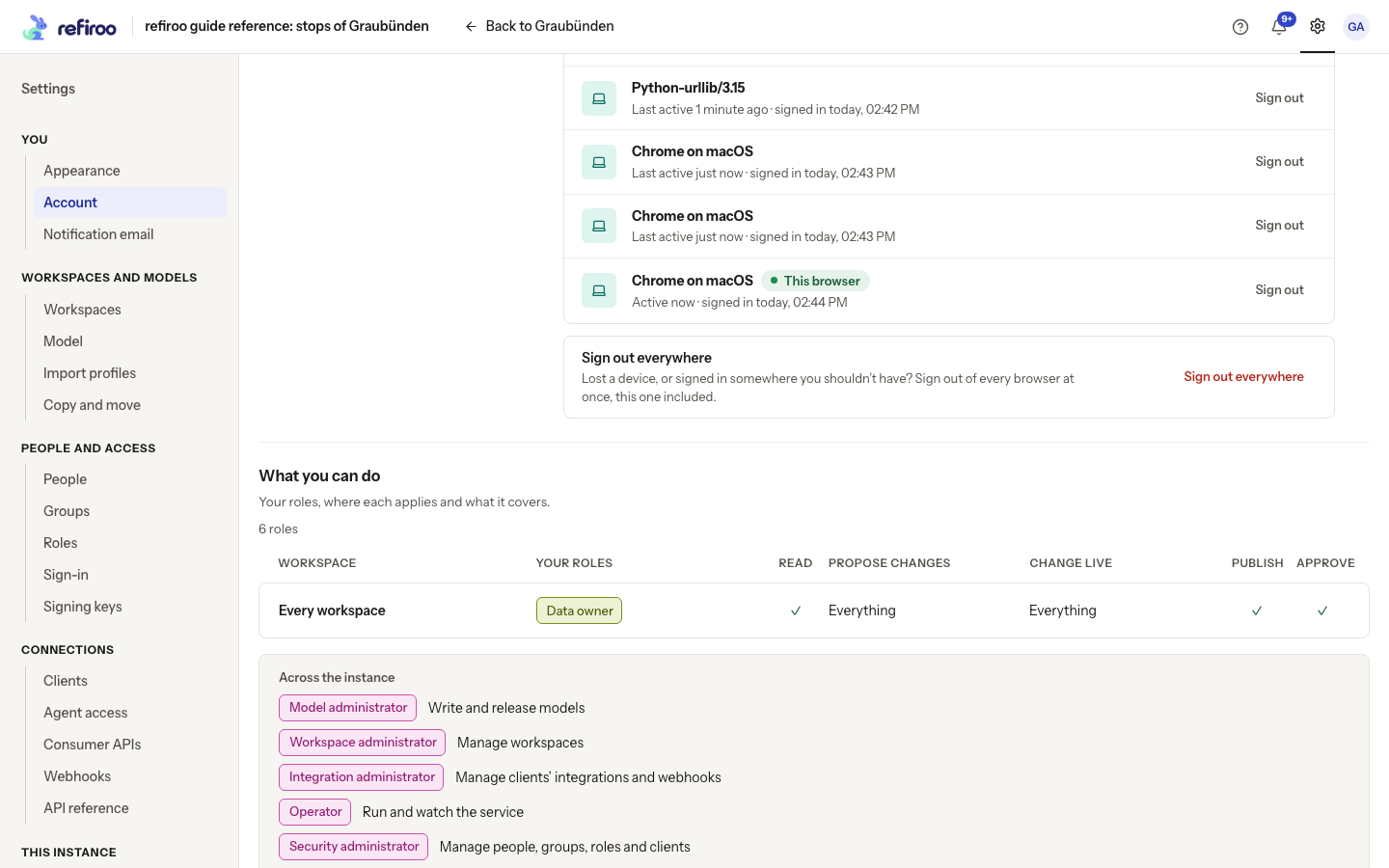
Above: Guide Admin holds Data owner for every workspace and five instance-wide administrative roles.
This is a view of your access, not a form for granting yourself roles. Ask an access administrator if something you need is missing. To act on a proposal, follow Prepare and publish a change set or Approve a change set. For notices and their email options, see Inbox and approvals.
Each role is listed once, with the groups through which you hold it. A limited permission is shown as a count: open it to see the applications and record types covered, and the roles that allow each. On a phone, the workspace sections stack vertically.
Use Settings › Notification email for email choices: switch on Email me when something arrives in my inbox, then choose At once, Digest or Off for each kind. Digests run every morning or on Mondays at 07:00 in your browser’s time zone; the page shows the next one. No unread notices means no digest. The email switch is absent if mail is not configured or you have no email address; the page explains why. Settings › Appearance holds display preferences. For administrator-managed sign-in and help with lost devices, see Sign-in and second factors.
Sign-in and password help
Section titled “Sign-in and password help”Opening a saved application address without a session shows the sign-in page, in this browser’s theme. Use your e-mail address and password, a passkey, or the offered organisation’s provider. After signing in you return to the requested page. An ended session sends you there again. A wrong e-mail address or password does not reveal which was wrong. Repeated failures slow attempts; they do not permanently lock your account. Wait before retrying rather than repeatedly submitting.
Sessions renew while you work, but still have idle and overall expiry limits set by the operator. If sign-in keeps ending unexpectedly, sign in again and ask an administrator to inspect the session rather than changing unrelated record data. Under General › Account, Loading your account is a loading state, not missing identity; retry a failed read. The identity card can say Signed in with your password, Signed in with a passkey or Signed in with …, with Since … for this session’s start. Where you’re signed in counts browsers and shows Active now or last activity with sign-in time.
The normal password rule is 15–128 characters. Common passwords and your e-mail address are refused; use a longer distinct password, not repeated guesses. A development instance can have a lower minimum, so the displayed refusal is authoritative. The current password is needed to change it. Use the reveal buttons to check the current or new password privately. If you forgot it, use Forgotten your password? when offered, or ask an administrator for a password-setting link. The response does not reveal whether an account exists. Your organisation manages its provider password separately.
Add a passkey opens a separate refiroo page. Give the passkey a recognisable name and provide Your password, or a code from your app before the browser’s device prompt. This proof prevents an unattended signed-in browser adding a lasting sign-in method. Cancellation adds nothing. Passkeys belong to the host where they were made; moving refiroo to another host affects them. Renaming changes their display name only. Removing the last second factor can be refused where one is required: add another passkey or set up an authenticator app first.
For display steps, see Appearance and devices. For the next digest time and delivery choices, see Notification settings.
An account using only an organisation’s provider cannot add refiroo passkeys or an authenticator app to bypass that provider. Manage those sign-in protections with your organisation. If proof for adding or removing a passkey is refused, correct the password or use a current authenticator or unused recovery code; a slowed sign-in needs time before retrying.
Select the passkey’s name where it stands to edit it. Leave the field or press Enter to save; Escape puts the old name back. An unchanged input saves nothing. The save notice offers Undo. If refused, the input stays open with the reason and Cancel and Save again beneath it. Remove … opens a separate confirmation with Remove passkey; it does not remove the device’s other passkeys. New recovery codes… asks for Code from the app, or a recovery code, then Rotate recovery codes. Save the replacements: the old recovery codes stop working. Removing the authenticator app uses Remove the second factor and Remove it; your recovery codes then stop working too.
Session limits and organisation sign-in
Section titled “Session limits and organisation sign-in”By default a session ends after 12 hours without use or 14 days in total, even if it has continued renewing while you work. The operator can change these limits. Repeated failed password attempts can delay another attempt by up to fifteen minutes; the account is not locked permanently.
Your organisation can offer Continue with its OpenID Connect sign-in provider, such as Microsoft Entra ID, Google or Keycloak. The provider handles its own second factors. On your first sign-in, refiroo takes your name and email from the provider and updates membership of its groups at sign-in. The roles granted to those groups determine what you can do here.
If you already had a local account, first provider sign-in can create a separate person. Ask a security administrator to link the accounts so your existing roles and history stay with the original person. Signing out of refiroo signs out of the provider too only when that provider is configured to do so. If you can immediately sign in again without a password, check whether the provider still has an open session.
Forgotten your password? asks for your e-mail address. It gives the same response whether or not that account exists. A reset message is sent only for an account with a local password and an email address whose sign-in is not managed by an administrator. For a provider account, reset your password with the organisation instead. An administrator can supply a one-time password-setting link when email recovery is unavailable.
Sessions for an assistant
Section titled “Sessions for an assistant”An external assistant you signed in for appears in Where you’re signed in as its name followed by (assistant). Sign out on that row ends its session, stopping it on its next request. A blocked assistant also loses access; restoring it does not restore the ended session. You must sign in for it again. Its sign-in page shows the name it claims and where it returns. Check those details before allowing it. See AI and your data for what it may read, what it may prepare and why its provider privacy settings matter.
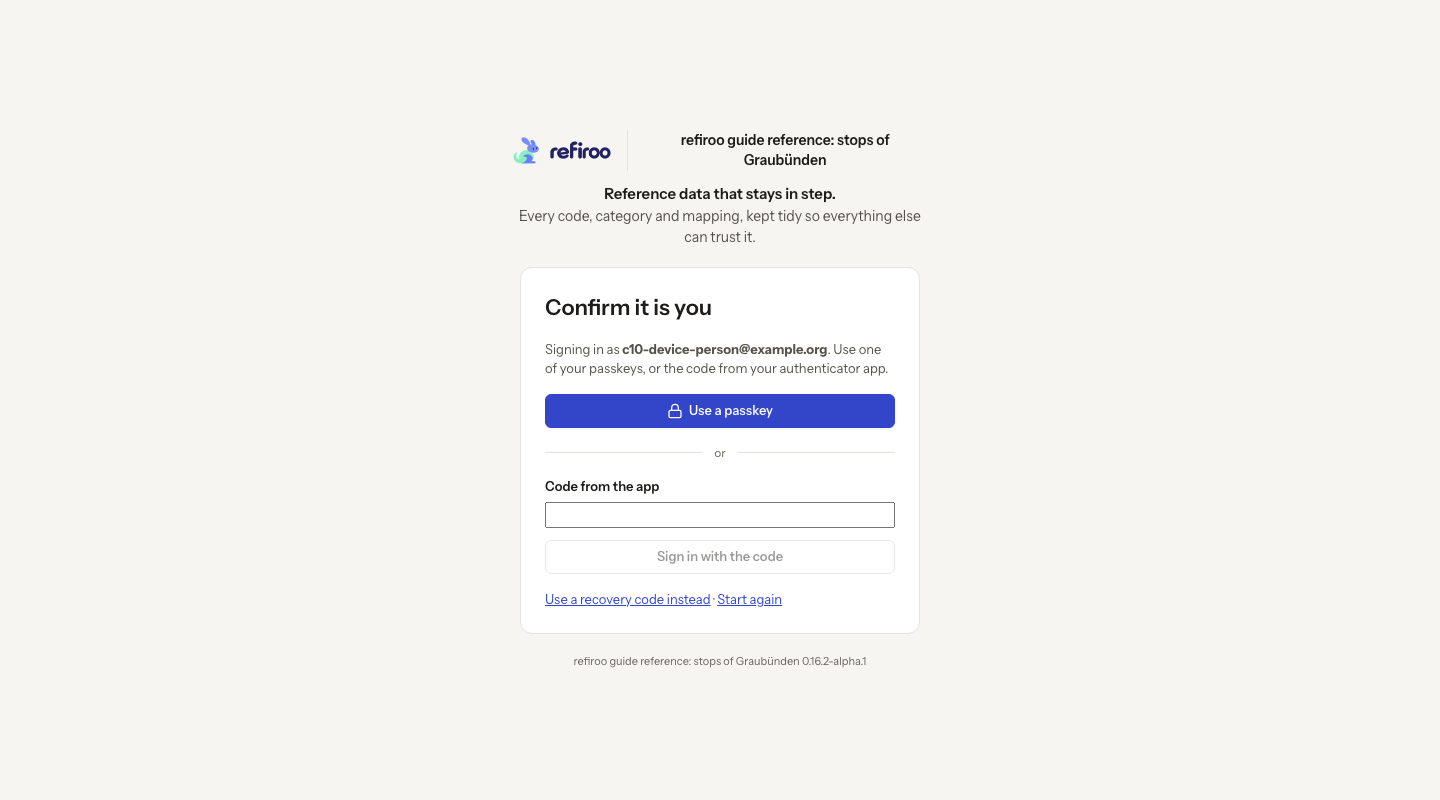
Complete a second sign-in step
Section titled “Complete a second sign-in step”After your password, refiroo can ask for another proof of identity:
- If Use a passkey is offered, choose it and complete the device prompt. Cancelling the prompt leaves you at sign-in; it does not remove your passkey.
- To use an authenticator app, enter its current six-digit Code or Code from the app. Choose Sign in or Sign in with the code, as shown. A refused code needs a new current code; repeated failed attempts can require a wait.
- If you cannot use the app, choose Use a recovery code instead, enter one unused Recovery code and choose Sign in. That code cannot be used again. Use the app’s code returns to the ordinary code entry. Start again returns to the first sign-in step.
- If setup is required before you can continue, scan the displayed code with your app or copy the displayed key into it. Enter Code from the app and choose Confirm and continue. Save the recovery codes when they are shown.
If you have lost all usable proofs, ask a security administrator to help restore access. After removing a passkey in refiroo, also remove its saved entry from your device or password manager; the entry there is not deleted automatically.