Models
Use a model to decide what people can keep in a workspace and how they work with it. A model defines applications, record types, fields, relationships, hierarchies and views. Changing a model changes those definitions; editing a record changes the data held under them. Start with Create a model draft.
What a model contains
Section titled “What a model contains”| Part | What it decides |
|---|---|
| Applications | Named work areas and the types and views available in each. |
| Object types | The kinds of record people can create. The editor calls a record type an Object type. |
| Attribute types | Reusable field definitions, such as a date or a whole number. A type attaches an attribute and decides whether it is required or read-only there. |
| Relation types | The meaning of a relationship, with names for its forward and reverse directions. Allowed pairs decide which record types it may connect. |
| Hierarchies | Which types may stand at the top level or under another type, connected by a containment relation. |
| Views and record pages | How records appear: tables, trees, mapping grids, relation matrices and the panels on a record page. |
The same type can be listed in several applications. It keeps the same field and relationship rules wherever it appears. An attribute type can also be shared: changing its definition affects every type that attaches it, while Required and Read-only belong to each attachment.
Every application can use the same kinds of view. Its name or subject does not determine its features; the declared structure determines which views fit. The applications shipped in the starter model are examples you may replace, reshape or remove.
Draft, release, activation
Section titled “Draft, release, activation”These are three separate stages:
- A draft is saved, editable work. You can leave it unfinished, close it and return later. Its version increases as you edit it; that number is not a release version.
- Installing makes an immutable release: a fixed set of definitions with a release version. Later draft edits never rewrite that release.
- Activating selects the installed release for one workspace. refiroo checks that workspace’s data before switching. Other workspaces keep the releases they already run.
The editor combines the last two stages in Install and activate…, with a confirmation that names the target workspace. An installed release may remain inactive if activation fails. See Releases for compatibility and open change sets.
Find a model and its workspaces
Section titled “Find a model and its workspaces”Open Settings, then Model. Search by model name or key in Search models. The list separates the model run by the default workspace, other models in use and drafts without an installed model. It shows release counts, the latest release, drafts and schema. The schema identifies the model language refiroo reads; it is separate from the release version you choose for your model.
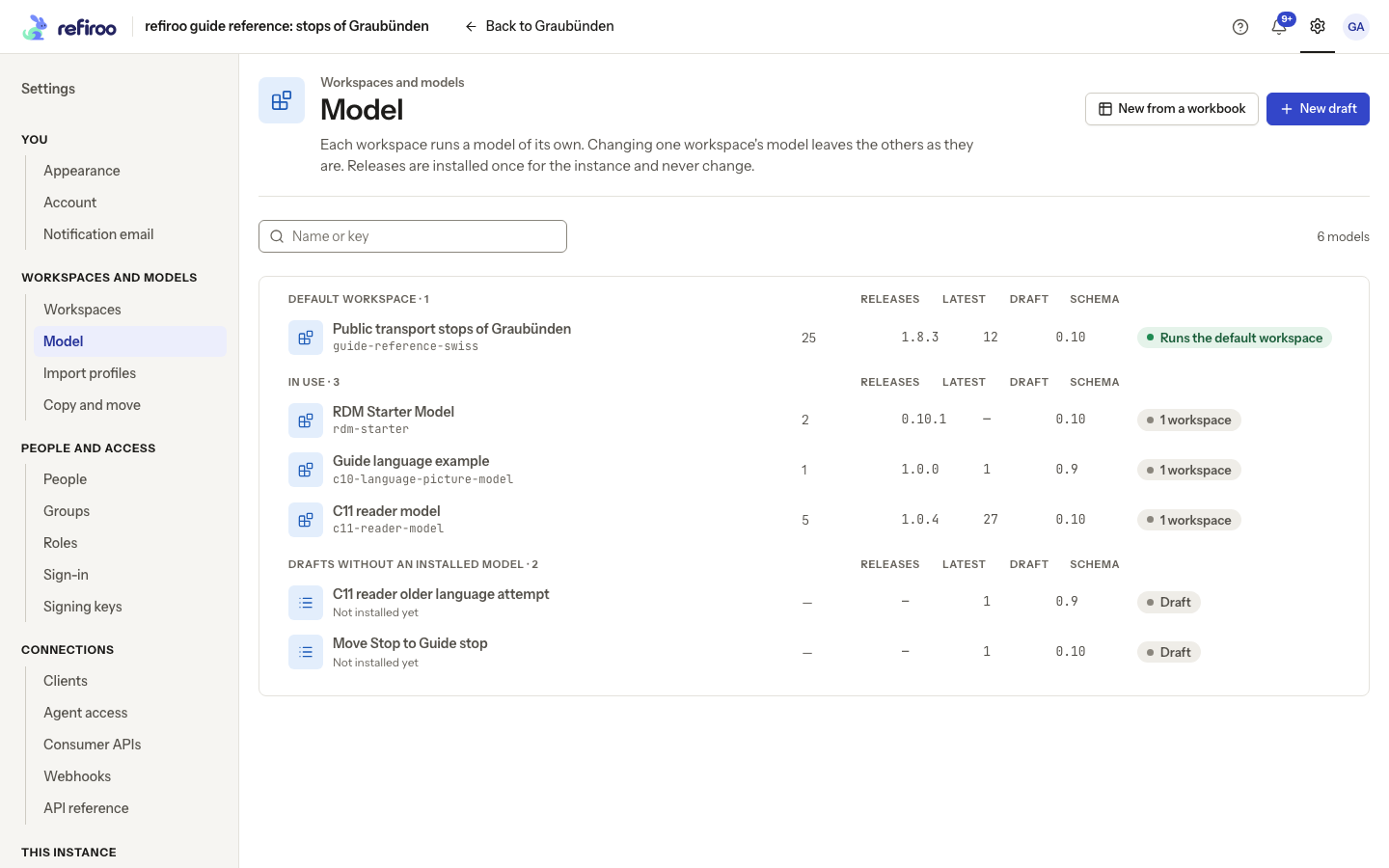
Above: Public transport stops of Graubünden runs the default workspace. RDM Starter Model runs another workspace; a further draft has no installed model yet.
Open a model for Overview, Releases, Drafts and Structure. Overview identifies the workspaces using it; Structure initially shows the newest release read only, with a picker for other releases. Use a draft to change it.
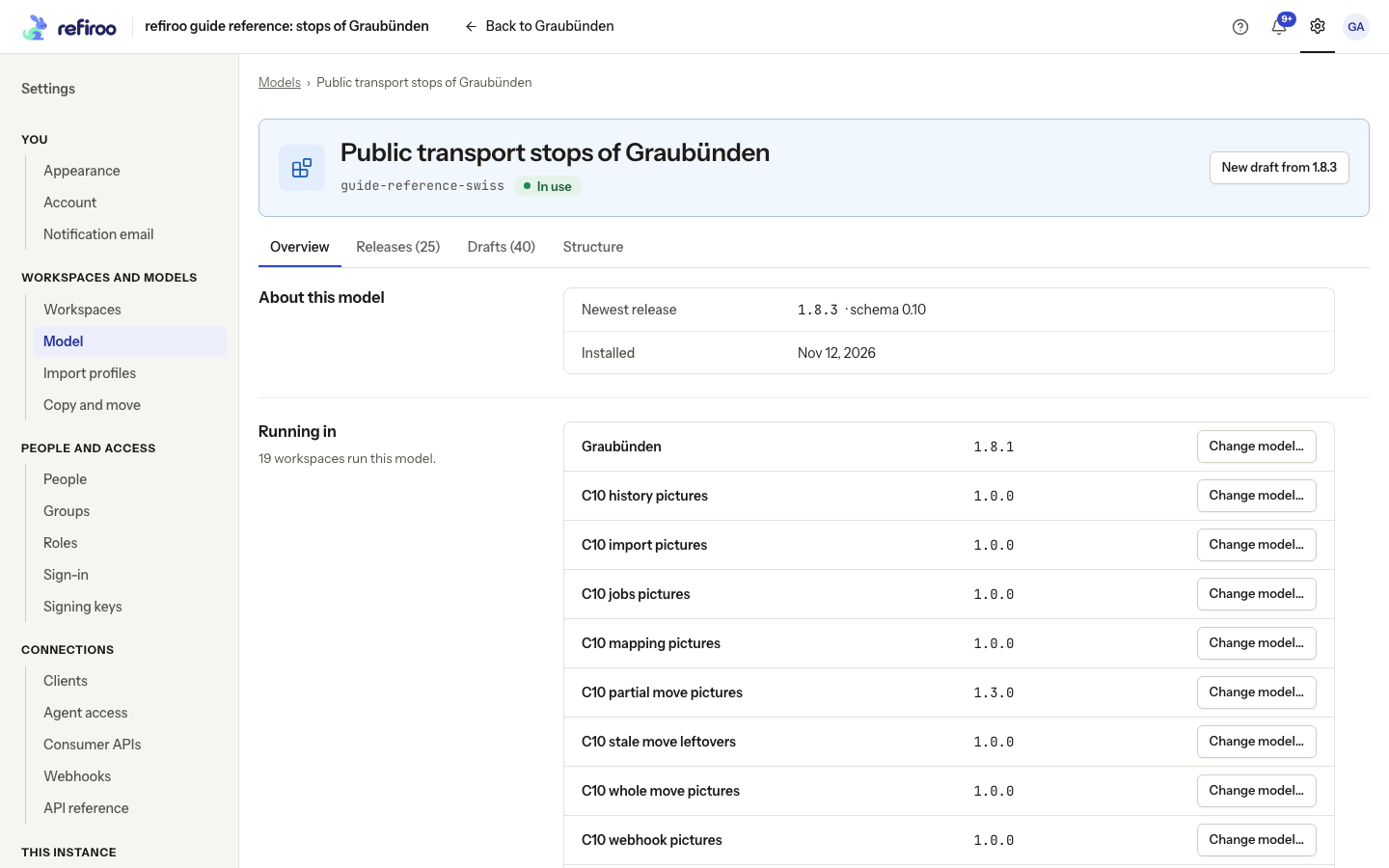
Above: the Graubünden model’s overview names its running workspace and offers Change model….
Settings, Workspaces shows the model and release beside each workspace. Open a workspace and choose Edit model to work in its context. The editor says Applies to that workspace and offers Apply to this workspace…. Check that name before applying.
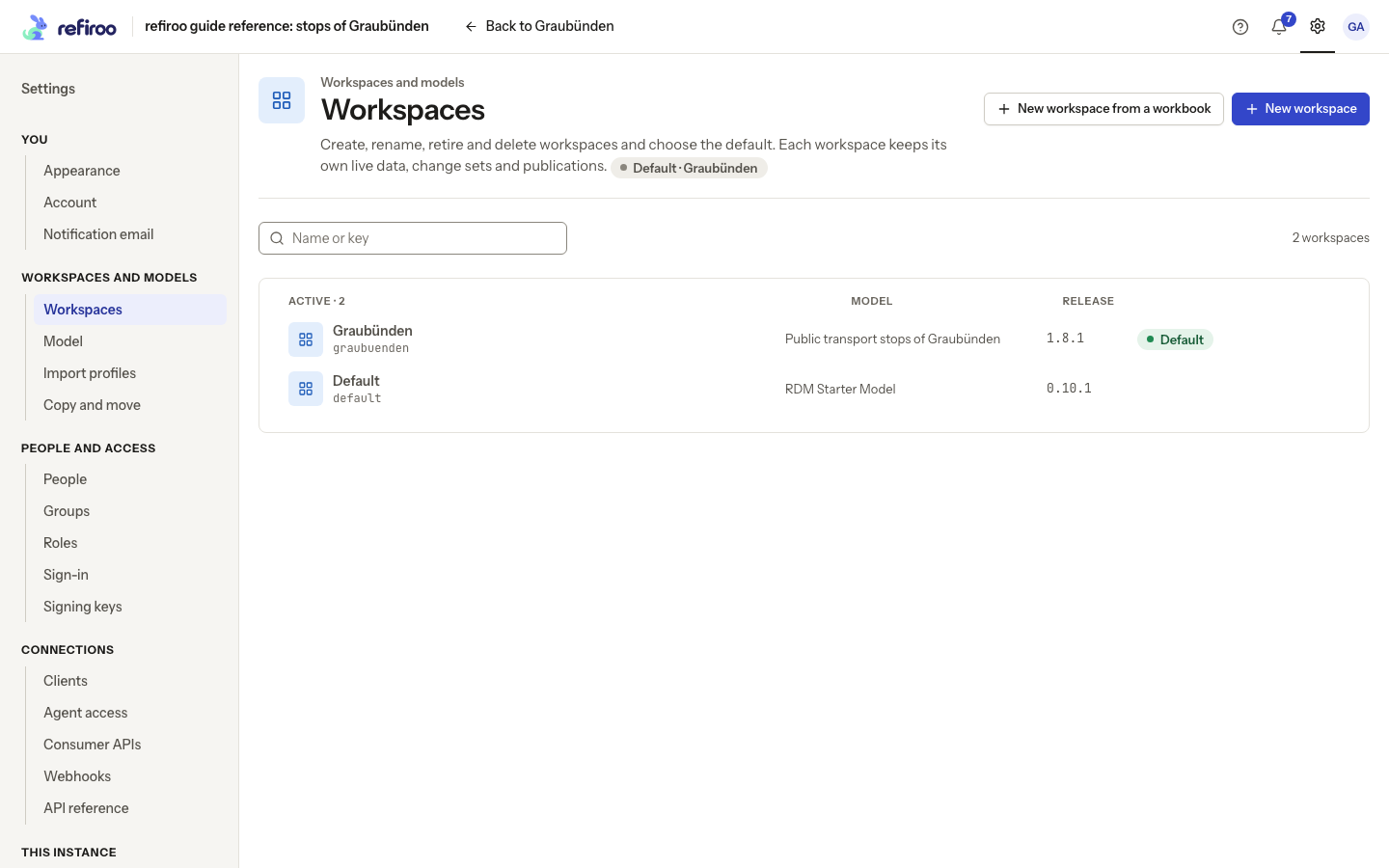
Above: Graubünden and Default run different models. Default is a workspace name here; the green Default mark identifies Graubünden as the default workspace.
Who may do what
Section titled “Who may do what”The supplied Model administrator role brings together model authoring and release permissions. Administrators can also grant these separately, so the permissions and their scope matter more than a role’s name.
| Permission | What it allows |
|---|---|
| Model authoring | Create and edit drafts, use their editor, issues and history, and read releases. |
| Install a model | Install a draft as a release without choosing it for a workspace. |
| Model release | Install and activate releases, and migrate the workspace where the permission is granted. |
| Workspace administration | Create and manage workspaces, including creating a new target workspace. |
Authoring a draft does not itself grant permission to activate it. A workspace’s Edit model route needs authoring and release access there. Record editing and change-set publication need their own data permissions. If a control is missing or unavailable, ask an access administrator to check your grants and whether model administration is enabled on the instance.
Continue with The model editor, edit a model on the canvas, or shape a workbook on the canvas if your starting point is a spreadsheet.
The model list orders the default workspace’s model first, then other models in use, then the rest and Drafts without an installed model. Pills identify Runs the default workspace, Retired and Draft. A model with every release retired and no running workspace appears under Retired. Open Change model… on Overview beside a workspace to choose its release and check that workspace’s stored data before any switch.
On Structure, choose Release to inspect that release’s attributes and rules and its relationships, other types and reverse names. This tab is read-only. Open the release to compare or export it; open a draft to edit.
If Model mutations are disabled appears, installed releases remain available for inspection and export. Ask the operator about the deployment setting before expecting draft or activation actions. Managing workspaces covers workspace administration.
Continue by task
Section titled “Continue by task”Use Create a model draft or Start from a workbook, then the model editor or canvas. Consumer APIs shapes what consuming systems read. Migrations covers conversions and reviewed loss; Model mappings covers data between two workspaces.
The model’s name, applications and record layouts come from its definitions. The top bar uses the default workspace model’s product name; a job describes types from its own workspace’s model. A different workspace can therefore show different applications without being a different edition of refiroo. Model drafts and activation history identify the author of changes.
A draft accepts at most 500 operations in one grouped save. Ordinary visual actions group their related operations for you. A specialist exceeding that bound must split the work into smaller reviewable saves, rather than repeating the refused oversized save.
When a draft is no longer needed, follow Delete a draft. Export any design you need to keep first; deleting a draft removes its saved editing work and attached workbook.
Keep and reuse a model elsewhere
Section titled “Keep and reuse a model elsewhere”Export an installed release to keep its exact definitions. On another instance, a specialist can use New draft, Import JSON to import that document, then validate, install and choose a workspace separately. The destination must support its model language. Importing definitions does not bring records, grants, subscriptions, workbook files or editing history with them. For recovery of a whole installation, use the operator’s backup and restore procedure.