Lists, search and filters
Use a collection’s search and filters to find records across its whole list. The workspace and the Live, change-set or publication context determine which data you search. Follow Find records to narrow a list, or Continue a long list to reach a distant result.
Use the pin button in the list’s header to bring this view to Your shelf on the workspace’s page. The shelf stays in this browser.
Search and combine conditions
Section titled “Search and combine conditions”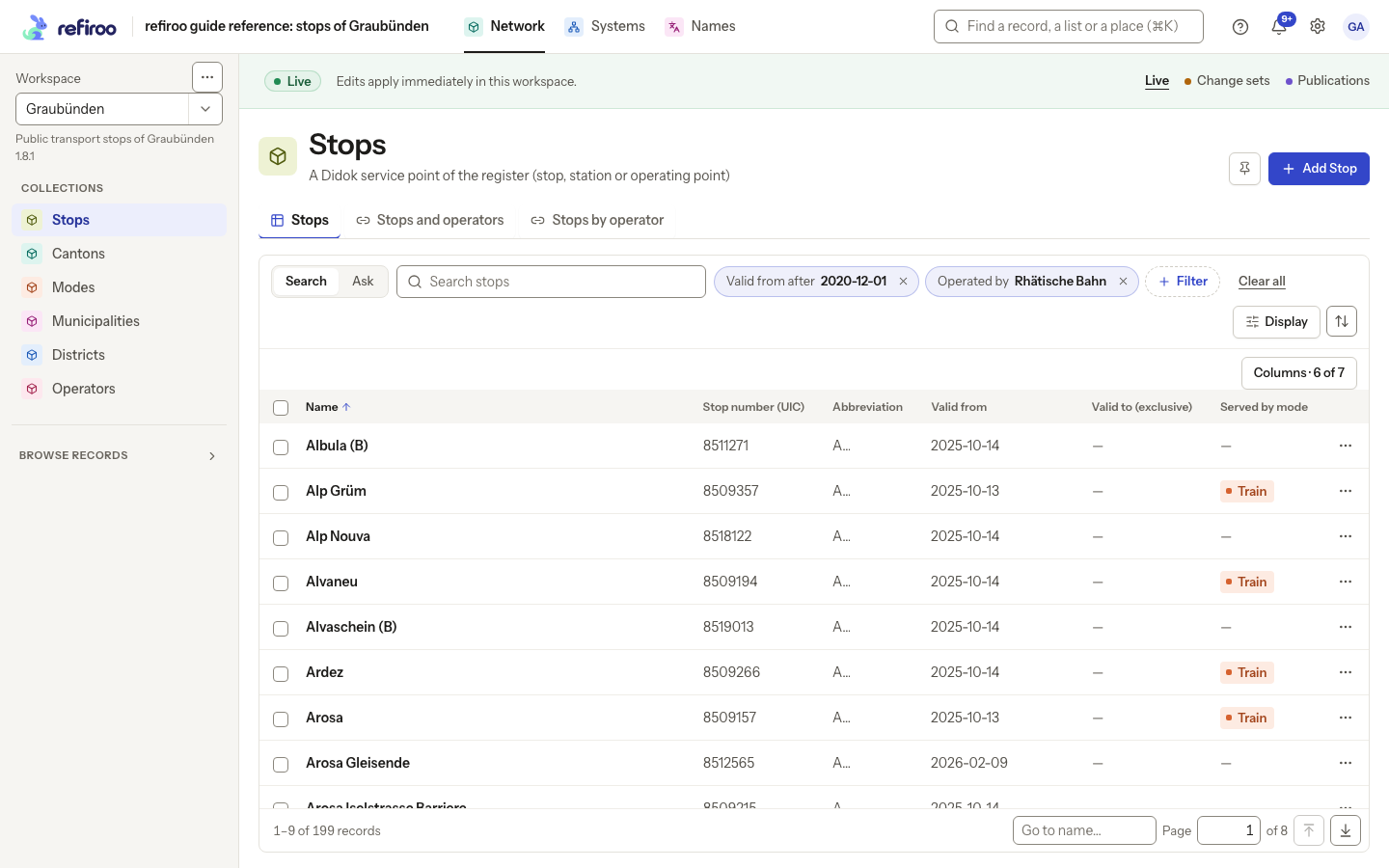
Above: Stops in Network, Graubünden, narrowed by Valid from and Operated by. The footer shows the total for these conditions; the Served by mode column shows each stop’s modes as chips.
Search matches names and fields the model makes searchable. It works together with filters; a record must match the search and the applied conditions. + Filter groups the fields and relationships offered by this view. Its search finds a field in a long menu. Each active condition appears as a pill: open it to change it, or use × to remove it. Clear all removes the filters. When both search and filters are active, Clear search and filters removes both.
Text can be compared exactly, by containing text or by its beginning. Numbers and dates offer comparisons and ranges; Yes/No fields offer the two values. More holds further conditions. A missing optional value differs from a stored empty value. A range can show separate lower and upper conditions; check both pills if a record is unexpectedly excluded.
A relationship filter can mean Is any of the records ticked, Has none, or Has any. Has any under and Has none under use one ancestor and consider related records at any depth below it. Candidate restrictions set by the model can narrow the records offered. In Live, Created and Updated filter when a record was made or last changed. They are different from its business validity dates. The browser has no control for viewing all data as valid on a chosen business date.
On a phone, the condition editor opens as a sheet. Its Show … button includes the matching count. An empty result says No results match these filters; clear or loosen conditions. An empty collection instead says there are no records in this workspace yet. A failed read is an error: retry it before concluding that nothing matches.
Show or hide inactive records
Section titled “Show or hide inactive records”A table can use a Yes/No field to mark inactive records. When the model chooses Active, a record with No keeps its place in the list, with its name in a quieter colour and a grey Inactive pill after it. If the field has another name, the pill says Not followed by that name in lower case. Only No gets this mark; a missing value does not.
These records are shown by default. Beside Filter, Hide inactive (N) lets you narrow the list by hiding exactly those marked records. Records with no value stay visible. For another field name, the switch says Hide not followed by that name. The number counts records with No in this list after its search and other filters; it is not the total for the workspace. The number is shown even when it is 0. The label can appear without a number while the count is loading or if that count cannot be read.
Turn on the switch to add a filter pill, such as Active: not No. The filter stays in the page address, like your other conditions. Turn the switch off, or remove the pill with ×, to stop applying it. Choosing Yes for the same field in the ordinary + Filter menu is different: that keeps only records with Yes, excluding records with no value. The switch does not use that condition. If a record seems missing, check its filter pill along with your other filters.
The mark does not change editing permissions. Where you may edit, change the value in its cell or on the record as usual. A change set or publication uses its own values for the same mark and switch; a publication remains read-only. A table without this model setting has neither the mark nor the switch. See Records for editing and Find records for narrowing a list.
Sort and show columns
Section titled “Sort and show columns”There is one sort at a time. Choose it from the sort menu or a sortable heading, then choose Ascending or Descending. Without another selected order the usual order is by name; a view can declare its initial sort. Missing field values come last, including when a list contains types without that field. Structured fields and computed paths do not sort. Created and updated times are not available where that context has no recorded timestamps.
Display chooses the shown columns and table density. Resizing a column changes how much fits. The name column stays whole; columns that do not fit fold behind Columns · n of m. Choose it to show all columns, scrolling sideways if needed. Other values stay on one line; an ellipsis marks a cut value. Hover, focus or long press to read it in full. A related-record column shows coloured chips and +N more when some do not fit. That count is not a button: widen the column or open the record to see all its connections. A column with at most one related record can sort by its name. Multi-record columns and columns showing a related record’s field do not sort; use a relationship filter to narrow them.
Long lists and saved position
Section titled “Long lists and saved position”The rows scroll inside the table while its headings and footer remain visible. The footer shows the current range and total, page entry and start/end controls. Where available, Go to seeks a value in the selected sort. The address keeps your search, filters, sort and position, including when you return using ← and the list’s name above a record’s title. These controls also work in change sets and publications.
Only visible and nearby rows are drawn. The browser’s Find command searches those drawn rows; use the collection’s own search to find a record anywhere in it. A later page can fail independently: use its retry action and keep your conditions.
For actions on the results, see Changing many records. An export keeps the collection’s supported filters and columns, but does not include its text search; see Importing and exporting.
Display details and limits
Section titled “Display details and limits”In Display, the identity column is fixed and marked (record identity). Other columns have checkboxes. Density offers Default, Comfortable and Compact; Per page offers 10, 20, 50, 100 and the view’s default where applicable. Column width offers Narrow, Wide and Reset display. Choices stay on this device per view; rows per page stays in the address too. Created/updated stamps are filters in Live rather than default table columns.
Not set, Cleared and Empty text distinguish missing, stored null and empty text. Related-record chips open those records. Opening a record can take you to the application where it belongs, even if its type was listed in the application you started from. On phones, Show all … columns and Show fewer columns control extra columns. Selecting text does not open or edit a row. Full-text popups close with Escape.
There are no named saved searches, saved filters or saved views. Keep the page address instead. There is no multi-column sort, grouping or aggregation in the list, and no cross-collection search page. Find any record in the top bar searches record names across the workspace; a collection’s search stays within that collection. See Appearance and devices for local keyboard commands.
Open, edit and recover a result
Section titled “Open, edit and recover a result”Choose a row to open its record; a related-record chip opens that connected record instead. The record heading takes focus when the page opens. Choose ← and the list’s name above the title to return to the saved conditions and position. A failed panel can be retried without clearing the rest of the record. For field and relationship edits from table cells, see Records. To select results for an action, see Changing many records.
Numeric zero and No are actual values, not missing fields. Use the field’s missing-value condition when looking for records without a value. A view can offer several record types; its search covers those types, rather than every collection in the application.
Related values in columns
Section titled “Related values in columns”A related-record column can show the connected records’ names, one of their fields, or a field from an ancestor above them. The model chooses this presentation. A column showing a related field does not sort. When a single-record column sorts by name, records without a connection come last. These columns do not themselves offer filters; use the relationship conditions in + Filter when the view declares them. Hiding a related-record column in Display also stops reading its connections for that column.
Relationship chips follow the data context you are reading, including a change set or a publication. The filter pill keeps the names of your chosen related records after a reload. A Yes/No filter applies when you choose the value; other editors can require their apply action.
The sidebar scrolls independently of the table. Both short and long collections keep their header and footer in view; the table fills the available height even with only a few records.
Ask for filters in words
Section titled “Ask for filters in words”Where Ask is offered beside Search, you can describe the records you want and review the ordinary filters the answer becomes. A partial answer waits for your acceptance. See Asking a list in words and its step-by-step guide. Your question and list definitions go to the provider; short related lists can include names. Calls can incur costs and are recorded: read AI and your data before sending.