Change a model with the assistant
Use this task to change the structure of an active workspace from words. Read Model changes with the assistant for permissions and the two ways records can move. You need the assistant enabled, permission to send the data it needs, and the rights to author, install and release the model and work in change sets.
Your words, the model and any whole workbook you attach go to Claude Code; it can read workspace records as needed. Turns can cost money, and tasks, files and session transcripts are kept for the configured retention periods. About AI in refiroo explains access, costs and retention in full. Check your organisation’s policy before sending a file.
Describe and review
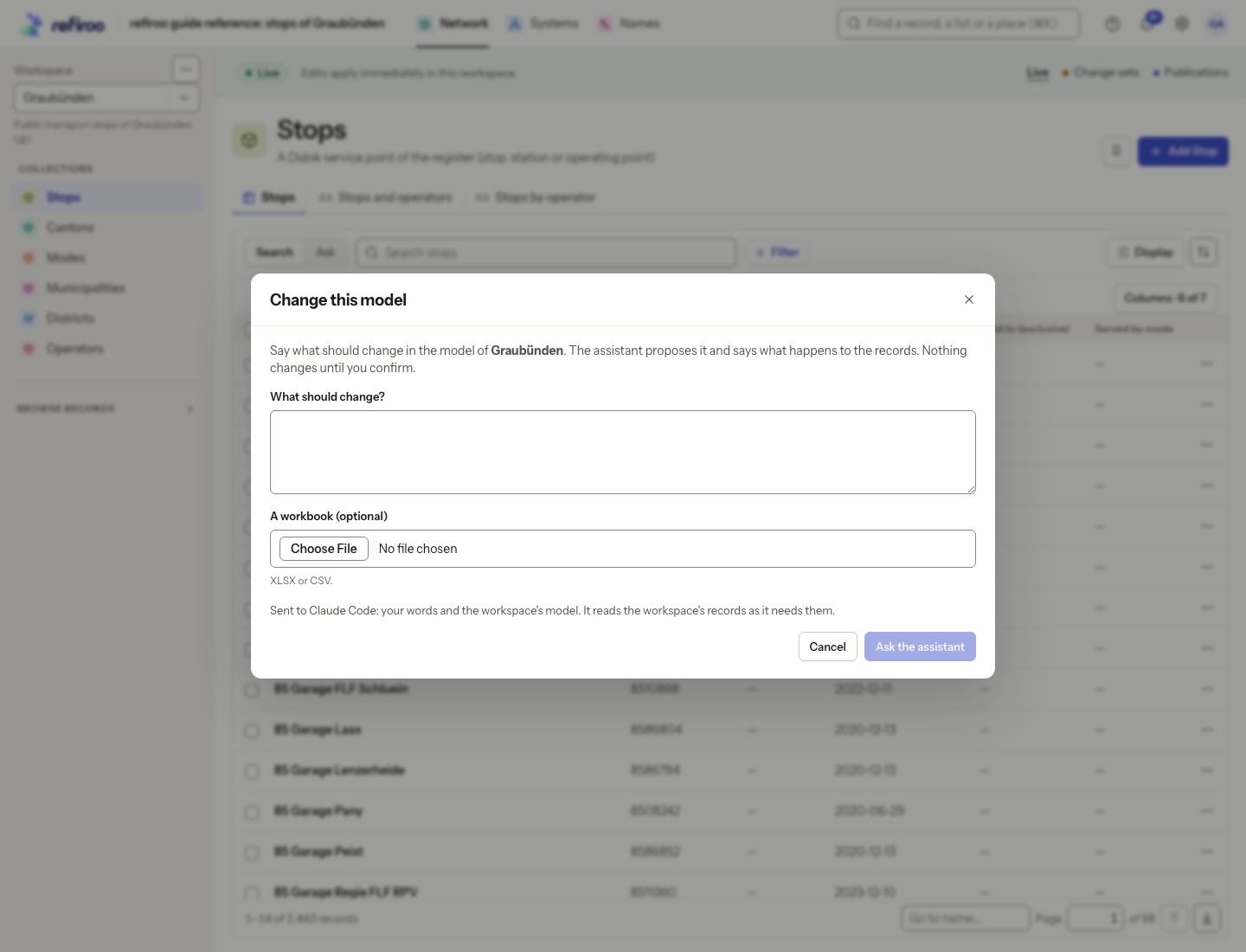
Section titled “Describe and review”- Open the intended workspace. Open its ⋯ menu beside the workspace selector and choose Change this model…. Check the workspace named in Change this model.
- Enter What should change?. Say which types or fields change and what should happen to existing records. The field allows up to 4,000 characters. Use A workbook (optional) to attach an XLSX or CSV file when it helps explain the change.
- Read the disclosure of what is sent. Choose Ask the assistant, or Cancel to leave without starting a task. Wait on the task page; Stop pauses the work without discarding the task. Before a proposal exists, the journey bar and trail say Change with the assistant for a task without a workbook. They become Change this model when the proposal changes the model, or Change records when it leaves the model unchanged. For words alone, the task heading gets a short title with the assistant’s first answer; any draft it makes is named Assistant: followed by that title. Your full instructions stay under You said: on the proposal. Until the title arrives, including after a stop or failure before an answer, the heading uses your words, shortened at a word boundary with “…” if needed. With a workbook, the heading keeps the file name.
- Read The assistant’s proposal. Check every type it adds or changes, Checks, questions and the records that move. For a whole-type move, check both the destination type and the number of records. Open Show the model change. No type, attribute or relationship changes does not mean the draft is unchanged: it can still change views or layout. Use Open in the model editor to inspect those changes. A task without a workbook or a model draft instead says No change to the model. Do not accept merely because the summary sounds plausible.
- Answer questions and use Tell the assistant what to change for corrections. Choose Open in the model editor to inspect or edit the draft directly. Return to the task; the assistant rereads the draft when it continues. For a workbook proposal, inspect What the load does, open each type’s row for examples with source cells, and read any repeated-name finding. A draft changed after that check is checked again before loading.
- For a model-only change or a record move, choose Accept the model only when the proposed structure and treatment of records are right. Accept the model in the journey bar takes you to the page’s acceptance button; choose that button to confirm. A workbook load showing What the load does uses Accept and load to change set: the engine installs a changed model and loads exactly the checked records and relationships into a change set as one batch, without another assistant turn. It does not activate or publish. Follow Review the assistant’s workbook design for loading, refusals and publication. Discard this proposal removes the proposal and its draft instead. Close keeps the proposal for later.
Example: a model for transport stops might split a general stop type by a field that distinguishes bus and rail stops. The instruction should say whether the old type remains and which values select each new type. These choices belong to the model, not to a built-in transport feature.
Finish a model-only change or a whole-type move
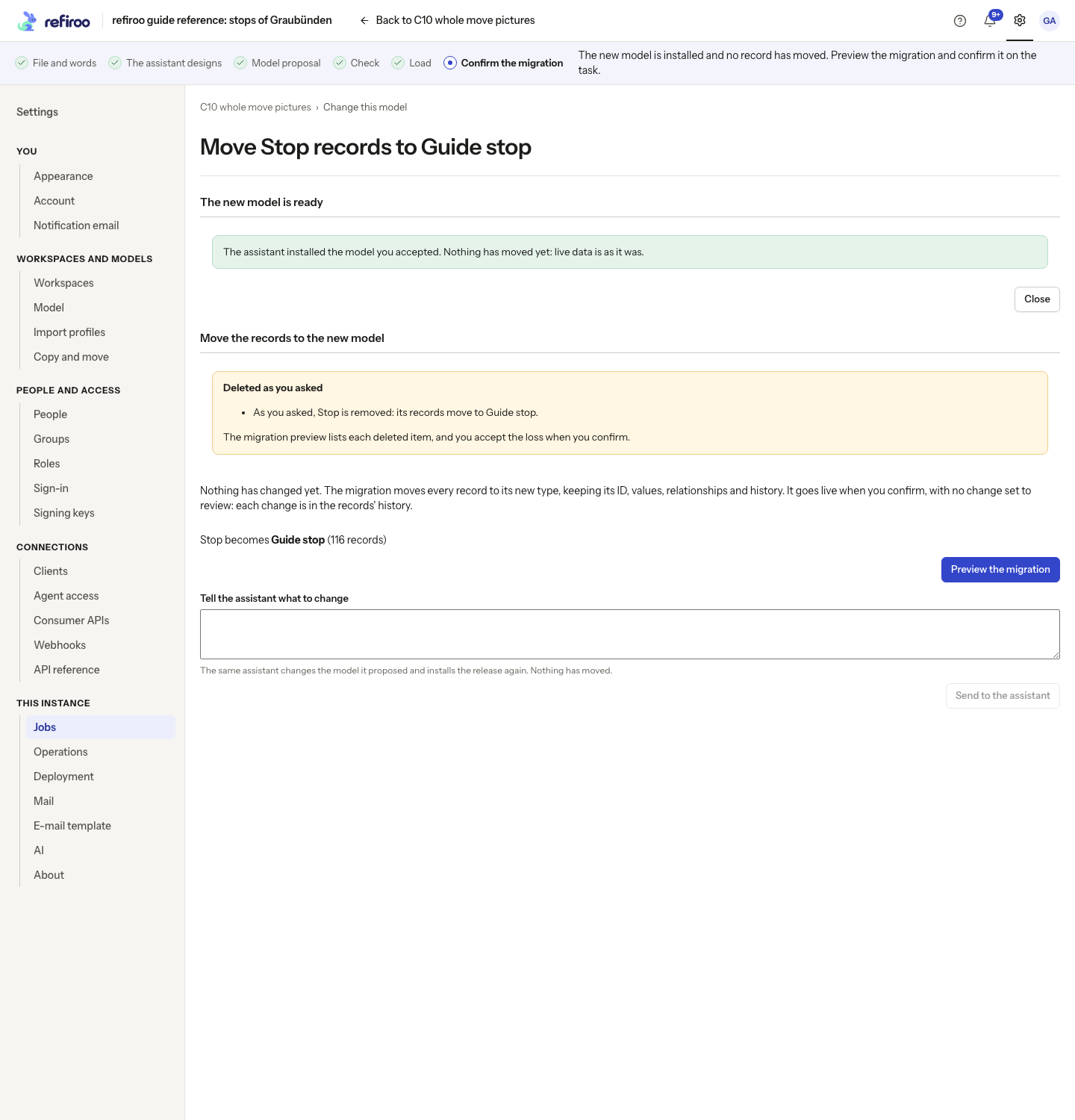
Section titled “Finish a model-only change or a whole-type move”When only the model changes, such as adding a view, acceptance installs a release and prepares a migration that moves no type. Preview and confirm it as below to put the workspace on the new model. No change set is created and every record stays as it is.
Whatever you ask the assistant to reshape, all your data comes through: every record, value, relationship and translation. The only exception is what your own words explicitly ask to remove. The assistant lists that removal with your words, and the proposal states it in plain words with the engine’s counts before you accept, for example “As you asked, the Drug list is deleted, deleting 16 records.” If the change would lose anything else, the assistant does not offer it: the task ends with a note naming what would be lost per type, and nothing is changed.
- For a whole-type move, review the list under Move the records to the new model of what becomes what, or which application each type moves to when its key stays. The migration takes what the draft changes against the workspace’s model, together with the moves the assistant named. For a model-only change, there are no type moves to review. Accepting has installed a release; nothing has moved yet.
- Choose Preview the migration. The migration page opens with the assistant’s type choices. Follow Migrate a workspace to inspect converted, removed and blocked items. Back to the proposal returns to the task.
- If a mapping is wrong or the engine refuses it, return to the task and use Tell the assistant what to change. The assistant can revise the model before confirmation.
- Confirm only the reviewed migration, with Model release in this workspace. This changes live records and the running release together. There is no change set or separate change-set approval for this path. Return to the task to see that the workspace runs the new model.
Finish a partial move
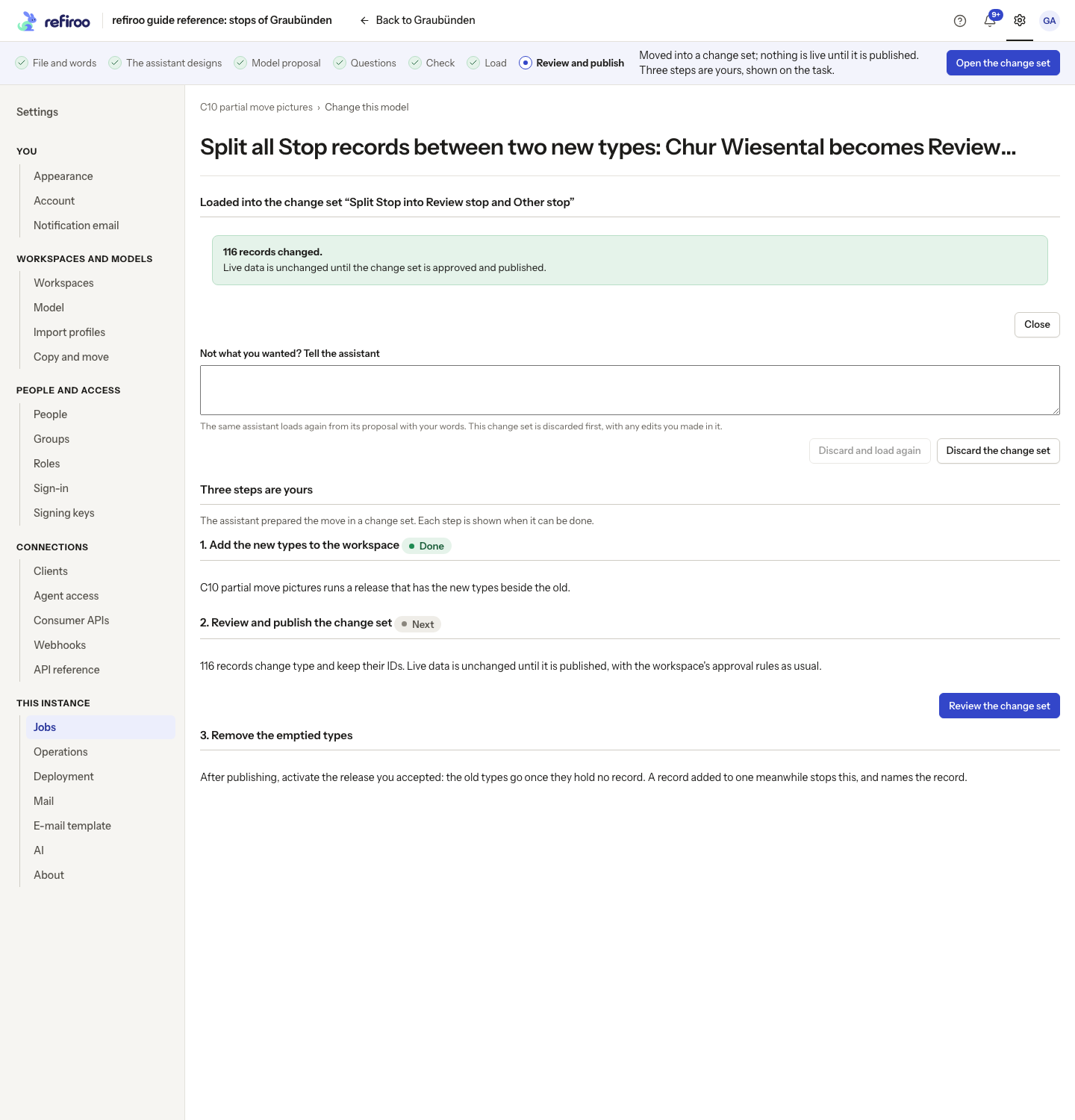
Section titled “Finish a partial move”Before accepting, read how the proposal moves the selected records and what acceptance prepares: a release with the old types beside the new ones, a change set that moves the records, and the final release that removes the emptied types. The removal note names the record moves and their destination types; removing the emptied types does not delete those records. You do not need to prepare the releases or move the records by hand.
Choose Accept the model when this matches your request. Once preparation finishes, the task links the releases and change set under Three steps are yours, with Next beside the available step.
- Under 1. Add the new types to the workspace, choose Open the release. Activate the release holding both the old and new shapes in the intended workspace. No records move.
- Return to the task. Under 2. Review and publish the change set, choose Review the change set. Inspect its record changes and validation, then submit for approval and publish according to the workspace’s rules. Publication moves the selected records.
- Return to the task. Under 3. Remove the emptied types, choose Open the release and activate the final release. This removes the old types only when they are empty. If new records were added to one meanwhile, resolve them and check again.
If the accepted model keeps the old types, Two steps are yours omits the removal step. Someone without Model release is told that a holder of that right must activate the release. A split of thousands of top-level records can take time; avoid starting a duplicate task while it is working.
If you cannot continue
Section titled “If you cannot continue”Read the reason on the task. A refused migration or next activation is also reported there. Tell the assistant how to correct the proposal; an explanation cannot waive an engine rule. After a failure, Try again as it was continues without a new instruction. A stopped task can Go on as it was. See Stop, correct or discard for what is kept or removed at each stage.
If an action disappears because your permissions changed, ask an administrator to restore the needed right or give the task link to the person named by the page. An expired or missing task leads back to the workspaces; start a new task if its proposal is no longer kept. A confirmed migration has no automatic undo; inspect its history before planning a further model change.