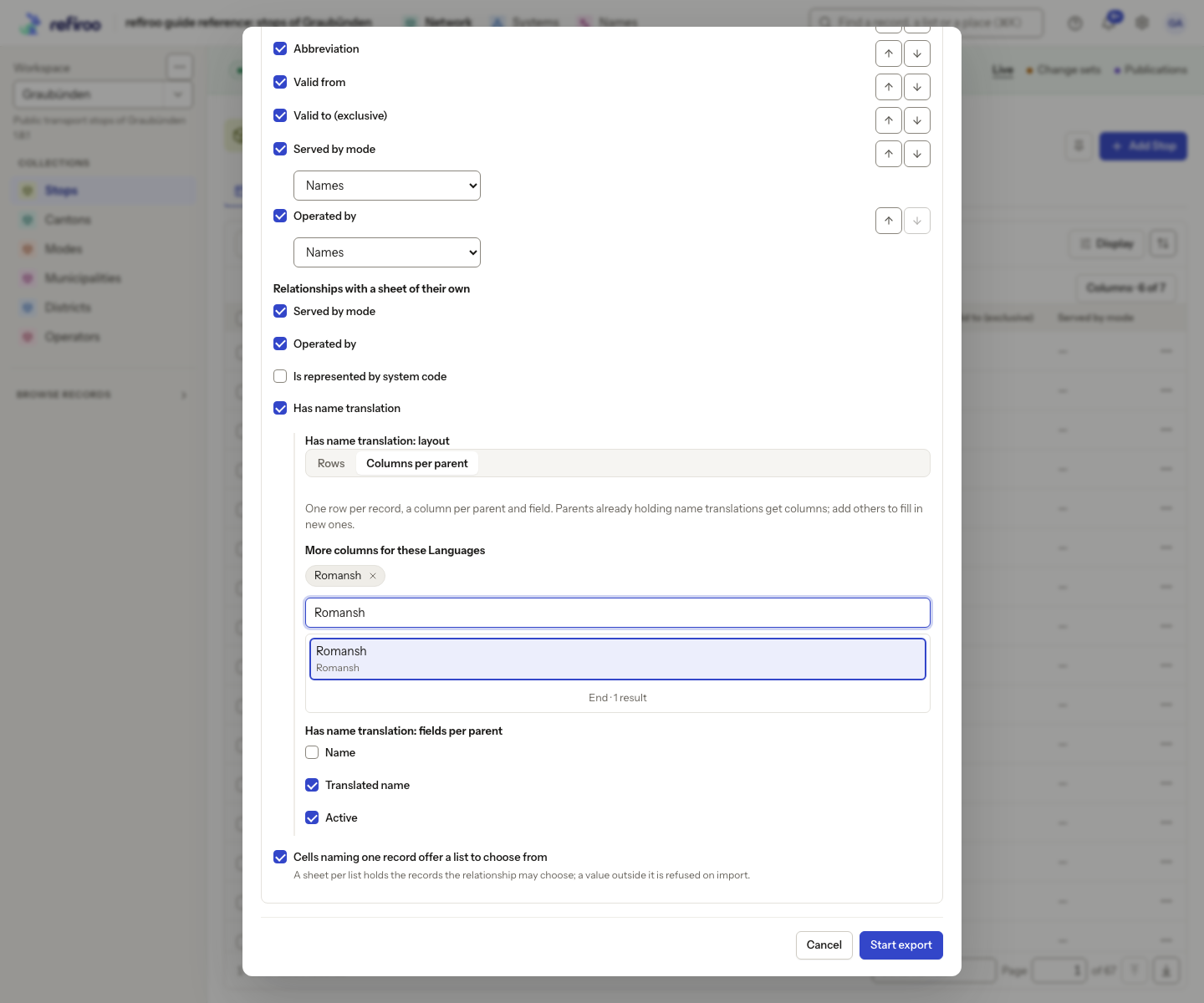
Add a language with a workbook
Fill in records that belong to each exported row, arranged as columns beneath chosen parents. This works for any model declaring that ownership and placement; languages are one example. Read Importing and exporting.
- Open the owner records’ collection. Choose Workspace actions › Export and For editing in a spreadsheet.
- Open Advanced: columns and sheets. Select the owned-record relationship and choose Columns per parent for its layout. Choose the fields to fill.
- Under More columns for these …, search for and select the additional parent records. Existing parents arrive automatically; added parents contribute empty columns. The parent must already be available to the model and workspace.
- Choose Start export, then download the completed workbook. Check each column heading: it identifies the parent and any higher level used to distinguish it.
- Fill the empty cells for the intended rows. Each filled owned-record entry becomes a record under that column’s parent, connected to its row’s owner. Leave cells blank where you want no addition; blank cells do not remove existing ordinary values.
- Import with Profile: None. Check the Read as exported … preview, creations and refused cells, then choose Load the file. Review the actual results and, if working in a change set, publish through the usual review process.
Example: in the reference data, a parent groups stop names in a language. Adding that parent as columns lets a steward fill names for the exported stops. This layout comes from ownership and hierarchy rules, rather than a special language feature.
If the workbook would exceed Excel’s 16,384 columns, the export job fails. Choose fewer parents or fields and export again. If a cell summarises several owned records, edit their sheet instead.