Manage a group
Use a group when several people need the same roles. You need Security administration. See People and groups for how local and provider groups differ.
Create a local group
Section titled “Create a local group”- Open Settings › People and access › Groups. Use Search groups (Group name) first to see whether the intended group already exists. Open a result’s row to manage it on its own page, or choose New group to create one. ← Groups returns to the list.
- Enter Name and Description (optional). The description can explain who belongs and why. If a Members choice is offered, choose Added here for membership managed in refiroo.
- Choose Add group. The group opens with its roles and members. Cancel closes without creating it. If saving fails, read Not saved, correct the problem and retry.
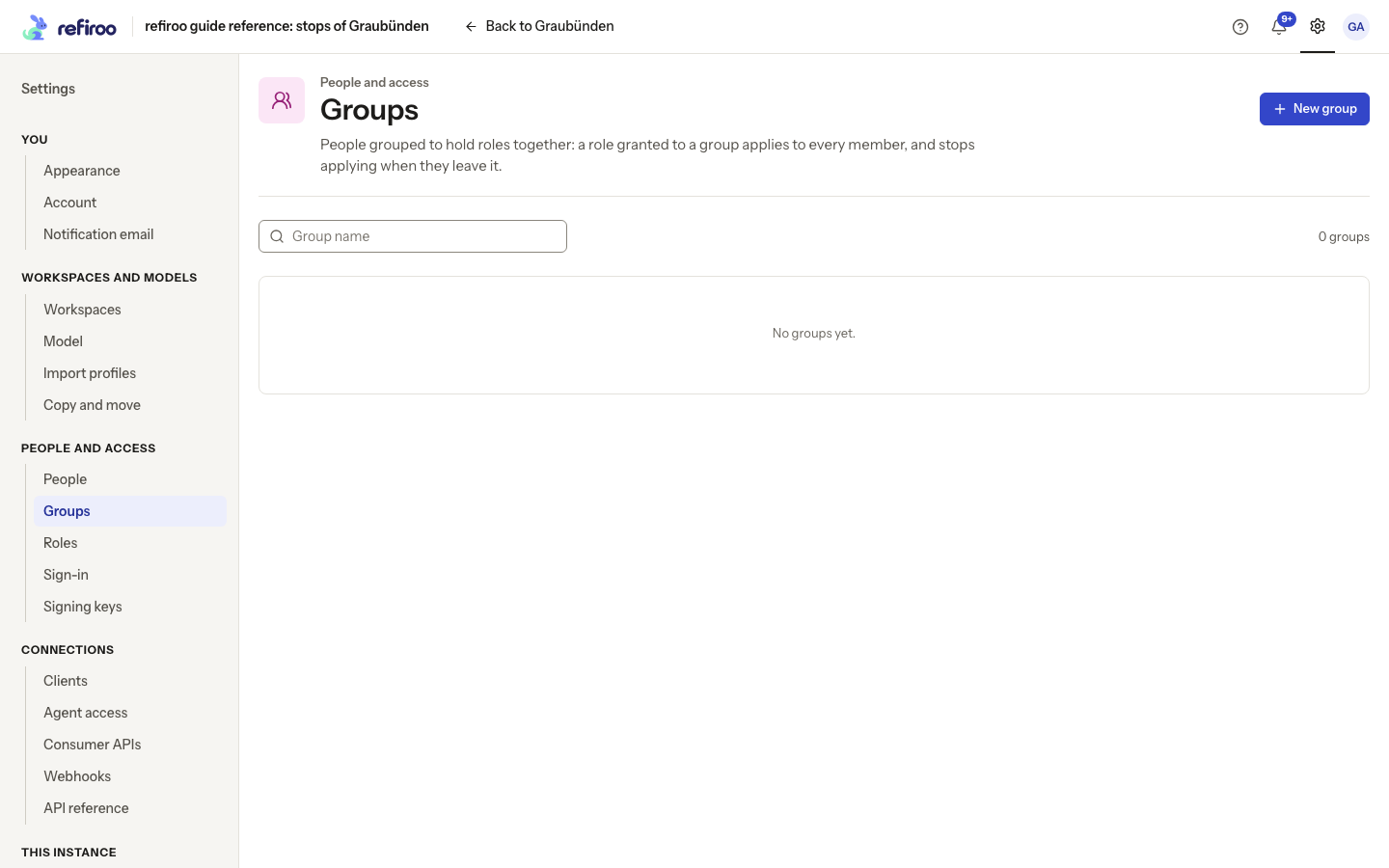
Above: the reference instance has no groups yet.
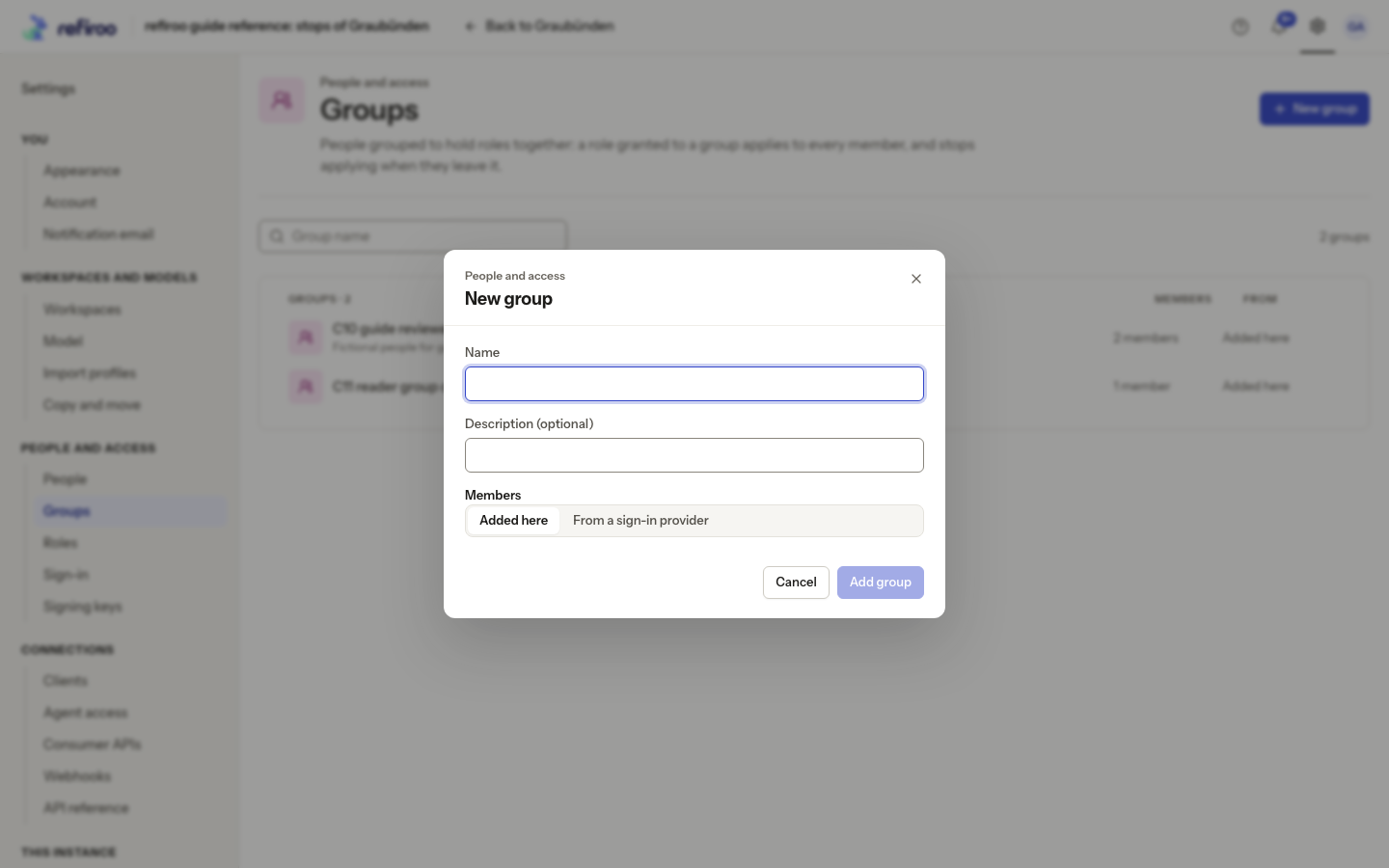
Above: no provider supplies groups on the reference instance, so the dialog shows the local fields only.
Add people and shared roles
Section titled “Add people and shared roles”- On the group’s page choose Add members. In Search and tick, search by name or e-mail and tick the intended people. Already-present and deactivated people cannot be selected for addition.
- For a longer list, choose Paste a list. Enter E-mail addresses, one per line or separated by commas or semicolons, up to 500. Choose Check the list (or Check … lines when a count appears). Review the results before adding. Resolve unmatched or ambiguous entries rather than choosing someone by guesswork.
- Review the selected people and choose Add members, or the button showing the number to add. Check the resulting Members list and success message. A person deactivated while the dialog was open can be left out; read the reported count.
- Choose Grant in the group’s roles section. Follow Grant a role to select roles and workspaces. Every member receives that source of access; adding members alone grants nothing if the group has no roles.
- Open a member’s People page to check that the role appears as coming through this group. The access applies on their next request; they do not need a new account.
Change or remove membership
Section titled “Change or remove membership”- Find the group by name and open its row. Select its name or description where it stands, edit it, then leave the field or press Enter to save. Escape puts the old text back; an unchanged input saves nothing. The save notice offers Undo. If refused, read the reason under the input, then correct it and choose Save again, or Cancel to abandon the edit. This does not change who belongs or the group’s grants.
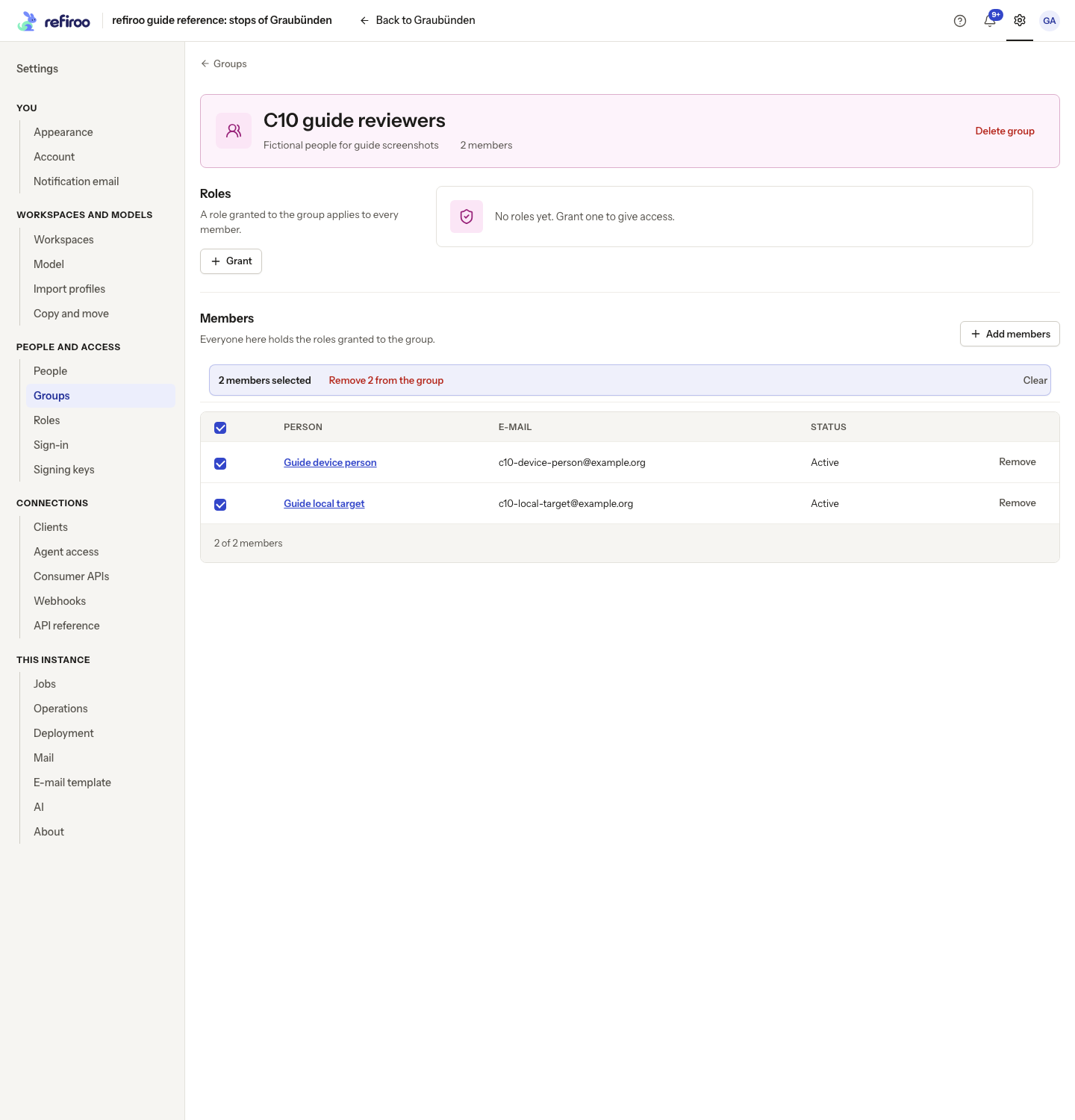
- To remove a local member, use their row’s Remove. For several, tick their rows, or use Select every member shown, and choose Remove … from the group. Clear clears the selection without removing anyone. Check the resulting list. Their direct roles and roles from other groups remain.
- To remove the whole group, choose Delete group and read the confirmation. Confirm Delete group only if its memberships and all its grants should be removed. The people remain and keep their direct grants.
A change that would leave no active person holding Security administration is refused, including a grant through this group. Removing several members is all-or-nothing: if one removal would lose the last administrator, none of the selected members is removed. Establish another administrator before removing that membership or deleting that group. If details changed while you were working, reload and review the current members and grants before retrying.
Use a provider group
Section titled “Use a provider group”When a configured sign-in provider supplies groups, New group offers From a sign-in provider. Choose it, select Provider and enter Claim value exactly as supplied by the sign-in administrator. This is the provider’s group identifier, which need not be its readable name. Create the group and grant roles before anyone signs in if access must be ready on their first visit.
A provider group’s page shows Members seen. Membership is updated at each person’s provider sign-in; people who have not signed in are absent from this list. Make membership changes in the provider, not with local Add or Remove controls. The group name can be made readable in refiroo without changing the provider’s identifier.
For a provider group, Members seen can be empty even when the provider has members who have not signed in yet. Its roles can already be granted. Local group deletion and bulk removal do not change membership at the provider.